Skip to content
Chair & Cable

SECTION 05 · Cable Management

How to Run Two Computers at One Desk

A work laptop and a personal desktop should not need two keyboards, two mice and two screens. There are four ways to share one setup, and they cost between nothing and a few hundred dollars.

By Stephen V.Updated How we pick
#ad

We earn a commission when you buy through our Amazon links, at no extra cost to you. It never affects our rankings, and we say so when the cheaper product is the better buy. How this works.

If you want one button that moves your screens, keyboard and mouse together, buy a KVM: the UGREEN HDMI KVM switch handles two computers across two monitors at 4K 60 Hz each and passes USB peripherals through, which is the configuration most two-machine desks actually need. If your two computers already have their own screens and you only want to share the keyboard and mouse, a plain USB switch does it for a fraction of the price.

Start by being precise about what you are trying to share, because the four options below are not substitutes for one another. There are three separate things on your desk: displays, USB peripherals, and audio. A KVM moves all three. A USB switch moves only the second. Your monitor’s input button moves only the first. Picking the wrong one is how people end up with a switch that leaves half the desk pointing at the wrong machine.

Option 1: the monitor’s own inputs (free)

Nearly every modern monitor has two or more inputs. Plug computer A into HDMI 1 and computer B into HDMI 2 or DisplayPort, and switch sources from the monitor’s own menu or button.

This costs nothing and it is the right answer more often than people expect — particularly if one of the machines is a laptop you use with its own keyboard anyway. Two limitations: the keyboard and mouse stay with whichever machine they are plugged into, and input switching on a monitor’s OSD is usually three button presses rather than one.

The upgrade on this theme is a monitor with a built-in KVM, which several business panels now have: two video inputs plus a USB-B upstream per input, so the monitor moves the peripherals when you change source. Several screens in our USB-C monitor roundup have exactly that, and it is the tidiest solution of all if you are buying a screen anyway.

Option 2: a USB switch (cheap)

A USB sharing switch has one set of peripheral ports and two host cables. Press the button and your keyboard, mouse and anything else plugged into it change computers. It never touches video.

This is the correct choice when both machines already drive their own displays — a desktop on the monitor and a laptop open beside it, say — and what you actually want is to stop having two keyboards on the desk. Combine it with the monitor’s own input button and you have a poor man’s KVM for under thirty dollars, at the cost of pressing two buttons.

Option 3: a KVM switch (one button, everything)

A KVM — keyboard, video, mouse — takes both computers’ video outputs and both USB connections, and switches the lot in one action. On a dual-monitor desk, a two-monitor KVM moves both screens at once, which is the thing nothing else on this page does.

Three specs decide whether a KVM will work for you. Resolution and refresh per display— a 4K 60 Hz rating per output is the common good standard, and anything above that needs checking carefully. Number of hosts — two is standard, four exists. What the USB passthrough actually supports— a keyboard and mouse always, a webcam or an audio interface not always, because some KVMs emulate only HID devices.

Our KVM switch roundup ranks the category properly, and docking station versus KVM switch is the comparison to read if you are unsure which device you are shopping for.

Option 4: a dock per machine (for two laptops)

If both machines are laptops, the alternative to a KVM is a dock with a single USB-C cable, and you move that one cable between the two laptops. One connector, four seconds, and no video path to get wrong. It is less elegant than a button but it has no resolution limits beyond the dock’s own, and a dock does things a KVM does not: ethernet, charging and a long port list.

For a desktop plus a laptop, this does not work, because the desktop cannot be docked. That combination is the clearest case for a KVM. The dual-monitor dock roundup and the Thunderbolt dock roundup cover the dock options.

The details people get caught by

Audio does not always follow. Many KVMs pass audio embedded in HDMI, so sound goes to the monitor, not to your desk speakers. If you use powered speakers or a USB headset, check whether the switch carries them - a USB headset usually follows the USB passthrough, an analogue speaker pair usually does not.

Cable count triples. A two-computer, two-monitor KVM needs two video cables per computer in, two out to the monitors, two USB host cables, and a power supply. That is a bundle, and it is why a tray and a proper cable plan belong in the same order as the switch.

Hotkeys beat buttons.A switch on the desk is fine; a switch behind the monitors is not. Check for a wired remote or keyboard hotkey switching before you buy, and note that hotkey switching needs the keyboard to be on the KVM’s own passthrough.

Cable quality decides the top resolutions. A KVM rated for 4K 60 Hz needs cables that can carry it on both sides. DisplayPort versus HDMI covers which standard carries what, and a certified cable is the cheapest fix for a link that drops out.

Which to buy, in one line each

One monitor, two machines, and you do not mind two button presses: use the monitor’s inputs and add a USB switch. Two monitors and one machine needing all of them: a dual-monitor KVM. Two laptops: a dock and move the cable. Three or four machines: a four-host KVM. Buying a monitor anyway: get one with a built-in KVM and buy nothing else.

The short answer

Quick picks

#ProductBest forScorePrice
01
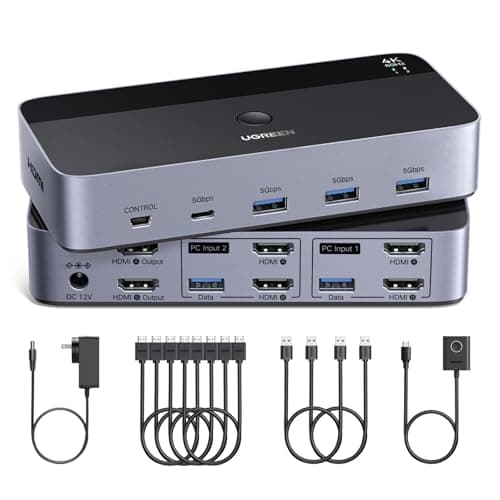
UGREEN UGREEN HDMI KVM Switch (2 Monitors, 2 PCs, 4K60)
UGREEN HDMI KVM Switch (2 Monitors, 2 PCs, 4K60)

The default answer for a two-machine, two-monitor desk. It carries 4K at 60 Hz across both screens and passes USB peripherals, so one press moves the whole setup rather than half of it.

Two computers, two monitors
9.1
$69.99Amazon
02
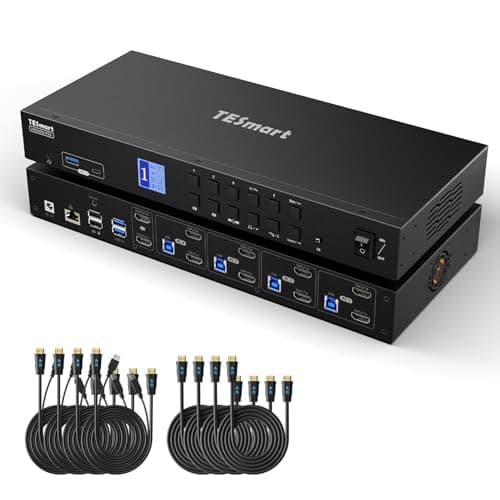
TESmart TESmart HDMI KVM Switch (4 PCs, 2 Monitors)
TESmart HDMI KVM Switch (4 PCs, 2 Monitors)

The same idea with twice the hosts. Four computers onto the same two screens, with front buttons, keyboard hotkeys and a remote, which is the pick once a work laptop, a personal desktop and a test machine all live at one desk.

Three or four machines
8.9
$425.03Amazon
03
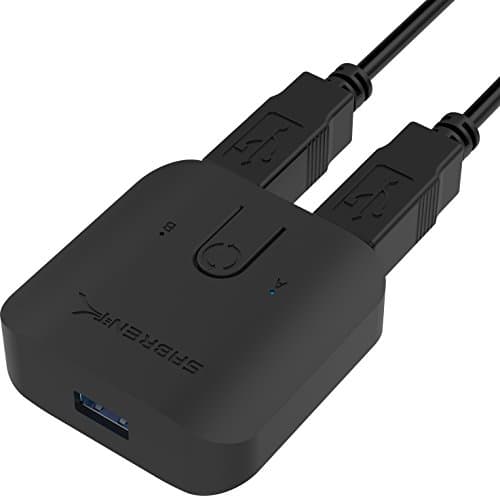
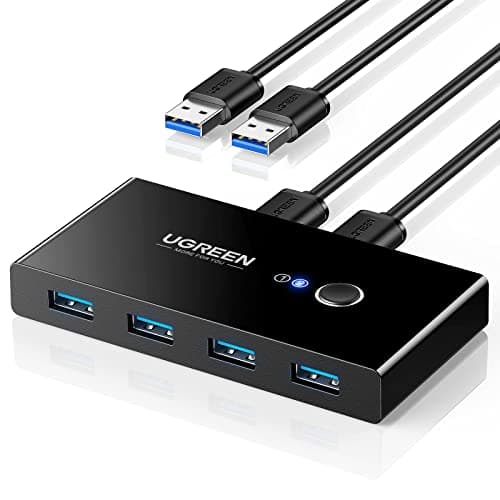
UGREEN UGREEN USB 3.0 Switch Selector
UGREEN USB 3.0 Switch Selector

The cheap half-solution that is often the right one. A one-button USB 3.0 selector that flips a shared keyboard, mouse or drive between two computers. Pair it with your monitor's own input button and you have most of a KVM for very little.

Sharing peripherals only
7.2
$29.99Amazon
04
Sabrent Sabrent USB 3.0 Sharing Switch
Sabrent USB 3.0 Sharing Switch

The same job as the UGREEN selector from a different maker, and worth knowing about as an alternative if one is out of stock. Shares USB peripherals between two computers, with no video involvement at all.

A second peripheral-only option
7.0
$14.99Amazon

#ad · Live prices from the Amazon Product API, as of October 5, 2026. Where we have no verified live price we show none — we would rather leave a gap than print a number that has rotted.

In detail

The picks, in full

01
UGREEN UGREEN HDMI KVM Switch (2 Monitors, 2 PCs, 4K60)

Two computers, two monitors

UGREEN HDMI KVM Switch (2 Monitors, 2 PCs, 4K60)

Type
Dual-monitor HDMI KVM
Computers
2 PCs
Displays
2 monitors (HDMI)
Max resolution
4K at 60Hz per display
Switching
Button and wired remote; USB peripheral passthrough
9.1/10

The default answer for a two-machine, two-monitor desk. It carries 4K at 60 Hz across both screens and passes USB peripherals, so one press moves the whole setup rather than half of it.

Switch Scope
9.4
Resolution Support
9
Ease of Switching
9.2
Value
8.6

Pros

  • Moves both screens and the peripherals in one action
  • 4K 60 Hz per display, which is the right standard for work screens
  • Wired remote means the button can sit on the desk, not behind the monitors
  • USB passthrough covers a keyboard, mouse and a hub

Cons

  • Tops out at two computers
  • HDMI only - a DisplayPort-only graphics output needs an adapter
  • Doubles your cable count under the desk

Skip this if…

…you need to switch three or more computers - this tops out at two.

$69.99View on Amazon

$79.9913% off

Price as of October 5, 2026. Prices change — Amazon's is the one that counts.

#ad · we may earn a commission from this link to UGREEN HDMI KVM Switch (2 Monitors, 2 PCs, 4K60)

02
TESmart TESmart HDMI KVM Switch (4 PCs, 2 Monitors)

Three or four machines

TESmart HDMI KVM Switch (4 PCs, 2 Monitors)

Type
Dual-monitor HDMI KVM
Computers
4 PCs
Displays
2 monitors (HDMI)
Max resolution
4K at 60Hz per display
Switching
Front buttons, hotkeys, and remote; USB passthrough
8.9/10

The same idea with twice the hosts. Four computers onto the same two screens, with front buttons, keyboard hotkeys and a remote, which is the pick once a work laptop, a personal desktop and a test machine all live at one desk.

Switch Scope
9.6
Resolution Support
9
Ease of Switching
9
Value
7.8

Pros

  • Four hosts, which almost nothing else at this price offers
  • Three ways to switch, including keyboard hotkeys
  • Same 4K 60 Hz per display as the two-host unit
  • Front panel buttons are useful when a host misbehaves

Cons

  • Larger box and a lot more cabling to manage
  • Overkill and more expensive if you only ever run two machines
  • HDMI only

Skip this if…

…you only ever run two computers - a two-input KVM is smaller and cheaper for the same job.

$425.03View on Amazon

$461.998% off

Price as of October 5, 2026. Prices change — Amazon's is the one that counts.

#ad · we may earn a commission from this link to TESmart HDMI KVM Switch (4 PCs, 2 Monitors)

03
UGREEN UGREEN USB 3.0 Switch Selector

Sharing peripherals only

UGREEN USB 3.0 Switch Selector

Type
USB peripheral sharing switch (not a video KVM)
Computers
2 computers
Video
None - shares USB peripherals only
Ports
Shared USB 3.0 ports
Switching
One-button selector
7.2/10

The cheap half-solution that is often the right one. A one-button USB 3.0 selector that flips a shared keyboard, mouse or drive between two computers. Pair it with your monitor's own input button and you have most of a KVM for very little.

Switch Scope
5.5
Resolution Support
5
Ease of Switching
8.6
Value
9.8

Pros

  • Lowest cost route to one keyboard and one mouse across two machines
  • No video path, so nothing to get wrong about resolution or refresh
  • Small enough to sit on the desk where the button belongs
  • Works with a desktop and a laptop equally well

Cons

  • Never touches your displays - you still switch those separately
  • Two button presses instead of one
  • USB 3.0 ports only; no ethernet or charging

Skip this if…

…you expected it to switch your screens - a USB selector never touches the video path.

$29.99View on Amazon

$36.9919% off

Price as of October 5, 2026. Prices change — Amazon's is the one that counts.

#ad · we may earn a commission from this link to UGREEN USB 3.0 Switch Selector

04
Sabrent Sabrent USB 3.0 Sharing Switch

A second peripheral-only option

Sabrent USB 3.0 Sharing Switch

Type
USB peripheral sharing switch (not a video KVM)
Computers
2 computers
Video
None - shares USB peripherals only
Ports
Shared USB 3.0 ports
Switching
One-button switch
7.0/10

The same job as the UGREEN selector from a different maker, and worth knowing about as an alternative if one is out of stock. Shares USB peripherals between two computers, with no video involvement at all.

Switch Scope
5.5
Resolution Support
5
Ease of Switching
8.2
Value
9.4

Pros

  • Simple, cheap and does exactly one thing
  • USB 3.0 speeds, so a shared external drive is usable
  • No drivers or configuration on either host
  • Useful alongside a monitor that already has two inputs

Cons

  • Video stays where it is
  • No remote - the button is on the box
  • Bus-powered designs can struggle with a powered hub downstream

Skip this if…

…you need the switch to move your monitors too - this shares USB peripherals only.

$14.99View on Amazon

Price as of October 5, 2026. Prices change — Amazon's is the one that counts.

#ad · we may earn a commission from this link to Sabrent USB 3.0 Sharing Switch

What each option actually moves

OptionDisplaysKeyboard and mouseAudioCost
Monitor input buttonYesNoVia HDMI to the monitorFree
USB switchNoYesUSB devices onlyLowest
KVM switchYes, one or twoYesUsually embedded in HDMIModerate
Dock, cable movedYesYesYes, through the dockModerate to high
Monitor with built-in KVMYesYesThrough the monitorBundled in the screen

A worked setup: work laptop plus personal desktop

This is the most common pairing, and the one where a KVM earns its money because the desktop cannot be docked. The arrangement that works:

Video. Desktop graphics card to KVM input 1; laptop USB-C to HDMI adapter or dock output to KVM input 2. KVM outputs to both monitors.

Peripherals.Keyboard and mouse into the KVM’s USB passthrough, not into either computer, or hotkey switching will not work.

Audio. Decide this deliberately. A USB headset on the passthrough follows the switch; desk speakers on a 3.5 mm jack do not, and will need either a monitor headphone output or their own switch.

Power and tidiness. The KVM, its power supply and both host cable bundles want to live under the desk on a tray, not on the floor. Put the laptop on a stand beside the monitors so its own screen is at a usable height when you want it, which the laptop desk setup guide covers.

Three failure modes to expect

A display that does not come back after switching. This is usually EDID: when the KVM switches away, the computer stops seeing the monitor and rearranges its windows. KVMs with EDID emulation hold the display identity so the host never notices. If you are seeing shuffled windows, that is the spec to look for.

Peripherals that do not switch.Webcams, audio interfaces and some gaming devices need more than HID passthrough. Check the switch’s stated device support, and keep a webcam plugged into the machine that takes the calls if in doubt.

A resolution that will not hold. Cables first, then the switch. Use a certified cable on both sides, and check the per-display rating rather than the headline one - some switches support 4K 60 Hz on one output and less on the second.
Essentials

The small parts that finish the job

Nothing here changes a pick above, and none of it is a considered purchase. These are the cheap pieces that decide whether the expensive one works properly, and the ones people discover they are missing on the day the big box arrives.

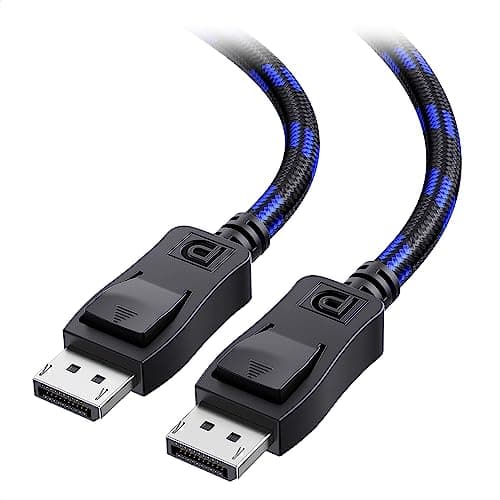
  • Cable Matters VESA-Certified DisplayPort 1.4 Cable, 6 ft

    Cable Matters VESA-Certified DisplayPort 1.4 Cable, 6 ft

    A monitor ships with one cable and it is rarely DisplayPort, so the second screen usually arrives with nothing to plug into. A certified DP 1.4 run is also the first thing worth swapping when a display flickers, drops out, or refuses to hold its refresh rate.

#ad · Live prices from the Amazon Product API, as of October 5, 2026. Where we have no verified live price we show none. We may earn a commission, at no extra cost to you.

How we picked

We do not run a testing lab

We compiled the published manufacturer specifications, did the ergonomics, VESA and desk-depth math ourselves, and read aggregated owner reviews, then scored each product against a published rubric. The scores are judgments from documented research — they are not measurements we took, because we do not have a lab and we are not going to pretend we do. Every spec traces back to a listing or manual named in Sources.

Questions

Frequently asked

How do I use two computers with one monitor, keyboard and mouse?
A KVM switch is the one device that moves all three in a single action. The cheaper alternative is to use the monitor’s own input button for video and a USB sharing switch for the keyboard and mouse, which costs much less and takes two button presses.
What is the difference between a KVM switch and a USB switch?
A KVM switches video as well as USB peripherals. A USB switch only moves the peripherals and never touches your displays. If both your computers already drive their own screens, the USB switch is all you need.
Can I use a docking station instead of a KVM?
Yes, if both machines are laptops: plug the dock’s single USB-C cable into whichever one you are using. It does not work for a desktop, because there is nothing to dock - that is the case for a KVM. There is a fuller comparison in docking station vs KVM switch.
Will a KVM switch my speakers and webcam too?
Sometimes. Audio is often embedded in HDMI and ends up at the monitor rather than at desk speakers. Webcams and audio interfaces need more than basic HID passthrough and are not universally supported - check the specific switch’s stated device support.
Do KVM switches reduce image quality?
A switch rated for your resolution and refresh rate should not. Problems are usually the cables or a rating you have exceeded - check the per-display figure, not just the headline, and use certified cables on both sides.
Is a monitor with a built-in KVM better than a separate box?
It is tidier, with no extra box, power supply or cable bundle, and it is the best option if you are buying a monitor anyway. A separate KVM is the answer when you already own screens you are happy with, or you need more hosts than a monitor supports.

Keep reading

Receipts

Sources

We do not run a testing lab, and we do not pretend to. Specifications come from the manufacturer or retailer listing; the footprint and clearance math is ours and reproducible. Where we could not verify a number, we say so on the page rather than quietly leaving it out. Read our full method.