SECTION 07 · Setup Guides
How to Build a Desk Setup That Actually Works
Skip the wish-list approach. Build your desk setup one component at a time, starting with whatever is holding the rest of it back.
We earn a commission when you buy through our Amazon links, at no extra cost to you. It never affects our rankings, and we say so when the cheaper product is the better buy. How this works.
A desk setup is a system, not a shopping cart. The monitor you pick decides which arm you need; the arm decides how deep the desk has to be; the desk decides how the chair meets your knees; and every one of those choices dumps another cable behind the surface. Treat the parts as one connected thing and each upgrade makes the next one easier. Treat them as isolated purchases and you end up with a gorgeous ultrawide bolted to a wobbly slab, or a flagship chair parked under a desk that is two inches too tall.
This guide is written for the upgrade, not the first build. It assumes you already own the entry-level version of most of this — a decent monitor, some kind of desk, a chair that came with the apartment — and you want to fix the one part that quietly ruins the rest. So before you read a single spec, do the honest thing: start with your biggest weakness.Sit down at your desk the way you actually sit, and notice what you compensate for. Do you crane your neck up or down to read the screen? Does your wrist ache by mid-afternoon? Does the desk shake when you type? Does the whole thing look like a nest of black spaghetti? Whatever you noticed first is where your money should go first — not the flashiest component, the limiting one.
The rest of this guide walks the setup in the rough order the parts depend on each other. Read the section for your weak link, buy well there, and come back for the next one when it starts to bug you. You do not need to do this all at once, and you will get a better result if you do not.
The monitor: the component you stare at all day
The display is the part your eyes are locked onto for eight hours, so it earns the first real look. For desk work the decision is less about the biggest number on the box and more about how much usable, readable space you get at a comfortable distance. A 27-inch panel at 1440p is the modern sweet spot for a single screen — sharp text without the scaling headaches that a 4K 27-inch can bring, and enough room to put two documents side by side. Go larger than that on a single 16:9 panel and you start turning your head instead of your eyes.
That is exactly where an ultrawide earns its keep. A 34-inch 21:9 panel at 3440×1440 gives you the width of a dual-monitor setup with no bezel down the middle, which is a genuinely different feeling once you are used to it — a spreadsheet and a browser live side by side without a black seam splitting your focus. Whether that beats two separate screens depends on how you work, and it is worth reading our ultrawide-vs-dual-monitor breakdown before you commit, because the answer flips depending on whether you value one seamless canvas or two independent full-screen apps.
If most of your day is video calls, shared docs, and email rather than timelines and code, a well-calibrated 27-inch is still the safe money. Prioritize a matte or semi-gloss coating so an office window behind you does not turn the screen into a mirror, a stand or arm that actually reaches eye level, and a webcam-friendly height. Our roundup of the best work-from-home monitors sorts the field by that kind of everyday usefulness, and the best ultrawide monitors covers the wide screens if you have decided the extra width is your weak link.
Two specs decide whether a monitor is pleasant for text work rather than merely capable. Panel type is the first: an IPS panel gives you accurate color and wide viewing angles, which matters the moment a second person leans in or you angle the screen on an arm, while a VA panel trades some of that angle for deeper contrast. For all-day documents and spreadsheets, IPS is the safer default. The second is how resolution and physical size combine into pixel density — a sharp panel keeps small text crisp instead of fuzzy, and if the result is too small you scale it up in software rather than dropping the resolution. A high refresh rate is a pleasant bonus for smooth scrolling, but for office work it ranks well below a matte coating and the right size.
The monitor arm: the cheapest upgrade with the biggest payoff
Almost every included monitor stand does one thing: hold the panel at one fixed, usually too-low height, while eating the deepest part of your desk. An arm fixes both problems at once. It floats the screen so the top edge lands at or just below eye level, pushes it back to a full arm’s length, and clears the entire footprint underneath for a keyboard, a notebook, or nothing at all. For the money, nothing else on the desk changes your posture as directly.
The one number you must check before buying is the VESA pattern— the square of threaded holes on the back of the monitor, standardized at sizes like 75×75 mm and 100×100 mm for desktop panels (see the how we pickpage for how we weight this). Match that to the arm, then check two more things: the arm’s rated weight range, because a heavy ultrawide will droop on an undersized gas spring, and how it clamps. A C-clamp needs a desk edge it can grip; a grommet mount needs a hole (or a spot you are willing to drill). Our guide to the best monitor arms groups picks by weight class and mount type so you are not guessing whether a given arm will actually hold your screen.
The desk: the surface everything else stands on
A desk has one job people forget to check: be deep enough and steady enough for the monitor you just chose. Depth matters because your eyes want the screen about an arm’s length away — call it 20 to 40 inches — and a shallow 24-inch desk forces the panel right into your face unless you mount it on an arm and push it to the back edge. Aim for 27 to 30 inches of depth if you can, more if you are running an ultrawide or dual screens.
Height is the other quiet dealbreaker. A standard fixed desk sits around 29 inches, which is tuned for a taller-than-average person; if your elbows do not land near a right angle when your hands are on the keyboard, the desk is fighting you. This is the case where a height-adjustable desk stops being a wellness gimmick and becomes the actual fix, because you can dial the surface to your body instead of the other way around. Whether that is worth it over a good fixed desk is a real debate — we lay out both sides in standing desk vs sitting rather than pretend one answer fits everyone.
If your current desk is stable and the right height, keep it and spend the money elsewhere. If it wobbles, is too tall, or cannot hold your gear, start with the best home-office desks for fixed options, or the best standing desks if you want to be able to change position through the day. A steady frame and a flat top do more for daily comfort than any premium finish.
Two build details are worth checking before you buy, because they interact with the gear you are putting on top. The first is how steady the top is under load — a thin particleboard surface on spindly legs transmits every keystroke as a wobble, and it may flex rather than hold a clamp-on monitor arm. A thicker top and a cross-braced or solid frame fix that. The second is the desk’s stated weight capacity, which matters more than people expect once you add two monitors, an arm, a dock, and a laptop; a height-adjustable frame in particular has a rated lifting capacity you should not exceed. Confirm both before you hang anything heavy off the edge.
The chair: the component your body actually rests on
If you sit for long stretches, the chair is not the place to save money — it is the one part touching you continuously, and a bad one shows up as lower-back ache and afternoon fidgeting long before you blame it. The features that matter are unglamorous: adjustable seat height so your feet sit flat and your thighs run roughly parallel to the floor, real lumbar support that meets the curve of your lower back, and armrests that drop to where your shoulders can relax instead of shrugging up.
Beyond the basics, the split is between a mesh chair that breathes and keeps you cool and a foam-and-fabric chair that feels more enveloping. Both can be excellent; the failure mode is a cheap chair pretending to be either. If you are on the clock for eight hours or more, read the best office chairs for long hours, which weights durability and all-day support over first-sit softness. For the broader field sorted by adjustability and build, the best ergonomic office chairs is the place to start, and if you are deciding between the two names everyone asks about, Herman Miller vs Steelcase settles what you are really paying for at the top end.
One thing the spec sheet will not tell you is that a chair only helps once it is adjusted, and most people never touch the dials past seat height. Set the lumbar support to meet the curve of your lower back, drop the armrests until your shoulders relax instead of shrugging up, and set the seat depth so a couple of fingers fit between the seat edge and the back of your knees. The chair also has to agree with your desk: if the desk is fixed and slightly tall, raising the chair to fix your elbows can lift your feet off the floor, at which point a footrest keeps your thighs supported. Buy where there is a real return window — all-day comfort is hard to judge in a few minutes.
Keyboard and mouse: where repetitive strain hides
Your hands make thousands of small movements an hour, so the input gear is where nagging strain quietly accumulates. The single most useful idea here is neutral posture: wrists straight rather than bent up, down, or twisted outward. A standard flat keyboard plus a flat mouse pushes your wrists into a slightly pronated, splayed position all day, and for a lot of people that is the actual source of the ache they blame on “too much typing.”
Two upgrades attack that directly. A split or tented ergonomic keyboard lets your forearms sit at a more natural angle instead of squaring up to a rectangle — see the best ergonomic keyboards. A vertical or contoured mouse rotates your hand into a more relaxed “handshake” grip rather than palm-flat-down; the best ergonomic mice covers those. If your priority is instead a better typing feel and you want durable switches without ergonomics as the headline, the best mechanical keyboards for the office leans toward quieter switches that will not annoy the person on the other end of your calls.
One caution on ergonomic input: it comes with a real adjustment curve. A split keyboard can drop your typing speed for a week or two before it becomes second nature. That is normal, not a sign you bought wrong — push through it.
A few smaller choices round out the input side. A palm wrist rest can help if it supports the heel of your hand and lets your wrists float level while you type, but a rest you jam your wrists down onto does more harm than good — treat it as a place to pause, not to lean. For the mouse, size and pointer speed matter as much as shape: a mouse that fits your hand, with the sensitivity set high enough that you are not making big sweeping arm movements, spares your shoulder over a long day. And if noise is a factor on calls, quieter key switches and a soft mouse click keep your setup from broadcasting every keystroke to the room.
Cable management: the difference between a setup and a mess
You can spend well on every component above and still end up with something that looks unfinished, because the last five feet of every device is a cable, and by default those cables pool on the floor and hang off the back edge. Good cable management is the step that makes a collection of gear read as a single, deliberate setup — and it also matters practically, because a standing desk that has to raise and lower needs its cables planned so nothing pulls tight or snags.
The core moves are simple: consolidate power to one feed, get the loose runs off the floor and into a tray under the desk, and bundle what is left with reusable hook-and-loop straps so you can change one cable without unpicking all of them. Our best under-desk cable management roundup covers the trays and raceways, and the full step-by-step lives in how to manage cables under a desk. A single well-chosen dock can also erase half the clutter before you manage anything — one cable to the laptop, everything else plugged into the dock — which is what the best USB-C docks for dual monitors is built around. And if you run more than one computer at the same keyboard and screen, the best KVM switches collapse two towers of cables into one.
Lighting and accessories: the finishing 10 percent
The last layer is the stuff that does not change your capability but changes how the setup feels to use for hours. Lighting is the big one and the most overlooked. Working with a bright screen in a dark room forces your eyes to constantly re-adjust, which is a real contributor to end-of-day eye fatigue. A monitor light bar that clips to the top edge throws warm light down onto your desk and papers without spilling glare back onto the screen — the best monitor light bars is the shortlist. It is a small purchase that punches far above its size for evening work.
The other accessories are about comfort and surface. A laptop stand gets a closed or clamshell laptop up to a sane height when it is feeding an external monitor, and props an open laptop toward eye level when it is your only screen; either way it beats hunching over a flat machine — see the best laptop stands. A large desk mat gives your mouse a consistent surface, protects the desk, and quietly ties the whole layout together visually; the best desk mats covers the sizes and materials worth having. None of these are essential. All of them are cheap enough to be the reward you give yourself after the big pieces are handled.
A couple of details make the lighting actually work. Warm-to-neutral light in the evening is easier on your eyes than a cold blue-white, and a light bar with adjustable color temperature lets you match the room as the day turns. Position any lamp or bar so it lights the surface and your papers without throwing a reflection back into the screen — from the side and slightly in front, not from behind the monitor into your face. If the room has a bright window, try to sit so it is beside you rather than in front of or directly behind you, which keeps it from either glaring off the panel or turning you into a silhouette on calls.
Putting it together
Here is the whole thing in one breath: fix your weakest component first, and let each choice inform the next. If your neck hurts, the monitor height (an arm) or the screen itself is the problem. If your back hurts, it is the chair. If your wrists hurt, it is the input gear. If it all works but looks like chaos, it is the cables and the light. You do not have to buy in this guide’s order — you have to buy in your body’s order.
Two components pull double duty and are worth their own deep dives once you get there. If you are adding a second screen, walk through how to set up dual monitors before you buy, because the port and arm planning is easier to do before the boxes arrive than after. And no matter how many screens you run, get the height right — how high your monitor should be is the single most common thing people get wrong and the easiest to fix — and the surface it sits on has its own number, in how high should your desk be. If you would rather see the whole thing as finished layouts than as a sequence, desk setup ideas lays out six of them by the constraint each one solves, and desk setup accessories in priority order covers the finishing pieces once the big three are settled. When you are ready to know how we sort the picks in every roundup above, how we pick spells out the method, and about explains who is behind it and why the site exists.
A quick-reference sizing cheat sheet
None of these are laws — bodies and desks vary — but they are the well-established starting points to measure yourself against. If your setup is far off one of these, that component is a strong candidate for your first upgrade.
| Component | Sensible starting point |
|---|---|
| Desk height (seated) | Around 29 inches on a fixed desk; on an adjustable one, set it so your elbows sit near a right angle. |
| Desk depth | 27 to 30 inches, so the screen can sit an arm’s length back. |
| Monitor top edge | At or just below eye level. |
| Monitor distance | About an arm’s length — roughly 20 to 40 inches. |
| Chair seat | Height set so feet are flat and thighs run roughly parallel to the floor. |
| Keyboard and mouse | Wrists straight, forearms relaxed, shoulders down. |
Essentials
The small parts that finish the job
Nothing here changes a pick above, and none of it is a considered purchase. These are the cheap pieces that decide whether the expensive one works properly, and the ones people discover they are missing on the day the big box arrives.
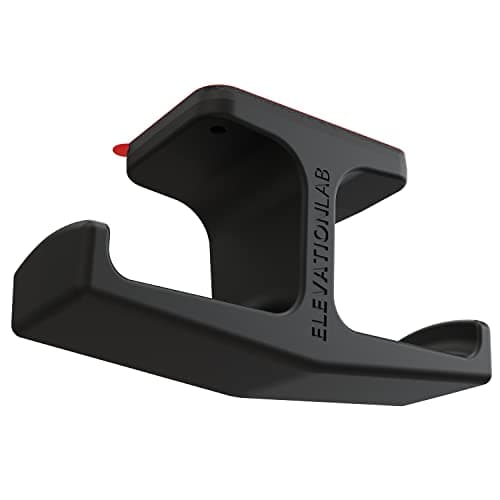
Elevation Lab The Anchor Under-Desk Headphone Mount
A headset left on the desk takes up the same surface an arm or a riser was bought to give back. Under the front edge it hangs in dead space, out of the way of the keyboard and off the cables.
Check first: adhesive mounts want a smooth, clean underside. Rough or heavily textured laminate will not hold one.
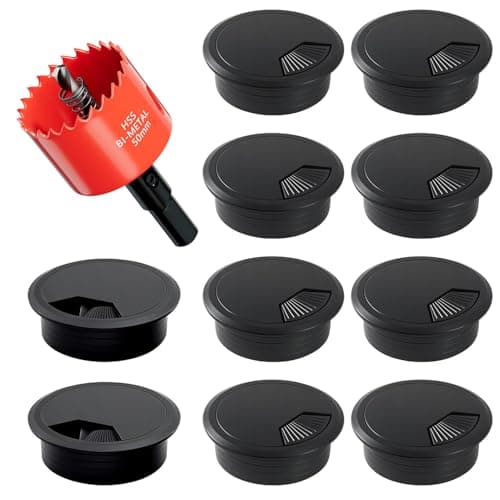
2-Inch Desk Grommet Kit with Hole Saw (10 pack)
Cables that drop straight through the desktop stay where you put them. Cables routed around the back edge get dragged every time the desk moves or the chair rolls back, which is what undoes a tidy run within a week. The hole saw is in the box, so the cut and the finished edge come from one purchase.
Check first: decide the hole position and check your desktop thickness before you cut. A grommet hole is not reversible.
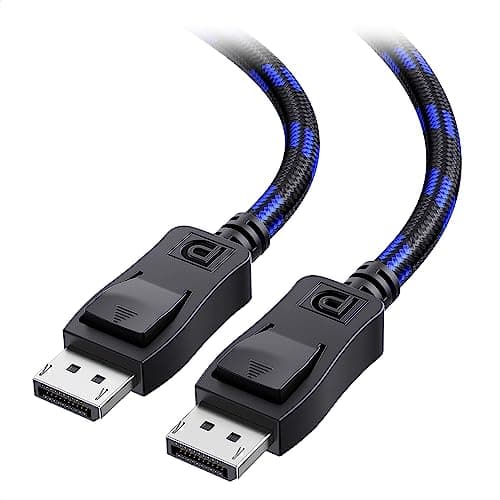
Cable Matters VESA-Certified DisplayPort 1.4 Cable, 6 ft
A monitor ships with one cable and it is rarely DisplayPort, so the second screen usually arrives with nothing to plug into. A certified DP 1.4 run is also the first thing worth swapping when a display flickers, drops out, or refuses to hold its refresh rate.
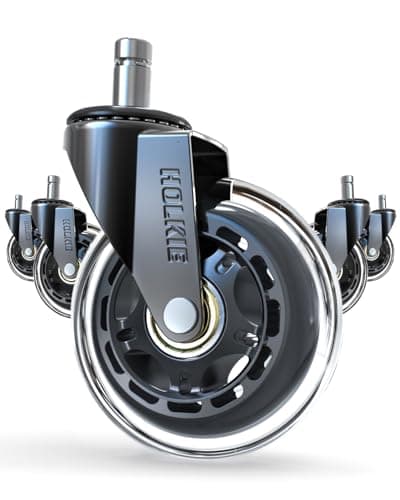
HOLKIE Rollerblade-Style Chair Casters, 3 in (set of 5)
The cheapest real upgrade a chair you already own can take. Hard nylon wheels fight carpet and skate on hard floors; wider rubber casters roll on both and stay put when you sit down.
Check first: chair stems are not standardized. Pull one existing caster out and measure its stem diameter and length against the listing before ordering.
#ad · Live prices from the Amazon Product API, as of Sep 24, 2026. Where we have no verified live price we show none. We may earn a commission, at no extra cost to you.
Questions
Frequently asked
What order should I upgrade my desk setup in?
Upgrade in the order your body complains, not in a fixed sequence. Sit at your desk and notice what you compensate for first — a craned neck points to monitor height or the screen itself, a sore back points to the chair, aching wrists point to the keyboard and mouse. Fix that component well, then wait until the next weak link starts to bother you before spending again.
What is the most important part of a desk setup?
It depends on how you work, but the two parts that touch you continuously — the chair and the input gear — and the part your eyes lock onto — the monitor at the right height — matter most for comfort. If you sit for long hours, a good chair is rarely a mistake. If you stare at the screen all day, the monitor and its height come first.
Is a monitor arm actually worth it?
For most people, yes. It is one of the least expensive upgrades and it fixes two things at once: it lifts the screen to eye level and clears the desk space the stock stand was eating. Just confirm the VESA pattern on the back of your monitor and the arm’s weight range before buying, especially for a heavy ultrawide.
Do I need a standing desk?
You do not need one, but you may benefit from one if your current desk is the wrong height or you feel stiff from sitting all day. The real advantage is being able to change position, not standing all the time. If your fixed desk is stable and the right height, that money is usually better spent on the chair or monitor instead.
How much should I spend on a desk setup?
There is no fixed figure, and buying everything at once is usually a mistake. Spend where your current setup is weakest and skip what already works. A great chair paired with the desk you already own beats a mediocre version of everything. Because gear needs vary so much by person, we do not quote prices here; each roundup links to live listings for the current cost.
Keep reading
Related
- How to Run a Triple Monitor SetupWhen two screens stop being enough.
- Standing Desk ErgonomicsSetting up the half of the day you spend on your feet.
- The Best Desk SpeakersThe component most setups never get around to.
- Desk Setup Ideas That Actually WorkSix layouts, each with the constraint it solves.
- Desk Setup Accessories, in Priority OrderWhat to buy first, and what to skip.
- How High Should Your Desk Be?Measure yours before you buy or blame anything.
- The best L-shaped desksThe shape that solves a wide monitor and a small room.
- The best anti-fatigue matsIf any part of the day is spent standing.
- VESA mount sizes explainedCheck this before you buy a monitor, not after.
- How to set up dual monitorsThe port, arm, and arrangement plan for adding a second screen.
- How high should your monitor be?The most common setup mistake, and the exact fix.
- The best monitor armsThe single cheapest upgrade with an outsized effect on posture.
- The best ergonomic office chairsThe one component in continuous contact with you all day.
Receipts
Sources
- OSHA — Computer Workstations eTool
- CDC / NIOSH — workplace safety and health
- Mayo Clinic — Office ergonomics
- VESA Flat Display Mounting Interface (overview)
We do not run a testing lab, and we do not pretend to. Specifications come from the manufacturer or retailer listing; the footprint and clearance math is ours and reproducible. Where we could not verify a number, we say so on the page rather than quietly leaving it out. Read our full method.