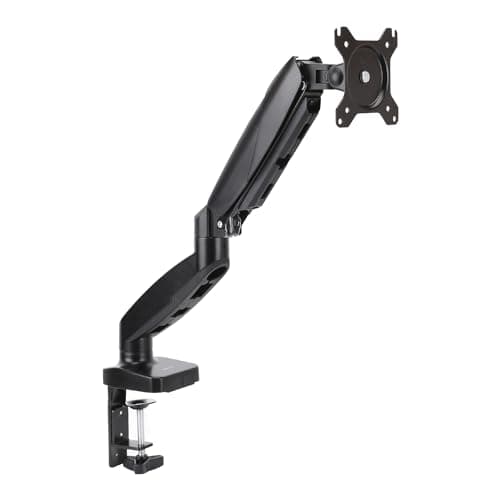
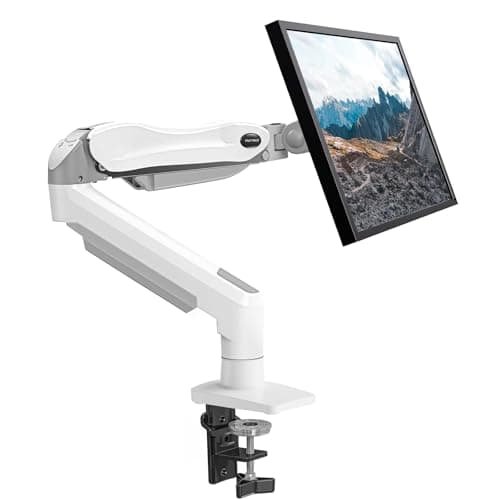
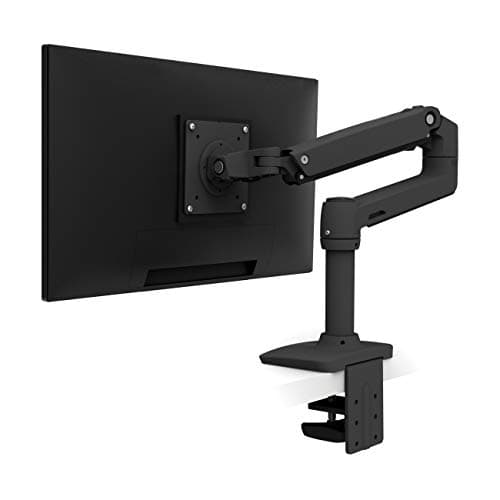
A monitor arm is worth it when your screen cannot reach eye level on its bundled stand, or when you need the desk depth the stand’s base is currently occupying. Those are the two real problems an arm solves. Almost every bundled stand offers a few inches of tilt and, if you are lucky, three or four inches of height; a good arm offers roughly thirteen inches of lift plus reach, so it can put the top of the panel at or just below your eye line and then push the whole thing back toward the wall. If neither of those is a problem in your setup, the stand in the box is genuinely fine and the money is better spent elsewhere.
The comparison, on the four things that differ
| | Monitor arm | Included stand |
|---|
| Height range | Roughly 13 in of lift on a full-motion arm, set anywhere in between | Commonly none, or a few inches of notched travel |
| Desk depth used | Base moves to the desk edge; the surface underneath comes back | Base occupies 8 to 10 in of the desk directly in front of you |
| Depth & angle | Pushes back and pulls forward; pans, tilts, rotates to portrait | Fixed distance; tilt only on most panels |
| Requirements | A VESA pattern on the monitor and a clampable edge or grommet hole | None — it is in the box |
The height argument is the one that matters
The ergonomic target is simple and it is the same for everyone: the top of the screen at or just below your seated eye level, about an arm’s length away. Our monitor height guide walks the measurement, and the number people find when they take it is usually four to eight inches of missing lift. A bundled stand that offers three inches cannot close a six-inch gap, and books under the base only work until you want to change anything. An arm with thirteen inches of travel closes it and keeps closing it when you swap chairs, change desks, or hand the desk to someone taller.
This is also why the arm question is really a neck question rather than an aesthetics one. A screen sitting three inches low produces a small, constant forward head tilt that you hold for eight hours a day and never consciously notice. It is the single most common unfixed ergonomic fault in home setups, and it is the reason we treat the arm as the second half of a monitor purchase rather than an accessory.
The depth argument is the one people underrate
A typical monitor base claims eight to ten inches of desk depth in the exact spot where you would otherwise put a notepad, a keyboard, or your forearms. On a 24-inch-deep desk that is more than a third of the surface, gone to a plastic foot. An arm moves the load to a clamp at the back edge and returns all of it. On a shallow desk this is transformative: a 24-inch top with an arm gives you more usable room than a 30-inch top with the stock stand, which is usually a cheaper way to solve “my desk is too small” than buying a bigger desk.
It also changes the viewing distance you can achieve. Pushing the panel back over the desk edge buys three or four inches of additional distance, which is exactly what a large 32-inch or 34-inch ultrawide needs to stop feeling like it is in your face. On a wide panel that distance is not a luxury; it is what lets you read the far edges without turning your head.
Three cases where the included stand wins
We are not going to pretend the arm is always right. It is not, and the honest exceptions are specific.
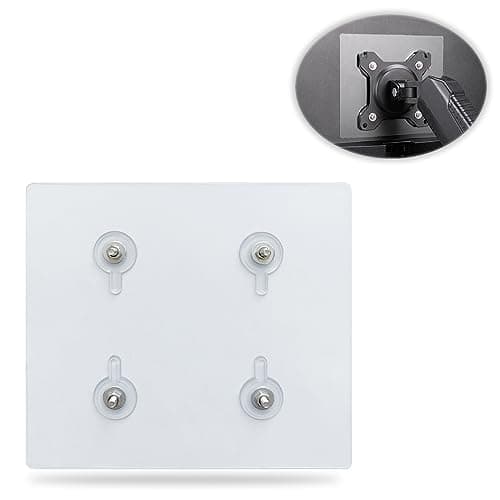
- The monitor has no VESA holes. Plenty of consumer panels, especially thin all-in-one designs and some 24-inch office screens, ship without a mounting pattern at all. Adapter brackets exist but they clamp to the chassis and are a compromise. If there is no VESA pattern, read the monitor riserroundup instead — a riser solves the height problem without needing a mount.
- The desk cannot take a clamp.Glass tops, floating desks with no accessible rear edge, thin tops outside the clamp’s thickness range, and desks with a rail or a back panel across the mounting edge all rule the arm out. Check the clamp range against your desktop thickness before you order, not after.
- The stand already reaches eye level and you have depth to spare. Premium monitors from Dell, LG, and BenQ increasingly ship with genuinely good height-adjustable stands. If yours does and your desk is deep, the arm buys you rotation and a tidier desk and not much else. That is a preference purchase, not an ergonomic one.
How to pick the arm if the answer is yes
Two numbers decide it. First, the weight of your panel without its stand — it is on the manufacturer’s spec page, and it is the number the arm is rated against. Most budget gas-spring arms stop around 17.6 lb, which covers the majority of 24 to 27-inch monitors and excludes most heavy 34-inch-plus screens. Second, the VESA pattern, which is nearly always 100×100mm and sometimes 75×75mm on smaller panels; our VESA sizes guide covers the edge cases. Get those two right and the rest is build quality and budget.
If you are mounting a 34-inch or wider panel, the general arms are the wrong shortlist — go to the arms rated for ultrawides, where the capacity starts where these leave off. If you are mounting two screens, the dual-arm roundup is the right page, and the wider field of single arms lives in the best monitor arms.
The verdict
Buy the arm if your screen sits below eye level on its stand, if your desk is 24 inches deep or shallower, or if you want to rotate a second screen to portrait. Those three conditions cover most people reading this, and the cheapest arm here costs less than a decent desk mat, so the decision is rarely about money. Keep the stand if your monitor has no VESA pattern, if your desk cannot be clamped or drilled, or if the bundled stand already puts the panel where your neck wants it.
One practical note either way: do the mounting before you route the cables, not after. An arm changes where the cable enters the back of the panel and how much slack the run needs through its full travel, and threading it afterward means undoing the tidy work you just did. The under-desk cable guide covers the order that avoids doing it twice.
If the arm is winning, there is one more step before buying: confirm it can physically mount to your desk. Desktop thickness, the back-edge profile, the space behind the desk and the arm’s minimum weight all rule out more purchases than price does — how to install a monitor arm has the checks.