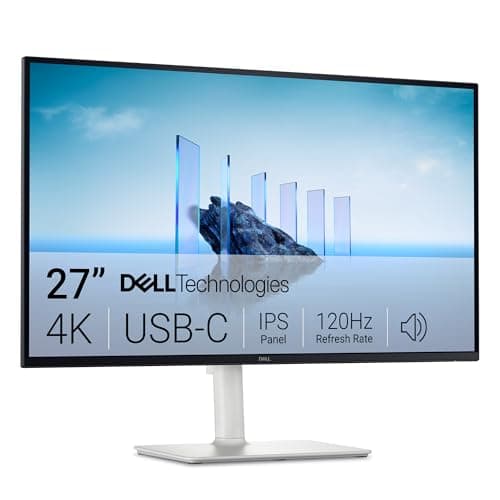
The work-from-home monitor is the one piece of the desk you look at every working minute, so the win is clarity and comfort rather than raw speed. Our pick is the Dell 27 Plus 4K (S2725QC): a 27-inch 4K IPS panel that runs a laptop on a single USB-C cable, sits on a fully adjustable stand, and gives dense, crisp text without swallowing the desk.
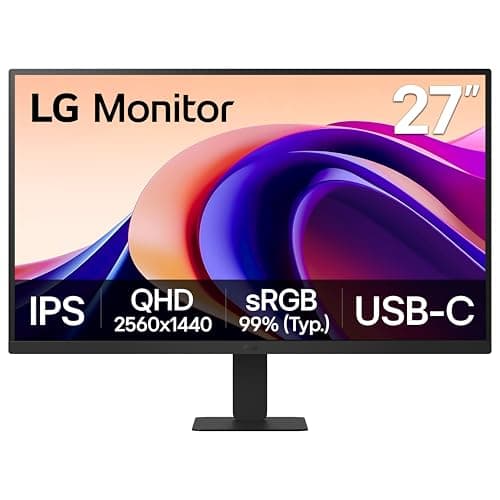
Most home desks land on 27 inches, and there the real fork is 4K versus QHD. The Dell chooses density — 3840×2160 makes small type razor sharp, though you will run display scaling to keep menus readable. If you would rather not pay for pixels you cannot resolve at arm’s length, the LG 27-inch QHD IPSis the value answer: 2560×1440 is the comfort zone for text, with none of the scaling fuss, and it costs noticeably less. That single choice — 4K clarity or QHD value — sorts most buyers before brand ever enters the picture.
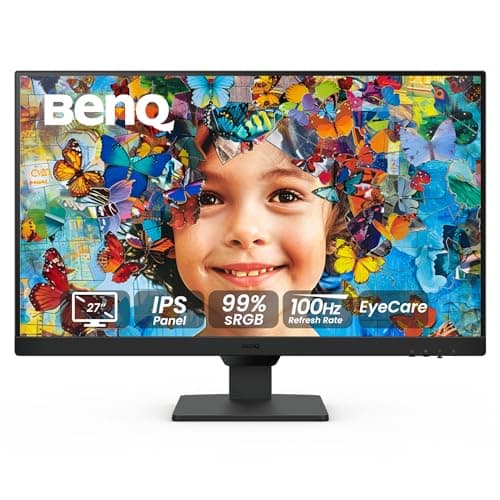
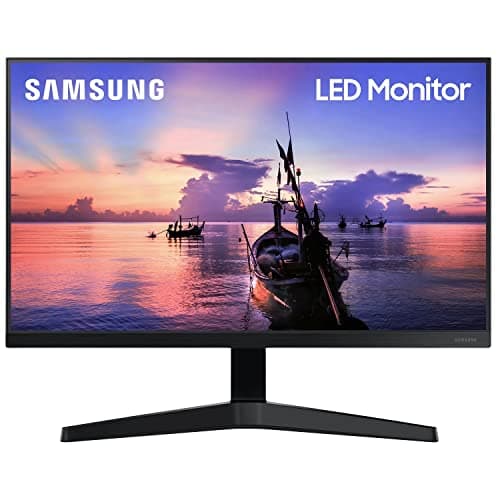
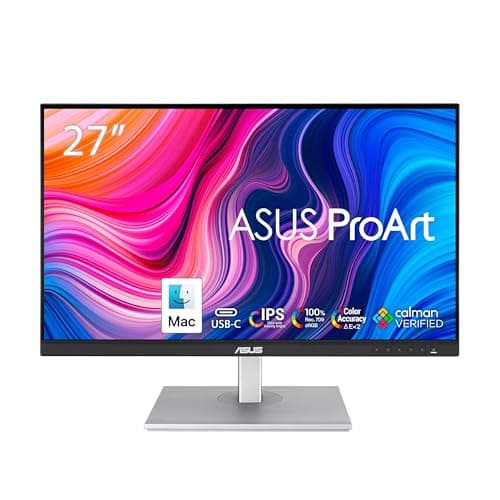
Two picks serve narrower needs. The ASUS ProArt PA278CV is the panel for anyone who edits photos or video: it ships factory-calibrated to 100% sRGB and Rec.709 with a low Delta E, so color is trustworthy the moment you unbox it, and it still charges a laptop over USB-C. The BenQ GW2790leans the other way, building a modest 1080p IPS panel around eye comfort — a flicker-free backlight and adaptive brightness for people who feel long days in their eyes. At the floor, the Samsung 27-inch T35F is the honest budget screen, best as a tidy second display or a light-duty main panel.
Buy the mount alongside whichever panel you pick. The stand quality varies wildly here, and a screen bolted too low is a neck problem no resolution fixes — set the top of the display at eye level per our monitor height guide, ideally on a monitor arm that frees the desk beneath it. If your bottleneck is width rather than clarity, an ultrawide may be the better spend.
The short answer
Quick picks
#ad · Live prices from the Amazon Product API, as of Jul 24, 2026. Where we have no verified live price we show none — we would rather leave a gap than print a number that has rotted.
In detail
The picks, in full
Best 4K USB-C
Dell 27 Plus 4K USB-C Monitor (S2725QC)
- Screen
- 27" IPS
- Resolution
- 3840 x 2160 (4K UHD)
- Refresh rate
- Up to 120Hz
- Connectivity
- USB-C (65W), HDMI, DisplayPort
- Stand
- Height, tilt, swivel, pivot
A 27-inch 4K IPS panel that doubles as a USB-C dock - dense 3840 x 2160 text, a fully adjustable stand, and one cable that charges the laptop and carries the picture.
- Image & Panel
- 8.8
- Ergonomics
- 8.6
- Connectivity
- 8.8
- Value
- 8.6
Pros
- +3840 x 2160 across 27 inches gives dense, crisp text at a normal viewing distance
- +USB-C with power delivery runs a laptop on a single cable for video and charging
- +Fully adjustable stand handles height, tilt, swivel, and pivot to portrait
- +IPS panel keeps color and viewing angles consistent edge to edge
Cons
- −4K at 27 inches usually means running display scaling to keep menus readable
- −Costs more than an equivalent QHD panel of the same size
Skip this if…
…you would rather put the money toward a larger panel or a higher refresh rate than 4K density at 27 inches.
Best for color work
ASUS ProArt PA278CV 27" QHD USB-C
- Screen
- 27" IPS
- Resolution
- 2560 x 1440 (QHD), 75Hz
- Color
- 100% sRGB / Rec.709, Delta E < 2
- Connectivity
- USB-C (65W), USB hub
- Stand
- Height, tilt, swivel, pivot
A factory-calibrated 27-inch QHD panel for color work - 100% sRGB and Rec.709, a low Delta E out of the box, and USB-C with charging and a downstream hub.
- Image & Panel
- 8.8
- Ergonomics
- 8.4
- Connectivity
- 8.2
- Value
- 8.2
Pros
- +Factory calibration to 100% sRGB and Rec.709 with a low Delta E means color is trustworthy on day one
- +USB-C carries video, data, and 65W of laptop charging while feeding a downstream USB hub
- +Ergonomic stand covers height, tilt, swivel, and pivot for portrait editing
- +QHD at 27 inches balances sharp text with sane scaling
Cons
- −75Hz refresh is aimed at creative work, not fast gaming
- −Calibrated color and the USB-C hub raise the price over a plain QHD monitor
Skip this if…
…you do not need calibrated color and would rather spend on 4K resolution or a faster panel.
Best QHD value
LG 27" QHD IPS Monitor (27U631A-B)
- Screen
- 27" IPS
- Resolution
- 2560 x 1440 (QHD)
- Panel
- IPS, sRGB color
- Ports
- HDMI, DisplayPort
- VESA mount
- 100 x 100mm
A clean 27-inch QHD IPS panel that hits the value sweet spot - 2560 x 1440 sharpness and calm IPS color without paying for a dock or 4K.
- Image & Panel
- 8.2
- Ergonomics
- 7.8
- Connectivity
- 7.4
- Value
- 8.6
Pros
- +2560 x 1440 at 27 inches is the comfort zone - sharp text with little need for scaling
- +IPS color and wide viewing angles suit all-day office and browsing work
- +Standard VESA mount makes it easy to move onto an arm
Cons
- −No built-in USB-C dock or laptop charging on this value tier
- −Basic stand offers limited height and tilt adjustment
Skip this if…
…you need single-cable USB-C docking or 4K density and are willing to pay for it.
Best eye-care value
BenQ GW2790 27" FHD IPS Eye-Care
- Screen
- 27" IPS
- Resolution
- 1920 x 1080 (FHD)
- Refresh rate
- 100Hz
- Eye care
- Flicker-free, Brightness Intelligence, low blue light
- Ports
- HDMI x2, DisplayPort
A 27-inch FHD IPS panel built around eye comfort - a flicker-free backlight, Brightness Intelligence, and low blue light for long working days.
- Image & Panel
- 7.6
- Ergonomics
- 6.8
- Connectivity
- 7.2
- Value
- 8.8
Pros
- +Flicker-free backlight and low blue light target eye comfort over long sessions
- +Brightness Intelligence adapts the panel to room lighting automatically
- +IPS color and slim bezels look far tidier than the price suggests
Cons
- −1920 x 1080 across 27 inches looks softer than QHD at the same size
- −Base stand tilts but does not raise, so height needs an arm
Skip this if…
…you sit close and will notice that 1080p spread across 27 inches looks less sharp than QHD.
Best budget
Samsung 27" T35F Full HD
- Screen
- 27" IPS
- Resolution
- 1920 x 1080 (FHD)
- Refresh rate
- 75Hz
- Sync
- AMD FreeSync
- Ports
- HDMI, VGA
A 27-inch Full HD IPS panel for the tightest budget - three-sided slim bezels, 75Hz, and FreeSync for a clean, no-frills work screen.
- Image & Panel
- 7
- Ergonomics
- 6.2
- Connectivity
- 6.6
- Value
- 8.6
Pros
- +Three-sided borderless design looks modern for an entry-price monitor
- +75Hz with FreeSync feels a touch smoother than a plain 60Hz panel
- +A dependable second screen or a simple main display for light work
Cons
- −1920 x 1080 on 27 inches is low density for detailed work
- −Tilt-only stand and a basic port selection
Skip this if…
…you want sharp text for spreadsheets or code - step up to a QHD panel instead.
How to choose a work-from-home monitor
Answer one question first: is your problem clarity or width? If text feels small and you squint, the fix is resolution — QHD or 4K on a 27-inch panel. If windows constantly fight for room, the fix is width, and you should read our ultrawide guide instead. For most desks, a 27-inch QHD IPS panel is the sweet spot: sharp enough to skip scaling, wide enough for two documents, and priced sanely.
Then weigh the extras that actually change your day. USB-C with power delivery is the quiet upgrade for laptop users — one cable carries the picture and charges the machine, and a monitor with a built-in hub replaces a separate dock. Ergonomics matter more than the spec sheet implies: a stand with height, tilt, swivel, and pivot lets you set the screen where your neck wants it, while a tilt-only base almost always sits too low. Color accuracy is worth paying for only if you edit images or video; if you do, factory calibration to a known standard beats a brighter, faster panel.
- Laptop on the desk: a 4K or QHD monitor with USB-C power delivery and a hub.
- Text all day, sensible budget: a 27-inch QHD IPS panel on an adjustable stand.
- Photo or video work: a factory-calibrated panel with 100% sRGB coverage.
- Sensitive eyes: a flicker-free, low-blue-light panel with adaptive brightness.
Whatever you choose, plan the height and cabling at purchase time. A great panel on a poor stand, run with a tangle of cables, undoes half the upgrade — and both are cheaper to solve on day one than to retrofit later.
How we picked
We do not run a testing lab
We compiled the published manufacturer specifications, did the ergonomics, VESA and desk-depth math ourselves, and read aggregated owner reviews, then scored each product against a published rubric. The scores are judgments from documented research — they are not measurements we took, because we do not have a lab and we are not going to pretend we do. Every spec traces back to a listing or manual named in Sources.
Questions
Frequently asked
Is 4K or QHD better for a 27-inch monitor?+
QHD (2560×1440) is the comfort zone on 27 inches — sharp text with no scaling needed. 4K (3840×2160) is sharper still but usually requires display scaling to keep menus readable. Pick 4K if you want maximum crispness and will scale; pick QHD for the simplest, best-value experience.
Do I need a USB-C monitor for a laptop?+
You do not need one, but it is the tidiest option. A USB-C monitor with power delivery carries video and charges the laptop over a single cable, and a built-in hub can replace a separate dock. If your laptop lacks the right port, a USB-C dock bridges the gap.
What monitor is best for eye strain?+
Look for a flicker-free backlight, a low-blue-light mode, and adaptive brightness that matches the panel to the room. Then set the height correctly — a screen too low or too bright causes more strain than the panel itself. Our monitor height guide covers the target.
Is 27 inches too big for 1080p?+
1920×1080 spread across 27 inches has lower pixel density than the same resolution on a 24-inch screen, so text looks a touch softer up close. It is fine for general work and video, but if you read fine text all day, step up to QHD at 27 inches.
Should a work monitor have a height-adjustable stand?+
Ideally yes. A stand with height and tilt lets you put the top of the screen at eye level, which is the single biggest comfort factor. If a panel you like ships with a tilt-only base, budget for a monitor arm to gain that adjustment.
Receipts
Sources
We do not run a testing lab, and we do not pretend to. Specifications come from the manufacturer or retailer listing; the footprint and clearance math is ours and reproducible. Where we could not verify a number, we say so on the page rather than quietly leaving it out. Read our full method.