Adding a second monitor is a shopping decision. Adding a third is an engineering one. Three screens will not fit on most desks in the arrangement people imagine, most laptops cannot drive three displays at all, and the layout that works is rarely the one people picture. Sort those three things out first and the rest is an afternoon.
1. The layout, before anything else
The default mental image is three identical screens in a row. It is usually the worst of the available options.
Three 27-inch panels side by side is about 72 inches of screen. At a normal desk distance, the outer edges sit well outside your comfortable field of view, which means genuine head-turning rather than eye movement to reach them. People who build this arrangement almost always end up using the outer screens for things they glance at rather than things they work in — which is fine, but you should choose it deliberately rather than discover it.
Three layouts work better in practice:
- Two landscape plus one portrait.The most useful arrangement for most desk work. Two screens in front of you for the work, one rotated 90 degrees at the side for chat, logs, documentation or a terminal. A portrait screen is narrow, so it costs far less desk width than a third landscape panel — the panels that rotate well are in the vertical monitor roundup.
- Ultrawide center, two flanking. A 34 to 38-inch ultrawide in the middle for the primary work, with two 24 or 27-inch panels angled in at the sides. This is the arrangement one mount on our triple mount list is explicitly built for.
- Two side by side, one stacked above. Uses vertical space instead of horizontal, so it fits a narrow desk. The top screen is for monitoring rather than working, because looking up for long periods is worse for your neck than looking slightly down.
Whatever the arrangement, angle the outer screens inward so all three are roughly the same distance from your eyes. A flat row means the center of the outer panels is several inches further away than the center screen, and your eyes refocus every time you look across.
2. Where the three video signals come from
This is the step that stops most triple-monitor projects, and it depends entirely on the machine.
A desktop with a discrete graphics cardis the easy case. Most modern cards have three DisplayPort outputs and an HDMI, and all four can run simultaneously. Check the card’s specification for the maximum number of simultaneous displays — it is usually four — and use DisplayPort where you can.
A Windows laptop typically has one HDMI and one or two USB-C ports. Whether those USB-C ports carry video at all depends on DisplayPort Alt Mode support, and whether one port can drive two screens depends on MST support. Most modern business laptops manage two external displays; the third almost always needs a dock.
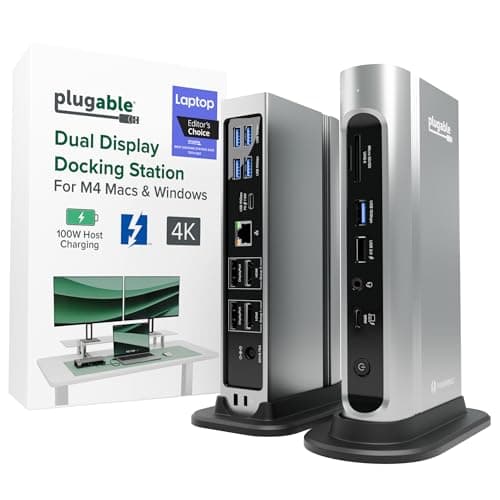
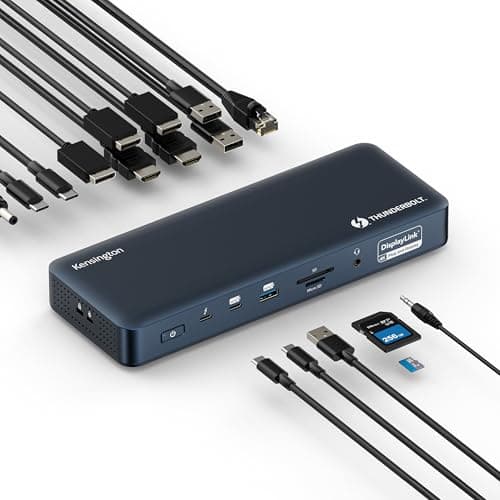
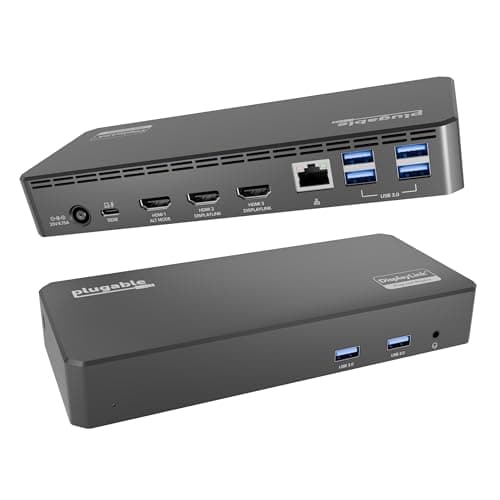
An Apple silicon Mac with a base M-series chip supports one external display natively, and macOS has never supported MST. No dock, cable or setting changes that. The only route to three screens is DisplayLink, which compresses the display signal and sends it over USB as data for a driver on the Mac to decompress.
Apple silicon Pro and Max chips support multiple external displays natively over Thunderbolt, and are the case where a Thunderbolt dock straightforwardly works.
Work this out before you buy the third monitor, not after. The picks below cover the mount and the three dock routes.
3. Desk width, honestly measured
Three 24-inch panels are roughly 63 inches of screen; three 27-inch panels are roughly 72. On a mount, the outer screens can overhang the desk edges, so the desk does not need to be as wide as the screens — but you do need to be able to sit centered, and the mount needs a clear stretch of back edge for its clamp.
The number that matters more is depth. Angled outer screens swing forward toward you, and on a 24-inch-deep desk they end up close enough to be uncomfortable. Twenty-eight to thirty inches of depth is what a three-screen setup wants. If your desk is shallower, the fix is a mount with long reach that pushes the whole array back over the rear edge — the desk-width and depth math is worked through in what size monitors for a dual setup, and the desks that suit it are in best desks for dual monitors.
4. Mount all three, and check the desk can take it
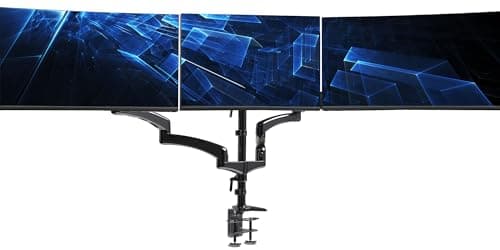
Three screens on stands is not a realistic option: the bases consume the entire depth of the desk and there is no way to align the heights. A triple mount is effectively mandatory.
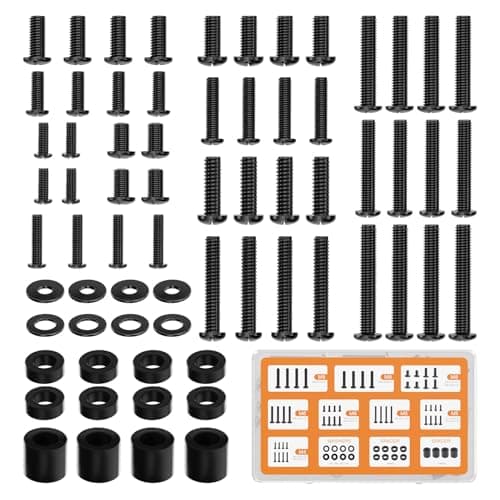
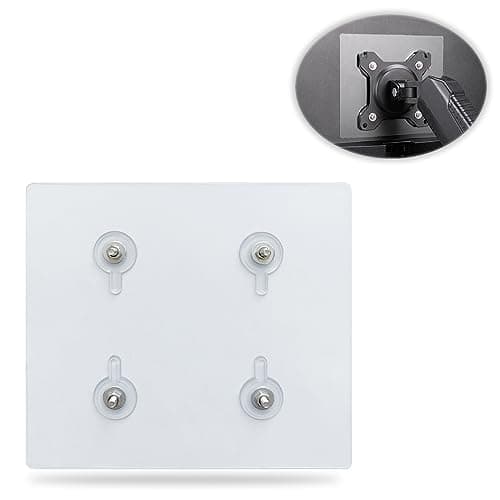
Before ordering one, confirm three things: that all three panels have a VESA pattern (75x75 or 100x100 — see VESA mount sizes explained), that each panel’s weight is inside the mount’s per-arm range including the minimum, and that your desk can carry the load. Three screens plus a mount is 40 to 60 lb on one clamp point, and a thin particleboard top will bow before the mount does. On a standing deskthe whole assembly sits higher, which makes any wobble worse — the diagnosis order is in how to fix a wobbly standing desk.
5. Setting up in Windows and macOS
Windows 11:open Settings → System → Display. Click Identify to see which numbered box is which physical screen, then drag the boxes so their arrangement matches reality — including vertical alignment, which is what stops the mouse jumping when it crosses between screens of different heights. Set each screen’s resolution and refresh rate individually, and check the refresh rate specifically: high-refresh panels frequently default to 60Hz. Choose the main display last, because that is where the taskbar and new windows appear.
macOS:System Settings → Displays. Arrange the displays by dragging, and drag the white menu bar strip to whichever screen should be primary. If you are using DisplayLink, install its driver first and grant it screen recording permission when macOS asks — that prompt is not optional and the display stays black until you do.
If a screen does not appear at all, the fault order is the same as for two screens and is in dual monitor not detected. The most common cause on a third screen is a cable or port that does not carry video rather than anything more exotic.
6. Cables, because there are now nine of them
Three monitors means three video cables and three power leads, plus whatever the dock adds. That is the point at which loose cabling stops being untidy and starts being a functional problem — it drags on the mount, it snags when you reposition a screen, and on a height-adjustable desk it goes taut at full extension.
Bundle the three video cables together up the mount pole, drop them through a grommet or over the back edge, and land everything in an under-desk tray with the power strip and dock mounted inside it. The full method is in under-desk cable management, and if the desk moves, in cable management for a standing desk.
If the desk is the limiting factor rather than the outputs, the best desks for three monitors has the width and depth arithmetic alongside five desks that fit an array.
What three screens are actually good for
Be honest about the third screen’s job before spending. In practice it almost always becomes a monitoringsurface rather than a working one: chat, email, a dashboard, a build log, documentation, a video call. That is a genuinely useful role — it keeps the interruptions off your main screens — but it means the third panel does not need to match the others in size, resolution or quality.
Which is a useful conclusion, because it means the cheapest sensible route to three screens is often a second-hand or budget 24-inch panel rotated to portrait, rather than a matching third flagship.
Where two screens plus width beats three
If the goal is more visible content rather than more separate contexts, an ultrawide plus one portrait panel gives you a similar amount of pixels with one fewer bezel, one fewer cable and considerably less head movement. The trade-off is covered in ultrawide vs dual monitor, and it applies with more force at three screens than at two.
A quick pre-purchase checklist
- Confirm your machine can output three signals — GPU spec for a desktop, chip and port capability for a laptop.
- Confirm all three panels have a VESA pattern, and note the pattern and each panel’s weight without its stand.
- Measure desk depth as well as width, and check the back edge is clear for a clamp.
- Count the outlets. Three monitors plus a dock is four more plugs than you had — see the desk power strip roundup.
- Buy the video cables deliberately rather than using whatever came in the boxes; DisplayPort vs HDMI covers which to use where.
Set the heights properly once it is up
The center screen should be at the height you would set a single screen to — top of the panel at or just below eye level. The outer screens should match it, not sit higher. It is very common to end up with three screens at three heights because each was adjusted separately, and the result is a constant small neck movement all day. The measurement is in the monitor height guide.