The cleanest desk in this hobby is the one where the laptop meets a single cable. Close the lid, unplug one connector, walk away. A USB-C monitor is the shortest route there, because it puts the hub behind the screen you were buying anyway — and it does it without adding another black box and another power brick to the floor.
But “has USB-C” on a spec sheet covers everything from a port that carries video and nothing else to a full Thunderbolt hub with 2.5 gigabit ethernet and a KVM. Four numbers separate them, and they are the only four worth arguing about.
Power delivery wattageis the first. This is how much the monitor pushes back down the cable to charge the laptop. Sixty-five watts keeps a 13 or 14-inch ultrabook topped up under normal load. Ninety watts and up is what a 15 or 16-inch machine actually wants; below that, a hard-working laptop will slowly drain while plugged in. Find your charger’s wattage — it is printed on the brick — and do not buy a monitor that delivers less.
Ethernet is the second, and it is the spec that decides whether the monitor genuinely replaces a dock. A panel with an RJ45 port means the wired network arrives through the same one cable; a panel without one means you keep a dongle. On a desk that already has a network drop it is the difference between one cable and two.
A built-in KVMis the third, and it is the most underrated. It lets one keyboard and mouse plugged into the monitor follow whichever machine is displaying — a work laptop and a personal desktop sharing the screen, switched from the monitor’s own menu. If that is your situation, it can remove the need for a separate KVM switch entirely.
Video outputis the fourth. A DisplayPort-out or downstream Thunderbolt port lets a second monitor daisy-chain off the first, so a two-screen setup still runs on one cable to the laptop. Without it, screen two needs its own path back to the machine — and on a Mac that quickly becomes the USB-C versus Thunderbolt argument.
Everything below is scored on those four plus the panel itself, per how we pick. Prices are live and the picks span roughly a four-to-one range, because the cheapest honest USB-C panel and the full Thunderbolt hub are solving genuinely different problems.
On a Mac the single-cable question comes with extra constraints around scaling and display limits, and the Mac monitor roundup ranks panels against those.
Before you pay the hub premium, it is worth settling whether the hub belongs in the panel at all: USB-C monitor vs docking station compares the two routes on power to the laptop, display count and what survives your next monitor.
The short answer
Quick picks
#ad · Live prices from the Amazon Product API, as of October 23, 2026. Where we have no verified live price we show none — we would rather leave a gap than print a number that has rotted.
In detail
The picks, in full
Best overall
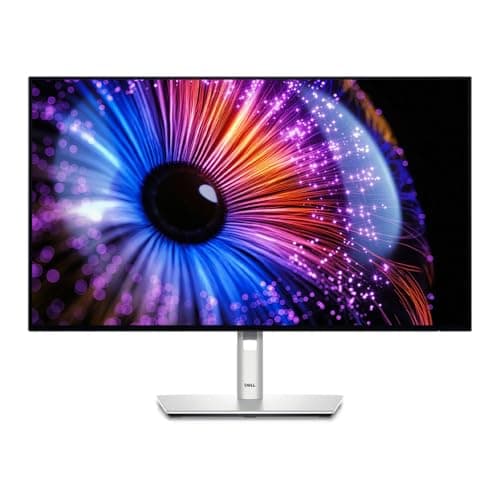
Dell UltraSharp U2724DE 27" QHD Thunderbolt 4 Hub
- Screen
- 27" IPS Black
- Resolution
- 2560 x 1440 (QHD), 120Hz
- Power delivery
- Up to 90W to the host laptop
- Network
- 2.5 Gigabit Ethernet
- Daisy chain
- DisplayPort and Thunderbolt 4 outputs for a second display
- KVM
- Built in - one keyboard and mouse across two machines
The monitor that ends the dock question outright: 90W back to the laptop, 2.5 gigabit ethernet, a built-in KVM and a downstream output for a second screen. One cable in, an entire desk out.
- Power Delivery
- 9.4
- Connectivity
- 9.8
- Image & Panel
- 8.8
- Value
- 6.8
Pros
- +90W is enough for a 15 or 16-inch laptop, which most monitor hubs cannot manage
- +2.5GbE is faster than the gigabit port on most docks and every laptop dongle
- +The KVM removes a whole separate switch if you run a work laptop and a personal machine
- +Daisy-chain output means a second panel still costs zero extra cables to the laptop
- +120Hz on a work-first panel makes scrolling noticeably smoother than the usual 60Hz
Cons
- −The most expensive QHD panel here by a wide margin
- −QHD at 27 inches is less dense than 4K, and this costs 4K money
- −The Thunderbolt features need a Thunderbolt host to be fully used
Skip this if…
…you have no second machine and no wired network - you are paying for a KVM and a 2.5GbE port you will never plug into.
Best for a MacBook
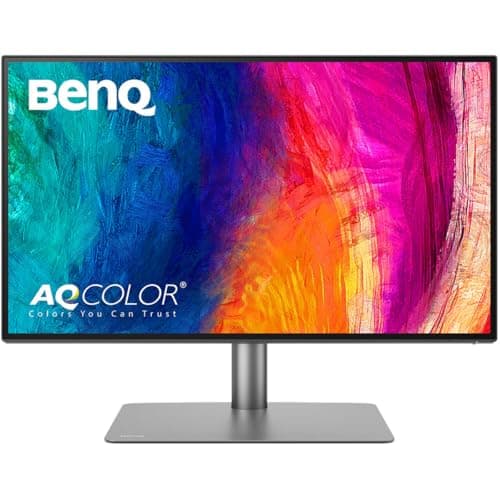
BenQ PD2725U 27" 4K Thunderbolt 3
- Screen
- 27" IPS
- Resolution
- 3840 x 2160 (4K UHD)
- Host connection
- Thunderbolt 3 - power delivery, DisplayPort Alt Mode and data
- Power delivery
- 65W to the host laptop
- Color
- 100% sRGB and Rec.709, 95% Display P3, Delta E under 3
- Extras
- KVM switch, Thunderbolt daisy chain, USB hub
- Stand
- 150mm height range, tilt, swivel, 90 degree pivot
The one to put in front of a MacBook. Thunderbolt 3 with 65W charging, daisy chain, a KVM and factory-calibrated color at 95% P3 - the spec sheet Apple users keep asking for.
- Power Delivery
- 7.8
- Connectivity
- 9.4
- Image & Panel
- 9
- Value
- 7
Pros
- +Thunderbolt daisy chain is the cleanest way to add a second screen on a Mac
- +95% Display P3 coverage matches the color space macOS actually works in
- +Factory calibration with a stated Delta E means color is trustworthy out of the box
- +The KVM and USB hub cover the peripherals a MacBook has nowhere to plug in
Cons
- −65W will not keep a 16-inch MacBook Pro charged under sustained load
- −250 nits typical brightness is modest for a room with a window behind you
- −Thunderbolt 3 rather than 4, so it is a generation behind the newest docks
Skip this if…
…your laptop charger is 96W or more - the panel will charge it slowly while you work it hard.
Best 4K value
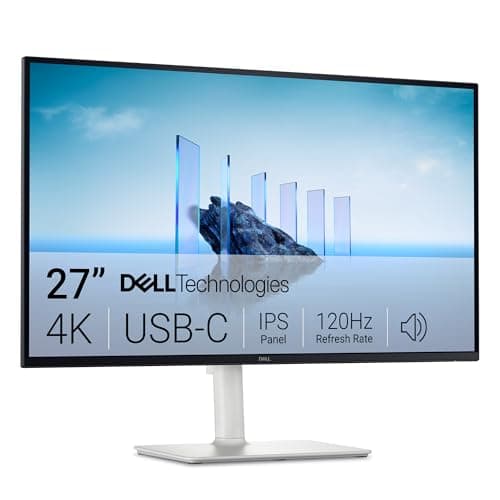
Dell 27 Plus 4K USB-C Monitor (S2725QC)
- Screen
- 27" IPS
- Resolution
- 3840 x 2160 (4K UHD)
- Refresh rate
- Up to 120Hz
- Connectivity
- USB-C (65W), HDMI, DisplayPort
- Stand
- Height, tilt, swivel, pivot
The best-balanced one-cable panel for a normal laptop. 4K, 120Hz and 65W of charging on a fully adjustable stand, at roughly half what the hub monitors cost.
- Power Delivery
- 8
- Connectivity
- 7.6
- Image & Panel
- 8.8
- Value
- 9
Pros
- +4K at 27 inches gives dense, crisp text at a normal viewing distance
- +65W of power delivery is enough for the ultrabooks most people dock
- +120Hz on a work panel at this price is unusual and genuinely nicer to scroll
- +Full ergonomic stand, so you are not forced into an arm on day one
Cons
- −No ethernet, so a wired network still needs a dongle or a dock
- −No KVM and no daisy-chain output
- −4K at 27 inches means running display scaling to keep menus readable
Skip this if…
…you need the monitor to be the whole dock - this is a display with charging, not a hub.
Best for color work
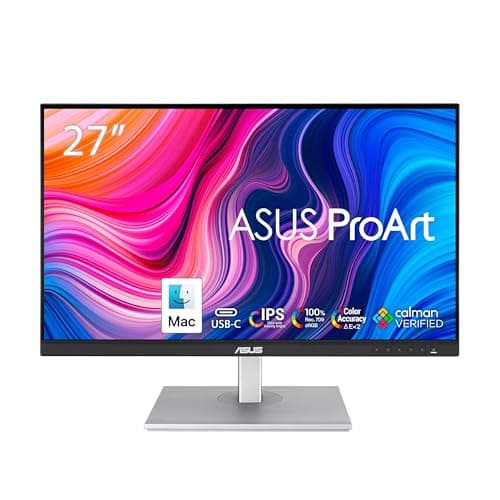
ASUS ProArt PA278CV 27" QHD USB-C
- Screen
- 27" IPS
- Resolution
- 2560 x 1440 (QHD), 75Hz
- Color
- 100% sRGB / Rec.709, Delta E < 2
- Connectivity
- USB-C (65W), USB hub
- Stand
- Height, tilt, swivel, pivot
The color-work pick with USB-C attached. Factory-calibrated sRGB and Rec.709 with 65W charging and a downstream hub, at a price that does not assume you are a studio.
- Power Delivery
- 8
- Connectivity
- 7.8
- Image & Panel
- 8.8
- Value
- 8.2
Pros
- +Factory calibration to sRGB and Rec.709 means edits look the same on someone else's screen
- +65W over USB-C plus a downstream USB hub covers a laptop and its peripherals
- +QHD at 27 inches avoids the scaling arguments 4K brings
- +Pivots to portrait, which the two Dells here also do but many USB-C panels do not
Cons
- −No ethernet and no KVM
- −75Hz refresh feels dated next to the 120Hz panels on this list
- −QHD, not 4K, at a price close to some 4K panels
Skip this if…
…you want maximum text sharpness - a 4K panel at the same size is visibly denser.
Best value
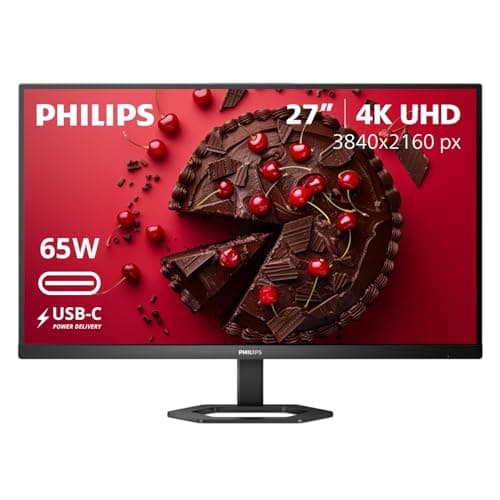
Philips 27E1N5900R 27" 4K UHD USB-C Monitor
- Screen
- 27" IPS, flat
- Resolution
- 3840 x 2160 (4K UHD)
- Power delivery
- 65W over USB-C
- Other inputs
- HDMI 2.0, DisplayPort 1.2, USB 3.2 hub
- HDR
- VESA DisplayHDR 400
- Stand
- Height, tilt and pivot adjustable
The cheapest honest way to get 4K and a single cable. 65W of charging, a USB hub and DisplayHDR 400 at the bottom of this field - you give up ethernet and a KVM, and you keep the one-cable workflow that made you want USB-C.
- Power Delivery
- 7.8
- Connectivity
- 7.6
- Image & Panel
- 8.2
- Value
- 9.4
Pros
- +Keeps USB-C single-cable operation at a price well below the name-brand panels here
- +65W covers most thin-and-light laptops, which is the class that benefits most from one cable
- +A USB hub and DisplayHDR 400 at the bottom of this price range
- +Height, tilt and pivot in the included stand, so it is usable before you buy an arm
Cons
- −No ethernet and no KVM, so it is a one-cable display rather than a full dock replacement
- −65W is not enough for a 16-inch workstation laptop under sustained load
- −DisplayHDR 400 is the entry tier rather than real HDR
- −No published factory color calibration, unlike the ProArt and UltraSharp panels above
Skip this if…
…you want the monitor to replace a dock outright - the ethernet and KVM panels above do that job and this one does not.
What a USB-C monitor can and cannot replace
A USB-C panel replaces a dock for a single-screen desk almost completely. Video, charging, USB peripherals and — on the panels that have it — wired networking all arrive on one connector, and the box that used to do that job is gone.
Where it stops being enough is the second screen. Driving two displays from one USB-C connection depends on the host machine, not the monitor: most modern Windows laptops support the MST protocol that makes it work, and Apple silicon Macs with base M-series chips do not support MST at all. On those machines the only routes to a second screen are a downstream Thunderbolt or DisplayPort output on the monitor itself, or a DisplayLink dock. That is the whole argument in USB-C vs Thunderbolt dock, and it is worth reading before you spend.
Match the wattage to the charger, not the laptop
The number to compare against is printed on the charger that came in the box, not the screen size. A machine that ships with a 65W brick is happy on a 65W monitor. A machine that ships with 96W, 100W or 140W will charge slowly or not at all from a 65W panel while you are compiling, rendering or on a long call. There is no software fix for this; it is a power budget.
The KVM is worth more than it looks
If you have a work laptop and a personal machine sharing a desk, a monitor KVM is the cheapest possible answer: keyboard and mouse plug into the screen, and a menu button or hotkey moves them between hosts along with the picture. It is not as fast or as flexible as a dedicated box — our KVM switch roundup covers those, and docking station vs KVM switch explains which problem is which — but it costs nothing extra on a panel that has one.
Do not forget the cable
The cable in the box is usually fine, but a replacement is not. A USB-C cable that carries 4K video, 90W of power and 10Gbps of data at once is a specific specification, and a charging-only cable that looks identical will silently fail to carry video. If you are buying a longer one, buy one rated for the job.
Which panel size
Everything here is 27 inches because that is where the USB-C hub market lives, but the size question is separate from the connectivity one. If you want more width rather than more density, the answer is an ultrawide — and several of those have USB-C hubs too. Our ultrawide roundup and ultrawide vs dual monitor cover that decision.
If the laptop is a Mac
The port checklist above applies to a MacBook unchanged, but a Mac adds a density question the Windows side of the desk can mostly ignore. macOS is drawn for about 110 or about 220 pixels per inch, so a 27-inch 5K panel runs at a clean 2x while a 27-inch 4K one runs scaled. If that matters to you, the 5K and 6K Thunderbolt and USB-C panels are ranked in the best monitors for Mac, with the charging watts matched to each MacBook’s own adapter.
Essentials
The small parts that finish the job
Nothing here changes a pick above, and none of it is a considered purchase. These are the cheap pieces that decide whether the expensive one works properly, and the ones people discover they are missing on the day the big box arrives.
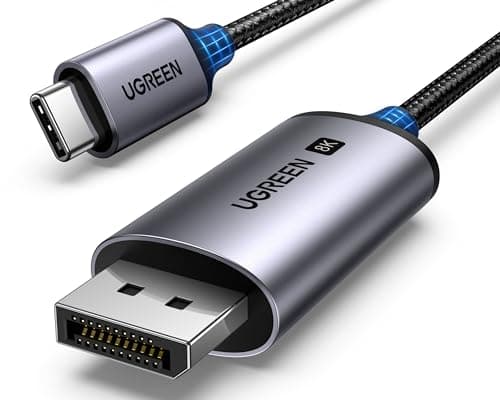
UGREEN USB-C to DisplayPort 1.4 Cable, 6.6 ft
One cable from a laptop or a dock straight into a DisplayPort screen, with no adapter stack in the middle. This one is unidirectional: it runs USB-C source to DisplayPort display, not the reverse.
Check first: the USB-C port has to carry DisplayPort Alt Mode. A data-only port will not drive a screen no matter which cable you put in it.
No image
Cable Matters VESA-Certified DisplayPort 1.4 Cable, 6 ft
A monitor ships with one cable and it is rarely DisplayPort, so the second screen usually arrives with nothing to plug into. A certified DP 1.4 run is also the first thing worth swapping when a display flickers, drops out, or refuses to hold its refresh rate.
#ad · Live prices from the Amazon Product API, as of October 23, 2026. Where we have no verified live price we show none. We may earn a commission, at no extra cost to you.
How we picked
We do not run a testing lab
We compiled the published manufacturer specifications, did the ergonomics, VESA and desk-depth math ourselves, and read aggregated owner reviews, then scored each product against a published rubric. The scores are judgments from documented research — they are not measurements we took, because we do not have a lab and we are not going to pretend we do. Every spec traces back to a listing or manual named in Sources.
Questions
Frequently asked
How many watts does a USB-C monitor need to charge my laptop?+
Match or beat the wattage printed on the charger that came with the laptop. 65W covers most 13 and 14-inch ultrabooks. 90W and above is what a 15 or 16-inch machine needs to stay charged under load. Below the charger’s rating the laptop will still run, but the battery will drain slowly while plugged in.
Can a USB-C monitor replace my docking station?+
For a single-screen desk, usually yes — especially if the monitor has ethernet and a USB hub. For a two-screen desk it depends on your laptop: most Windows machines can drive two displays over one USB-C connection, but Apple silicon base chips cannot, and there you need a monitor with a downstream Thunderbolt or DisplayPort output, or a DisplayLink dock.
What is a monitor KVM and do I need one?+
A monitor KVM lets a keyboard and mouse plugged into the display follow whichever computer is currently on screen, switched from the monitor’s own controls. You need it only if two machines share the desk. If they do, it saves you buying a separate KVM switch.
Is USB-C the same as Thunderbolt on a monitor?+
No. Thunderbolt uses the same connector but adds far more bandwidth, native multi-display support and usually higher charging wattage. A Thunderbolt monitor will work on a plain USB-C laptop at USB-C speeds; a plain USB-C monitor cannot gain Thunderbolt features from a Thunderbolt laptop.
Why does my USB-C cable carry power but no picture?+
Because not every USB-C cable carries video. Video over USB-C requires DisplayPort Alt Mode support in both the cable and the port; charging-only cables are physically identical and very common in the box with phones. Use the cable that shipped with the monitor, or buy one explicitly rated for video.
Receipts
Sources
We do not run a testing lab, and we do not pretend to. Specifications come from the manufacturer or retailer listing; the footprint and clearance math is ours and reproducible. Where we could not verify a number, we say so on the page rather than quietly leaving it out. Read our full method.