A dock is supposed to be the simplest upgrade on the desk — one cable to the laptop, everything else plugged into the dock — and for a single monitor it is. The catch is the second screen. Whether a given dock actually drives two external displays, and at what resolution, depends on a chain of details that has almost nothing to do with the number of HDMI ports on the back: your laptop’s operating system, the video technology the dock uses, and how much power it can push back to charge the machine.
The first fork is Mac versus Windows. Most Windows laptops support Multi-Stream Transport (MST), which lets a single USB-C connection carry two independent display streams that a standard dock can split into two extended screens. Apple silicon Macs do not support MST at all — plug one into a normal dual-HDMI dock and both monitors show the same mirrored image, no matter how many outputs the dock has. Base-model Macs also cap the number of external displays in hardware, a limit a dock cannot always work around.
That is where DisplayLink comes in. A DisplayLink dock handles the video in software through a driver instead of relying on the laptop’s native display engine, which is how it drives two or three screens on a Mac that MST would leave mirrored. The trade is that DisplayLink leans on the CPU and its own compression, so it is superb for documents, email, and browser windows but less ideal for fast full-screen motion like video and games. A native DP-Alt-Mode dock, by contrast, is plug-and-play with no driver and cleaner for video — as long as your host actually supports the layout you want.
Two more numbers decide the buy. Power delivery is the wattage the dock sends back up the single cable to charge the laptop; a light dock may keep a small ultrabook topped up but sag under a hungry 16-inch machine, so match the wattage to what your laptop’s own charger provides. Port count is the last piece — a business dock leans on Ethernet and legacy video outputs, while a max-port hub piles on USB-A, card readers, and audio. Buy for the ports you plug in every day, not the longest spec sheet.
If you are wiring the second screen for the first time, our dual-monitor setup guide covers the port planning before the boxes arrive; a good dock is also a cable-management tool because it removes runs before you tidy any; and how we pick lays out the ranking method.
The short answer
Quick picks
#ad · Live prices from the Amazon Product API, as of Sep 24, 2026. Where we have no verified live price we show none — we would rather leave a gap than print a number that has rotted.
In detail
The picks, in full
Best overall
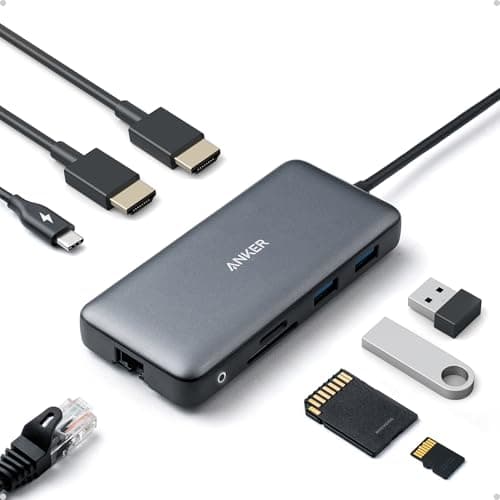
Anker Docking Station (Dual Monitor, 8-in-1)
- Host connection
- Single USB-C cable to laptop
- Displays
- Dual HDMI output
- Ports
- 8-in-1 layout (USB-A/C, HDMI, Ethernet, more)
- Charging
- USB-C power passthrough for the host laptop
- Compatibility
- Windows extends both screens; macOS mirrors on many hosts
The dock we would hand most Windows-laptop owners who want two screens and a charge from one cable. It keeps the port list focused on what people plug in daily instead of padding the spec sheet.
- Dual-display support
- 9.2
- Power delivery
- 9
- Port selection
- 8.8
- Compatibility
- 9
Pros
- +Clean two-screen extend on a supported Windows laptop from one cable
- +Power passthrough charges the laptop while it docks
- +Focused port set covers the everyday plugs without bloat
Cons
- −Native (non-DisplayLink) output means a Mac mirrors rather than extends
- −Charging wattage may not fully feed a power-hungry 16-inch laptop
Skip this if…
…you are on an Apple silicon Mac and need two independent screens — you want a DisplayLink dock instead
Best value
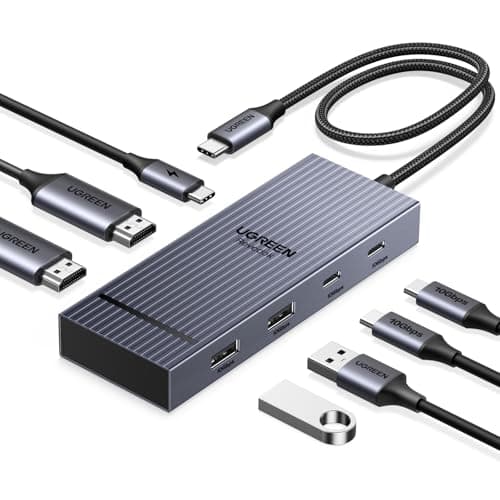
UGREEN Revodok 7-in-1 Dual-Monitor Dock
- Host connection
- Single USB-C cable to laptop
- Displays
- Dual monitor via HDMI (native DP-Alt-Mode / MST)
- Ports
- 7-in-1 layout
- Charging
- USB-C power passthrough for the host laptop
- Compatibility
- Windows extends both; macOS mirrors (no MST)
A tidy 7-in-1 that hits the same dual-monitor brief as the winner with a slightly shorter port list. It is the value pick for a Windows laptop that supports MST.
- Dual-display support
- 8.8
- Power delivery
- 8.6
- Port selection
- 8.4
- Compatibility
- 8.6
Pros
- +Two extended screens on an MST-capable Windows laptop
- +Compact 7-in-1 covers the core ports without excess
- +Power passthrough keeps the laptop charged
Cons
- −Relies on native MST, so a Mac mirrors the two outputs
- −Fewer spare ports than the larger docks here
Skip this if…
…your laptop does not support MST or you need triple displays — check the host before you count on two screens
Macs & triple display
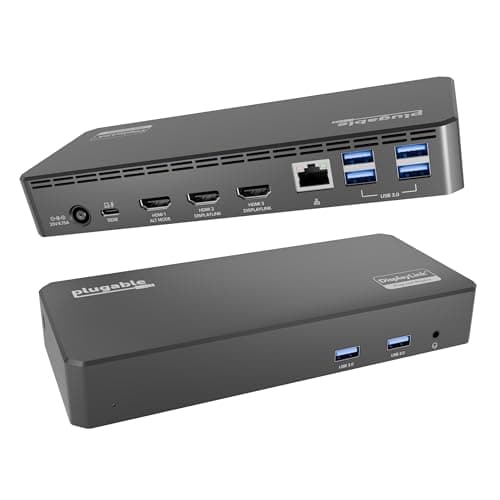
Plugable USB-C Triple Display Docking Station
- Host connection
- USB-C to host laptop
- Display technology
- DisplayLink (driver-based, not DP-Alt-Mode)
- Displays
- Up to triple display
- Compatibility
- Extends multiple screens on macOS and Windows via the driver
- Charging
- Little to no host charging — a display-first dock
The answer when native MST fails you. Because it drives displays through the DisplayLink driver, it extends multiple screens on an Apple silicon Mac that a standard dock would only mirror.
- Dual-display support
- 9
- Power delivery
- 7
- Port selection
- 8.2
- Compatibility
- 9.4
Pros
- +Drives multiple external screens on a Mac that MST leaves mirrored
- +Adds a third display where native docks stop at two
- +Works across a wide range of hosts through the driver
Cons
- −DisplayLink leans on the CPU and is less ideal for fast full-screen motion
- −Requires installing and updating the DisplayLink driver
- −Does not charge the laptop the way a native power-delivery dock does
Skip this if…
…you want a driver-free, plug-and-play dock for fast-moving video — a native DP-Alt-Mode dock suits that better
Business laptops
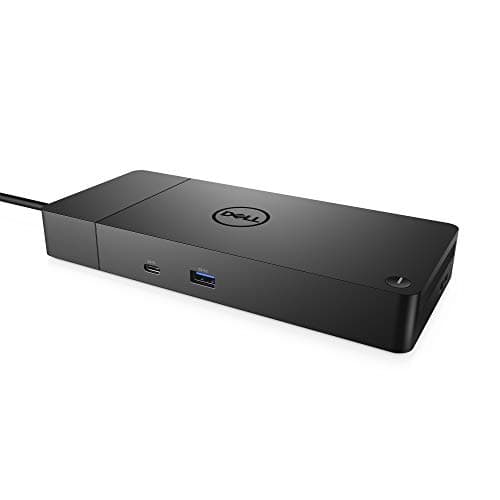
Dell WD19S USB-C Docking Station
- Host connection
- USB-C to host laptop
- Display technology
- Native DP-Alt-Mode (multi-display module)
- Charging
- High-wattage power delivery (varies by wattage variant)
- Ports
- Full desktop set (USB-A/C, HDMI, DisplayPort, Ethernet)
- Best fit
- Tuned for Dell laptops; broad USB-C host support
The business-desk workhorse: strong power delivery, a full set of legacy and modern outputs, and the kind of firmware polish that makes it a safe standard across a fleet of laptops.
- Dual-display support
- 8.4
- Power delivery
- 9
- Port selection
- 8.8
- Compatibility
- 7.4
Pros
- +Robust power delivery feeds even larger laptops
- +Deep, business-grade port selection including Ethernet and DisplayPort
- +A dependable single standard for a mixed laptop fleet
Cons
- −Native output, so multi-display behavior follows the host's limits
- −Best-documented and tuned on Dell hardware specifically
Skip this if…
…you need software-driven multi-display on a Mac — a native dock cannot get past a Mac's MST limits
Maximum ports
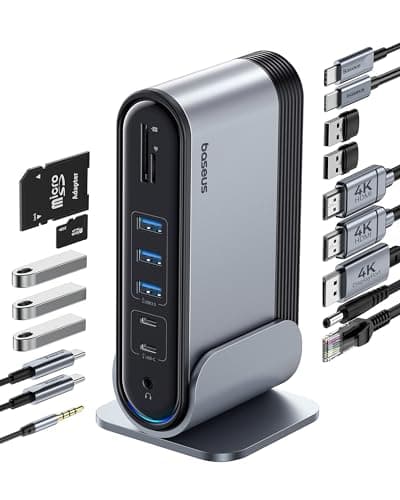
Baseus 17-in-1 Docking Station (3 monitors)
- Host connection
- USB-C to host laptop
- Displays
- Up to three monitors (HDMI + DisplayPort)
- Ports
- 17-in-1 (large USB-A/C set, card reader, Ethernet, audio)
- Charging
- USB-C power passthrough for the host laptop
- Compatibility
- Triple-display support depends on the host and MST/DisplayLink
The everything-hub for a desk that plugs in a lot at once: card readers, a wall of USB-A, and up to three monitor outputs from a single connection.
- Dual-display support
- 8.6
- Power delivery
- 8
- Port selection
- 9.6
- Compatibility
- 7
Pros
- +The widest port count here for a busy, many-device desk
- +Up to three display outputs from one cable
- +Card readers and audio built in, so fewer add-on adapters
Cons
- −Triple-display results hinge on what the host actually supports
- −More ports than a simple two-screen setup will ever use
Skip this if…
…you only run two screens and a couple of peripherals — you are paying for ports you will not fill
How to choose a dual-monitor dock
Before you compare docks, confirm the one thing that actually decides success: can your laptop drive two external displays at once? Check the spec sheet for the number of supported external screens, not the number of ports on the machine. A single USB-C port does not guarantee two independent monitors, and on a base-model Apple silicon Mac the answer in hardware may be one.
If your laptop supports MST — most Windows machines do — a native DP-Alt-Mode dock is the clean choice: no driver, low latency, and fine for video. If you are on a Mac that mirrors, or you want a third screen a native dock cannot provide, choose a DisplayLink dock instead. It does the displays in software, which unlocks screens the hardware would not, at the cost of a driver install and weaker performance for fast full-screen motion. Neither is universally better; they solve different constraints.
Then weigh two numbers. Power delivery is the wattage the dock returns to the laptop over the same cable — aim to match what the laptop’s bundled charger provides so it keeps up under load, and expect a light dock to trickle rather than fully feed a large machine. Port count is about your daily plugs, not the biggest spec sheet: a business dock favors Ethernet and legacy outputs, while a max-port hub adds USB-A, card readers, and audio. If your host has a full Thunderbolt port, a Thunderbolt dock can add bandwidth headroom, but a well-matched USB-C dock covers the dual-monitor job for most people. Buy for the machine you own and the ports you use, and the second screen stops being a gamble.
Essentials
The small parts that finish the job
Nothing here changes a pick above, and none of it is a considered purchase. These are the cheap pieces that decide whether the expensive one works properly, and the ones people discover they are missing on the day the big box arrives.
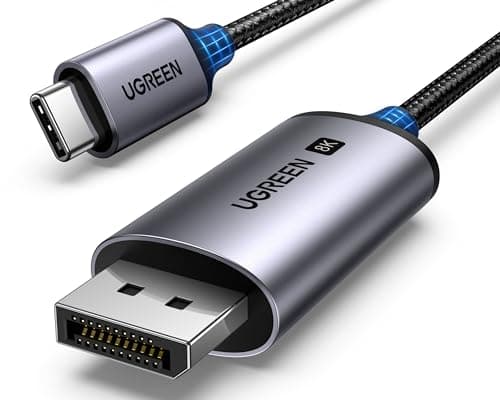
UGREEN USB-C to DisplayPort 1.4 Cable, 6.6 ft
One cable from a laptop or a dock straight into a DisplayPort screen, with no adapter stack in the middle. This one is unidirectional: it runs USB-C source to DisplayPort display, not the reverse.
Check first: the USB-C port has to carry DisplayPort Alt Mode. A data-only port will not drive a screen no matter which cable you put in it.
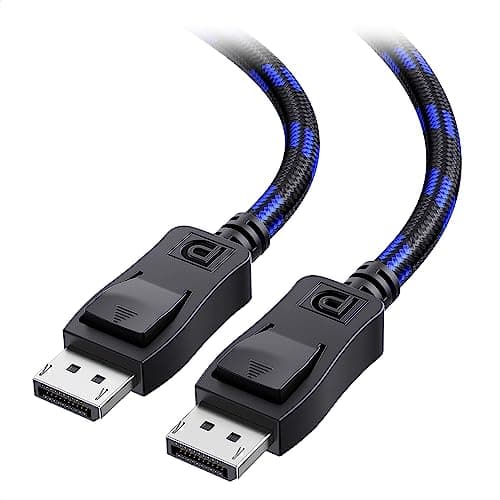
Cable Matters VESA-Certified DisplayPort 1.4 Cable, 6 ft
A monitor ships with one cable and it is rarely DisplayPort, so the second screen usually arrives with nothing to plug into. A certified DP 1.4 run is also the first thing worth swapping when a display flickers, drops out, or refuses to hold its refresh rate.
#ad · Live prices from the Amazon Product API, as of Sep 24, 2026. Where we have no verified live price we show none. We may earn a commission, at no extra cost to you.
How we picked
We do not run a testing lab
We compiled the published manufacturer specifications, did the ergonomics, VESA and desk-depth math ourselves, and read aggregated owner reviews, then scored each product against a published rubric. The scores are judgments from documented research — they are not measurements we took, because we do not have a lab and we are not going to pretend we do. Every spec traces back to a listing or manual named in Sources.
Questions
Frequently asked
Why does my dock only mirror my two monitors on a Mac?+
Apple silicon Macs do not support Multi-Stream Transport, the technology a standard dual-HDMI dock uses to send two independent display streams down one cable. Without MST the Mac duplicates the same image on both screens. The fix is a DisplayLink dock, which drives each display through a driver instead of relying on the Mac’s native display engine.
What is the difference between DisplayLink and MST docks?+
An MST (DP-Alt-Mode) dock uses the laptop’s own graphics to split one connection into multiple native display streams — driver-free and great for video, but bound by what the host supports. A DisplayLink dock renders the displays in software through an installed driver, which drives screens a Mac would otherwise mirror, at the cost of higher CPU use and weaker fast-motion performance.
How much power delivery do I need from a dock?+
Match the wattage to what your laptop’s own charger provides. A small ultrabook is happy with a modest figure, while a 16-inch laptop under load can outpace a light dock, so the battery slowly drains even while docked. If the dock’s power delivery is below your charger’s rating, treat it as a trickle rather than a full charge.
Can any USB-C dock drive two monitors?+
No. A dock can have two HDMI ports and still only extend two screens if your laptop supports it — some cheaper docks mirror rather than extend, and a Mac without MST duplicates the image. Confirm both that the dock is built for dual extended output and that your host supports the layout at the resolution you want.
Do I need Thunderbolt for a dual-monitor dock?+
Not necessarily. A well-matched USB-C dock drives two monitors for most people. A Thunderbolt dock adds bandwidth headroom, which helps at higher resolutions and refresh rates or when you are also moving fast storage, but it requires a Thunderbolt-capable host. Check your laptop’s port before you pay for the faster standard.
Receipts
Sources
We do not run a testing lab, and we do not pretend to. Specifications come from the manufacturer or retailer listing; the footprint and clearance math is ours and reproducible. Where we could not verify a number, we say so on the page rather than quietly leaving it out. Read our full method.