Skip to content
Chair & Cable

SECTION 01 · Monitors & Arms

The Best Monitors for a Mac Desk Setup

macOS is drawn for about 110 or about 220 pixels per inch, and most monitors land in the gap between. Here is the density math first, then the panels that get it right.

By Stephen V.Updated How we pick
#ad

We earn a commission when you buy through our Amazon links, at no extra cost to you. It never affects our rankings, and we say so when the cheaper product is the better buy. How this works.

Plug a MacBook into the 27-inch monitor that looked great on a Windows desk and the text may well look softer than it did on the laptop screen you just closed. Nothing is broken. The monitor is sitting at a pixel density macOS was never drawn for, and the Mac is quietly working around it. That one number decides more about how a monitor looks on a Mac than panel type, refresh rate or brand, so this page ranks on it first and on everything else second.

The number that decides the buy: pixels per inch

Apple’s interface is designed around two densities. Marc Edwards of Bjango, whose explainer on Mac external displays is a standard reference on the subject, puts them at about 110 pixels per inch for non-Retina screens and about 220 for Retina. At the first, macOS draws the desktop at 1x and everything is the size Apple intended. At the second, it draws everything at exactly 2x: the same size on screen, with four times the pixels behind it.

Between those two there is no native option. Computed from each resolution and diagonal, the common sizes land like this:

  • 27-inch at 2560×1440: about 109 PPI — native 1x, the non-Retina target
  • 27-inch at 3840×2160 (4K): about 163 PPI — in the gap
  • 31.5-inch at 3840×2160 (4K): about 140 PPI — also in the gap
  • 27-inch at 5120×2880 (5K): about 218 PPI — native 2x
  • 31.5-inch at 6144×3456 (6K): about 224 PPI — native 2x

The gap is where the 27-inch 4K monitor lives, and it is why that panel is a compromise on a Mac rather than a mistake. At exact 2x it gives you a desktop that “looks like” 1920×1080 — razor sharp, but everything is large on a 27-inch screen. Choose the more useful “looks like 2560×1440” setting instead and macOS renders the desktop at twice that size and scales the result down to fit the panel. Bjango describes the cost plainly: softer pixels, more memory, more work for the GPU and, on a laptop, shorter battery life. Apple’s own display settings page puts it more briefly: “Using a scaled resolution may affect performance.”

Plenty of people run a 27-inch 4K that way and are content, and one of the picks below is a 4K panel for exactly that reason. A 5K panel is simply the 27-inch size where you do not have to choose: 2x lands on a 2560×1440 workspace, natively. A 6K panel at 31.5 inches does the same thing one size up, with a workspace that looks like 3072×1728 — 20 percent more in each direction, or about 44 percent more area. If the 1440p versus 4K argument is new to you, 1440p vs 4K covers how the same panels behave on Windows.

The second number: charging watts against your adapter

Every monitor on this page charges a laptop down the same cable that carries the picture, and the wattage decides whether that is enough. Apple’s guidance is to use a USB-C power source with equal or greater wattage than the adapter that came with your Mac. From Apple’s current spec pages, that works out as:

  • MacBook Air (M5):ships with a 40W Dynamic Power Adapter with 60W Max — every monitor here covers it
  • 14-inch MacBook Pro with M5, or M5 Pro 15-core:70W — covered by the 90W and 96W monitors, not by the 65W KTC
  • 14-inch MacBook Pro with M5 Pro 18-core or M5 Max:96W — matched only by the Studio Display and the LG
  • 16-inch MacBook Pro:140W — not matched by anything ranked here

A Mac mini or Mac Studio takes no power from the monitor at all, so for a desktop Mac this whole section drops out and the budget can go on density instead. If you run a 16-inch Pro, treat whichever monitor you buy as a top-up and keep the 140W adapter on the desk.

The third: how many screens your Mac can drive

This used to be the trap with Apple silicon laptops, and it has loosened. Apple’s support page for MacBook Air says both the M4 and M5 models drive up to two external displays at once alongside the built-in screen, at up to 6K at 60Hz each — so two of the 5K panels below will run on an Air. Apple’s MacBook Pro spec page lists two external displays for M5, three for M5 Pro and four for M5 Max. Older Macs differ, so check Apple’s page for your exact model before you buy two of anything.

How the second screen connects is the other half. A monitor with a downstream Thunderbolt port can daisy-chain a second display off the first, so a two-screen desk still runs on one cable to the laptop. A plain USB-C monitor cannot do that for a Mac, because macOS does not support the MST standard Windows laptops use to split one USB-C connection across two screens. Each monitor then needs its own port on the Mac or a Thunderbolt dock, and the reasons are laid out in USB-C vs Thunderbolt dock.

The fourth: the stand, and where the screen ends up

A 5K panel is a long-term purchase, and the stand decides whether it ever sits at the right height. The top of the screen should land at or slightly below eye level, and our monitor height guide has the measurement. Four of the six picks ship with a height-adjustable stand. The KTC only tilts. The Studio Display we link is Apple’s VESA mount adapter version, which ships with no stand at all — on purpose, because Apple’s standard stand only tilts and its height-adjustable stand is a sizable upcharge on Apple’s own store. Apple lists the VESA version at 11.9 pounds, well inside the 25-pound rating of an arm like the Ergotron LX in our monitor arm roundup.

Everything below is ranked on those four questions plus the panel itself, from the manufacturer specification pages listed at the bottom of this page. We have not lab-tested these monitors and we do not run a lab; the scores are judgments from published specs and the density math above, as how we pick explains. Prices are live and change often, and the field spans a wide range, from a 4K panel for a MacBook to a 6K Thunderbolt 5 display.

The short answer

Quick picks

#ProductBest forScorePrice
01
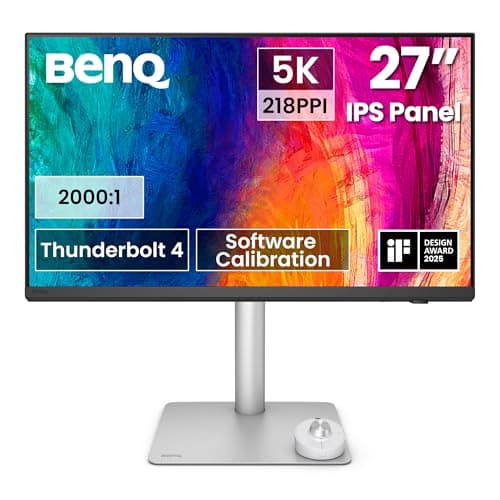
BenQ BenQ PD2730S 27" 5K Thunderbolt 4 Mac Monitor
BenQ PD2730S 27" 5K Thunderbolt 4 Mac Monitor

The 5K monitor that gets the whole Mac checklist right: 218 PPI for a native 2x desktop, Thunderbolt 4 with 90W and a daisy-chain output, a KVM, a matte panel and a stand that raises, swivels and pivots.

Best overall
9.0
$1,099.99Amazon
02
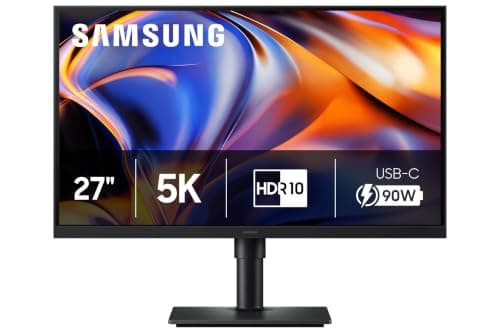
Samsung Samsung 27" ViewFinity S8 (S80HF) 5K Monitor
Samsung 27" ViewFinity S8 (S80HF) 5K Monitor

The value 5K. Same 218 PPI as monitors that cost far more, with 90W over USB-C, an ethernet port and a KVM - the monitor doubles as the dock. You give up P3 color, brightness and Thunderbolt.

Best value 5K
8.9
Check price →
03
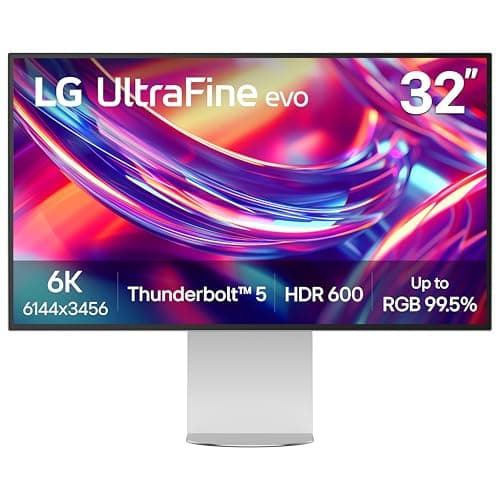
LG LG 32U990A-S 32" UltraFine evo 6K Thunderbolt 5
LG 32U990A-S 32" UltraFine evo 6K Thunderbolt 5

The Mac monitor for people who tile windows. 6K at 31.5 inches is 224 PPI, so macOS stays at a clean 2x while the workspace grows to look like 3072 x 1728 - with Thunderbolt 5, 96W, a KVM and a daisy-chain port.

Best 32-inch (6K)
8.9
$1,299.99Amazon
04
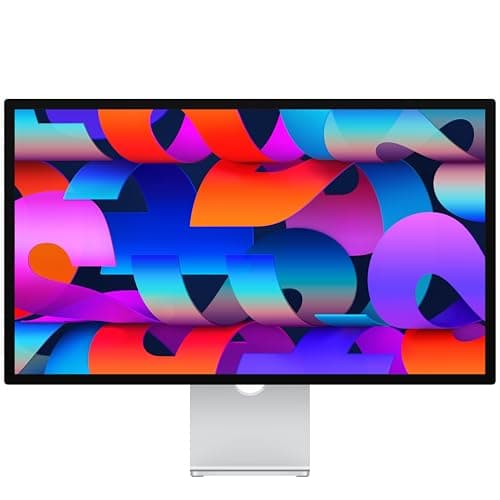
Apple Apple Studio Display (2026), Standard Glass, VESA Mount Adapter
Apple Studio Display (2026), Standard Glass, VESA Mount Adapter

The native option. A 218 PPI 5K panel at 600 nits with a 12MP Center Stage camera, six speakers, three mics and Thunderbolt 5 with 96W - and brightness and volume that simply work from the Mac. The VESA version plus an arm fixes the stand.

Best native Mac display
8.6
$1,560.42Amazon
05
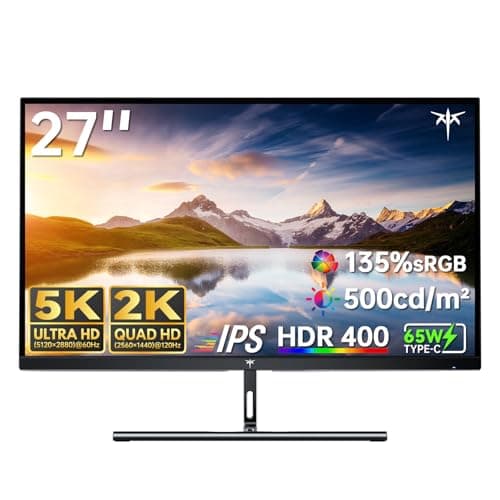
KTC KTC H27P3 27" 5K Dual-Mode Monitor
KTC H27P3 27" 5K Dual-Mode Monitor

The cheapest honest route to Retina-class text. 5K at 217 PPI, 500 nits and 99% DCI-P3 over one USB-C cable - on a stand that only tilts, with 65W of charging.

Cheapest 5K
8.6
$503.98Amazon
06
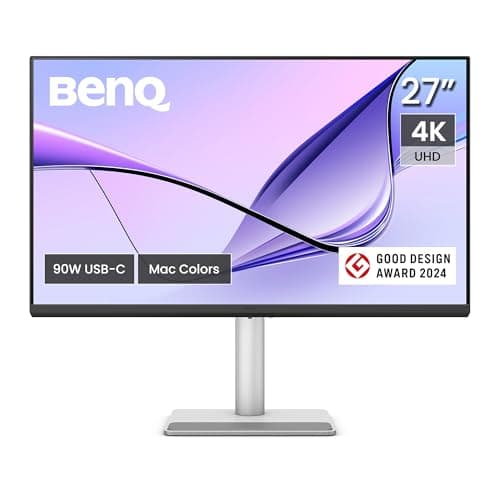
BenQ BenQ MA270U 27" 4K Monitor for MacBook
BenQ MA270U 27" 4K Monitor for MacBook

The 4K pick for a MacBook owner who wants the whole package in one box: 90W USB-C, 95% P3, a Mac color mode, Mac keyboard brightness and volume control through Display Pilot 2, and a full stand - at 163 PPI, so you will run a scaled setting.

Best 4K for a MacBook
8.2
$549.99Amazon

#ad · Live prices from the Amazon Product API, as of Sep 24, 2026. Where we have no verified live price we show none — we would rather leave a gap than print a number that has rotted.

In detail

The picks, in full

01
BenQ BenQ PD2730S 27" 5K Thunderbolt 4 Mac Monitor

Best overall

BenQ PD2730S 27" 5K Thunderbolt 4 Mac Monitor

Screen
27" IPS, Nano Matte surface
Resolution
5120 x 2880 (5K), 218 PPI, 60Hz
Host connection
Thunderbolt 4 in with 90W power delivery, Thunderbolt 4 out for daisy chain
Panel
400 nits typical, 2000:1 contrast, 98% P3, 100% sRGB
Extras
KVM, USB hub (3 USB-A, 1 USB-C), HDMI 2.1, DisplayPort 1.4, Hotkey Puck G3
Stand
150mm height, -5 to 20 degree tilt, 30 degree swivel each way, 90 degree pivot; VESA 100 x 100mm
9.0/10

The 5K monitor that gets the whole Mac checklist right: 218 PPI for a native 2x desktop, Thunderbolt 4 with 90W and a daisy-chain output, a KVM, a matte panel and a stand that raises, swivels and pivots.

Pixel Density
9.6
Connectivity
9.6
Image & Panel
9.2
Value
7.6

Pros

  • 218 PPI means macOS runs its default 2x mode and gives you a 2560 x 1440 workspace with no scaling at all
  • The Thunderbolt 4 output daisy-chains a second display, so a two-screen desk still needs one cable to the laptop
  • BenQ says the Mac keyboard's brightness keys can adjust the monitor directly
  • The built-in KVM moves one keyboard and mouse between a Mac and a PC sharing the desk
  • The Nano Matte surface is the answer for a room with a window behind you

Cons

  • 90W falls short of the 96W and 140W adapters Apple ships with the higher-end MacBook Pro models
  • No webcam, and the 3W speakers are placeholders rather than desk speakers
  • Heavy at 8.3 kg on its stand, which matters if it is going on an arm
  • 60Hz only, where the KTC can at least switch to 120Hz at 1440p

Skip this if…

…your work is documents, mail and a browser - the Samsung below delivers the same 218 PPI sharpness, and the P3 color and daisy chain you pay extra for here would go unused.

$1,099.99View on Amazon

Price as of Sep 24, 2026. Prices change — Amazon's is the one that counts.

#ad · we may earn a commission from this link to BenQ PD2730S 27" 5K Thunderbolt 4 Mac Monitor

02
Samsung Samsung 27" ViewFinity S8 (S80HF) 5K Monitor

Best value 5K

Samsung 27" ViewFinity S8 (S80HF) 5K Monitor

Screen
27" IPS
Resolution
5120 x 2880 (5K), 218 PPI, 60Hz
Host connection
USB-C with 90W charging
Panel
350 nits typical, 1000:1 contrast, 99% sRGB
Extras
Ethernet (LAN) port, KVM, USB hub, HDMI 2.1, DisplayPort 1.4
Stand
120mm height, -3 to 25 degree tilt, 45 degree swivel each way, pivot; VESA 100 x 100mm
8.9/10

The value 5K. Same 218 PPI as monitors that cost far more, with 90W over USB-C, an ethernet port and a KVM - the monitor doubles as the dock. You give up P3 color, brightness and Thunderbolt.

Pixel Density
9.6
Connectivity
8.6
Image & Panel
8
Value
9.4

Pros

  • The same 218 PPI, native 2x desktop as the BenQ and the Studio Display
  • 90W over USB-C covers a MacBook Air and the 70W 14-inch MacBook Pro models
  • An ethernet port plus a KVM means the monitor genuinely replaces a dock on a one-screen desk
  • A full stand with height, swivel and pivot, so an arm is optional rather than required

Cons

  • 99% sRGB is the only gamut Samsung publishes, with no P3 figure, which matters for photo and video work
  • 350 nits and 1000:1 are the lowest brightness and published contrast of the 5K panels here
  • USB-C rather than Thunderbolt, so there is no daisy-chain output for a second screen on a Mac
  • No built-in speakers

Skip this if…

…you edit photos or video for a living - the wide P3 gamut on the BenQ and the Apple is most of what their higher price buys.

Check price on Amazon →

No buyable offer at the last price check (Sep 24, 2026). We show nothing rather than a stale number.

#ad · we may earn a commission from this link to Samsung 27" ViewFinity S8 (S80HF) 5K Monitor

03
LG LG 32U990A-S 32" UltraFine evo 6K Thunderbolt 5

Best 32-inch (6K)

LG 32U990A-S 32" UltraFine evo 6K Thunderbolt 5

Screen
31.5" Nano IPS Black
Resolution
6144 x 3456 (6K), 224 PPI, 60Hz
Host connection
Thunderbolt 5 with 96W power delivery, daisy chain supported
Panel
450 nits typical, 2000:1 contrast, 98% DCI-P3, DisplayHDR 600
Extras
KVM, 2 USB-C downstream, HDMI 2.1, DisplayPort 2.1, speakers
Stand
Height, tilt and pivot; VESA 100 x 100mm; 20.9 lb with stand, 13.2 lb without
8.9/10

The Mac monitor for people who tile windows. 6K at 31.5 inches is 224 PPI, so macOS stays at a clean 2x while the workspace grows to look like 3072 x 1728 - with Thunderbolt 5, 96W, a KVM and a daisy-chain port.

Pixel Density
9.8
Connectivity
9.6
Image & Panel
9.4
Value
6.8

Pros

  • 224 PPI keeps macOS at native 2x on a bigger canvas - about 44 percent more workspace area than 5K
  • 96W over Thunderbolt 5 matches the adapter that ships with the 14-inch M5 Max MacBook Pro
  • DisplayHDR 600 is the highest VESA HDR tier on this list, alongside 98% DCI-P3 coverage
  • KVM and daisy-chain support built in

Cons

  • LG lists height, tilt and pivot but no swivel adjustment
  • Runs from an external power adapter, which is one more brick to hide under the desk
  • At 31.5 inches it wants more desk depth and viewing distance than a 27-inch panel
  • 60Hz, as on every pick here apart from the KTC's 1440p mode

Skip this if…

…you rarely have more than two windows open - the extra 6K workspace is the entire reason to pay for it, and a 27-inch 5K panel is sharp enough otherwise.

$1,299.99View on Amazon

Price as of Sep 24, 2026. Prices change — Amazon's is the one that counts.

#ad · we may earn a commission from this link to LG 32U990A-S 32" UltraFine evo 6K Thunderbolt 5

04
Apple Apple Studio Display (2026), Standard Glass, VESA Mount Adapter

Best native Mac display

Apple Studio Display (2026), Standard Glass, VESA Mount Adapter

Screen
27" 5K Retina, standard glass
Resolution
5120 x 2880, 218 PPI, 60Hz, 600 nits, P3 wide color, True Tone
Host connection
Thunderbolt 5 upstream with 96W host charging
Other ports
Thunderbolt 5 downstream (accessories or daisy chain), two USB-C at 10Gb/s
Camera & audio
12MP Center Stage camera with Desk View, six-speaker system, three-mic array
Mount
VESA mount adapter, 100 x 100mm, no stand included; 11.9 lb
8.6/10

The native option. A 218 PPI 5K panel at 600 nits with a 12MP Center Stage camera, six speakers, three mics and Thunderbolt 5 with 96W - and brightness and volume that simply work from the Mac. The VESA version plus an arm fixes the stand.

Pixel Density
9.6
Connectivity
9
Image & Panel
9.6
Value
6.2

Pros

  • The only pick with a camera and microphones built in, plus a six-speaker system, which can replace three separate purchases
  • macOS controls its brightness and volume natively, with no extra software
  • 600 nits is the brightest panel on this list
  • Thunderbolt 5 with 96W and a downstream port for a second display
  • At 11.9 lb the VESA version sits comfortably on a good monitor arm, which is how it gets height adjustment

Cons

  • The most expensive 27-inch display here, for the same 218 PPI grid as the Samsung
  • This version has no stand, so an arm is part of the price
  • Thunderbolt and USB-C are the only ports - no HDMI or DisplayPort input, and Apple's compatibility list names Apple silicon Macs, not PCs
  • No KVM, and 96W still falls short of a 16-inch MacBook Pro's 140W adapter
  • Switching between stand and VESA later means an Apple Store or authorized service provider, and a parts and service fee

Skip this if…

…a Windows PC or anything else without Thunderbolt shares the desk - there is no HDMI or DisplayPort input, and the BenQ above switches between a Mac and a PC with its KVM.

$1,560.42View on Amazon

Price as of Sep 24, 2026. Prices change — Amazon's is the one that counts.

#ad · we may earn a commission from this link to Apple Studio Display (2026), Standard Glass, VESA Mount Adapter

05
KTC KTC H27P3 27" 5K Dual-Mode Monitor

Cheapest 5K

KTC H27P3 27" 5K Dual-Mode Monitor

Screen
27" IPS, anti-glare
Resolution
5120 x 2880 at 60Hz, or 2560 x 1440 at 120Hz; 217 PPI
Host connection
USB-C with video and 65W power delivery
Panel
500 nits typical, 2000:1 contrast, 99% DCI-P3, HDR400
Other inputs
DisplayPort 1.4, HDMI 2.0, 2 USB-A 3.0, headphone out
Stand
Tilt only, -5 to 15 degrees; VESA 75 x 75mm
8.6/10

The cheapest honest route to Retina-class text. 5K at 217 PPI, 500 nits and 99% DCI-P3 over one USB-C cable - on a stand that only tilts, with 65W of charging.

Pixel Density
9.6
Connectivity
7
Image & Panel
8.2
Value
9.6

Pros

  • 5K sharpness in the price bracket where most monitors are 4K
  • 500 nits typical and 99% DCI-P3 on paper, brighter than every 5K panel here except the Studio Display
  • Dual mode drops to 1440p at 120Hz when the same screen is used for games
  • A VESA pattern, so the tilt-only stand can be replaced with an arm

Cons

  • The stand only tilts - no height, swivel or pivot - so budget for an arm or a riser
  • 65W is below the 70W adapter of the 14-inch MacBook Pro, let alone the bigger ones
  • HDMI 2.0, no speakers, no KVM and no ethernet
  • VESA 75 x 75mm rather than 100 x 100mm, so check the arm plate before you order

Skip this if…

…you plan to keep it on the stand in the box - it only tilts, so the screen height is wherever the base puts it.

$503.98View on Amazon

$559.9910% off

Price as of Sep 24, 2026. Prices change — Amazon's is the one that counts.

#ad · we may earn a commission from this link to KTC H27P3 27" 5K Dual-Mode Monitor

06
BenQ BenQ MA270U 27" 4K Monitor for MacBook

Best 4K for a MacBook

BenQ MA270U 27" 4K Monitor for MacBook

Screen
27" IPS, Nano Matte surface
Resolution
3840 x 2160 (4K), 163 PPI, 60Hz
Host connection
USB-C with DisplayPort Alt Mode and 90W power delivery
Panel
400 nits, 1200:1 contrast, 95% P3, 99% sRGB; M-book color mode
Other ports
Second USB-C (15W charging), 2 HDMI 2.0, 2 USB-A, 3W x 2 speakers
Stand
115mm height, -5 to 20 degree tilt, 15 degree swivel each way, 90 degree pivot; VESA 100 x 100mm
8.2/10

The 4K pick for a MacBook owner who wants the whole package in one box: 90W USB-C, 95% P3, a Mac color mode, Mac keyboard brightness and volume control through Display Pilot 2, and a full stand - at 163 PPI, so you will run a scaled setting.

Pixel Density
7.4
Connectivity
8
Image & Panel
8.6
Value
8.8

Pros

  • 90W over USB-C covers a MacBook Air and the 70W 14-inch MacBook Pro models
  • Brightness and volume keys on the MacBook adjust the monitor too, once Display Pilot 2 is installed
  • 95% P3 coverage and an M-book mode aimed at matching a MacBook's own screen
  • Full height, swivel and pivot stand, plus a matte panel

Cons

  • 163 PPI means macOS runs a scaled mode for a 2560 x 1440-sized desktop, with the performance note Apple attaches to that
  • No DisplayPort input - just USB-C and two HDMI 2.0 ports
  • No KVM, no ethernet and no daisy-chain output
  • 8.2 kg is heavy for a 27-inch 4K panel
  • Compare the KTC's live price before you buy: when the two are close, the KTC is the sharper panel and this is the better-equipped monitor

Skip this if…

…text sharpness is the reason you are upgrading - that is exactly the problem 5K solves and 4K at 27 inches does not.

$549.99View on Amazon

Price as of Sep 24, 2026. Prices change — Amazon's is the one that counts.

#ad · we may earn a commission from this link to BenQ MA270U 27" 4K Monitor for MacBook

5K, 6K or 4K: the short version

Buy 5K at 27 inches if you want the sharpest text macOS can give you at the size most desks hold. It is the one 27-inch resolution where the default setting and the useful workspace are the same thing. Within 5K, the choice is what you pay for around the panel: P3 color and Thunderbolt on the BenQ, a camera and speakers on the Apple, ethernet and a KVM on the Samsung, or nothing extra at all on the KTC.

Buy 6K at 31.5 inchesif you tile three windows across the screen all day — code, a browser and a terminal, or a timeline and two panels. The sharpness is the same class as 5K; what you are buying is room. Confirm the desk first, because the LG measures 28.3 inches wide on its stand and a bigger screen wants more distance from your eyes. Our desk depth guide does the subtraction.

Buy 4Kif the budget is the constraint and you accept a scaled desktop. Check the prices side by side first, though: 5K has come down far enough that the KTC can land close to a well-equipped 4K panel like the MA270U, and at that point the choice is sharpness against a better stand and more charging. If you do not need the MA270U’s Mac-specific extras, a general 4K USB-C monitor usually sits in a lower price bracket — the Dell 27 Plus is the 4K value pick in our USB-C monitor roundup, and the wider field is in the best 4K monitors. At 32 inches 4K is a much easier recommendation for work in general, though on a Mac it still lands in the scaled gap at about 140 PPI.

Why the Studio Display is not ranked first

It is the best-integrated monitor a Mac can use, and nothing else here plugs in and behaves quite so much like part of the computer. But the panel grid is the same 218 PPI the Samsung and the KTC deliver for far less, the stand in its base configuration only tilts, and a PC cannot share it. The honest way to judge it is to price in what it replaces. If you were going to buy a good webcam and a pair of desk speakers anyway, the gap narrows considerably. If you already own both, the BenQ or the Samsung is the better use of the money.

What about the Studio Display XDR?

Apple announced it in March 2026 alongside the updated Studio Display: the same 27-inch 5K grid on a mini-LED panel with 2,304 local dimming zones, 1,000 nits in SDR and 2,000 nits peak HDR, refresh up to 120Hz, and up to 140W of charging through its Thunderbolt 5 cable — the only Apple display whose charging matches a 16-inch MacBook Pro’s adapter. Apple prices it at more than twice the standard Studio Display. It is not ranked here because its premium buys HDR and refresh rate rather than sharper text; for the text-and-windows work this page is about, the pixel grid is identical.

Matte, glossy and nano-texture

Both BenQ panels use BenQ’s Nano Matte surface and the KTC has an anti-glare coating. Apple sells the Studio Display with standard glass or nano-texture glass, the latter at extra cost. If your desk faces away from a window, the finish barely matters. If a window sits behind you, it matters more than a hundred nits of brightness does, and it is worth choosing a matte finish over a slightly better spec sheet.

Mount it, then light it

A 27-inch 5K panel is exactly the screen to put on a monitor arm, and a pair of them belongs on one of the dual monitor arms we rank. Either way, check the panel weight without its stand against the arm’s rating, and the VESA pattern against the arm plate: the KTC is 75×75mm while the rest are 100×100mm. A monitor light bar wants the top edge of the screen, which is also where a webcam goes — the Studio Display avoids that conflict by building the camera in. The LG’s external power brick belongs in an under-desk tray rather than on the floor.
How we picked

We do not run a testing lab

We compiled the published manufacturer specifications, did the ergonomics, VESA and desk-depth math ourselves, and read aggregated owner reviews, then scored each product against a published rubric. The scores are judgments from documented research — they are not measurements we took, because we do not have a lab and we are not going to pretend we do. Every spec traces back to a listing or manual named in Sources.

Questions

Frequently asked

What is the best monitor resolution for a Mac?
5K at 27 inches or 6K at 31.5 inches. Both land near 220 pixels per inch, which lets macOS draw the desktop at exactly 2x: a 2560×1440 workspace on the 5K panel and a 3072×1728 workspace on the 6K. Other combinations work, but they either run at 1x with coarser text or at a scaled setting that Apple notes may affect performance.
Why does text look blurry on my external monitor on a Mac?
Usually because the monitor’s pixel density sits between the two that macOS is designed for, about 110 and about 220 PPI. On a 27-inch 4K panel set to “looks like 2560×1440,” macOS renders the desktop at a larger size and scales it down to fit, which softens the result slightly. A 27-inch 1440p panel runs at 1x and simply has fewer pixels per letter. A 5K or 6K monitor avoids both.
Is a 4K monitor good enough for a MacBook?
Yes, as long as you know what you are trading. A 27-inch 4K panel is far sharper than 1440p, but to get a sensibly sized desktop you run a scaled mode rather than native 2x. Many people are happy with that. If sharp text is the specific reason you are upgrading, 5K is the fix and 4K is the compromise.
Can a MacBook Air run two external monitors?
The M4 and M5 MacBook Air can. Apple says both support up to two external displays at once alongside the built-in screen, at up to 6K at 60Hz each, and closing the lid does not add a third. Earlier MacBook Air models differ, so check Apple’s support page for your chip before buying a second monitor.
Will a USB-C or Thunderbolt monitor charge my MacBook Pro?
It will charge it, but match the wattage to the adapter Apple shipped with your model. The 70W 14-inch MacBook Pro models are covered by the 90W and 96W monitors here. The 96W models are matched only by the 96W Studio Display and LG. The 16-inch MacBook Pro ships with a 140W adapter, which no monitor ranked on this page matches.
Do I need Thunderbolt, or is USB-C enough for a Mac monitor?
For one monitor, USB-C with enough wattage is enough: the Samsung, KTC and MA270U all carry the picture and the charging on a single USB-C cable. Thunderbolt matters when you want a second screen to daisy-chain from the first, because macOS does not support the MST method plain USB-C monitors use to pass a second independent picture along.

Keep reading

Receipts

Sources

We do not run a testing lab, and we do not pretend to. Specifications come from the manufacturer or retailer listing; the footprint and clearance math is ours and reproducible. Where we could not verify a number, we say so on the page rather than quietly leaving it out. Read our full method.