Skip to content
Chair & Cable

SECTION 05 · Cable Management

USB-C or Thunderbolt Dock?

Thunderbolt costs three times as much and most people do not need it. But there is one situation where a USB-C dock physically cannot do the job, and it is more common than you would think.

By Stephen V.Updated Published How we pick
#ad

We earn a commission when you buy through our Amazon links, at no extra cost to you. It never affects our rankings, and we say so when the cheaper product is the better buy. How this works.

Buy a USB-C dock unless one of three things is true: you own a Thunderbolt laptop and regularly move large files to external SSDs, you need more than 65W of charging, or you are on an Apple silicon Mac and want two or more external displays. Outside those cases a plain USB-C dock does the same daily job for a fraction of the money, and the extra Thunderbolt lanes sit idle. That is the whole answer; the rest of this page is how to tell which case you are in.

The comparison, on what actually differs

 USB-C dockThunderbolt 4 dock
Bandwidth to the hostTypically 10Gbps, shared40Gbps, shared
Dual displaysVia DisplayPort Alt Mode / MST — host dependentNatively supported
Apple silicon, two screensOnly with DisplayLinkPro/Max chips yes; base chips need DisplayLink
Host chargingCommonly 60 to 85WCommonly 90 to 140W
External SSD speedShares the 10Gbps pipe with everything elseFull speed alongside displays and peripherals
Typical priceEntry to midThree to six times more

Check your laptop before you check the dock

A Thunderbolt dock on a non-Thunderbolt laptop still works — it falls back to USB-C behavior — but you have paid for capability the machine cannot reach. So look at your port first. Thunderbolt ports are marked with a small lightning-bolt icon beside the USB-C connector; a plain USB-C port has no marking or a battery/DisplayPort icon. On Windows, Device Manager lists a Thunderbolt controller if one is present. On a Mac, System Information shows a Thunderbolt section.

The other check is power. Find your laptop’s supplied charger wattage. If it is 65W or less, most USB-C docks will keep it charged under load. If it is 96W, 100W, or 140W — common on 15 and 16-inch machines — a typical USB-C dock will charge it slowly or not at all while you are working it hard, and that is a genuine reason to step up.

The dual-monitor trap, which is where most of the money gets wasted

This is the single most common expensive mistake in this category, and it is worth being precise about. A USB-C dock drives two displays through DisplayPort Alt Mode, and whether that produces two independent screens depends entirely on the host machine.

  • Windows laptops that support MST (Multi-Stream Transport) will extend two displays from a single USB-C connection. Most modern business laptops do.
  • Apple silicon Macs with base chips (the plain M-series without Pro or Max) support only one external display over DisplayPort Alt Mode, and macOS has never supported MST. Plug two monitors into a plain USB-C dock and you get the same picture on both. No dock firmware fixes this; it is a limitation of the machine.
  • Apple silicon Pro and Max chips support multiple external displays natively over Thunderbolt, which is the case where a Thunderbolt dock genuinely earns its price.

The escape hatch for base-chip Macs is DisplayLink: a dock that compresses and sends the display signal over USB as data, then decompresses it in a driver on the machine. It works, it supports several screens, and it is the only route to multi-monitor on a base M-series Mac. The costs are a driver install, some CPU overhead, and compression artifacts on fast-moving video — fine for documents, browsers, and code, less good for video editing or gaming. The dual-monitor dock field generally is covered in the USB-C docks roundup.

Where bandwidth actually shows up

USB-C docks share a 10Gbps pipe among everything connected. In practice that is invisible for a keyboard, a mouse, a webcam, and a network connection. It becomes visible the moment you add external storage: a fast NVMe SSD that could sustain 2,000MB/s will be throttled by whatever else is sharing the pipe, and copying a large project folder while on a video call is exactly the situation where you notice.

Thunderbolt’s 40Gbps means the drive, the displays, and the peripherals each get room. If your work involves moving multi-gigabyte files off external storage regularly — video, photography, large datasets — that is the clearest, least arguable case for spending the money.

What about Thunderbolt 5?

Thunderbolt 5 docks are shipping now and go further again, with substantially higher bandwidth and up to 140W host charging. The same rule applies, only more so: the host has to support it. Thunderbolt 5 ports have reached the higher-end MacBook Pro and a growing list of premium Windows laptops, but they are still the exception rather than the default. Unless you own a Thunderbolt 5 machine, a Thunderbolt 4 dock is the sensible ceiling and will keep working with whatever you buy next.

The switching question this page does not answer

If your actual problem is sharing one keyboard, mouse, and monitor between two computers rather than expanding one, a dock is the wrong category entirely and a KVM switch is the right one. That comparison is in docking station vs KVM switch.

The short answer

Quick picks

#ProductBest forScorePrice
01
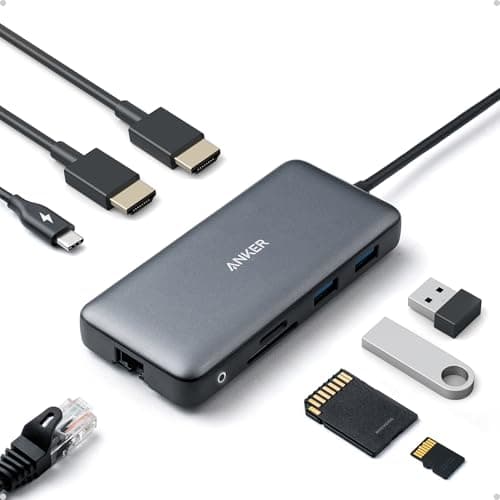
Anker Anker Docking Station (Dual Monitor, 8-in-1)
Anker Docking Station (Dual Monitor, 8-in-1)

The USB-C side of the argument, and the right buy for most Windows laptop owners. Two screens and a charge from one cable, at a third of Thunderbolt money.

Best USB-C dock
8.7
$39.99Amazon
02
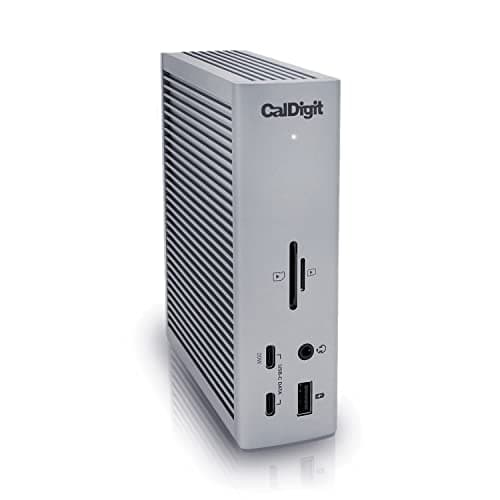
CalDigit CalDigit TS4 Thunderbolt 4 Dock (18 Port)
CalDigit TS4 Thunderbolt 4 Dock (18 Port)

The Thunderbolt side, and the reference product in the category. Eighteen ports, 98W to the host, and 40Gbps of shared bandwidth that does not collapse when you plug in a drive and a camera at once.

Best Thunderbolt dock
8.7
$379.99Amazon
03
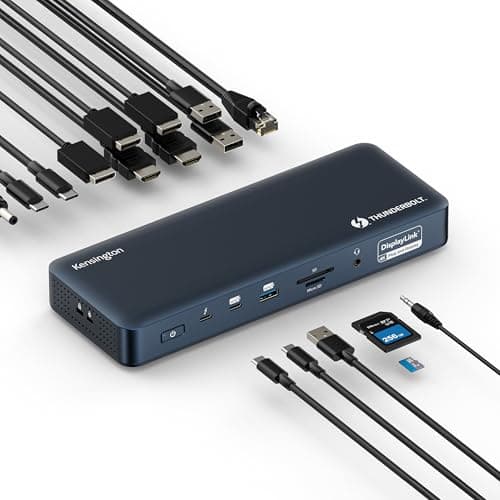
Kensington Kensington SD5900T Thunderbolt 4 Dock with DisplayLink
Kensington SD5900T Thunderbolt 4 Dock with DisplayLink

The one that solves the Mac problem outright. Thunderbolt 4 plus DisplayLink means up to four 4K displays on an Apple silicon MacBook, which neither plain USB-C nor plain Thunderbolt manages.

Best for Apple silicon multi-monitor
8.9
$260.99Amazon

#ad · Live prices from the Amazon Product API, as of Sep 6, 2026. Where we have no verified live price we show none — we would rather leave a gap than print a number that has rotted.

In detail

The picks, in full

01
Anker Anker Docking Station (Dual Monitor, 8-in-1)

Best USB-C dock

Anker Docking Station (Dual Monitor, 8-in-1)

Host connection
Single USB-C cable to laptop
Displays
Dual HDMI output
Ports
8-in-1 layout (USB-A/C, HDMI, Ethernet, more)
Charging
USB-C power passthrough for the host laptop
Compatibility
Windows extends both screens; macOS mirrors on many hosts
8.7/10

The USB-C side of the argument, and the right buy for most Windows laptop owners. Two screens and a charge from one cable, at a third of Thunderbolt money.

Dual-Display Support
8.6
Bandwidth
7.4
Power Delivery
9
Value
9.6

Pros

  • Two extended screens on a supported Windows laptop from a single cable
  • A focused port set that covers what people plug in daily without spec-sheet padding
  • Costs a fraction of any Thunderbolt dock
  • Power passthrough charges the laptop while it docks

Cons

  • Native DisplayPort Alt Mode output means an Apple silicon Mac mirrors rather than extends
  • Charging wattage may not fully feed a power-hungry 16-inch laptop
  • Shares one 10Gbps pipe across everything plugged in

Skip this if…

you are on an Apple silicon Mac and need two independent screens - you need DisplayLink or Thunderbolt

$39.99View on Amazon

$53.9926% off

Price as of Sep 6, 2026. Prices change — Amazon's is the one that counts.

#ad · we may earn a commission from this link to Anker Docking Station (Dual Monitor, 8-in-1)

02
CalDigit CalDigit TS4 Thunderbolt 4 Dock (18 Port)

Best Thunderbolt dock

CalDigit TS4 Thunderbolt 4 Dock (18 Port)

Host connection
Thunderbolt 4, 40Gb/s
Ports
18 total - 3x TB4, 3x USB-C 10Gb/s, 5x USB-A 10Gb/s, DisplayPort 1.4
Network
2.5 Gigabit Ethernet
Card readers
SD 4.0 and microSD 4.0 (UHS-II)
Charging
Up to 98W to the host laptop
Displays
Single 8K at 30Hz, or dual 6K at 60Hz (host dependent)
8.7/10

The Thunderbolt side, and the reference product in the category. Eighteen ports, 98W to the host, and 40Gbps of shared bandwidth that does not collapse when you plug in a drive and a camera at once.

Dual-Display Support
9.2
Bandwidth
9.8
Power Delivery
9.6
Value
6.2

Pros

  • 40Gbps means external SSDs run at full speed while displays and peripherals are active
  • 98W charging feeds a 16-inch laptop properly, which most USB-C docks cannot
  • Eighteen ports including UHS-II card readers and 2.5GbE, so nothing needs a second hub
  • Dual displays work natively on Thunderbolt Macs, which plain USB-C docks cannot deliver

Cons

  • Roughly six times the price of the Anker
  • Needs a genuine Thunderbolt host; on a plain USB-C laptop most of it sits idle
  • Large and mains-powered, so it is a permanent desk fixture rather than a travel dock

Skip this if…

your laptop has no Thunderbolt port - you would be paying for lanes the machine cannot use

$379.99View on Amazon

Price as of Sep 6, 2026. Prices change — Amazon's is the one that counts.

#ad · we may earn a commission from this link to CalDigit TS4 Thunderbolt 4 Dock (18 Port)

03
Kensington Kensington SD5900T Thunderbolt 4 Dock with DisplayLink

Best for Apple silicon multi-monitor

Kensington SD5900T Thunderbolt 4 Dock with DisplayLink

Host connection
Thunderbolt 4, 40Gb/s
Displays
Up to four external displays at 4K 60Hz via DisplayLink
Video ports
2x HDMI/DP, 1x DP, 2x Thunderbolt 4 downstream
Ports
16-in-1 including USB-C 10Gb/s, USB-A, SD and microSD
Network
2.5 Gigabit Ethernet
Charging
Up to 100W (96W certified) to the host
8.9/10

The one that solves the Mac problem outright. Thunderbolt 4 plus DisplayLink means up to four 4K displays on an Apple silicon MacBook, which neither plain USB-C nor plain Thunderbolt manages.

Dual-Display Support
9.8
Bandwidth
9
Power Delivery
9.4
Value
7.2

Pros

  • DisplayLink bypasses the Apple silicon base-chip limit of one external display entirely
  • Quad 4K at 60Hz is more display output than any non-DisplayLink dock here
  • Also works as a straight Thunderbolt 4 dock on Windows
  • 100W charging and 2.5GbE match the premium tier

Cons

  • DisplayLink is software-driven, which costs some CPU and is not suited to high-frame-rate video
  • Requires a DisplayLink driver install and its own update cycle
  • Premium pricing with the same caveat as any Thunderbolt dock

Skip this if…

you need low-latency full-frame-rate video on every screen - DisplayLink compresses to get there

$260.99View on Amazon

Price as of Sep 6, 2026. Prices change — Amazon's is the one that counts.

#ad · we may earn a commission from this link to Kensington SD5900T Thunderbolt 4 Dock with DisplayLink

The verdict

Buy a USB-C dock if you have a Windows laptop that supports MST, a charger of 65W or less, and no heavy external storage workflow. That covers most people, and the money saved is better spent on a monitor arm or a better chair.

Buy a Thunderbolt dock if you own a Thunderbolt laptop and any of the following is true: your charger is 90W or more, you regularly move large files to external SSDs, or you are on an Apple silicon Pro or Max chip driving multiple displays. Buy a Thunderbolt dock with DisplayLinkspecifically if you are on a base M-series Mac and want more than one external screen — that is the only combination that does it.

Whichever you buy, plan where it lives before it arrives. A dock is the thing that turns five cables into one, which makes it the anchor of the whole cable layout — and on a standing desk it should be mounted to the desk so it travels with it. The routing that follows is in the under-desk cable guide.
How we picked

We do not run a testing lab

We compiled the published manufacturer specifications, did the ergonomics, VESA and desk-depth math ourselves, and read aggregated owner reviews, then scored each product against a published rubric. The scores are judgments from documented research — they are not measurements we took, because we do not have a lab and we are not going to pretend we do. Every spec traces back to a listing or manual named in Sources.

Questions

Frequently asked

Do I need a Thunderbolt dock or is USB-C enough?
USB-C is enough unless one of three things applies: you move large files to external SSDs and need the full 40Gbps, your laptop charger is 90W or more, or you are on an Apple silicon Mac and need multiple external displays. Outside those, a USB-C dock does the same daily job for far less money.
Why does my MacBook mirror instead of extending two monitors?
Because base M-series Apple silicon chips support only one external display over DisplayPort Alt Mode, and macOS does not support MST. It is a limitation of the machine, not the dock. The only fix is a DisplayLink dock, which sends the display signal as compressed data over USB and decompresses it in a driver.
What is DisplayLink and is there a downside?
DisplayLink compresses the display signal, sends it over USB as data, and decompresses it in a driver on the host. It is the only way to run multiple external monitors from a base-chip Mac. The costs are a driver install, some CPU overhead, and compression artifacts on fast-moving content — fine for documents and code, less good for video editing or gaming.
How do I tell if my laptop has Thunderbolt?
Look for a small lightning-bolt icon beside the USB-C port; a plain USB-C port has no icon or a battery/DisplayPort symbol. On Windows, Device Manager will list a Thunderbolt controller if one is present; on a Mac, System Information has a Thunderbolt section. A Thunderbolt dock on a plain USB-C machine still works, but only at USB-C speeds.
Is a Thunderbolt 5 dock worth buying now?
Only if you own a Thunderbolt 5 laptop. The port has arrived on the higher-end MacBook Pro and a growing list of premium Windows machines, but most laptops on desks today are still Thunderbolt 4 or USB-C. On a Thunderbolt 4 host a TB5 dock falls back to TB4 speeds, so you are paying for headroom you cannot use. Check the port on the machine you actually own.

Keep reading

Receipts

Sources

We do not run a testing lab, and we do not pretend to. Specifications come from the manufacturer or retailer listing; the footprint and clearance math is ours and reproducible. Where we could not verify a number, we say so on the page rather than quietly leaving it out. Read our full method.