Ultrawide resolution labels are the worst-named part of the display industry. UWQHD, WQHD+, WUHD, DQHD, 5K2K — the letters look like a system, and they nearly are, but two manufacturers will use different labels for the same pixel grid, and two completely different pixel grids both begin with the number 5120. Buyers lose real money on this: the single most common ultrawide mistake is paying for width when what the work needed was height.
Here is the decoder.The base terms come from 16:9 televisions. FHD is 1920×1080. QHD is 2560×1440, four times 720p, which is where the “quad” comes from. UHD is 3840×2160, the thing everyone calls 4K. Ultrawide labels then bolt prefixes onto those: a W for wide, a UW for ultrawide, a D for dual. Once you know that, the grids fall out:
- UWFHD — 2560×1080, 21:9. The entry-level ultrawide, and the one to avoid on a work desk. It is 1080p stretched sideways: no extra vertical space at all.
- UWQHD — 3440×1440, 21:9.The 34-inch standard, and the volume seller of the whole category. LG labels this panel “UltraWide QHD”; Dell labels the same 3440×1440 grid “WQHD” on its U3423WE. Same pixels, two names.
- WQHD+ — 3840×1600, 21:9.The 38-inch rung. Dell’s own spec sheet for the U3824DW calls it “WQHD+ 3840 x 1600”. It is exactly as wide as a 4K screen and 160 rows taller than a 34-inch ultrawide.
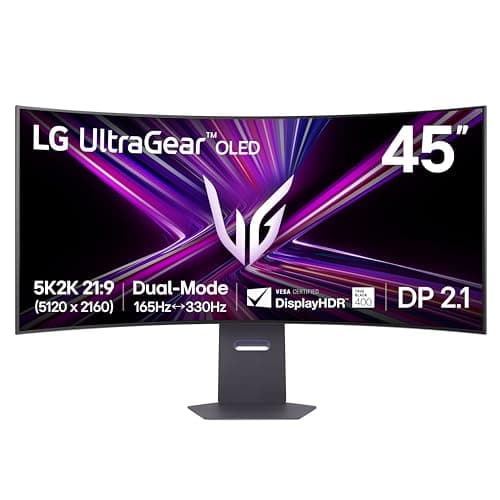
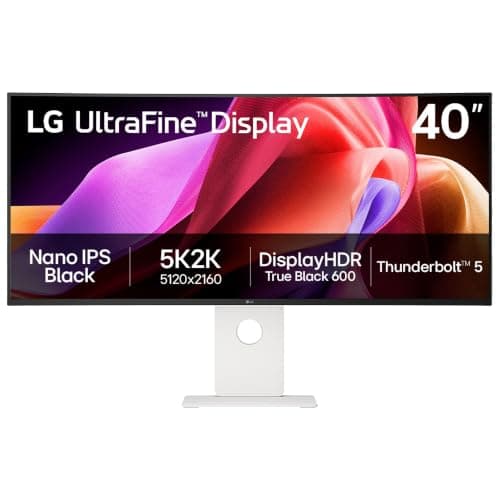
- WUHD — 5120×2160, 21:9.Also marketed as 5K2K. Dell files these under “5K WUHD (5120 x 2160)”; LG calls the 40-inch UltraFine a “5K2K WUHD” panel; Samsung uses WUHD for the 40-inch Odyssey G7 G75F. This is the only ultrawide class with more vertical resolution than a 1440p screen.
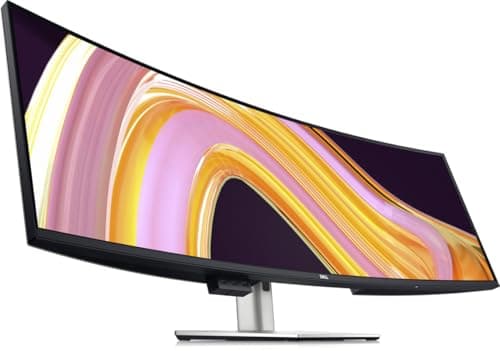
- DQHD — 5120×1440, 32:9.Dell’s wording is “Dual QHD”, and it is literal: two 2560×1440 panels side by side with the bezel removed. This is the 49-inch super-ultrawide class.
The trap is the 5120.WUHD and DQHD are both 5120 pixels wide, which is why listings for them sit next to each other in search results and why “WUHD monitor” and “49-inch ultrawide” get used as if they were the same thing. They are not remotely the same screen. WUHD gives you 2160 rows; DQHD gives you 1440. That is a 720-row difference — half a 1440p screen’s worth of vertical space — on two products that both say 5120 on the box. If your complaint about your current setup is that documents, timelines and code files feel short, WUHD is the answer and DQHD is not.
Sharpness is a different question from resolution, and it is the one people skip. Pixel density — pixels per inch — is resolution divided by physical width, so the same grid gets softer as the diagonal grows. Working the arithmetic through the panels in this comparison (these are computed from the resolution and the stated diagonal, not marketing figures):
- 34-inch UWQHD (3440×1440): about 110 PPI
- 37.5-inch WQHD+ (3840×1600): about 111 PPI
- 39.7-inch WUHD (5120×2160): about 140 PPI
- 45-inch WUHD (5120×2160): about 124 PPI, and LG publishes 125 PPI for this panel
- 49-inch DQHD (5120×1440): about 109 PPI
- 34-inch UWFHD (2560×1080): about 82 PPI
Read that list twice, because it contains the finding that decides most of these purchases: a 49-inch DQHD panel is no sharperthan a 34-inch UWQHD one. It is the same class of pixel density spread over 47 inches of glass. The only ultrawides that change the sharpness conversation are the 5120×2160 WUHD panels, which land in the same density band as a 32-inch 4K screen — sharp enough that most people run them with display scaling turned up, which is a real trade-off rather than a free win.
What each class asks of the machine. More pixels need more bandwidth, and bandwidth is a property of the cable standard and the port, not of the monitor alone. The 34-inch and 38-inch panels here are undemanding: DisplayPort 1.4 or a USB-C connection with DisplayPort Alt Mode carries them comfortably, which is why so many of them double as single-cable laptop docks. The 5120-wide panels are where port lists start to matter. The 40-inch UltraFine ships Thunderbolt 5, DisplayPort 2.1 and HDMI 2.1; the 45-inch OLED ships DisplayPort 2.1 and a 90W USB-C input. Check what your machine actually has before you buy the panel, and see DisplayPort vs HDMI for which cable to run once it arrives.
One honest note on naming. Every manufacturer specification page we checked for this comparison — Dell, LG and Samsung — uses WUHD for 5120×2160 and Dual QHD for 5120×1440. Retailer listings are less careful, and secondhand listings are worse. If a listing says WUHD, look for the pixel grid before you believe the label, and if it says 5120 without a second number, assume nothing.
How to read an ultrawide spec sheet
Ignore the label, find the two numbers
Every question about ultrawide resolution answers itself once you have the horizontal and vertical pixel counts side by side. 3440×1440 and 5120×1440 differ only in width. 5120×1440 and 5120×2160 differ only in height, by 720 rows. A listing that gives you a marketing label and no grid is hiding which of those two things you are buying, and on a resale or marketplace listing that is often deliberate. Find the grid, then look at the label.
Decide whether your problem is width or height
Width problems sound like “I am always alt-tabbing between two windows” or “my timeline runs off the screen.” Height problems sound like “I can only see 30 lines of code” or “every document is a scroll.” Ultrawides are overwhelmingly a width answer: four of the five classes above have the same 1440 rows as a standard 27-inch screen. Only WUHD at 5120×2160 adds height, and it charges for it. If your complaint is height, the honest options are a WUHD panel, a 4K screen, or a second display rotated vertically — see the best vertical monitors for that route.
Work out the scaling you will actually run
At roughly 109 to 111 PPI — the UWQHD, WQHD+ and DQHD panels — you run the desktop at 100 percent and every pixel is usable desktop. At 125 to 140 PPI — the WUHD panels — most people turn scaling up to 125 or 150 percent, which trades some of the extra resolution back for legible text. That is not a flaw; it is the same bargain a 4K 27-inch monitor makes. But it does mean the usable desktop on a WUHD panel is not simply “33 percent more than 4K,” and anyone promising that is quoting the box rather than the experience. The same arithmetic for standard screens is in our 1440p vs 4K comparison.
Check the port on the machine, not just the monitor
The 5120-wide classes are where connections stop being a formality. A 5120×2160 panel at a high refresh rate wants DisplayPort 2.1, Thunderbolt, or HDMI 2.1 with compression; older HDMI 2.0 outputs will negotiate something lower and the monitor will not tell you it did. Laptops are the common failure: a USB-C port that carries DisplayPort Alt Mode is not automatically capable of the panel’s full mode. If the machine is a laptop, read our USB-C vs Thunderbolt dock explainer before choosing between a 34-inch and a 5120-wide panel.
Then check whether it fits the desk
Resolution decides what you see; the diagonal decides whether you can sit far enough back to see it. A 49-inch DQHD panel is about 47 inches of glass and needs a deep desk and a serious arm; a 34-inch UWQHD panel is about 31 inches wide and fits almost anywhere. The size decision has its own arithmetic, and we put it on one page: what size ultrawide monitor you need. If you are mounting rather than using the stand, the load and reach numbers are in the best ultrawide monitor arms.