Buy a Thunderbolt dock for one of three reasons: you need more than 65W of charging, you move large files to external drives while the screens are running, or you need multiple displays and your laptop will not give them to you any other way. If none of those apply, a USB-C dock costs a third as much and does the same daily job. That comparison is worked through in USB-C vs Thunderbolt dock.
If you are in the market, here is what actually separates these boxes.
Host charging wattage. The number the dock sends back down the single cable to your laptop. Ninety to one hundred watts covers a 15 or 16-inch machine under real load. Below that, a hard-working laptop drains slowly while docked. Compare against the wattage printed on your own charger, not against the screen size.
How it drives displays. This is the spec that decides whether the dock solves your problem at all, and it splits three ways. Native Thunderbolt output works perfectly on Windows and on Apple silicon Pro and Max chips. DisplayPort MST works on most Windows laptops and on no Macs at all. DisplayLink compresses the display signal and sends it as data, which is the only route to more than one external screen on a base M-series Mac. Get this wrong and the dock will mirror rather than extend, and no firmware update will fix it.
Ethernet speed. Gigabit is standard; 2.5 gigabit is the upgrade, and it matters if you move files across a local network or run a NAS. On a desk with a wired drop, this is the difference between the dock replacing your network adapter and not.
Downstream Thunderbolt ports. Each one lets you daisy-chain another Thunderbolt device or display, which is how a two-screen setup stays at one cable to the laptop. Docks with three downstream Thunderbolt ports are meaningfully more flexible than docks with one.
One caution before the picks. A Thunderbolt dock on a non-Thunderbolt laptop still works — it falls back to USB-C behavior — but you have paid for lanes the machine cannot use. Look for the small lightning-bolt icon beside your USB-C port before spending.
The short answer
Quick picks
#ad · Live prices from the Amazon Product API, as of October 23, 2026. Where we have no verified live price we show none — we would rather leave a gap than print a number that has rotted.
In detail
The picks, in full
Best overall
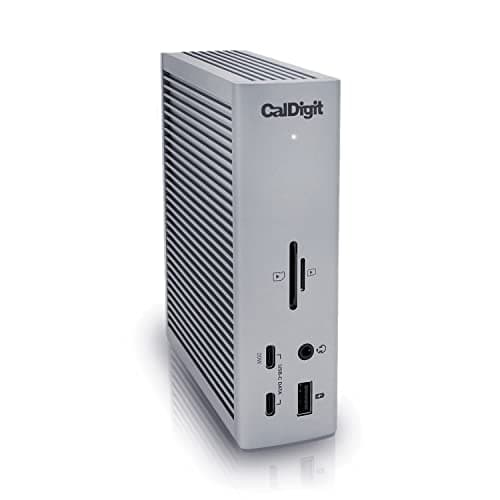
CalDigit TS4 Thunderbolt 4 Dock (18 Port)
- Host connection
- Thunderbolt 4, 40Gb/s
- Ports
- 18 total - 3x TB4, 3x USB-C 10Gb/s, 5x USB-A 10Gb/s, DisplayPort 1.4
- Network
- 2.5 Gigabit Ethernet
- Card readers
- SD 4.0 and microSD 4.0 (UHS-II)
- Charging
- Up to 98W to the host laptop
- Displays
- Single 8K at 30Hz, or dual 6K at 60Hz (host dependent)
The reference product in the category. Eighteen ports, 98W to the host, 2.5 gigabit ethernet and 40Gbps of bandwidth that does not collapse when a drive and a camera are both busy.
- Host Charging
- 9.6
- Display Output
- 9.2
- Port Count
- 9.8
- Value
- 6.6
Pros
- +98W charging feeds a 16-inch laptop properly, which most docks cannot
- +Eighteen ports including UHS-II card readers and 2.5GbE, so nothing needs a second hub
- +40Gbps means external SSDs run at full speed while displays and peripherals are active
- +Three downstream Thunderbolt ports for daisy-chaining displays and drives
Cons
- −The most expensive dock here
- −Large and mains-powered, so it is a permanent desk fixture rather than a travel dock
- −On a base M-series Mac it still cannot extend two displays - that needs DisplayLink
Skip this if…
…your laptop has no Thunderbolt port - you would be paying for lanes the machine cannot use.
Best for Apple silicon multi-monitor
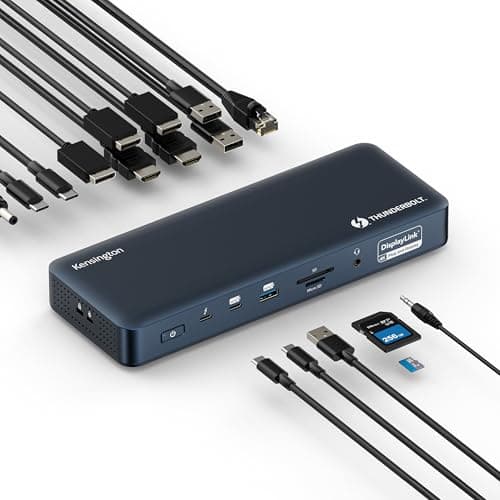
Kensington SD5900T Thunderbolt 4 Dock with DisplayLink
- Host connection
- Thunderbolt 4, 40Gb/s
- Displays
- Up to four external displays at 4K 60Hz via DisplayLink
- Video ports
- 2x HDMI/DP, 1x DP, 2x Thunderbolt 4 downstream
- Ports
- 16-in-1 including USB-C 10Gb/s, USB-A, SD and microSD
- Network
- 2.5 Gigabit Ethernet
- Charging
- Up to 100W (96W certified) to the host
The one that solves the Mac problem outright. Thunderbolt 4 plus DisplayLink means up to four 4K displays on an Apple silicon MacBook, which neither plain USB-C nor plain Thunderbolt manages.
- Host Charging
- 9.6
- Display Output
- 9.8
- Port Count
- 9.2
- Value
- 7
Pros
- +DisplayLink bypasses the Apple silicon base-chip limit of one external display entirely
- +Quad 4K at 60Hz is more display output than any non-DisplayLink dock here
- +Also works as a straight Thunderbolt 4 dock on Windows
- +100W charging and 2.5GbE match the premium tier
Cons
- −DisplayLink is software-driven, which costs some CPU and is not suited to high-frame-rate video
- −Requires a DisplayLink driver install and its own update cycle
- −Premium pricing with the same caveat as any Thunderbolt dock
Skip this if…
…you need low-latency full-frame-rate video on every screen - DisplayLink compresses to get there.
Best for many screens on Windows
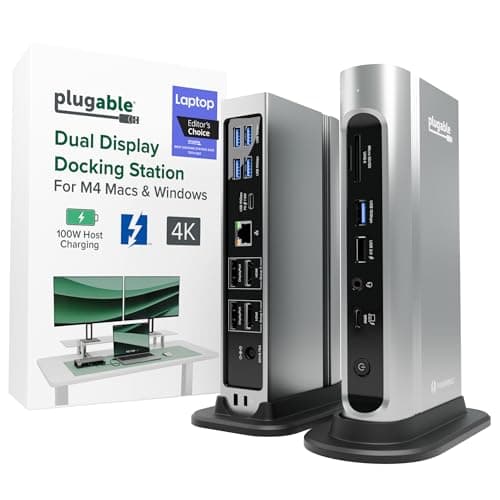
Plugable 16-in-1 Thunderbolt 4 Dock (TBT4-UDZ)
- Host connection
- Thunderbolt 4 / USB4, also works in USB-C Alt Mode
- Video ports
- 2x HDMI 2.0 and 2x DisplayPort 1.2
- Displays
- Up to four at 4096 x 2160 60Hz on compatible Windows hosts
- Charging
- Up to 100W (98W certified) to the host
- Data ports
- 3x USB-A and 1x USB-C at 10Gb/s, 2x USB-A at 5Gb/s, 1x USB 2.0
- Network
- 2.5 Gigabit Ethernet
- Card readers
- UHS-II SD and microSD
The dock with the most video outputs in the box: two HDMI and two DisplayPort, which is four screens on a compatible Windows laptop and dual 4K on an M-series Pro or Max.
- Host Charging
- 9.4
- Display Output
- 9.4
- Port Count
- 9.4
- Value
- 7.6
Pros
- +Four video outputs built in, so no adapters are needed for a three or four-screen desk
- +Uses DisplayPort MST with compression to reach four 4K screens on Windows
- +Falls back to plain USB-C Alt Mode, so it still does something useful on a non-Thunderbolt laptop
- +Ships with a vertical stand, which reclaims the desk footprint a dock usually eats
Cons
- −The four-display capability is Windows-only; Macs are limited to what the chip supports
- −HDMI 2.0 and DisplayPort 1.2 rather than the newest standards
- −Physically large at roughly 7.7 by 4.1 inches even on its stand
Skip this if…
…you are on a base M-series Mac - this dock has no DisplayLink and cannot extend two screens for you.
Best mid-range
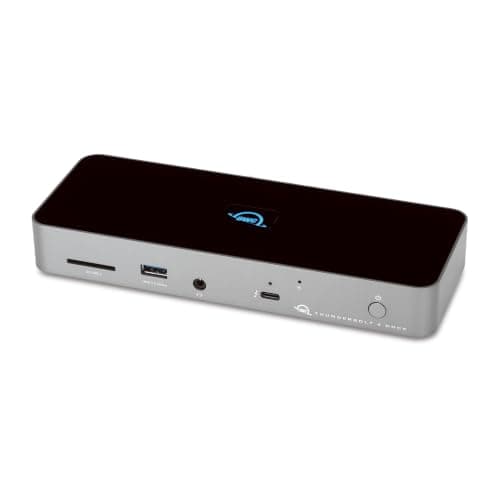
OWC 11-Port Thunderbolt Dock
- Host connection
- Thunderbolt 4, 40Gb/s
- Ports
- 11 total - 3x Thunderbolt 4, 3x USB-A 10Gb/s, USB 2.0
- Charging
- 96W to the host laptop
- Network
- Gigabit Ethernet
- Card reader
- SD UHS-II
- Displays
- Up to two 4K displays, or one 5K/6K/8K (host dependent)
The sensible middle. Three downstream Thunderbolt 4 ports and 96W of charging in a box that costs meaningfully less than the flagships and gives up only the ethernet speed.
- Host Charging
- 9.4
- Display Output
- 8.2
- Port Count
- 8.4
- Value
- 8.6
Pros
- +Three downstream Thunderbolt 4 ports, the same as the flagship, at a lower price
- +96W charging is enough for a 16-inch laptop
- +UHS-II SD reader, which is the one card slot that is actually fast
- +Simpler port set means less to go wrong and a smaller footprint
Cons
- −Gigabit rather than 2.5 gigabit ethernet
- −No dedicated HDMI or DisplayPort - displays go through the Thunderbolt ports or an adapter
- −No microSD slot
Skip this if…
…your screens use HDMI and you would rather not buy adapters - the Plugable has the outputs built in.
Best compact
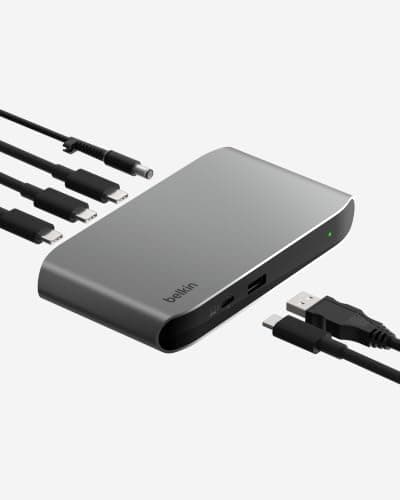
Belkin Connect Thunderbolt 4 Core Hub (5-in-1)
- Host connection
- Thunderbolt 4, up to 40Gb/s
- Ports
- 4x Thunderbolt 4 (1 upstream, 3 downstream) plus 1x USB-A 3.2 Gen 2
- Charging
- Up to 96W to the host, 15W per downstream port
- Displays
- Dual 4K at 60Hz, or a single 8K at 30Hz
- In the box
- Thunderbolt 4 cable and 150W power supply
- Daisy chain
- Up to six Thunderbolt devices
The compact one. Four Thunderbolt 4 ports and a USB-A in a small box with 96W charging, for a desk where the peripherals already live on the monitor rather than the dock.
- Host Charging
- 9.4
- Display Output
- 8.4
- Port Count
- 6.4
- Value
- 8.8
Pros
- +Three downstream Thunderbolt ports in the smallest box here
- +96W to the host and 15W per port, so phones and accessories charge too
- +Thunderbolt cable and a 150W supply included rather than sold separately
- +Cheapest genuine Thunderbolt 4 dock on this list
Cons
- −No ethernet, no card reader, and only one USB-A port
- −Everything that is not USB-C needs its own adapter
- −Displays must go through the Thunderbolt ports - no HDMI or DisplayPort built in
Skip this if…
…you have older USB-A peripherals or a wired network - this dock assumes a USB-C world.
Work out how many screens your laptop can actually drive
This is the decision the dock cannot make for you, and it depends on the machine rather than the box.
Windows laptops with Thunderbolt generally drive two or more external displays natively, and with DisplayPort MST plus compression can reach four 4K screens on a dock that has the outputs.
Apple silicon Pro and Max chips support multiple external displays natively over Thunderbolt. This is the case where a Thunderbolt dock straightforwardly earns its price on a Mac.
Apple silicon base chips— the plain M-series without Pro or Max — support one external display over DisplayPort Alt Mode, and macOS has never supported MST. Plug two monitors into any non-DisplayLink dock and you get the same picture twice. The only fix is a DisplayLink dock, which is exactly why one is on this list.
What DisplayLink actually costs you
DisplayLink compresses the display signal and sends it over USB as data, then a driver on the host decompresses it. It works, it supports several screens, and it is the only route to multi-monitor on a base-chip Mac. The costs are a driver install with its own update cycle, some CPU overhead, and compression artifacts on fast-moving video. For documents, browsers and code it is invisible. For video editing or gaming it is not.
Cables matter more than people expect
Thunderbolt 4 requires a certified cable, and length limits are real: passive Thunderbolt cables are typically limited to around 0.8 meters at full speed, and longer runs need an active cable. A dock that ships with its own cable — the Belkin here does — removes one thing to get wrong. Do not substitute a USB-C charging cable and expect 40Gbps.
Where the dock should live
A dock is the object that turns five cables into one, which makes it the anchor of the whole cable layout. Mount it under the desk in a tray rather than leaving it on the surface, and on a standing desk fix it to the desk so it travels with it. The full routing method is in the under-desk cable management guide.
When a dock is the wrong product entirely
If your problem is sharing one keyboard, mouse and screen between two computers rather than expanding one, you want a KVM switch, not a dock. That distinction is in docking station vs KVM switch, and the field is in the KVM roundup. And if you only need more USB ports, a powered USB hubcosts a tenth as much — and the three capabilities that actually separate the two devices are set out in USB hub versus docking station. One reason people end up here from a hub is shared bandwidth rather than a fault, which the USB hub troubleshooting guide separates from the five other causes.
Essentials
The small parts that finish the job
Nothing here changes a pick above, and none of it is a considered purchase. These are the cheap pieces that decide whether the expensive one works properly, and the ones people discover they are missing on the day the big box arrives.
No image
Cable Matters VESA-Certified DisplayPort 1.4 Cable, 6 ft
A monitor ships with one cable and it is rarely DisplayPort, so the second screen usually arrives with nothing to plug into. A certified DP 1.4 run is also the first thing worth swapping when a display flickers, drops out, or refuses to hold its refresh rate.
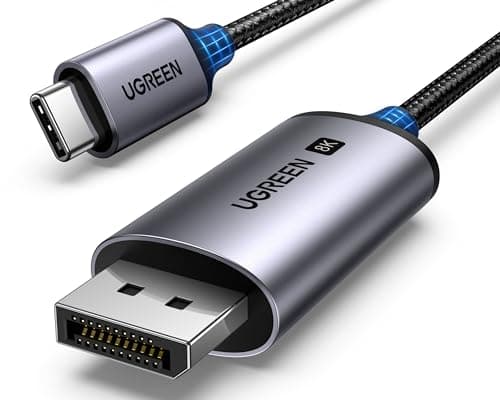
UGREEN USB-C to DisplayPort 1.4 Cable, 6.6 ft
One cable from a laptop or a dock straight into a DisplayPort screen, with no adapter stack in the middle. This one is unidirectional: it runs USB-C source to DisplayPort display, not the reverse.
Check first: the USB-C port has to carry DisplayPort Alt Mode. A data-only port will not drive a screen no matter which cable you put in it.
#ad · Live prices from the Amazon Product API, as of October 23, 2026. Where we have no verified live price we show none. We may earn a commission, at no extra cost to you.
How we picked
We do not run a testing lab
We compiled the published manufacturer specifications, did the ergonomics, VESA and desk-depth math ourselves, and read aggregated owner reviews, then scored each product against a published rubric. The scores are judgments from documented research — they are not measurements we took, because we do not have a lab and we are not going to pretend we do. Every spec traces back to a listing or manual named in Sources.
Questions
Frequently asked
Do I need a Thunderbolt dock or will USB-C do?+
USB-C is enough unless one of three things applies: you need more than 65W of charging, you move large files to external SSDs while the screens are running, or you need multiple external displays and your machine will not provide them otherwise. Outside those, a USB-C dock does the same daily job for a third of the money.
How many monitors can a Thunderbolt 4 dock support?+
The dock states a maximum — commonly dual 4K at 60Hz, or a single 8K — but the real limit is the host. Windows laptops with MST support can reach four 4K screens on a dock with four outputs; Apple silicon Pro and Max chips drive multiple displays natively; base M-series chips are limited to one unless the dock has DisplayLink.
Why won't my MacBook extend two displays from a Thunderbolt dock?+
Because base M-series Apple silicon chips support only one external display over DisplayPort Alt Mode, and macOS does not support MST. It is a limitation of the machine, not the dock. The only fix is a dock with DisplayLink, which sends the display signal as compressed data over USB.
How much power does a Thunderbolt dock deliver to a laptop?+
The docks here deliver 96 to 100W to the host, which covers a 15 or 16-inch laptop under load. Compare against the wattage printed on your own charger: a machine that ships with a 96W or 140W brick will charge slowly from anything less while you are working it hard.
Should I buy a Thunderbolt 5 dock instead?+
Only if you own a Thunderbolt 5 laptop. TB5 docks have been on sale for a while now, and the port has reached the higher-end MacBook Pro and a growing list of premium Windows machines - but on a Thunderbolt 4 host a TB5 dock falls back to TB4 speeds, so you are paying for headroom you cannot use. Check the port on the machine you own before you spend the difference.
Receipts
Sources
We do not run a testing lab, and we do not pretend to. Specifications come from the manufacturer or retailer listing; the footprint and clearance math is ours and reproducible. Where we could not verify a number, we say so on the page rather than quietly leaving it out. Read our full method.