SECTION 05
Where a pile of gear becomes a setup
Route, consolidate, switch - the three layers that turn a cable nest into something serviceable.
We earn a commission when you buy through our Amazon links, at no extra cost to you. It never affects our rankings, and we say so when the cheaper product is the better buy. How this works.
Start here
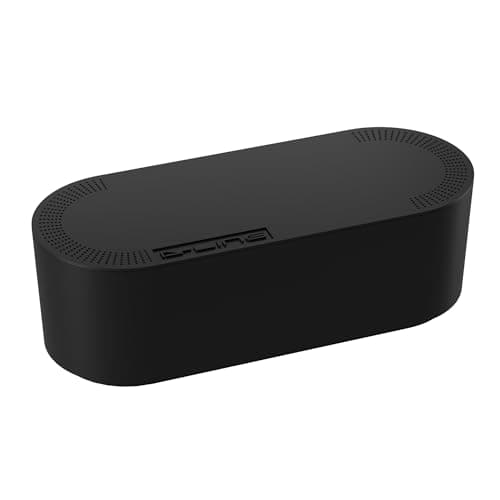
The Best Under-Desk Cable Management
The kit that gets cables off the floor and out of sight: a lidded box for the power strip, a raceway and cord concealer for the visible runs, and reusable ties and sleeves for the rest — chosen so you can still change one cable later.
Best Overall Cable Kit · D-Line Cable Management Box (Large)
$27.99View on AmazonCable management is the upgrade that makes every other upgrade look intentional — the difference between a bench full of expensive gear and an actual setup. It is also the least glamorous money you will spend and the easiest to get wrong, because the goal is not to hide cables but to make them serviceable: reachable when something changes, invisible when it does not. This hub treats it as a system, not a bag of Velcro.
The number that decides the buy: how many cables reach the machine
Start by counting the cables that currently run to your computer — every monitor, every peripheral, power, network — because that count decides whether you need simple tidying or a consolidation device. If a laptop is at the center and you plug in three or four things every morning, the answer is a dock that collapses all of it to one cable. If you switch between two computers on one keyboard, mouse, and monitor, the answer is a switch. Match the tool to the count, then hide what is left. The under-desk cable management roundup is the hiding layer; the USB-C docks for dual monitors guide is the consolidation layer.
How the category divides into three layers
Think in layers. The routing layer keeps cables off the floor and along the frame with under-desk trays, cable spines, raceways, and sleeves. The consolidation layer reduces how many cables exist at all: a USB-C or Thunderbolt dock takes one cable from the laptop and fans out to monitors, storage, ethernet, and power. Read the dock spec carefully, because driving two external monitors depends on how the dock does it — native DisplayPort Alt Mode is limited in how many independent streams it can carry, while DisplayLink docks add displays over software at a small performance cost. The switching layer is the KVM switch: one keyboard, mouse, and monitor shared between two machines at the press of a button. Underneath all three sits the machine itself, which is why the under-desk PC mounts roundup belongs here: a tower on the floor anchors the heaviest bundle of cables in the room at ground level, and lifting it onto the underside of the desktop removes that anchor before you route anything.
What actually decides the price
For docks, price tracks the port list and the silicon behind it: how many and which video outputs, whether it drives dual displays natively, the power-delivery wattage sent back up the single cable (65W is enough for many laptops, 100W for the power-hungry ones), and whether it is plain USB-C or full Thunderbolt 4 at 40Gbps. For KVMs, price tracks the resolution and refresh rate the switch can pass through and the USB generation on its shared ports. On the routing side the spend is small and mostly about how serviceable the tray or raceway stays when you inevitably add a cable later. Thunderbolt is worth the premium only if you actually own a Thunderbolt laptop and bandwidth-hungry gear; on a plain USB-C machine those extra lanes sit idle, and a good USB-C dock does the same job for less.
The mistake buyers make, and where to start
The expensive mistake is buying a dock that cannot actually run your two monitors at full resolution — a single DisplayPort Alt Mode stream will mirror or downgrade a second display, and buyers discover this only after the box is open. Confirm the dock’s dual-display method against your monitors before you buy. The cheaper mistake is sleeving cables without ever mounting a tray, so the bundle just hangs lower than before. Mount a power strip to the underside of the desk while you are down there, so the whole rig travels as one unit instead of dragging on the floor. Start with the under-desk cable management guide and the matching gear roundup. This layer pays off most when it turns a multi-cable monitor into a single-cable, arm-mounted panel and keeps a standing desk tidy through its full travel. The whole system is mapped in the desk setup guide.
Everything in this hub
All cable management guides
Roundup
The Best Under-Desk Cable Management
The kit that gets cables off the floor and out of sight: a lidded box for the power strip, a raceway and cord concealer for the visible runs, and reusable ties and sleeves for the rest — chosen so you can still change one cable later.
Top pick · D-Line Cable Management Box (Large)
Roundup
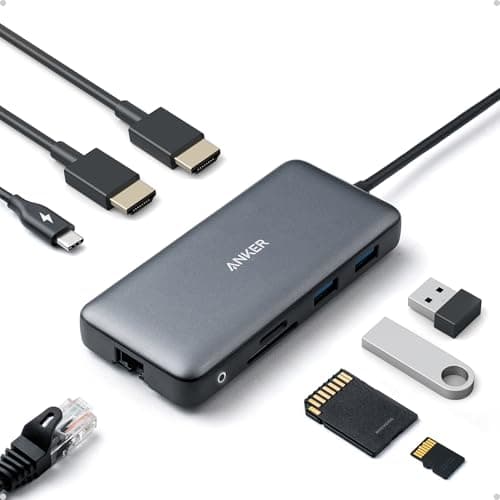
The Best USB-C Docks for Dual Monitors
One cable to the laptop and two screens out, picked around the details that actually decide it: Mac versus Windows, DisplayLink versus native MST, charging wattage, and the ports you use every day.
Top pick · Anker Docking Station (Dual Monitor, 8-in-1)
Roundup
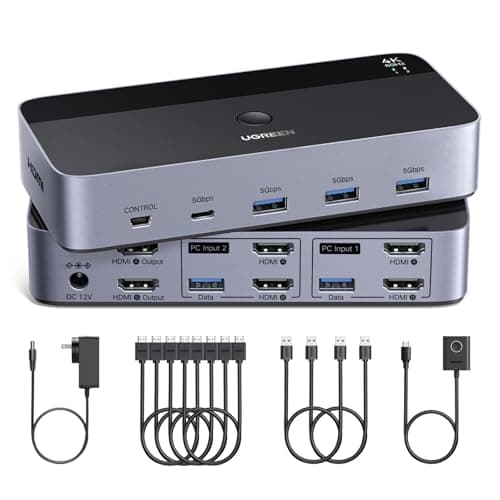
The Best KVM Switches for Dual Monitors
Share one keyboard, mouse, and two monitors across multiple computers at 4K60. We sort the true dual-monitor KVMs from the peripheral-only USB switches, and flag which carry video and which do not.
Top pick · UGREEN HDMI KVM Switch (2 Monitors, 2 PCs, 4K60)
Roundup
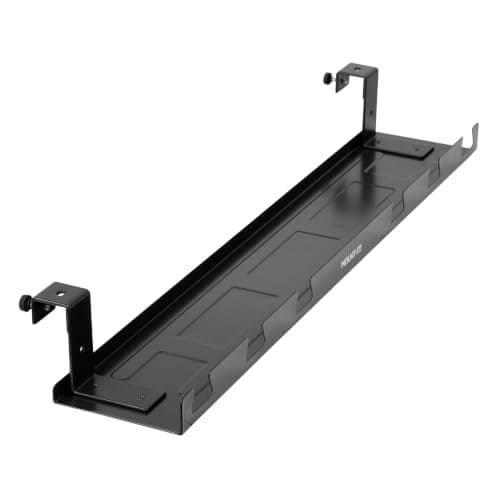
The Best Under-Desk Cable Trays
Under-desk cable trays ranked by length, mounting method, and load — screw-mount steel baskets, no-drill clamp trays, and long options for wide desks — with honest cons on each.
Top pick · Mount-It! Premium Under Desk Cable Tray, 23" Steel
Roundup
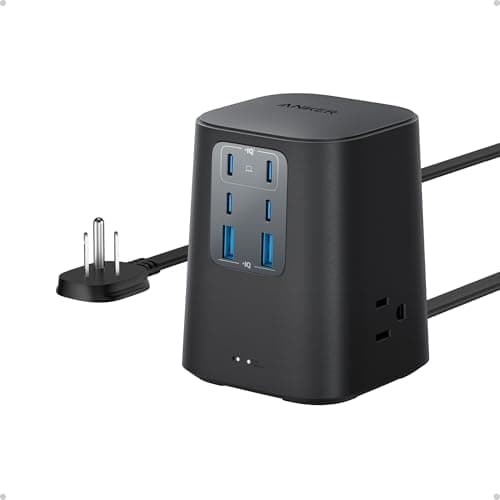
The Best Power Strips for a Desk
Desk power strips and surge protectors ranked — a USB-C desktop charger, a clamp-on strip, a flat-plug 12-outlet, and a serious isolated-filter protector — with joule ratings explained.
Top pick · Anker Desktop Charger, 9-in-1 Power Strip with Surge Protection
Comparison
Docking Station or KVM Switch?
Dock or KVM? One fans a single computer out to many peripherals; the other shares one set of peripherals between several computers. Compared on ports, switching, video, and cost.
Top pick · Anker 8-in-1 USB-C Docking Station (the dock case)
Guide
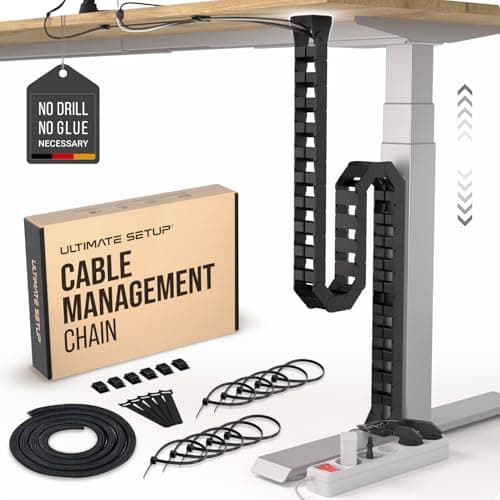
Cable Management for a Standing Desk
The method and the gear for cabling a sit-stand desk: measure the travel first, consolidate to one bundle, route it down a spine, and mount everything that plugs in to the desk itself.
Top pick · Ultimate Setup Under-Desk Cable Management Vertebrae (133 cm)
Comparison
USB-C or Thunderbolt Dock?
USB-C against Thunderbolt on bandwidth, dual-display method, power delivery, and price - plus what to buy when your Mac refuses to extend two screens from a plain USB-C dock.
Top pick · Anker Docking Station (Dual Monitor, 8-in-1)
Roundup
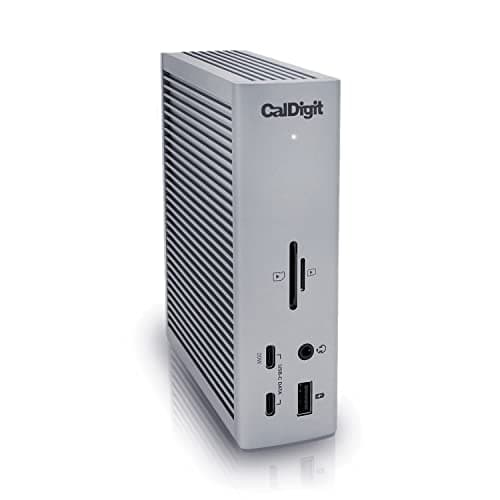
The Best Thunderbolt 4 Docks
Thunderbolt 4 docks ranked on charging wattage to the host, display outputs, ethernet speed and port count - with the DisplayLink option for base-chip Macs.
Top pick · CalDigit TS4 Thunderbolt 4 Dock (18 Port)
Roundup
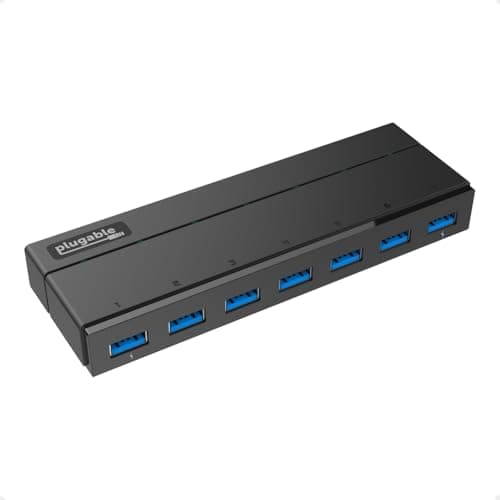
The Best USB Hubs
USB hubs ranked on powered versus bus-powered, real transfer speed, port count and per-port switches - from a six-dollar splitter to a 36W powered seven-port.
Top pick · Plugable 7-Port USB 3.0 Hub with 36W Power Adapter
Comparison
DisplayPort or HDMI?
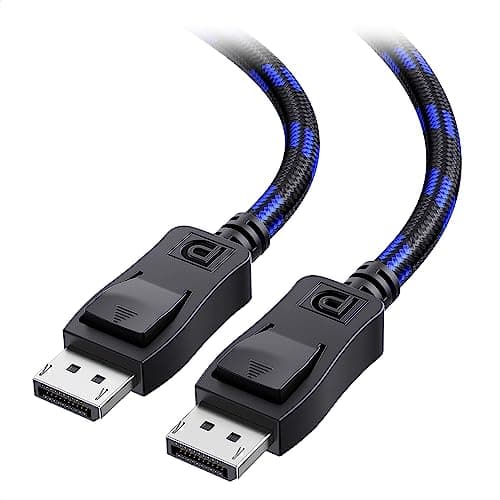
DisplayPort against HDMI on bandwidth, refresh rate, daisy chaining and adaptive sync - plus the three cables that cover a desk setup properly.
Top pick · Cable Matters VESA-Certified DisplayPort 1.4 Cable, 6 ft
Roundup
The Best Under-Desk PC Mounts
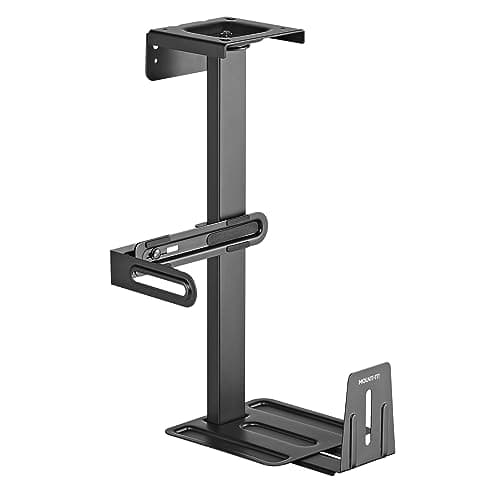
Seven under-desk PC mounts ranked on published width range and weight capacity, and on how you reach the rear ports afterward - swivel, sliding track, or not at all. Includes a no-drill clamp-on and a strap mount for odd-shaped hardware.
Top pick · Mount-It! Under Desk PC Mount and Wall Mount, 44 lb Capacity
Complete the setup
A setup is a system — finish it
- Monitors & ArmsUltrawide versus dual, IPS versus OLED, and the mount that reclaims your desk - picking the panel you will stare at all day.
- Standing DesksSit-stand or fixed, single motor or dual - why the frame under the desk matters more than the top on it.
- Ergonomic ChairsAdjustability, sizing, and the difference the premium brands actually buy for eight-hour days.