These two boxes sit on the same shelf, use the same connectors, and cost about the same, which is why people buy the wrong one. The distinction is simple once stated: a docking station takes one computer and fans it out to many devices. A KVM switch takes many computers and lets them share one set of devices. They point in opposite directions.
So the first question is not about features. It is: how many computers live on this desk? One laptop that needs two monitors, a keyboard, a mouse, and ethernet from a single cable is a dock problem, and no KVM will help. A work laptop and a personal desktop that both want the same good keyboard and the same two screens is a KVM problem, and no dock will help. Get that answer right and the rest is detail.
The confusion is fed by a genuine overlap. Many KVM switches include a USB hub, so they look like docks; many docks have several video outputs, so they look like they might switch between sources. But a dock has one upstream computer connection and cannot choose between two hosts, and a KVM rarely delivers the power, ethernet, and single-cable convenience that makes a dock worth owning.
There is also a third answer that people miss: for a growing number of desks, the right buy is both, or neither. Both, when a laptop needs a dock to reach two screens and the desk also hosts a second machine — the dock hangs off the laptop and the KVM sits between the two hosts and the shared peripherals. Neither, when a single monitor with picture-by-picture and its own USB hub can do the whole job, which several super ultrawide panels now handle natively.
The four devices below are matched pairs — two docks and two KVMs, at a value and a capable tier each — so the comparison is about function rather than budget. Full rankings live in our dock roundup and KVM roundup.
The short answer
Quick picks
#ad · Live prices from the Amazon Product API, as of Sep 6, 2026. Where we have no verified live price we show none — we would rather leave a gap than print a number that has rotted.
In detail
The picks, in full
Best if you have one computer
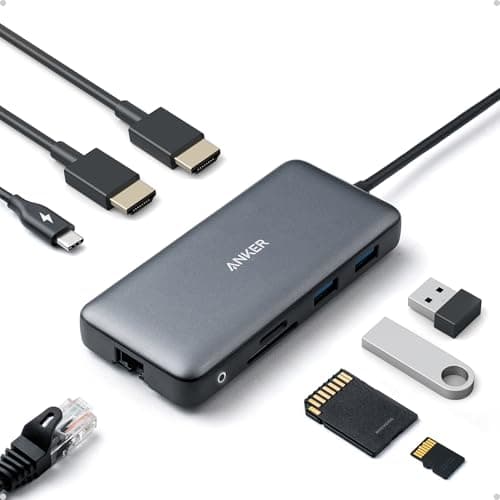
Anker 8-in-1 USB-C Docking Station (the dock case)
- Solves
- One computer, not enough ports
- Hosts
- One
- Video
- Dual 4K monitor output
- Extras
- USB hub, ethernet, and laptop charging over one cable
The dock argument in one box: a single USB-C cable to the laptop becomes two monitor outputs, several USB ports, ethernet, and charging. It cannot switch between computers, and it is not trying to.
- Port Expansion
- 9.4
- Multi-Computer
- 2
- Video Handling
- 8.8
- Value
- 8.6
Pros
- +One cable to the laptop replaces power, two video connections, ethernet, and every peripheral
- +Charging the laptop through the same cable is the feature that makes docks worth owning
- +Unplug one cable and the whole desk releases the laptop
Cons
- −Cannot switch between two computers, which is the entire KVM use case
- −Adds another power supply under the desk
Skip this if…
…you have two computers sharing one keyboard and screen — a dock cannot choose between hosts
Best if you have two computers
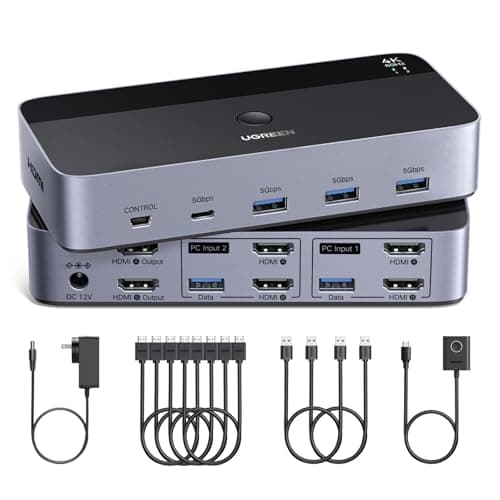
UGREEN HDMI KVM Switch, 2 Monitors 2 Computers (the KVM case)
- Solves
- Two computers, one set of peripherals
- Hosts
- Two
- Video
- Dual 4K at 60Hz across both hosts
- Extras
- Four USB 3.0 ports shared between the machines
The KVM argument in one box: two computers, two screens, one keyboard and mouse, and a button that moves everything from one machine to the other. It will not charge a laptop, and it does not need to.
- Port Expansion
- 6.6
- Multi-Computer
- 9.4
- Video Handling
- 8.8
- Value
- 8.8
Pros
- +Moves both screens, the keyboard, and the mouse between two machines with one press
- +Keeps your good peripherals in use on both computers instead of duplicating them
- +Dual 4K at 60Hz is enough for a serious two-screen work setup
Cons
- −Does nothing for a single computer short of ports
- −No laptop charging and no ethernet, so a laptop still needs its own power
Skip this if…
…you have one laptop and want a single cable to the desk — that is a dock, not a switch
Best value dock
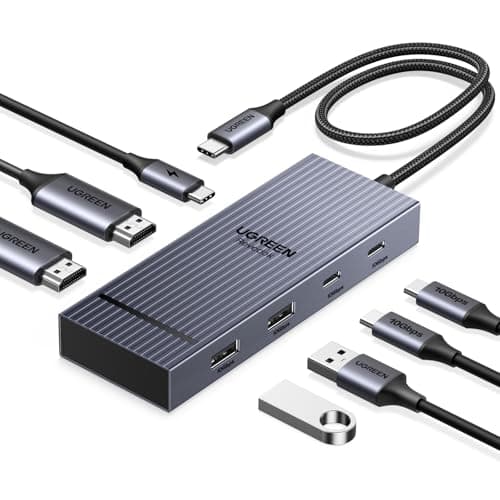
UGREEN 7-in-1 Dual Monitor Docking Station (the value dock)
- Solves
- One computer, not enough ports
- Hosts
- One
- Video
- Dual 4K at 60Hz over HDMI
- Extras
- USB hub and pass-through charging
The value entry to the dock side of the argument. Dual 4K at 60Hz out of one USB-C cable, with the ports a laptop desk actually uses, at a price that makes the decision easy.
- Port Expansion
- 8.4
- Multi-Computer
- 2
- Video Handling
- 8.8
- Value
- 9.4
Pros
- +Dual 4K at 60Hz is the specification that matters and it hits it
- +Compact enough to sit in a cable tray rather than on the desk
- +Costs a fraction of a full docking station while covering the common case
Cons
- −Fewer ports than the larger docks, and no ethernet on every configuration
- −Still one host only — nothing here switches machines
Skip this if…
…you need wired ethernet at the desk, which not every configuration of this dock provides
Best for more than two computers
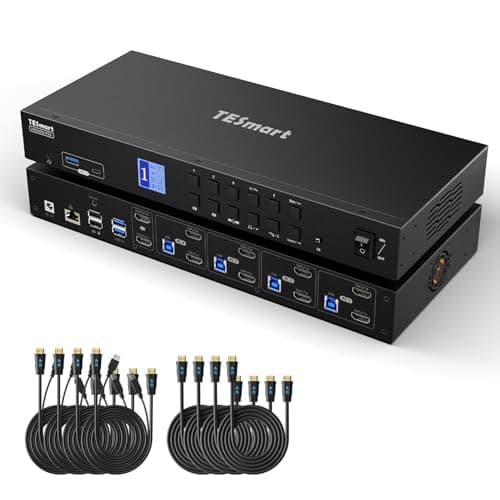
TESmart KVM Switch, 4 Computers 2 Monitors (the four-host KVM)
- Solves
- Up to four computers, one set of peripherals
- Hosts
- Four
- Video
- Dual 4K at 60Hz
- Extras
- USB 3.0 hub shared across all hosts
The KVM case taken to its conclusion: four machines sharing two 4K screens and one set of peripherals. Overkill for most desks, and exactly right for a desk that has quietly accumulated machines.
- Port Expansion
- 7.4
- Multi-Computer
- 9.8
- Video Handling
- 9
- Value
- 7.6
Pros
- +Four hosts covers a work laptop, a personal desktop, a test machine, and a server
- +Dual 4K at 60Hz maintained across every input
- +USB 3.0 speeds mean shared external drives stay usable
Cons
- −Considerably more cabling behind the desk than any other option here
- −Expensive and pointless if you only have two machines
- −Still no laptop charging, so a laptop needs its own supply
Skip this if…
…you have exactly two computers — the two-host switch does the same job for much less
The decision, field by field
Number of computers. This settles it in almost every case. One computer means a dock; two or more sharing peripherals means a KVM. If you find yourself trying to reason past this field, you are probably about to buy the wrong device.
Port expansion.The dock wins outright. Ethernet, card readers, audio, multiple USB standards, and laptop charging over the same cable are the dock’s reason to exist. KVMs include a USB hub because they must share peripherals, not because they are trying to expand a machine.
Laptop charging. The dock wins, and it is often the deciding practical detail. Power delivery over the single upstream cable is what turns a docked laptop into a one-cable desk. Almost no KVM does this, so a laptop on a KVM still needs its own charger plugged in.
Switching.The KVM wins outright, because a dock has one upstream host and cannot choose. The thing worth checking on any KVM is how switching is triggered — a physical button is the most reliable, a keyboard shortcut is the most convenient, and hotkey support can be inconsistent across operating systems.
Cost and complexity. Roughly comparable at similar capability, but the cabling is not. A KVM needs video and USB from every host, so a two-computer dual-monitor setup means six cables into the switch before anything reaches a screen. Budget for the cables and for a tray to hide them.
The verdict
One computer that needs more ports and a single cable to the desk: buy a dock. Two or more computers that should share one keyboard, mouse, and set of screens: buy a KVM. A laptop that needs a dock on a desk that also hosts a second machine: buy both, with the dock hanging off the laptop and the KVM between the hosts and the shared peripherals. And before you buy anything, check your monitor — several large panels now include picture-by- picture and a built-in hub, which quietly does the KVM’s job for free on a two-machine desk.
How we picked
We do not run a testing lab
We compiled the published manufacturer specifications, did the ergonomics, VESA and desk-depth math ourselves, and read aggregated owner reviews, then scored each product against a published rubric. The scores are judgments from documented research — they are not measurements we took, because we do not have a lab and we are not going to pretend we do. Every spec traces back to a listing or manual named in Sources.
Questions
Frequently asked
What is the difference between a docking station and a KVM switch?+
A dock connects one computer to many devices; a KVM connects many computers to one set of devices. They point in opposite directions. If you have one machine short of ports, you need a dock. If you have two machines fighting over a keyboard, you need a KVM.
Can a KVM switch charge my laptop?+
Almost never. Power delivery over the upstream cable is a docking station feature, and KVMs are built to share peripherals rather than to power hosts. A laptop on a KVM still needs its own charger plugged in separately.
Can I use a docking station with two computers?+
Not as a switch. A dock has one upstream connection, so you would have to physically unplug it from one machine and into the other, which is exactly the inconvenience a KVM removes. Some people accept that with a single easy-to-reach cable; most find it wears thin.
Do I need both a dock and a KVM?+
Sometimes, and it is a legitimate setup. If a laptop needs a dock to drive two screens and the desk also hosts a desktop machine, the dock hangs off the laptop and the KVM sits between the two hosts and the shared peripherals. Check first whether your monitor's picture-by-picture and built-in hub can do the job instead.
Will a KVM switch work with dual 4K monitors?+
The better ones will, at 60Hz. Check the stated resolution and refresh rate per output rather than the headline number, and confirm it applies with both monitors connected — some switches quote a maximum that only holds on a single display.
Receipts
Sources
We do not run a testing lab, and we do not pretend to. Specifications come from the manufacturer or retailer listing; the footprint and clearance math is ours and reproducible. Where we could not verify a number, we say so on the page rather than quietly leaving it out. Read our full method.