Skip to content
Chair & Cable

SECTION 05 · Cable Management

USB Hub vs Docking Station

Both end up as a small box on your desk with cables coming out of it. Only one of them replaces your laptop charger and your monitor cable, and it costs about three times as much.

By Stephen V.Updated How we pick
#ad

We earn a commission when you buy through our Amazon links, at no extra cost to you. It never affects our rankings, and we say so when the cheaper product is the better buy. How this works.

If a laptop lives on your desk, buy a dock: the Anker 8-in-1 Docking Stationdrives two HDMI monitors, charges the laptop back over the same cable and adds Ethernet, which is the whole one-cable workflow. If you have a desktop PC and simply ran out of USB ports, buy a powered hub instead — the UGREEN 7-in-1 gives you seven ports with its own 24W supply and costs a fraction as much. The question is not which device is better. It is whether you need video and power, because that is the entire difference.

The confusing part is the middle of the market, where a USB-C “hub” with an HDMI socket and power passthrough is functionally a small dock, and a “dock” with no video output is functionally a hub. The labels on the boxes are marketing. Three capabilities are not.

Difference 1: does it drive a display?

A plain USB hub carries data and nothing else. The UGREEN 7-in-1 on this page says so in its own spec sheet: data only — no video output and no host charging. Plug a monitor into it and nothing happens, because there is no display controller and no DisplayPort Alt Mode path through it.

A dock takes the DisplayPort signal your laptop sends over USB-C and splits it to HDMI or DisplayPort sockets. That is a different silicon problem and it is where the cost goes. It also inherits the host's limits: Windows machines usually extend across both outputs, while many Apple-silicon Macs mirror instead of extending on a dual-HDMI dock. Both picks here carry that caveat in their specs, and the dual-monitor dock roundup goes through it host by host.

Difference 2: does it charge the laptop?

This is the second cable a dock removes. The Anker 8-in-1 hub passes up to 100W through to the host (about 15W of which the hub itself uses), so one USB-C cable carries display, data and charging in both directions. A plain hub does the opposite: it either draws power from the host or takes its own barrel-jack supply to run its ports, and sends nothing back.

That matters more than it sounds. If a dock cannot deliver enough wattage for your machine, the laptop slowly discharges while plugged in — a failure that looks like a battery fault rather than a dock problem.

Difference 3: where does the power come from?

A bus-poweredhub takes everything from the host port and splits the available current between its ports. The USB 3.0 specification allots 900 mA per port, and a bus-powered hub does not create more — it divides what it is given. Plug in two portable drives and a webcam and something drops off.

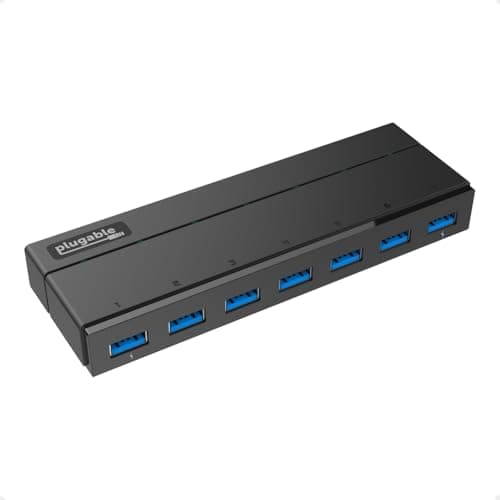
A poweredhub has its own adapter: the Plugable 7-port ships a 36W supply and gives every port its own 900 mA, with ports 1 and 7 able to reach 1.5A for charging with BC 1.2 signaling. A dock is always powered, because it has to be — it is feeding the laptop. If a hub keeps disconnecting, this is almost always why; our USB hub troubleshooting guide walks it through.

So which one?

Laptop plus external monitors: dock. Nothing else collapses to one cable.

Desktop PC that ran out of ports: powered hub. Your PC already has display outputs and a power supply; you are buying ports, not a bridge.

Laptop plus one monitor, used occasionally:the middle option — a USB-C hub with HDMI and PD passthrough. Cheaper than a dock, enough for one screen.

Two computers sharing one screen: neither. That is a KVM question, and two computers, one desk lays out the four ways to do it.

Inside the hub category there is a second fork worth settling: powered or unpowered, which decides whether a drive will stay connected.

There is a third option neither of these covers: the monitor itself acting as the dock. USB-C monitor vs docking station is that comparison.

The short answer

Quick picks

#ProductBest forScorePrice
01
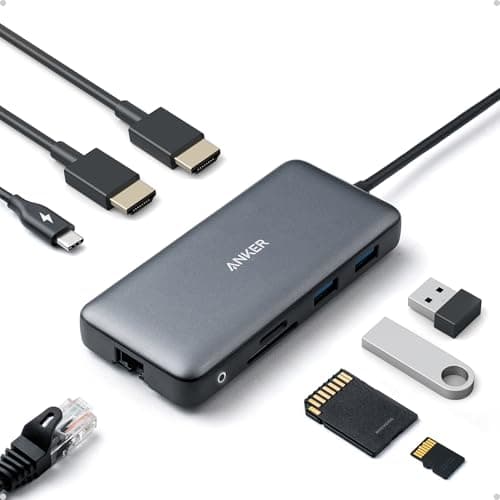
Anker Anker Docking Station (Dual Monitor, 8-in-1)
Anker Docking Station (Dual Monitor, 8-in-1)

The dock to buy if a laptop is your desk. One USB-C cable in, two HDMI monitors out, Ethernet, USB-A and USB-C ports, and power passthrough back to the host - the full one-cable workflow a hub cannot do.

A laptop with two external monitors
8.7
$39.99Amazon
02
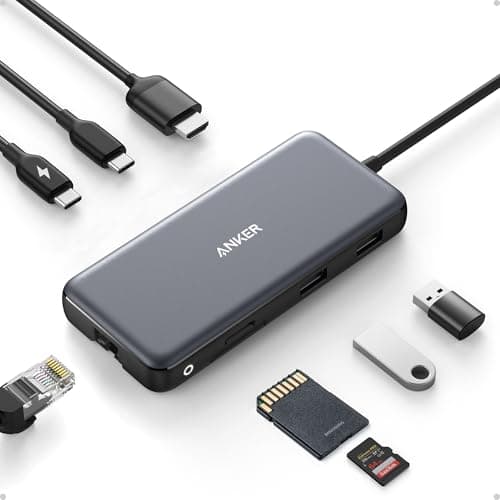
Anker Anker USB-C Hub, 8-in-1 with 4K 60Hz HDMI
Anker USB-C Hub, 8-in-1 with 4K 60Hz HDMI

The middle of the market, and the right answer for a laptop with one monitor. HDMI at 4K60, 10Gbps data ports, Gigabit Ethernet and up to 100W of pass-through charging - a dock's feature list minus the second display.

A laptop with one monitor
8.1
$35.99Amazon
03
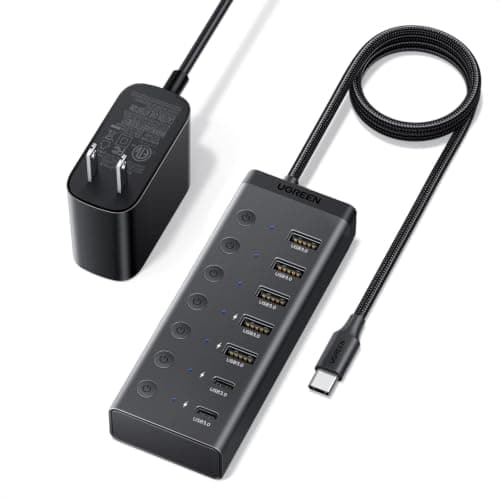
UGREEN UGREEN 7-in-1 Powered USB-C Hub (5 x USB-A, 2 x USB-C)
UGREEN 7-in-1 Powered USB-C Hub (5 x USB-A, 2 x USB-C)

The pure hub, and the honest one about it: data only, no video output and no host charging. Seven 5Gbps ports with a 24W supply of their own and a switch per port - everything a desktop PC that ran out of sockets actually needs.

A desktop PC out of USB ports
7.8
$29.99Amazon
04
Plugable Plugable 7-Port USB 3.0 Hub with 36W Power Adapter
Plugable 7-Port USB 3.0 Hub with 36W Power Adapter

The port multiplier for a USB-A desk. A 36W adapter means every port gets its full 900 mA, with two of them raised to 1.5A for charging - and no drivers on Windows, macOS or Linux.

Powering several USB devices at once
7.7
$39.95Amazon

#ad · Live prices from the Amazon Product API, as of October 23, 2026. Where we have no verified live price we show none — we would rather leave a gap than print a number that has rotted.

In detail

The picks, in full

01
Anker Anker Docking Station (Dual Monitor, 8-in-1)

A laptop with two external monitors

Anker Docking Station (Dual Monitor, 8-in-1)

Host connection
Single USB-C cable to laptop
Displays
Dual HDMI output
Ports
8-in-1 layout (USB-A/C, HDMI, Ethernet, more)
Charging
USB-C power passthrough for the host laptop
Compatibility
Windows extends both screens; macOS mirrors on many hosts
8.7/10

The dock to buy if a laptop is your desk. One USB-C cable in, two HDMI monitors out, Ethernet, USB-A and USB-C ports, and power passthrough back to the host - the full one-cable workflow a hub cannot do.

Display Support
9.2
Host Charging
9
Port Selection
8.8
Value
7.6

Pros

  • Drives two HDMI monitors, which no plain hub can do at any price
  • Charges the laptop back over the same cable, so the charger stays in the bag
  • Gigabit-class Ethernet removes the wi-fi variable from calls
  • One cable to unplug when the laptop leaves the desk

Cons

  • Many Apple-silicon Macs mirror rather than extend across dual HDMI
  • Several times the price of a hub with the same port count
  • Needs its own mains supply, so it is not a travel device

Skip this if…

…you have a desktop PC - it already has display outputs and power, so you are paying for two features you cannot use.

$39.99View on Amazon

$53.9926% off

Price as of October 23, 2026. Prices change — Amazon's is the one that counts.

#ad · we may earn a commission from this link to Anker Docking Station (Dual Monitor, 8-in-1)

02
Anker Anker USB-C Hub, 8-in-1 with 4K 60Hz HDMI

A laptop with one monitor

Anker USB-C Hub, 8-in-1 with 4K 60Hz HDMI

Video
HDMI up to 4K at 60Hz
Data ports
2 x USB-A and 1 x USB-C, all 10Gbps
Network
Gigabit Ethernet
Card readers
SD and microSD (UHS-I)
Power
USB-C PD-IN, up to 100W pass-through (about 15W used by the hub)
8.1/10

The middle of the market, and the right answer for a laptop with one monitor. HDMI at 4K60, 10Gbps data ports, Gigabit Ethernet and up to 100W of pass-through charging - a dock's feature list minus the second display.

Display Support
7.8
Host Charging
8.6
Port Selection
7.4
Value
8.6

Pros

  • 4K at 60Hz over HDMI, which the cheap hubs cap at 30Hz
  • 100W pass-through charges the host, so this really is a small dock
  • 10Gbps data ports are twice the speed of the USB 3.0 hubs here
  • Travels - no mains brick of its own

Cons

  • One display output only
  • The hub consumes about 15W of the pass-through budget
  • Fewer total ports than a dedicated port multiplier

Skip this if…

…you run two external monitors - this has one HDMI socket and no second output.

$35.99View on Amazon

$49.9928% off

Price as of October 23, 2026. Prices change — Amazon's is the one that counts.

#ad · we may earn a commission from this link to Anker USB-C Hub, 8-in-1 with 4K 60Hz HDMI

03
UGREEN UGREEN 7-in-1 Powered USB-C Hub (5 x USB-A, 2 x USB-C)

A desktop PC out of USB ports

UGREEN 7-in-1 Powered USB-C Hub (5 x USB-A, 2 x USB-C)

Ports
5 x USB-A and 2 x USB-C, all 5Gbps
Host connector
USB-C, on a 3.3 ft cable
Power
24W DC input, adapter included
Switches
Individual on/off switch per port
Function
Data only - no video output and no host charging
7.8/10

The pure hub, and the honest one about it: data only, no video output and no host charging. Seven 5Gbps ports with a 24W supply of their own and a switch per port - everything a desktop PC that ran out of sockets actually needs.

Display Support
1
Host Charging
1
Port Selection
9.2
Value
9.4

Pros

  • Its own 24W supply, so the ports do not fight over the host's current budget
  • A switch per port, which is how you power-cycle one device without unplugging it
  • Two USB-C ports as well as five USB-A, unusual at this price
  • The spec sheet states the limits plainly instead of implying video support

Cons

  • No video output at all
  • Will not charge the laptop it is plugged into
  • 5Gbps rather than the 10Gbps on the Anker hub

Skip this if…

…you want one cable for a laptop - this adds ports and nothing else.

$29.99View on Amazon

$39.9925% off

Price as of October 23, 2026. Prices change — Amazon's is the one that counts.

#ad · we may earn a commission from this link to UGREEN 7-in-1 Powered USB-C Hub (5 x USB-A, 2 x USB-C)

04
Plugable Plugable 7-Port USB 3.0 Hub with 36W Power Adapter

Powering several USB devices at once

Plugable 7-Port USB 3.0 Hub with 36W Power Adapter

Ports
7 x USB 3.0, 5Gbps shared
Power
36W external adapter included
Charging ports
Ports 1 and 7 deliver up to 1.5A with BC 1.2 signaling
Standard ports
900mA each, per the USB 3.0 specification
Drivers
None required on Windows, macOS or Linux
7.7/10

The port multiplier for a USB-A desk. A 36W adapter means every port gets its full 900 mA, with two of them raised to 1.5A for charging - and no drivers on Windows, macOS or Linux.

Display Support
1
Host Charging
1
Port Selection
9.2
Value
8.8

Pros

  • 36W of its own power is the most generous supply here per port
  • Two dedicated 1.5A charging ports with BC 1.2 signaling
  • Driverless on every major OS, including Linux
  • The spec publishes the per-port current, which almost no hub listing does

Cons

  • USB-A host connector, so a modern laptop needs an adapter
  • No video, no host charging, no Ethernet
  • 5Gbps is shared across all seven ports

Skip this if…

…your machine only has USB-C sockets - the UGREEN above is the same idea with the right plug.

$39.95View on Amazon

Price as of October 23, 2026. Prices change — Amazon's is the one that counts.

#ad · we may earn a commission from this link to Plugable 7-Port USB 3.0 Hub with 36W Power Adapter

What each one actually does

CapabilityPlain USB hubUSB-C hub with HDMIDocking station
Adds USB portsYes, the most per dollarYes, a fewYes
Drives a monitorNoOneTwo or more
Charges the hostNoYes, pass-throughYes
Wired networkNoUsuallyYes
Own power supplyOnly if poweredNo - uses the host cableAlways
Travels in a bagYes if bus-poweredYesNo

Three traps in the middle of the market

“Supports 4K” without a refresh rate. Plenty of cheap USB-C hubs do 4K at 30Hz, which is visibly bad for a desktop. The Anker hub here publishes 4K at 60Hz; if a listing will not state the Hz, assume 30.

Pass-through wattage is not what reaches the laptop.The hub keeps some. Anker says about 15W, which is unusually candid — so a 100W supply delivers roughly 85W to the machine. Check that figure against your laptop's own charger rating.

Two HDMI sockets do not guarantee two desktops. On many Apple-silicon Macs a dual-HDMI dock mirrors rather than extends unless the dock carries DisplayLink. Both dual-display picks on this site state the behavior, and USB-C vs Thunderbolt docks explains why Thunderbolt sidesteps it.

Bus-powered or powered, decided

Bus-poweredis fine for keyboards, mice, dongles and flash drives — low-draw devices that fit inside the 900 mA per port the specification allows. It is the right choice for a laptop bag.

Powered is necessary for anything with a motor or a radio: a portable hard drive, a 4K webcam, an audio interface, a phone you want to charge quickly. The 36W on the Plugable and the 24W on the UGREEN exist for those devices.

If you are already buying a dock, the hub question usually disappears — a dock is a powered hub with a display controller attached. Where it does not disappear is under the desk, with the hub roundup and the Thunderbolt dock roundup covering each side at more depth than a head-to-head can.
Essentials

The small parts that finish the job

Nothing here changes a pick above, and none of it is a considered purchase. These are the cheap pieces that decide whether the expensive one works properly, and the ones people discover they are missing on the day the big box arrives.

  • UGREEN USB-C to DisplayPort 1.4 Cable, 6.6 ft

    UGREEN USB-C to DisplayPort 1.4 Cable, 6.6 ft

    One cable from a laptop or a dock straight into a DisplayPort screen, with no adapter stack in the middle. This one is unidirectional: it runs USB-C source to DisplayPort display, not the reverse.

    Check first: the USB-C port has to carry DisplayPort Alt Mode. A data-only port will not drive a screen no matter which cable you put in it.

#ad · Live prices from the Amazon Product API, as of October 23, 2026. Where we have no verified live price we show none. We may earn a commission, at no extra cost to you.

How we picked

We do not run a testing lab

We compiled the published manufacturer specifications, did the ergonomics, VESA and desk-depth math ourselves, and read aggregated owner reviews, then scored each product against a published rubric. The scores are judgments from documented research — they are not measurements we took, because we do not have a lab and we are not going to pretend we do. Every spec traces back to a listing or manual named in Sources.

Questions

Frequently asked

What is the difference between a USB hub and a docking station?
Three things: a dock drives external monitors, charges the host laptop, and usually adds wired Ethernet. A plain USB hub does none of those — it splits one data port into several. Everything else is a difference of degree.
Can a USB hub connect a monitor?
A plain USB-A or USB-C data hub cannot — there is no display path through it. A USB-C hub with an HDMI or DisplayPort socket can, because it taps DisplayPort Alt Mode from the host. The UGREEN 7-in-1 here states “data only” for exactly this reason.
Do I need a docking station for a desktop PC?
Almost never. A desktop already has display outputs, Ethernet and its own power supply, which is the entire value of a dock. A powered USB hub gives you the ports you are actually short of for a fraction of the price.
Will a docking station charge my laptop?
A USB-C or Thunderbolt dock will, up to its rated wattage — and the dock keeps some of it. If the rating is below your laptop's own charger, the battery will drain slowly while connected under load.
Is a powered USB hub better than a bus-powered one?
For drives, webcams and audio gear, yes: a bus-powered hub divides the host's 900 mA per port between everything plugged in. For a keyboard, mouse and a flash drive, bus power is fine and more portable.
Can I plug a USB hub into a docking station?
Yes, and it is a common way to add cheap ports to an expensive dock. Keep the high-draw devices on the dock's own ports and put the low-draw ones behind the hub, or you will hit the dock's current budget.

Keep reading

Receipts

Sources

We do not run a testing lab, and we do not pretend to. Specifications come from the manufacturer or retailer listing; the footprint and clearance math is ours and reproducible. Where we could not verify a number, we say so on the page rather than quietly leaving it out. Read our full method.