Skip to content
Chair & Cable

SECTION 05 · Cable Management

DisplayPort or HDMI?

For a computer monitor, DisplayPort is the default and HDMI is the exception. The interesting part is which exceptions are real, and how a cable can quietly cost you half your refresh rate.

By Stephen V.Updated How we pick
#ad

We earn a commission when you buy through our Amazon links, at no extra cost to you. It never affects our rankings, and we say so when the cheaper product is the better buy. How this works.

Use DisplayPort for a computer monitor. Use HDMI when DisplayPort is not available on one end, when the display is a TV, or when you need to carry audio to a soundbar. That covers the vast majority of desks, and the reason is not that DisplayPort is better in the abstract — it is that DisplayPort was designed for computers and HDMI was designed for televisions, and the design goals still show.

The comparison, on what actually differs

 DisplayPort 1.4HDMI 2.1
Raw bandwidth32.4 Gbps48 Gbps
Designed forComputer displaysTelevisions and consumer AV
Daisy chaining (MST)Yes — one port, several monitorsNo
ConnectorLatchingFriction fit
Adaptive syncNative across the specVRR, from HDMI 2.1
Audio return (eARC)NoYes
Found onMonitors, GPUs, docksEverything, including TVs and consoles
Certification to look forVESA CertifiedUltra High Speed (HDMI Licensing)

Where DisplayPort wins on a desk

Daisy chaining. DisplayPort supports Multi-Stream Transport, which lets one port from the computer drive several monitors chained one to the next, provided the first monitor has a DisplayPort output. HDMI has no equivalent at all. On a multi-monitor desk this is the single most useful thing DisplayPort does, and it is the reason a monitor with a DP-out can carry a second screen with no extra cable to the machine. The one caveat: macOS has never supported MST, so on a Mac this route does not exist.

The connector locks. Trivial until you own a monitor arm. HDMI is a friction fit and works loose as the screen is moved; DisplayPort latches. On a screen you reposition daily, that is the difference between a stable connection and an intermittent black flash you spend a month blaming on the GPU.

It is simply what monitors and graphics cards have. Most desktop GPUs ship with three DisplayPort outputs and one HDMI. If you are running three screens off one card, you are using DisplayPort whether you intended to or not.

Where HDMI wins

Raw bandwidth, on paper.HDMI 2.1 carries 48Gbps against DisplayPort 1.4’s 32.4Gbps. In practice DisplayPort 1.4 with Display Stream Compression handles 4K at 120Hz comfortably, so the gap rarely decides anything on a desk — but if you are driving a very high refresh 4K panel from a machine whose only high-bandwidth output is HDMI, this is the port to use.

Audio return and TVs. eARC sends audio back down the same cable to a soundbar or receiver. DisplayPort has no equivalent. If the display is also a television, or the desk has speakers connected through it, HDMI is the port that carries that arrangement.

Consoles and laptops. Games consoles are HDMI-only. Many thin laptops have an HDMI port and no DisplayPort. Availability decides more of these arguments than capability does.

The cable problem, which is the real story

Here is what actually costs people refresh rate: buying an uncertified cable.

Both standards have certification programs, and they exist because the market is full of cables labeled with a version number they were never tested against. An HDMI cable marked Ultra High Speedhas been certified by HDMI Licensing and carries a checkable hologram; a cable that merely says “2.1” on the packaging has made a claim. A DisplayPort cable marked VESA Certifiedhas passed VESA’s testing.

The failure mode is nasty because it is not a clean failure. An under-spec cable does not refuse to work — it drops out intermittently, flickers, shows sparkles, or silently negotiates a lower refresh rate so your 144Hz monitor runs at 60Hz and looks fine. People chase that symptom through drivers and GPU settings for weeks. Swap the cable first; it is the cheapest test you can run.

Length matters more than the box admits

High-bandwidth signals degrade with distance. Passive DisplayPort and HDMI cables are reliable to around six to ten feet at full specification; beyond that you want an active or optical cable, and the price rises sharply. If the tower lives on the floor on the far side of a wide desk, measure the actual run — including the slack a height-adjustable desk needs — before buying.

The short answer

Quick picks

#ProductBest forScorePrice
01
Cable Matters Cable Matters VESA-Certified DisplayPort 1.4 Cable, 6 ft
Cable Matters VESA-Certified DisplayPort 1.4 Cable, 6 ft

The default cable for a computer monitor. VESA certification is the part that matters - it is the difference between a cable that holds its refresh rate and one that drops out at the worst moment.

Best for a desktop monitor
9.0
$11.99Amazon
02
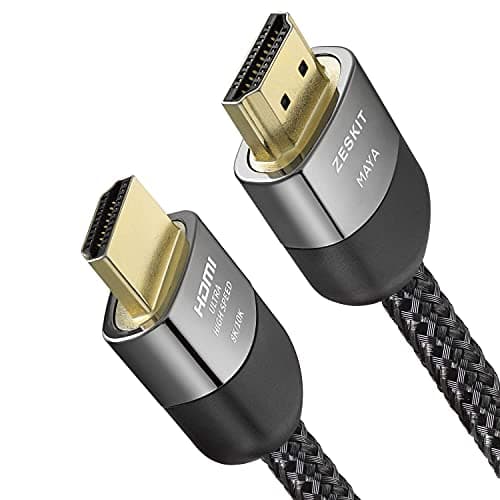
Zeskit Zeskit Maya Certified Ultra High Speed HDMI 2.1 Cable
Zeskit Maya Certified Ultra High Speed HDMI 2.1 Cable

The HDMI cable to buy when HDMI is what you have. Certified Ultra High Speed at 48Gbps, which is the only tier that reliably carries 4K at 120Hz rather than quietly falling back.

Best HDMI cable
9.3
$16.99Amazon
03
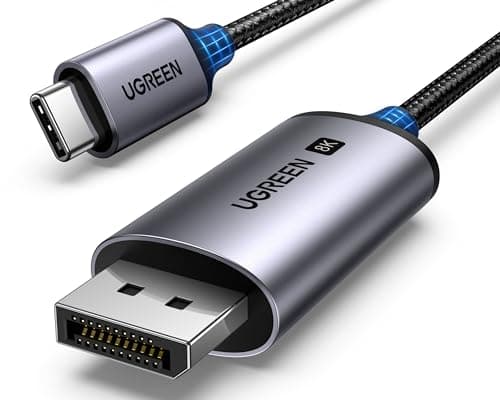
UGREEN UGREEN USB-C to DisplayPort 1.4 Cable, 6.6 ft
UGREEN USB-C to DisplayPort 1.4 Cable, 6.6 ft

The laptop answer. One cable from a USB-C port straight into a DisplayPort monitor, with no adapter stack in the middle to fall out or overheat.

Best for a laptop
8.5
$25.99Amazon

#ad · Live prices from the Amazon Product API, as of Sep 6, 2026. Where we have no verified live price we show none — we would rather leave a gap than print a number that has rotted.

In detail

The picks, in full

01
Cable Matters Cable Matters VESA-Certified DisplayPort 1.4 Cable, 6 ft

Best for a desktop monitor

Cable Matters VESA-Certified DisplayPort 1.4 Cable, 6 ft

Standard
DisplayPort 1.4
Certification
VESA certified
Length
6 ft
Use case
Desktop or dock to monitor
9.0/10

The default cable for a computer monitor. VESA certification is the part that matters - it is the difference between a cable that holds its refresh rate and one that drops out at the worst moment.

Bandwidth
9
Compatibility
8
Build & Certification
9.4
Value
9.4

Pros

  • VESA certification means the cable was tested against the specification rather than labeled with it
  • DisplayPort 1.4 carries high refresh rates at 1440p and 4K on any modern GPU
  • The connector locks, so it does not creep out of the socket behind a monitor arm
  • The cable a monitor most often does not ship with, which is why second screens sit unused

Cons

  • Locking tab has to be squeezed to remove - easy to forget and easy to break
  • DisplayPort is rare on TVs and on some laptops
  • 6 ft is short if the tower is on the floor on the far side of a wide desk

Skip this if…

your monitor has no DisplayPort input - check the back before ordering.

$11.99View on Amazon

Price as of Sep 6, 2026. Prices change — Amazon's is the one that counts.

#ad · we may earn a commission from this link to Cable Matters VESA-Certified DisplayPort 1.4 Cable, 6 ft

02
Zeskit Zeskit Maya Certified Ultra High Speed HDMI 2.1 Cable

Best HDMI cable

Zeskit Maya Certified Ultra High Speed HDMI 2.1 Cable

Standard
HDMI 2.1, Ultra High Speed certified
Bandwidth
48 Gbps
Resolutions
4K at up to 120Hz, 8K at 60Hz
Features
eARC, VRR, ALLM, QFT, QMS, Dynamic HDR
Construction
Oxygen-free copper core, gold-plated one-piece connectors
9.3/10

The HDMI cable to buy when HDMI is what you have. Certified Ultra High Speed at 48Gbps, which is the only tier that reliably carries 4K at 120Hz rather than quietly falling back.

Bandwidth
9.6
Compatibility
9.6
Build & Certification
9.2
Value
8.8

Pros

  • Ultra High Speed certification is issued by HDMI Licensing, not claimed by the seller
  • 48Gbps covers 4K120 and 8K60, so it will not be the bottleneck on any current monitor
  • eARC and VRR support, which matters if the same cable ever serves a TV or a console
  • Certified cables carry a hologram, so the claim is checkable

Cons

  • No locking connector - HDMI plugs work loose behind a moving monitor arm
  • Costs more than the uncertified HDMI cables that flood the category
  • None of the 8K capability is useful on a desk monitor today

Skip this if…

your monitor has DisplayPort and your GPU does too - use that instead.

$16.99View on Amazon

Price as of Sep 6, 2026. Prices change — Amazon's is the one that counts.

#ad · we may earn a commission from this link to Zeskit Maya Certified Ultra High Speed HDMI 2.1 Cable

03
UGREEN UGREEN USB-C to DisplayPort 1.4 Cable, 6.6 ft

Best for a laptop

UGREEN USB-C to DisplayPort 1.4 Cable, 6.6 ft

Standard
USB-C DisplayPort Alt Mode to DisplayPort 1.4
Length
6.6 ft
Direction
Unidirectional - USB-C source to DisplayPort display
Requirement
Host USB-C port must support DisplayPort Alt Mode
8.5/10

The laptop answer. One cable from a USB-C port straight into a DisplayPort monitor, with no adapter stack in the middle to fall out or overheat.

Bandwidth
8.8
Compatibility
7.6
Build & Certification
8.4
Value
9.2

Pros

  • Removes the dongle from a laptop-to-monitor run, which removes the usual failure point
  • DisplayPort 1.4 on the monitor end, so refresh rate is not compromised by the conversion
  • 6.6 ft is long enough to reach a monitor on an arm from a laptop on a stand
  • Cheaper than most USB-C to DisplayPort adapters plus a separate cable

Cons

  • Unidirectional - it will not run a DisplayPort source into a USB-C display
  • Useless if the laptop's USB-C port is data-only, which many budget laptops are
  • No power delivery, so the laptop still needs its charger

Skip this if…

your laptop's USB-C port does not carry DisplayPort Alt Mode - no cable can add that.

$25.99View on Amazon

Price as of Sep 6, 2026. Prices change — Amazon's is the one that counts.

#ad · we may earn a commission from this link to UGREEN USB-C to DisplayPort 1.4 Cable, 6.6 ft

The verdict

Use DisplayPort for any desktop-to-monitor connection where both ends have the port. It latches, it daisy-chains, and it is what your graphics card has three of. Buy a VESA-certified cable and stop thinking about it.

Use HDMI when one end lacks DisplayPort, when the display is a TV, when you need eARC to a soundbar, or when a console shares the screen. Buy an Ultra High Speed certified cable, not one that merely says 2.1 on the box.

Use USB-C to DisplayPort from a laptop, provided its USB-C port supports DisplayPort Alt Mode. It removes the adapter, which removes the part that fails.

A practical cable plan for a two-screen desk

Monitors ship with one cable and it is usually HDMI, which is why a second screen so often arrives with nothing to plug into. For a two-monitor desktop, buy two DisplayPort cables and use the HDMI ports for whatever else turns up. For a laptop desk, one USB-C to DisplayPort cable for the primary screen and let the dock handle the second. The setup steps once they are plugged in are in how to set up dual monitors, and if a screen refuses to appear, the troubleshooting order starts with exactly this cable question.

What to do about the refresh rate you paid for

Buying a 144Hz monitor does not give you 144Hz. The cable has to carry it, the port has to support it, and the operating system has to be told. After plugging in, open the display settings and confirm the refresh rate is set to the panel’s maximum — a large share of high-refresh monitors run at 60Hz for their whole lives because nobody checked.
How we picked

We do not run a testing lab

We compiled the published manufacturer specifications, did the ergonomics, VESA and desk-depth math ourselves, and read aggregated owner reviews, then scored each product against a published rubric. The scores are judgments from documented research — they are not measurements we took, because we do not have a lab and we are not going to pretend we do. Every spec traces back to a listing or manual named in Sources.

Questions

Frequently asked

Is DisplayPort better than HDMI for a monitor?
For a computer monitor, generally yes. DisplayPort latches rather than friction-fitting, supports daisy chaining several monitors from one port, and is what most graphics cards provide three of. HDMI wins when one end lacks DisplayPort, when the display is a TV, or when you need audio return to a soundbar.
Can HDMI do 144Hz?
Yes, with the right version and cable. HDMI 2.0 manages 1440p at 144Hz and 4K at 60Hz; HDMI 2.1 with a certified Ultra High Speed cable manages 4K at 120Hz and beyond. The common failure is an uncertified cable silently negotiating a lower refresh rate rather than failing outright.
Why does my monitor only run at 60Hz?
Three usual causes, in order of likelihood: the refresh rate was never changed in display settings, the cable is not rated for the bandwidth required, or the port in use is an older version than the panel supports. Check the operating system setting first, then swap in a certified cable.
Can I daisy chain monitors over HDMI?
No. Daisy chaining requires Multi-Stream Transport, which is a DisplayPort feature; HDMI has no equivalent. You also need the first monitor to have a DisplayPort output, and it does not work on macOS, which has never supported MST.
Do expensive HDMI cables make a difference?
Price does not, certification does. A digital signal either arrives or it does not, so a cable cannot improve picture quality — but an under-specified cable will drop out, flicker or negotiate a lower refresh rate. Buy the cheapest cable carrying genuine Ultra High Speed or VESA certification and ignore everything above that.
Does DisplayPort carry audio?
Yes, DisplayPort carries audio to the monitor in the same way HDMI does. What it does not have is an audio return channel, so it cannot send sound back from the display to a soundbar or receiver. That is eARC, and it is HDMI only.

Keep reading

Receipts

Sources

We do not run a testing lab, and we do not pretend to. Specifications come from the manufacturer or retailer listing; the footprint and clearance math is ours and reproducible. Where we could not verify a number, we say so on the page rather than quietly leaving it out. Read our full method.