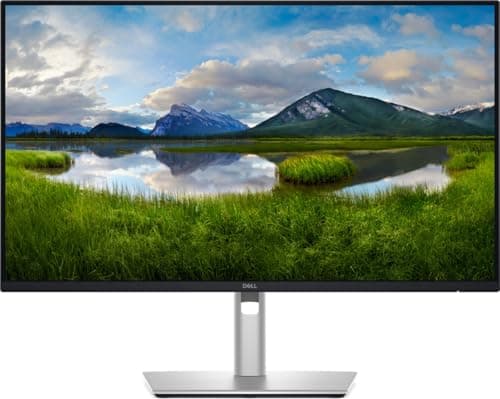
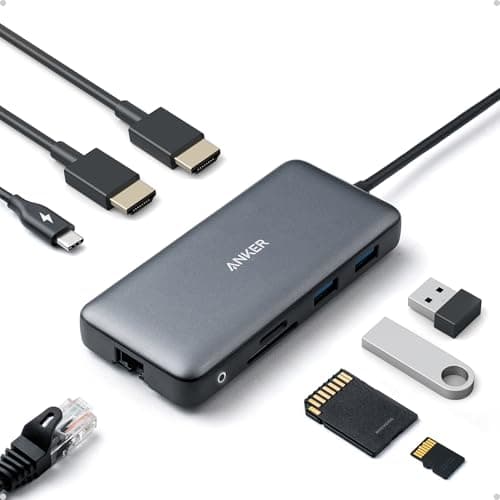
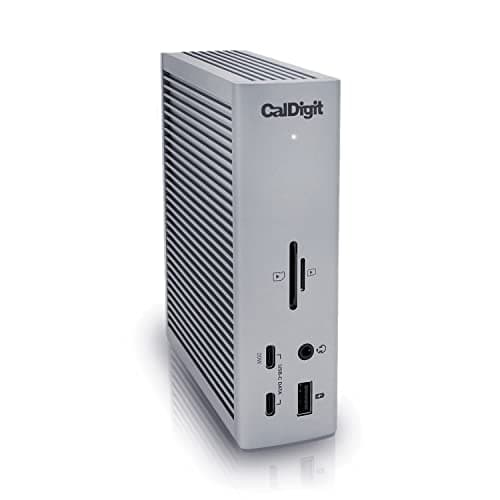
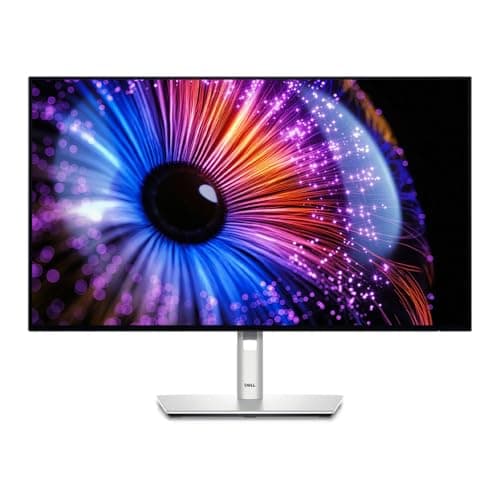
If you want one external screen and a laptop that charges while it works, buy the USB-C hub monitor — the Dell U2724DEhere — and skip the dock entirely. One cable to the laptop carries video, data and 90W of power, and there is no extra box or second power brick on the desk. If you need two or more external screens, or you expect to replace the monitor before you replace the laptop, buy the dock: an Anker 8-in-1 for a dual-screen desk, or a CalDigit TS4 if bandwidth and port count matter.
Both devices do the same core trick. Your laptop’s USB-C port carries DisplayPort video out, USB data in both directions, and power back to the laptop, all at once. A hub monitor puts that circuitry inside the panel; a dock puts it in a box. Everything that follows is about the consequences.
The specification that decides it first: power to the host
Read the wattage delivered to the laptop, not the adapter rating. The difference between tiers is real:
- 65W— the BenQ PD2725U below — charges a thin ultrabook comfortably and slowly loses ground on a 16-inch workstation under sustained compile or render load.
- 90W— the Dell U2724DE and P2425DE — covers almost every laptop that charges over USB-C.
- 98W— the CalDigit TS4 — is effectively the ceiling of what USB-C power delivery hands a host.
If the number is lower than your laptop’s own charger, the machine will still run; it will just charge more slowly, and under heavy load the battery may creep down while plugged in. That is an annoyance rather than a fault, but it is the single specification people regret ignoring.
Where the two routes genuinely differ
| USB-C hub monitor | Dock |
|---|
| External screens | Itself, plus one more if it has DP-out or Thunderbolt-out | Two or three, depending on the class |
| Boxes and bricks on the desk | None - the monitor was already plugged in | One box, usually with its own power supply |
| Port reach | Behind or under the panel, awkward for a USB stick | On the desk where your hand is |
| Ethernet | On the better models, up to 2.5GbE | Almost always, 1GbE to 2.5GbE |
| Built-in KVM | On several hub monitors, switched from the panel menu | Rare - usually a separate switch |
| What survives an upgrade | Nothing - replace the monitor, replace the dock | The dock outlives several monitors |
| Travel | Not applicable | A small dock goes in the bag |
The case for the monitor
It is the tidier desk, by a distance. The monitor needed power and a video cable regardless; making that video cable a USB-C cable that also charges the laptop removes a charger, a dock, a dock power supply and two cables from the desk. On a setup where the whole point is one cable to grab when you leave, that is the winner.
It is often cheaper in totalwhen you were buying a monitor anyway. A hub monitor carries a premium over the same panel without the hub, and a decent dock costs about that premium — so for a single-screen desk the hub monitor is usually the better buy, with fewer things to go wrong.
Some of them include a KVM, which a dock almost never does. The U2724DE and the PD2725U both switch one keyboard and mouse between two connected machines from the monitor’s own menu, which replaces the box covered in our KVM roundup for the common work-laptop-plus-personal-desktop case.
Daisy chaining counts as a second screenon the models that support it. A DisplayPort or Thunderbolt output on the back of the monitor feeds a second panel without a second cable to the laptop — which closes most of the dock's display-count advantage for a two-screen desk.
The case for the dock
More than two screens, reliably. This is the clearest line: if you want three displays, or two 4K displays at 60Hz each, you want a dock, and quite possibly a Thunderbolt one. The mechanics of that - and the macOS limitation that catches people - are in two monitors from one HDMI port and USB-C vs Thunderbolt dock.
The ports are where your hands are.A monitor’s downstream USB ports live behind the panel or under its bottom edge. Fine for a keyboard receiver you plug in once; irritating for a card reader or a USB stick you use daily.
It outlives the monitor.Monitors get replaced because panels improve. A dock gets replaced when the interface generation changes, which is far less often — so the dock is the better place to put money you want to keep using.
It travels. A compact dock goes in the laptop bag and turns any desk into your desk. A monitor does not.
What catches people out
The laptop port has to carry video.Both routes need a USB-C port with DisplayPort Alt Mode, or Thunderbolt. A data-and-charging-only port will not produce a picture no matter what you plug into it, and the port marking — a lightning bolt or a D logo — is how you check.
The cable matters. A USB-C cable that charges a phone is not necessarily a cable that carries video and 90W. Use the one in the box, and if you need a longer run, buy a certified cable rather than the cheapest listing.
A hub monitor is not a USB hub.The downstream ports share the single upstream link with the video stream, so a hub monitor is a port expander, not extra bandwidth — powered vs unpowered USB hub covers the arithmetic, and USB hub vs docking station covers the category boundary.
Do not buy both without a reason.A dock plugged into a hub monitor is mostly redundant, and chaining two hubs is a reliable way to produce intermittent disconnects. If you already own a dock, buy the panel without the hub and spend the difference on the panel — our programming monitor roundup and the USB-C monitor roundup both note which models carry which.
Decide in one line
One screen, one laptop, a tidy desk: hub monitor. Two screens and a daisy-chain output on the first one: hub monitor. Three screens, a card reader, or a monitor you intend to replace within a couple of years: dock. Two 4K panels at 60Hz, or a machine that needs 98W: Thunderbolt dock.