A USB port on a laptop supplies a fixed amount of current. Plug in a hub and every device hanging off it shares that same allowance — unless the hub has its own power supply, in which case it brings its own. That single distinction explains almost every hub problem people report: drives that disconnect, webcams that flicker, and phones that charge at a trickle.
Bus-powered hubs draw everything from the host port. They are small, cheap and cable-free, and they are correct for low-draw devices: a keyboard, a mouse, a dongle, a flash drive. Ask one to run a portable SSD and a webcam at the same time and it will fail, usually intermittently, which is the worst way for anything to fail.
Powered hubs have a mains adapter. Every port gets its full allowance regardless of what the others are doing, and the hub can charge devices as well as connect them. If you plug in external drives, audio interfaces, powered microphones or a camera, this is the category you want and the extra fifteen dollars is not optional.
Two more things worth understanding before the picks.
Speed naming is deliberately confusing. USB 3.0, USB 3.1 Gen 1 and USB 3.2 Gen 1 all mean the same thing: 5Gbps. USB 3.1 Gen 2 and USB 3.2 Gen 2 mean 10Gbps. Ignore the version number and look for the figure in gigabits per second. For a keyboard and mouse none of it matters; for an external SSD it is the whole difference.
Bandwidth is shared, always. A 5Gbps hub gives 5Gbps in total across every port, not per port. Two drives copying at once each get roughly half. This is true of every hub ever made, including expensive ones, and it is the reason a Thunderbolt dock with 40Gbps behaves so differently under load.
A note on what a hub is not. If you also need video output, ethernet and laptop charging from one cable, you want a dock rather than a hub — see the USB-C dock roundup. A hub adds ports. That is the whole job, and doing only that is why hubs cost so much less.
If you are still deciding whether you need a power adapter at all, powered vs unpowered USB hub has the 900mA arithmetic that sits behind every hub on this page.
The short answer
Quick picks
#ad · Live prices from the Amazon Product API, as of October 23, 2026. Where we have no verified live price we show none — we would rather leave a gap than print a number that has rotted.
In detail
The picks, in full
Best overall
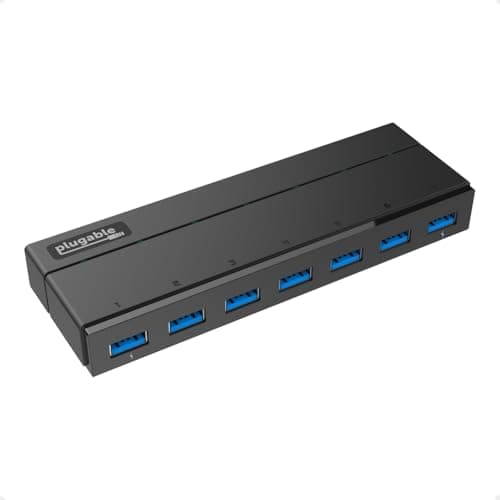
Plugable 7-Port USB 3.0 Hub with 36W Power Adapter
- Ports
- 7 x USB 3.0, 5Gbps shared
- Power
- 36W external adapter included
- Charging ports
- Ports 1 and 7 deliver up to 1.5A with BC 1.2 signaling
- Standard ports
- 900mA each, per the USB 3.0 specification
- Drivers
- None required on Windows, macOS or Linux
The one to buy if anything you plug in draws real power. A 36W supply, seven 5Gbps ports, and two edge ports that fast-charge to the BC 1.2 standard even with no computer attached.
- Power Delivery
- 9.6
- Port Count
- 9.2
- Data Speed
- 7.6
- Value
- 8.8
Pros
- +Its own 36W supply means seven devices do not fight over one laptop port
- +Two dedicated fast-charge ports at 1.5A, over three times the normal USB rate
- +Charges phones even when the computer is off or disconnected
- +Driverless on every major operating system, which cheap hubs often are not
Cons
- −5Gbps shared across seven ports, so two fast drives at once will each be halved
- −Needs a mains outlet and adds a second cable to the desk
- −USB-A only - USB-C devices need an adapter
Skip this if…
…everything you own is USB-C - buy a USB-C hub rather than adapting seven ports.
Best for a USB-C desk
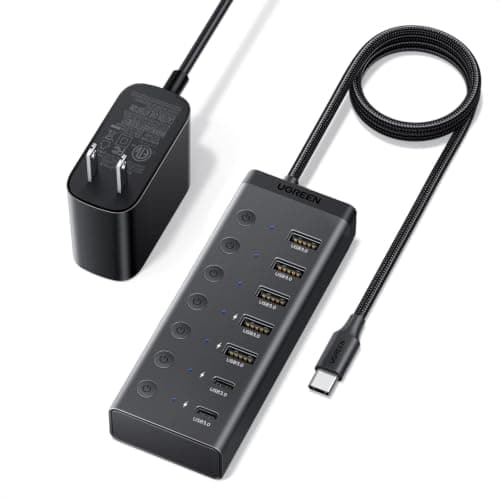
UGREEN 7-in-1 Powered USB-C Hub (5 x USB-A, 2 x USB-C)
- Ports
- 5 x USB-A and 2 x USB-C, all 5Gbps
- Host connector
- USB-C, on a 3.3 ft cable
- Power
- 24W DC input, adapter included
- Switches
- Individual on/off switch per port
- Function
- Data only - no video output and no host charging
The modern-desk answer: seven data ports off a single USB-C connector, two of them USB-C, each with its own switch, and a 24W supply so the hub is not rationing power between drives.
- Power Delivery
- 6.4
- Port Count
- 9.2
- Data Speed
- 7.6
- Value
- 8.8
Pros
- +Two downstream USB-C ports, which almost nothing else in this roundup offers
- +Its own 24W supply, so bus-powered drives are not fighting each other for current
- +A switch per port lets you cut one device without unplugging anything
- +A 3.3-foot cable reaches from a laptop to the back of a desk, unlike the stub cables on portable hubs
Cons
- −The DC input powers the hub, not the laptop - unlike a dock, it will not charge your machine
- −5Gbps shared across all seven ports, same as the cheaper hubs here
- −No video output, so a second screen still needs the hub with HDMI below
- −One more wall wart on a desk you are presumably trying to tidy
Skip this if…
…you wanted the hub to charge the laptop as well - that is a dock job, and the USB-C docks roundup covers it.
Best hub with video
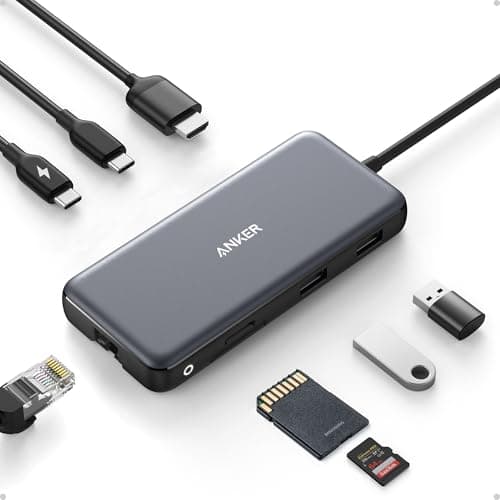
Anker USB-C Hub, 8-in-1 with 4K 60Hz HDMI
- Video
- HDMI up to 4K at 60Hz
- Data ports
- 2 x USB-A and 1 x USB-C, all 10Gbps
- Network
- Gigabit Ethernet
- Card readers
- SD and microSD (UHS-I)
- Power
- USB-C PD-IN, up to 100W pass-through (about 15W used by the hub)
The hub that crosses into dock territory. 4K 60Hz HDMI, gigabit ethernet, 10Gbps data and 100W pass-through charging - a single-screen desk in one small box.
- Power Delivery
- 8.6
- Port Count
- 7
- Data Speed
- 9.2
- Value
- 8.6
Pros
- +10Gbps data ports, twice the speed of every other hub on this list
- +4K at 60Hz over HDMI rather than the 30Hz cheaper adapters manage
- +Gigabit ethernet, which is the port laptops most often lack
- +100W pass-through means it replaces the charger rather than competing with it
Cons
- −Only three data ports, so it adds capability rather than capacity
- −Bus-powered unless you feed the PD-IN port, and then it needs your charger
- −One HDMI output only - this is not a dual-screen solution
Skip this if…
…you need six or seven ports - this is a compact travel-and-desk hub, not a port farm.
Best with per-port switches
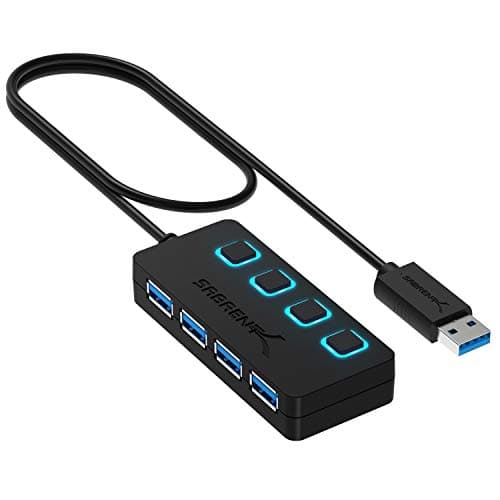
SABRENT 4-Port USB 3.0 Hub with Individual Power Switches
- Ports
- 4 x USB 3.0, 5Gbps shared
- Switches
- Individual power switch and LED per port
- Power
- Bus powered - no external supply
- Cable
- 2 ft USB 3.0 attached
- Compatibility
- Driverless on Windows and macOS, backward compatible to USB 2.0
The one with switches, which is a genuinely useful feature nobody asks for until they have it. Kill a port without unplugging anything, with an LED telling you which are live.
- Power Delivery
- 5.5
- Port Count
- 7.4
- Data Speed
- 7.6
- Value
- 9.4
Pros
- +Per-port switches let you power-cycle a misbehaving device without crawling under the desk
- +LEDs make it obvious which ports are live, which matters for drives
- +Thin and light enough to sit on the desk without a mount
- +Cheap enough to buy two
Cons
- −Bus-powered, so it shares one port's current allowance across four devices
- −Not suitable for external drives or anything with a real power draw
- −2 ft cable is short if the hub has to reach a tower under the desk
Skip this if…
…you are plugging in a portable SSD - bus-powered hubs are where drives disconnect.
Best portable
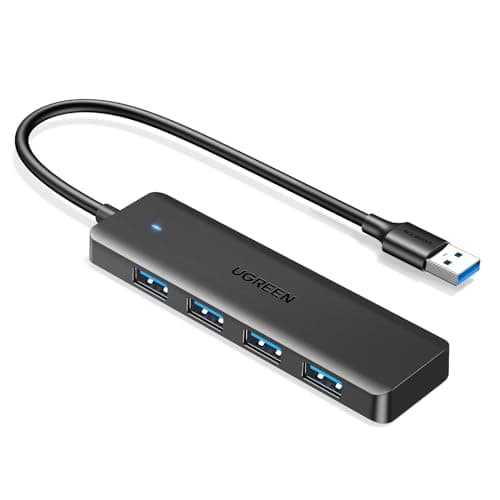
UGREEN USB 3.0 Hub, 4 Ports Ultra-Slim
- Ports
- 4 x USB-A 3.0, 5Gbps
- Power
- Bus powered, no external supply
- Cable
- 0.5 ft attached
- Size and weight
- 0.4" thick, 33 g
- Function
- Data only - no charging or video support
The one you keep in a bag. Four ports and 5Gbps in a 33-gram sliver, for the specific job of turning one laptop port into four for a keyboard, a mouse and two dongles.
- Power Delivery
- 4.5
- Port Count
- 7.4
- Data Speed
- 7.6
- Value
- 9.8
Pros
- +Cheapest hub here by a wide margin and genuinely pocketable
- +5Gbps despite the size and price
- +Driverless on Windows, macOS, Linux, Chrome OS and consoles
- +Short cable keeps it tidy beside a laptop rather than trailing
Cons
- −Data only - it will not charge anything
- −Bus-powered, so drives and cameras are outside its remit
- −0.5 ft cable is too short to reach anywhere except right beside the port
Skip this if…
…this is your permanent desk hub - buy a powered one and keep this for travel.
How to pick, in one question
Does anything you plug in have its own power brick, spin a disk, or contain a camera? If yes, buy a powered hub. If it is keyboards, mice, dongles and flash drives, a bus-powered hub is fine and you can spend the difference elsewhere. Getting that question wrong is the single most common cause of dropouts — why a USB hub keeps disconnecting works through the current budget and the five other causes before you replace anything.
Watch out for the shared-bandwidth surprise
Every port on a hub shares one connection back to the computer. A 5Gbps hub delivers 5Gbps in total. In practice this is invisible for input devices and very visible the moment two drives copy at once, or a 4K webcam runs beside an external SSD. If your workflow involves sustained transfers, the answer is not a better hub — it is a Thunderbolt dock, where 40Gbps means the drive and the peripherals each get room.
Where to put it
A hub on the desk surface is a hub you will constantly knock, and it drags four cables across the area a monitor armwas bought to clear. Mount it under the desk instead — in a cable tray, or stuck to the underside with the adhesive pads most hubs include — and run one cable up through a grommet. The full method is in under-desk cable management.
The exception is a hub you use for flash drives and card readers, which wants to be reachable. Those belong at the front edge, and a four-port hub with switches is the right shape for the job.
Hub, dock or KVM?
These three get confused constantly, and each solves a different problem. The first two are compared properly in USB hub versus docking station, which comes down to three capabilities: driving a display, charging the host, and where the power comes from.
- A hub adds USB ports. It does not carry video, charge your laptop meaningfully, or add ethernet.
- A dockturns one cable into video, ethernet, USB and laptop charging. It is the answer for a laptop desk — see the USB-C dock roundup.
- A KVM switch moves one keyboard, mouse and screen between two computers. Covered in the KVM roundup and docking station vs KVM switch.
One thing not to buy
Avoid a hub that has a power jack but no supply in the box. It reads as a powered hub in the listing and behaves as a bus-powered one on your desk, because the adapter you would need is sold separately and rarely gets bought. Confirm the supply is included and note its wattage.
Essentials
The small parts that finish the job
Nothing here changes a pick above, and none of it is a considered purchase. These are the cheap pieces that decide whether the expensive one works properly, and the ones people discover they are missing on the day the big box arrives.
2-Inch Desk Grommet Kit with Hole Saw (10 pack)
Cables that drop straight through the desktop stay where you put them. Cables routed around the back edge get dragged every time the desk moves or the chair rolls back, which is what undoes a tidy run within a week. The hole saw is in the box, so the cut and the finished edge come from one purchase.
Check first: decide the hole position and check your desktop thickness before you cut. A grommet hole is not reversible.
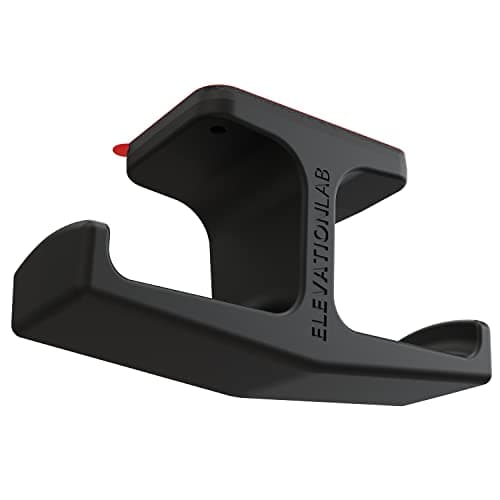
Elevation Lab The Anchor Under-Desk Headphone Mount
A headset left on the desk takes up the same surface an arm or a riser was bought to give back. Under the front edge it hangs in dead space, out of the way of the keyboard and off the cables.
Check first: adhesive mounts want a smooth, clean underside. Rough or heavily textured laminate will not hold one.
#ad · Live prices from the Amazon Product API, as of October 23, 2026. Where we have no verified live price we show none. We may earn a commission, at no extra cost to you.
How we picked
We do not run a testing lab
We compiled the published manufacturer specifications, did the ergonomics, VESA and desk-depth math ourselves, and read aggregated owner reviews, then scored each product against a published rubric. The scores are judgments from documented research — they are not measurements we took, because we do not have a lab and we are not going to pretend we do. Every spec traces back to a listing or manual named in Sources.
Questions
Frequently asked
Do I need a powered USB hub?+
Yes, if you plug in external drives, powered microphones, audio interfaces or cameras. Those draw more current than one laptop port can supply across several devices, and a bus-powered hub will drop them intermittently. For keyboards, mice, dongles and flash drives, bus-powered is fine.
Do USB hubs slow down transfer speeds?+
They share bandwidth rather than multiply it. A 5Gbps hub delivers 5Gbps in total across every port, so two drives copying simultaneously each get roughly half. This is true of every hub. If sustained transfer speed matters, a Thunderbolt dock with 40Gbps is the different answer.
What is the difference between a USB hub and a docking station?+
A hub adds USB ports and nothing else. A dock adds video output, ethernet, USB and meaningful laptop charging over a single cable. A dock costs several times more because it is doing several more jobs; if you only need ports, a hub is the right purchase.
Can I charge my phone from a USB hub?+
Slowly, from a standard port, which supplies 900mA under the USB 3.0 specification. Some powered hubs designate specific ports for charging at 1.5A using BC 1.2 signaling, and those charge at over three times the normal rate — and often work with the computer switched off.
Is USB 3.0 the same as USB 3.2 Gen 1?+
Yes. USB 3.0, USB 3.1 Gen 1 and USB 3.2 Gen 1 are the same 5Gbps standard renamed twice. USB 3.1 Gen 2 and USB 3.2 Gen 2 both mean 10Gbps. Ignore the version number and look for the gigabits-per-second figure.
Receipts
Sources
We do not run a testing lab, and we do not pretend to. Specifications come from the manufacturer or retailer listing; the footprint and clearance math is ours and reproducible. Where we could not verify a number, we say so on the page rather than quietly leaving it out. Read our full method.