SECTION 07 · Setup Guides
How to Set Up Dual Monitors Without the Headaches
Most dual-monitor frustration is decided before you plug anything in. Plan the ports, the arrangement, and the height first, and the rest is a two-minute settings change.
We earn a commission when you buy through our Amazon links, at no extra cost to you. It never affects our rankings, and we say so when the cheaper product is the better buy. How this works.
A dual-monitor setup is one of the highest-return upgrades you can make to a desk, and almost all of the pain comes from skipping the planning. People buy the second screen, plug it in, discover their laptop only drives one external display, and end up frustrated at a problem they could have avoided in five minutes. So this guide front-loads the two things that actually decide whether it goes smoothly — your ports and your physical arrangement — and treats the operating-system steps as the easy part they really are.
First, check your ports and cables
Before you buy anything, answer one question: can your computer output two independent displays at once? A desktop with a dedicated graphics card almost always can — look for two spare outputs among its HDMI and DisplayPort connectors. Laptops are where people get caught. A single HDMI port plus a single USB-C port does not guarantee two external screens; some machines share bandwidth or cap how many displays the integrated graphics can drive. Check your laptop’s spec sheet for the number of supported external displays, not just the number of physical ports.
If you are short an output, a docking station is usually the cleanest fix. A good USB-C or Thunderbolt dock takes one cable from the laptop and breaks it out into two monitor connections plus power and peripherals — the best USB-C docks for dual monitors is built specifically around this job. Two cautions: confirm the dock can actually drive two displays at the resolution and refresh rate you want (some cheaper docks mirror rather than extend, or cap the second screen), and confirm your DisplayPort connection supports the layout you want if you plan to daisy-chain. Buy the cables to match the ports you are actually using, not the ports you wish you had.
Two cable gotchas trip people up. First, resolution and refresh rate eat bandwidth together, so a cable or adapter that handles one screen fine may not carry two high-resolution displays at a smooth refresh — match your cables to the standard your ports actually support rather than grabbing the cheapest one in the drawer. Second, passive adapters are not always two-way: an HDMI-to-DisplayPort adapter is not the same as a DisplayPort-to-HDMI one, and using the wrong direction is a common reason a second screen stays dark. When in doubt, connect each monitor to a native output of the same type and reach for adapters only once you know which direction you need.
How to set up dual monitors in Windows 11
Once both monitors are physically connected and powered on, Windows usually detects them on its own. To arrange them the way you want:
- Right-click anywhere on the desktop and choose Display settings.
- If both screens do not appear, scroll down and click Detect under Multiple displays.
- At the top you will see numbered boxes for each screen. Drag them so their positions match how the monitors physically sit on your desk — left screen on the left, right on the right, and roughly aligned by height.
- In the Multiple displays dropdown, choose Extend these displays so the two screens act as one continuous workspace rather than mirroring each other.
- Click the box for your main screen and tick Make this my main display so the taskbar and new windows open where you want them.
- Set each monitor’s Display resolution and Scale individually so text is the same readable size on both, then apply.
If Windows keeps forgetting the arrangement after a reboot or a sleep cycle, that is almost always a cable or dock quirk rather than a settings problem — try a different port or a firmer connection before you go hunting through menus.
A few keyboard shortcuts make a two-screen desktop faster to live with. Press the Windows key with Shift and an arrow to fling the active window from one screen to the other, and the Windows key with an arrow to snap it to half of the current screen. Windows 11 can also give each display its own taskbar and remembers window positions per monitor, so if your layout scrambles every time the screens wake from sleep, the fix is usually a steadier connection rather than rearranging windows by hand each morning.
Setting up dual monitors on macOS
On a Mac the idea is the same, the menu is just named differently. Open System Settings, choose Displays, and you will see a thumbnail for each connected screen. Drag the thumbnails to match the physical layout, and drag the small white menu-bar strip onto whichever screen you want as the primary. Make sure Mirror Displaysis turned off so the screens extend instead of duplicating. Note that many laptops running Apple silicon officially support only one external display in their base configuration, so check that limit before you count on two — a dock does not always get you past a hardware cap, unlike on many Windows laptops.
Arranging the two screens physically
Software aside, where the panels sit on your desk decides your comfort. If you use both screens roughly equally, place them symmetrically with the seam between them centered on your body, angled inward slightly in a shallow V so each screen faces you. If one screen is clearly primary and the other is a secondary reference display, put the primary straight in front of you and the secondary off to one side — otherwise your neck spends the day turned toward the middle. The secondary can be a bit further back or angled harder, since you glance at it rather than stare.
One arrangement worth trying for a secondary screen is portrait orientation — rotating the second monitor 90 degrees so it stands tall rather than wide. A vertical screen is excellent for anything long and narrow: a full page of a document, a chat window, a code file, or a live feed you keep glancing at. Most arms and many stands allow the rotation, and both Windows and macOS have a display-orientation setting to match. It will not suit every workflow, but for a reference screen beside a main landscape panel it uses the space unusually well.
Monitor arms versus the stands in the box
Two stock stands take up an enormous amount of desk depth and make it almost impossible to get the two screens perfectly aligned in height, which matters more with two panels than one. A dual monitor arm solves both: it frees the desk underneath and lets you match the two screens edge to edge and top to top. Confirm the VESA pattern on the back of each monitor and the arm’s per-arm weight rating before you buy — the best monitor arms sorts picks by weight class and includes dual-capable options. Getting the two screens level is not cosmetic; a mismatched pair makes you tilt your head every time you cross from one to the other.
Matching resolution and height
The best dual setups use two identical monitors, and it is worth the effort if you can manage it. Matching panels means matching resolution, matching brightness and color, and — crucially — matching physical height, so dragging a window across the seam does not make it jump or resize. If you are pairing two different screens you already own, get their tops as close to the same height as you can with the arm or stand, and set each one’s scaling so text is the same apparent size on both. The goal is that your eyes never have to re-focus or re-adjust as they move between them. Both tops should still land at or just below eye level — the same rule as a single screen, which we go deep on in how high your monitor should be.
A common two-screen workflow
The layout most people settle into is one screen for the task and one for everything that interrupts it. The primary panel, straight ahead, holds whatever you are actually working on; the secondary holds the things you reference and react to — email, chat, a browser, or a full-screen video call. It keeps your main work from being buried every time a message arrives, and it is the clearest single argument for two separate panels over one wide one, because a call or a full-screen app can own an entire display without shrinking the work beside it.
If your two screens are different sizes, make the larger or sharper one primary and put it dead center; a mismatched pair is far easier to live with when the screen you stare at most is the better one and the weaker screen sits off to the side for glances. Decide which screen is primary before you mount anything, since that determines where the taskbar and new windows should open, and keep both tops level so moving between them does not bob your head.
When an ultrawide beats two monitors
Dual monitors are not automatically the right answer. A single 34-inch ultrawide gives you comparable width with no bezel splitting the middle, which is better if your work lives in one wide continuous view — a long timeline, a wide spreadsheet, a code editor with panels. Two separate screens win when you want two independent full-screen apps, or when you want a full-screen video call on one panel while you work on the other. There is no universal winner, and the trade is real enough that we gave it its own page: ultrawide vs dual monitor walks through which kind of work each layout actually suits, so you buy the shape that matches your day.
Essentials
The small parts that finish the job
Nothing here changes a pick above, and none of it is a considered purchase. These are the cheap pieces that decide whether the expensive one works properly, and the ones people discover they are missing on the day the big box arrives.
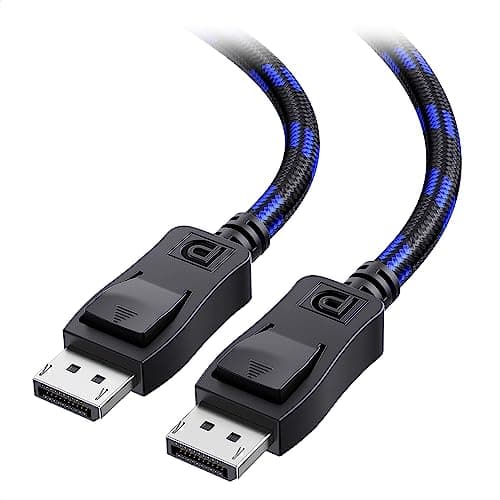
Cable Matters VESA-Certified DisplayPort 1.4 Cable, 6 ft
A monitor ships with one cable and it is rarely DisplayPort, so the second screen usually arrives with nothing to plug into. A certified DP 1.4 run is also the first thing worth swapping when a display flickers, drops out, or refuses to hold its refresh rate.

UGREEN USB-C to DisplayPort 1.4 Cable, 6.6 ft
One cable from a laptop or a dock straight into a DisplayPort screen, with no adapter stack in the middle. This one is unidirectional: it runs USB-C source to DisplayPort display, not the reverse.
Check first: the USB-C port has to carry DisplayPort Alt Mode. A data-only port will not drive a screen no matter which cable you put in it.
#ad · Live prices from the Amazon Product API, as of Sep 24, 2026. Where we have no verified live price we show none. We may earn a commission, at no extra cost to you.
Questions
Frequently asked
Can my laptop run two external monitors?
Not always — it depends on the laptop’s graphics, not just its ports. Check the spec sheet for the number of supported external displays. Many Windows laptops support two and a dock can help, while several Apple silicon Macs officially support only one external display in their base configuration, which a dock cannot always work around.
Why is my second monitor not being detected?
Start with the physical connection: reseat the cable, try a different port, and make sure the monitor is on the correct input. On Windows, open Display settings and click Detect. If it only works intermittently, the cable, adapter, or dock is the usual culprit rather than a software setting — swap the cable before you troubleshoot menus.
Do both monitors need to be the same size?
No, but matching panels give the smoothest experience because their resolution, height, and color line up. If you mix sizes, get the tops to roughly the same height with an arm or stand and set each screen’s scaling so text is the same apparent size, so windows do not jump as you drag them across.
Should both monitors be the same resolution?
Ideally yes. Matched resolution keeps text crisp and consistent across both screens. If they differ, adjust each display’s scaling independently in your display settings so the apparent text size matches, and confirm your dock or graphics output can drive both at their native resolution rather than downgrading one.
Is a dual-monitor setup or an ultrawide better?
Two screens are better for running independent full-screen apps and for a dedicated video-call display; an ultrawide is better for one wide continuous workspace with no center bezel. It comes down to whether your work is many separate windows or one big canvas — our ultrawide vs dual monitor comparison breaks it down by task.
Keep reading
Related
- How to Run a Triple Monitor SetupThe same process, plus one much harder video output.
- DisplayPort vs HDMIWhich cable to use for each screen.
- Best Desks for Dual MonitorsThe width and depth a two-screen layout actually needs.
- Second monitor not detected?The fix-it order for when the second screen will not appear.
- The best dual monitor armsHeight matching is what most dual setups get wrong.
- What size monitors for a dual setup?The desk-width and density math behind the pair.
- The best monitor armsDual-capable arms that align two screens edge to edge.
- The best USB-C docks for dual monitorsOne cable to the laptop, two displays out.
- Ultrawide vs dual monitorDecide before you buy which layout fits your work.
- How high should your monitor be?Get both screen tops to the right height.
- The best desk setup gifts under $150The upgrade tier, explained for the person buying.
- The best gifts for programmersGifts that respect a developer's keyboard opinions.
Receipts
Sources
- Microsoft Support — How to use multiple monitors in Windows
- Apple Support
- VESA Flat Display Mounting Interface (overview)
We do not run a testing lab, and we do not pretend to. Specifications come from the manufacturer or retailer listing; the footprint and clearance math is ours and reproducible. Where we could not verify a number, we say so on the page rather than quietly leaving it out. Read our full method.