Skip to content
Chair & Cable

SECTION 05 · Cable Management

The best docking stations for a MacBook

On a Mac the dock is rarely the limit - the chip is. This page ranks docks by what an Apple silicon MacBook can actually put on screen, then by ports.

By Stephen V.Updated How we pick
#ad

We earn a commission when you buy through our Amazon links, at no extra cost to you. It never affects our rankings, and we say so when the cheaper product is the better buy. How this works.

If you have a base M-series MacBook Air or Pro and you want two external screens, the dock to buy is the Kensington SD5900T: Thunderbolt 4 with DisplayLink, which is the one route that gets past Apple’s per-chip display limit. If your Mac is an M-series Pro or Max and can already drive two displays itself, the CalDigit TS4 is the better dock — 18 ports, 98W back to the laptop and 40Gb/s that does not collapse when a drive and a camera are both busy. The budget pick is the Belkin Connect Thunderbolt 4 Core Hub, the cheapest genuine Thunderbolt 4 dock here, which is the right answer if your peripherals already live on the monitor.

Everything on this page follows from one fact that catches out more Mac buyers than any other: the number of external displays is decided by the chip, not the dock. A base M-series chip supports one external display. The Pro and Max variants support more. Buying a dock with four video outputs does not change that, which is why a well-reviewed dock can arrive and do only half of what you expected — and why the ranking below starts with displays and only then counts ports.

Step 1: find out what your Mac can drive

Apple publishes the display support for every machine in its tech specs, and it is worth reading before anything else. The pattern across the Apple silicon generations has been consistent: base chips drive one external display, and Pro and Max chips drive two or more. Some recent base-chip machines added a second display with the laptop lid closed. Check your own model — this is the one specification where a general answer is not good enough.

Then pick a route:

  • One external display: any Thunderbolt or USB-C dock here does it. Choose on ports and charging, not on video.
  • Two or more, on a Pro or Max chip: buy Thunderbolt. The CalDigit, UGREEN and Belkin picks all carry dual-display capability natively.
  • Two or more, on a base chip: you need DisplayLink, which renders the extra screens in software and sends them over USB rather than over the chip’s own display pipeline. The Kensington SD5900T is the pick here. It works, it is the only route that does, and it has a real cost — see below.

Step 2: the DisplayLink trade, stated plainly

DisplayLink is a compression technology with a driver. It bypasses the Apple silicon display limit entirely, which is close to magic if that limit is your problem. The price is that it is software-driven: it costs some CPU, it compresses the image, and it is not the right tool for high-frame-rate video or anything where latency on screen matters. For documents, code, spreadsheets, browsers and calls — which is what second and third screens are usually for — it is entirely fine.

It also needs a driver installed and kept current, which is a maintenance item a plain Thunderbolt dock does not have. If you can get the displays you need without DisplayLink, do. If you cannot, this is the trade, and it is a reasonable one.

Step 3: charging, which is where cheap docks quietly fail

A 16-inch MacBook Pro is a demanding laptop to feed. The docks here publish what they return to the host, and the spread is wide:

DockHost connectionPublished displaysPower to the host
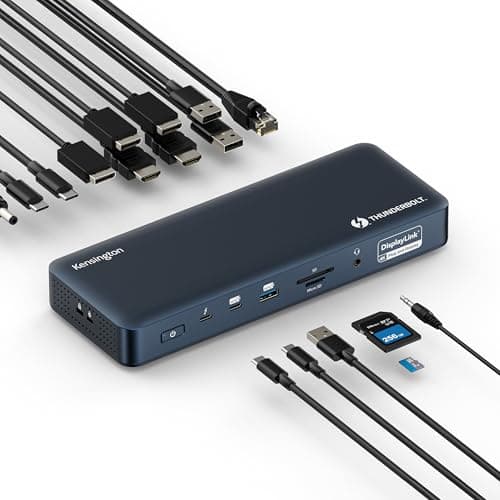
Kensington SD5900TThunderbolt 4, 40Gb/sUp to four 4K at 60Hz via DisplayLinkUp to 100W (96W certified)
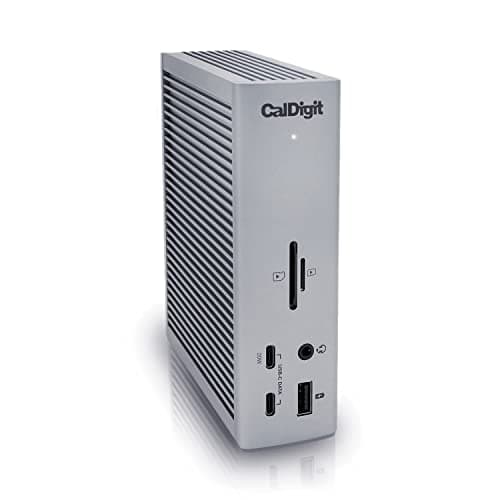
CalDigit TS4Thunderbolt 4, 40Gb/sSingle 8K at 30Hz, or dual 6K at 60Hz (host dependent)Up to 98W
UGREEN Revodok Max 208Thunderbolt 4, 40Gb/sDual 4K at 60Hz (host dependent)85W, from the included 140W charger
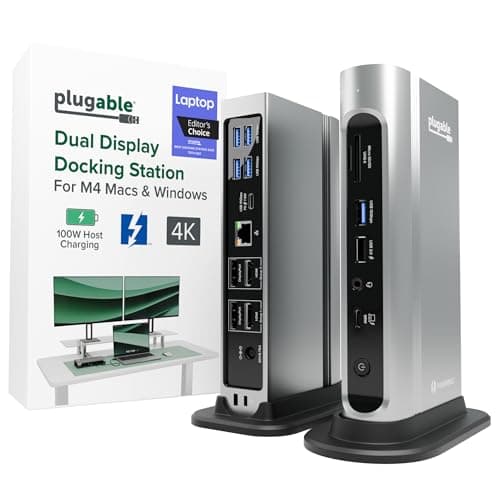
Plugable TBT4-UDZThunderbolt 4 / USB4Up to four 4K at 60Hz on Windows onlyUp to 100W (98W certified)
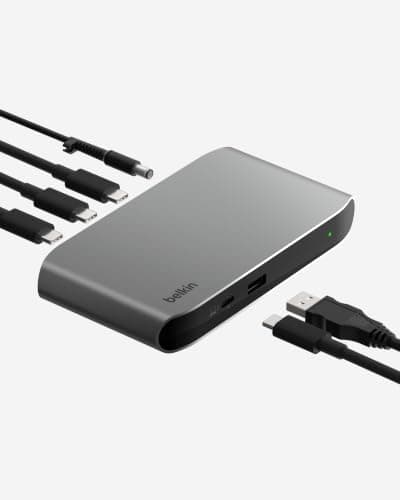
Belkin TB4 Core HubThunderbolt 4, 40Gb/sDual 4K at 60Hz, or single 8K at 30HzUp to 96W

Note the phrase “host dependent”, which appears on three of these five rows and is the whole point of this page. A dock’s dual-display figure describes what the dock can emit, not what your Mac will accept. The Plugable row is the clearest case: four 4K screens, Windows only, and Plugable says so — on a base M-series Mac it cannot extend two screens for you.

The short answer

Quick picks

#ProductBest forScorePrice
01
Kensington Kensington SD5900T Thunderbolt 4 Dock with DisplayLink
Kensington SD5900T Thunderbolt 4 Dock with DisplayLink

The dock that solves the Mac problem outright. Thunderbolt 4 plus DisplayLink means up to four 4K displays on an Apple silicon MacBook, which neither plain USB-C nor plain Thunderbolt manages.

Base M-series Macs that need two or more screens
8.9
$242.24Amazon
02
CalDigit CalDigit TS4 Thunderbolt 4 Dock (18 Port)
CalDigit TS4 Thunderbolt 4 Dock (18 Port)

The reference Thunderbolt dock, and the right choice if your Mac already drives the screens you need. Eighteen ports, 98W to the host, and bandwidth that holds up with a drive and a camera attached.

M-series Pro and Max Macs - the no-compromise dock
8.6
$379.99Amazon
03
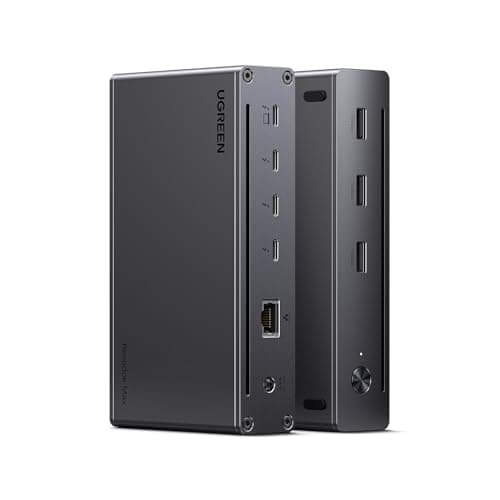
UGREEN UGREEN Revodok Max 208 Thunderbolt 4 Dock (8-in-1)
UGREEN Revodok Max 208 Thunderbolt 4 Dock (8-in-1)

The sensible middle. Three downstream Thunderbolt 4 ports and a 140W charger in the box, for meaningfully less than the flagships - and it gives up the card reader and ethernet speed to get there.

A Thunderbolt Mac on a smaller budget
8.6
$179.99Amazon
04
Plugable Plugable 16-in-1 Thunderbolt 4 Dock (TBT4-UDZ)
Plugable 16-in-1 Thunderbolt 4 Dock (TBT4-UDZ)

The dock with the most video outputs in the box - two HDMI and two DisplayPort - so a Pro or Max Mac needs no adapters. The four-screen figure is a Windows number, and Plugable says so.

A Mac whose monitors are HDMI or DisplayPort
8.4
$289.99Amazon
05
Belkin Belkin Connect Thunderbolt 4 Core Hub (5-in-1)
Belkin Connect Thunderbolt 4 Core Hub (5-in-1)

The budget pick: the cheapest genuine Thunderbolt 4 dock here. Four Thunderbolt ports and a USB-A in a small box with 96W charging, for a desk where the peripherals live on the monitor.

Budget pick - a one-screen MacBook desk
8.3
$149.99Amazon

#ad · Live prices from the Amazon Product API, as of November 12, 2026. Where we have no verified live price we show none — we would rather leave a gap than print a number that has rotted.

In detail

The picks, in full

01
Kensington Kensington SD5900T Thunderbolt 4 Dock with DisplayLink

Base M-series Macs that need two or more screens

Kensington SD5900T Thunderbolt 4 Dock with DisplayLink

Host connection
Thunderbolt 4, 40Gb/s
Displays
Up to four external displays at 4K 60Hz via DisplayLink
Video ports
2x HDMI/DP, 1x DP, 2x Thunderbolt 4 downstream
Ports
16-in-1 including USB-C 10Gb/s, USB-A, SD and microSD
Network
2.5 Gigabit Ethernet
Charging
Up to 100W (96W certified) to the host
8.9/10

The dock that solves the Mac problem outright. Thunderbolt 4 plus DisplayLink means up to four 4K displays on an Apple silicon MacBook, which neither plain USB-C nor plain Thunderbolt manages.

Mac Display Support
9.8
Bandwidth
9
Power Delivery
9.4
Value
7.2

Pros

  • DisplayLink bypasses the Apple silicon base-chip single-display limit entirely
  • Quad 4K at 60Hz is more display output than any non-DisplayLink dock here
  • Also works as a straight Thunderbolt 4 dock, so it is not wasted on a Pro or Max chip
  • 100W charging and 2.5GbE match the premium tier

Cons

  • DisplayLink is software-driven, which costs some CPU and compresses the image
  • Requires a DisplayLink driver install and its own update cycle
  • Premium pricing with the same caveat as any Thunderbolt dock

Skip this if…

…you need low-latency full-frame-rate video on every screen - DisplayLink compresses to get there

$242.24View on Amazon

$260.997% off

Price as of November 12, 2026. Prices change — Amazon's is the one that counts.

#ad · we may earn a commission from this link to Kensington SD5900T Thunderbolt 4 Dock with DisplayLink

02
CalDigit CalDigit TS4 Thunderbolt 4 Dock (18 Port)

M-series Pro and Max Macs - the no-compromise dock

CalDigit TS4 Thunderbolt 4 Dock (18 Port)

Host connection
Thunderbolt 4, 40Gb/s
Ports
18 total - 3x TB4, 3x USB-C 10Gb/s, 5x USB-A 10Gb/s, DisplayPort 1.4
Network
2.5 Gigabit Ethernet
Card readers
SD 4.0 and microSD 4.0 (UHS-II)
Charging
Up to 98W to the host laptop
Displays
Single 8K at 30Hz, or dual 6K at 60Hz (host dependent)
8.6/10

The reference Thunderbolt dock, and the right choice if your Mac already drives the screens you need. Eighteen ports, 98W to the host, and bandwidth that holds up with a drive and a camera attached.

Mac Display Support
8.4
Bandwidth
9.8
Power Delivery
9.6
Value
6.2

Pros

  • 98W charging feeds a 16-inch MacBook Pro properly, which most USB-C docks cannot
  • 40Gb/s means external SSDs run at full speed while displays and peripherals are active
  • Eighteen ports including UHS-II card readers and 2.5GbE, so nothing needs a second hub
  • Dual displays work natively on a Pro or Max chip, with no DisplayLink driver involved

Cons

  • No DisplayLink, so it cannot add a second screen to a base M-series chip
  • The most expensive dock here, by a wide margin over the Belkin
  • Large and mains-powered - a permanent desk fixture rather than a travel dock

Skip this if…

…your laptop has no Thunderbolt port - you would be paying for lanes the machine cannot use

$379.99View on Amazon

Price as of November 12, 2026. Prices change — Amazon's is the one that counts.

#ad · we may earn a commission from this link to CalDigit TS4 Thunderbolt 4 Dock (18 Port)

03
UGREEN UGREEN Revodok Max 208 Thunderbolt 4 Dock (8-in-1)

A Thunderbolt Mac on a smaller budget

UGREEN Revodok Max 208 Thunderbolt 4 Dock (8-in-1)

Host connection
Thunderbolt 4, 40Gb/s
Ports
8 total - 4x Thunderbolt 4 (1 upstream, 3 downstream), 3x USB-A 10Gb/s, Gigabit Ethernet
Charging
85W to the host, from the included 140W GaN charger; 15W per downstream Thunderbolt port
Displays
Dual 4K at 60Hz, or a single 8K at 30Hz on Windows (host dependent)
Network
Gigabit Ethernet
Warranty
2-year
8.6/10

The sensible middle. Three downstream Thunderbolt 4 ports and a 140W charger in the box, for meaningfully less than the flagships - and it gives up the card reader and ethernet speed to get there.

Mac Display Support
8
Bandwidth
9
Power Delivery
8.6
Value
8.6

Pros

  • Three downstream Thunderbolt 4 ports, the same as the flagship, at a lower price
  • The 140W GaN charger is in the box, so the 85W to the host is not conditional
  • 15W from every downstream port, enough for a bus-powered drive or a phone
  • Thunderbolt display output suits a MacBook that drives screens over USB-C already

Cons

  • 85W to the host is below the 98 to 100W the bigger docks deliver
  • No card reader at all, and Gigabit rather than 2.5 Gigabit ethernet
  • No dedicated HDMI or DisplayPort - screens go through Thunderbolt or an adapter

Skip this if…

…your screens use HDMI and you would rather not buy adapters - the Plugable has the outputs built in.

$179.99View on Amazon

$249.9928% off

Price as of November 12, 2026. Prices change — Amazon's is the one that counts.

#ad · we may earn a commission from this link to UGREEN Revodok Max 208 Thunderbolt 4 Dock (8-in-1)

04
Plugable Plugable 16-in-1 Thunderbolt 4 Dock (TBT4-UDZ)

A Mac whose monitors are HDMI or DisplayPort

Plugable 16-in-1 Thunderbolt 4 Dock (TBT4-UDZ)

Host connection
Thunderbolt 4 / USB4, also works in USB-C Alt Mode
Video ports
2x HDMI 2.0 and 2x DisplayPort 1.2
Displays
Up to four at 4096 x 2160 60Hz on compatible Windows hosts
Charging
Up to 100W (98W certified) to the host
Data ports
3x USB-A and 1x USB-C at 10Gb/s, 2x USB-A at 5Gb/s, 1x USB 2.0
Card readers
UHS-II SD and microSD
8.4/10

The dock with the most video outputs in the box - two HDMI and two DisplayPort - so a Pro or Max Mac needs no adapters. The four-screen figure is a Windows number, and Plugable says so.

Mac Display Support
7.6
Bandwidth
9
Power Delivery
9.4
Value
7.6

Pros

  • Four video outputs built in, so existing HDMI and DisplayPort monitors just plug in
  • 100W class charging and UHS-II card readers at below flagship price
  • Falls back to plain USB-C Alt Mode, so it still works on an Intel MacBook
  • Ships with a vertical stand, which reclaims the desk footprint a dock usually eats

Cons

  • The four-display capability is Windows-only; a Mac gets what its chip supports
  • HDMI 2.0 and DisplayPort 1.2 rather than the newest standards
  • Physically large at roughly 7.7 by 4.1 inches even on its stand

Skip this if…

…you are on a base M-series Mac - this dock has no DisplayLink and cannot extend two screens for you.

$289.99View on Amazon

Price as of November 12, 2026. Prices change — Amazon's is the one that counts.

#ad · we may earn a commission from this link to Plugable 16-in-1 Thunderbolt 4 Dock (TBT4-UDZ)

05
Belkin Belkin Connect Thunderbolt 4 Core Hub (5-in-1)

Budget pick - a one-screen MacBook desk

Belkin Connect Thunderbolt 4 Core Hub (5-in-1)

Host connection
Thunderbolt 4, up to 40Gb/s
Ports
4x Thunderbolt 4 (1 upstream, 3 downstream) plus 1x USB-A 3.2 Gen 2
Charging
Up to 96W to the host, 15W per downstream port
Displays
Dual 4K at 60Hz, or a single 8K at 30Hz
In the box
Thunderbolt 4 cable and 150W power supply
Daisy chain
Up to six Thunderbolt devices
8.3/10

The budget pick: the cheapest genuine Thunderbolt 4 dock here. Four Thunderbolt ports and a USB-A in a small box with 96W charging, for a desk where the peripherals live on the monitor.

Mac Display Support
8
Bandwidth
9
Power Delivery
9.4
Value
8.8

Pros

  • 96W to the host is full-fat charging for a 14-inch MacBook Pro, in the smallest box here
  • Thunderbolt cable and a 150W supply included rather than sold separately
  • Three downstream Thunderbolt ports, and daisy-chaining up to six devices
  • The cheapest genuine Thunderbolt 4 dock on this list

Cons

  • No ethernet, no card reader, and only one USB-A port
  • Displays must go through the Thunderbolt ports - no HDMI or DisplayPort built in
  • Everything that is not USB-C needs its own adapter

Skip this if…

…you have older USB-A peripherals or a wired network - this dock assumes a USB-C world.

$149.99View on Amazon

Price as of November 12, 2026. Prices change — Amazon's is the one that counts.

#ad · we may earn a commission from this link to Belkin Connect Thunderbolt 4 Core Hub (5-in-1)

The three questions, in order

  1. How many external screens, and what chip? Look up your exact model in Apple’s tech specs. Base chip plus two screens means DisplayLink; Pro or Max plus two screens means any Thunderbolt dock here.
  2. How much power does the laptop want? A 16-inch Pro wants the 96 to 100W tier. A 13 or 14-inch machine is comfortable at 85W, and the UGREEN’s bundled 140W charger makes its 85W figure honest rather than conditional.
  3. What do the monitors use? If they are HDMI, the Plugable saves you two adapters. If they are USB-C or Thunderbolt, the Belkin or the UGREEN is enough and the extra outputs are wasted.

A dock is not always the right purchase

Two cheaper routes solve the same problem for some desks, and it is worth knowing before spending dock money. A USB-C monitor with power delivery acts as the dock itself — one cable to the Mac, screen and peripherals and charging all on it — and our USB-C monitors roundup ranks those, with USB-C monitor versus docking station working through when that is the better buy. And if the real problem is a Mac and a PC sharing one set of screens, a dock is the wrong tool entirely — a KVM switch is the right one.

If you only need more ports and not more screens, a dock is also overkill: a powered USB hub costs a fraction of it, and USB hub versus docking station draws the line. The whole case for a Thunderbolt dock is video plus charging plus bandwidth at once.

Thunderbolt and USB4 on a Mac

Every current MacBook has Thunderbolt, so unlike a Windows buyer you do not have to check whether your USB-C port carries video — it does. What you do get is the ability to daisy-chain: the Belkin above specifies up to six Thunderbolt devices in a chain, which means a dock, a display and a drive can share one port on the laptop. USB-C versus Thunderbolt dock explains why that bandwidth headroom is the difference between a dock that works and one that stutters when the drive spins up.
How we picked

We do not run a testing lab

We compiled the published manufacturer specifications, did the ergonomics, VESA and desk-depth math ourselves, and read aggregated owner reviews, then scored each product against a published rubric. The scores are judgments from documented research — they are not measurements we took, because we do not have a lab and we are not going to pretend we do. Every spec traces back to a listing or manual named in Sources.

Questions

Frequently asked

Why will my dock only run one monitor on a MacBook Air?
Because the chip, not the dock, sets the limit. Apple’s base M-series chips support one external display, and no amount of video outputs on the dock changes that. The only way around it is DisplayLink, which renders the extra screens in software — the Kensington SD5900T above is the pick that has it.
Is DisplayLink good enough for everyday work on a Mac?
For documents, code, spreadsheets, browsers and video calls, yes. It compresses the image and uses some CPU, which you will not notice on a text window and will notice on full-screen high-frame-rate video. It also needs a driver kept up to date. If your chip can drive the screens natively, prefer that; if it cannot, this is a reasonable trade rather than a compromise.
How much charging power does a MacBook Pro need from a dock?
Aim for the 96 to 100W tier for a 16-inch machine and at least 85W for a 14-inch one. The CalDigit TS4 publishes 98W, the Kensington and Plugable up to 100W, the Belkin 96W and the UGREEN 85W from its included 140W charger. A dock that delivers less will still charge the laptop, just slowly, and slower still while the machine is working hard.
Do I need Thunderbolt, or will a USB-C dock do?
For one screen and some ports, a USB-C dock is fine and much cheaper. Thunderbolt buys 40Gb/s of shared bandwidth, which matters when displays, an external SSD and a camera are all active at once, and it is what makes native dual-display work on a Pro or Max chip. Since every current MacBook has Thunderbolt, the question is budget rather than compatibility.

Keep reading

Receipts

Sources

We do not run a testing lab, and we do not pretend to. Specifications come from the manufacturer or retailer listing; the footprint and clearance math is ours and reproducible. Where we could not verify a number, we say so on the page rather than quietly leaving it out. Read our full method.