Skip to content
Chair & Cable

SECTION 07 · Setup Guides

How to align dual monitors

If your two screens are different sizes, their cases will never line up - a 27-inch panel is about 1.4 inches taller than a 24. Align the pixels, not the plastic.

By Stephen V.Updated How we pick
#ad

We earn a commission when you buy through our Amazon links, at no extra cost to you. It never affects our rankings, and we say so when the cheaper product is the better buy. How this works.

Align the two screens by their content, not their cases. Set the primary monitor so the top of its usable area sits at or just below eye level, then raise or lower the second screen until the two imagesshare a horizontal center line. On panels of different sizes that means the bezels will deliberately not match — and that is correct, because a 27-inch 16:9 panel is roughly 1.4 inches taller than a 24-inch one.

Then fix the software half, which is where most of the daily annoyance lives: in Windows 11 the two screens are arranged on a pixel grid that has no idea where they physically sit, so the pointer snags on an invisible step between them until you drag the boxes into the right relationship.

This page assumes you already have two screens running. If one of them is not being detected at all, start with dual monitor troubleshooting; if you have not connected the second screen yet, the dual monitor setup guide covers the cables and the first-run steps, and two monitors from one HDMI port covers the case where the laptop only has one video output.

Why mismatched screens cannot line up at the bezels

A 16:9 panel’s height is its diagonal multiplied by about 0.49. That single number explains the whole problem:

DiagonalApprox. panel heightDifference vs a 24"
24"About 11.8 in—
27"About 13.2 inAbout 1.4 in taller
32"About 15.7 inAbout 3.9 in taller
34" ultrawide (21:9)About 13.3 inAbout 1.5 in taller

So if you align the tops, the bottoms are off by that much; align the bottoms and the tops are off. Trying to split the difference by eye is how people end up with both screens slightly wrong. Pick one reference — the vertical center of each image— and match that. The rows of text you read most are near the middle of each screen, and that is what your neck is reacting to.

The practical consequence: stock stands usually cannot do this.Most include a fixed or short height range, and the panel’s bottom bezel sits at a fixed offset above the desk. Two different monitors give you two different fixed offsets. That is the real reason a two-screen desk wants arms rather than stands — independent height on each screen is the one adjustment the stands do not give you. The full ranking is in the dual monitor arm roundup, and monitor arm vs stand makes the general case.

Step 1: set the primary screen, then match the second to it

Do these in order. Changing the primary height later means redoing everything.

1. Chair and desk first. Feet flat, forearms level with the desk. Screen height is measured from where your eyes actually end up, so there is no point setting it from a chair you are about to change.

2. Primary screen height. The top of the usable image at or just below seated eye level, so your gaze travels slightly downward into the middle of the screen. Monitor height ergonomics has the measurements and the reasoning.

3. Primary distance.Roughly an arm’s length, further for a larger panel. If the desk is too shallow for that, the arm is the fix — it pushes the screen back over the rear edge. The desk depth guide has the numbers.

4. Second screen, center line matched.Raise or lower it until the middle of its image is level with the middle of the primary’s. Hold a ruler or a straight edge across both if you want to be exact.

5. Toe both screens in. Each panel should face your head, not the wall. Two flat-on screens side by side means the outer one is viewed at an angle, and on an IPS panel that shifts contrast. A shallow angle on each is all it takes.

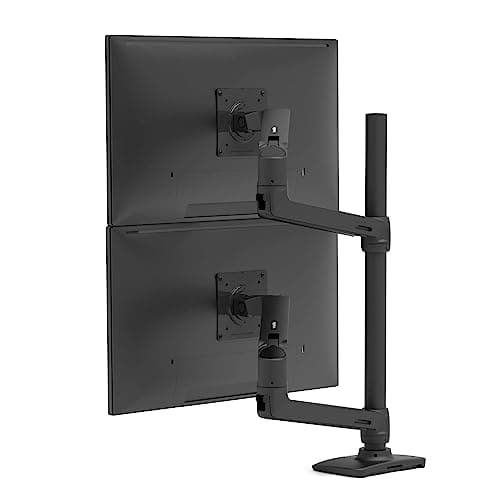
6. Decide the layout honestly.Side by side is right when you use both screens roughly equally. If the second screen is for reference material — docs, a terminal, Slack — stacking it above the primary or running it in portrait beside it is usually better, and it also sidesteps the mismatched-height problem entirely. Vertical stacking needs an arm built for it, and portrait needs a panel that pivots — the vertical monitor roundup covers those.

Step 2: the Windows 11 arrangement

Open Settings > System > Display. The boxes at the top are a map of your screens, and Windows uses it to decide where the pointer leaves one screen and enters the other.

Identify which box is which. Click Identifyand a number appears on each physical screen. If the boxes are in the wrong order left-to-right, drag them — moving the mouse right should move the pointer right.

Drag the boxes to match the physical center lines. This is the step almost everyone skips. By default Windows tends to top-align the boxes; if your screens are different resolutions or different sizes, that leaves a step. Drag the smaller box down until the two boxes overlap across the height you actually use.

Set the main display. Select the box you want as primary and tick Make this my main display. That decides where the taskbar’s clock, notifications and most new windows appear.

Check Extend, not Duplicate. Under Multiple displays, choose Extend these displays. Duplicate is for a projector, and it forces both screens to a shared resolution.

Set resolution per screen. Select each box and set its own native resolution. A screen running below native is soft in a way no alignment will fix.

On macOS the equivalent is System Settings > Displays > Arrange: drag the blue rectangles into the same relationship, and drag the white menu bar onto whichever display should be primary.

Step 3: the mouse dead zone, and how to kill it

The classic symptom of a bad arrangement: the pointer crosses between screens at mid-height but gets stuck near the top or the bottom. That is the pixel-grid step from step two — where one screen’s box has no neighbour, the pointer has nowhere to go.

The test takes ten seconds. Slide the pointer slowly from one screen to the other at three heights: near the top, in the middle, near the bottom. If it fails at any of them, go back to the Display map and adjust the vertical offset until the overlap covers the full height of the smaller screen. On very mismatched pairs — a 24 beside a 32 — a perfect result is not available side by side, which is another argument for stacking.

Two related annoyances worth knowing:

  • Windows jump size when you drag them across if the two screens run different scaling factors. It is not a bug; the window is being re-rendered at a new scale.
  • Mismatched refresh rates can make dragging feel uneven. Both screens still work; set each to its own highest rate and ignore the difference.

Step 4: scaling, when the two resolutions differ

Windows sets Scale per display, and that is how you make text the same physical size on a 1080p 24-inch and a 1440p 27-inch sitting side by side. The rough relationship: a panel near 92 to 110 pixels per inch wants 100%, and a panel near 160 PPI and up wants 150%. Pick the value that makes a line of text look the same size on both screens when you turn your head between them.

Two cautions. Older desktop applications still occasionally render blurry on the non-primary screen when the two scales differ — signing out and back in fixes most of it. And if you are choosing a second monitor rather than living with one you own, what size monitors for a dual setup makes the case for matching the pair, and our monitors-for-programming roundup works through the density and scaling arithmetic for small text specifically.

The checks, in one list

  • Top of the primary image at or just below eye level.
  • Second screen matched on the center line, not the top bezel.
  • Both panels toed in toward your head.
  • Display boxes dragged to match the physical arrangement, vertically as well as horizontally.
  • Main display set deliberately, Extend selected.
  • Native resolution on each screen, scaling tuned per screen.
  • Pointer crosses cleanly at the top, middle and bottom.

If the second screen is older and darker than the primary, no alignment will make the pair feel right — that is a panel mismatch rather than a geometry problem, and the eye-strain roundup covers what to look for in a replacement.
The short answer

Quick picks

#ProductBest forScorePrice
01
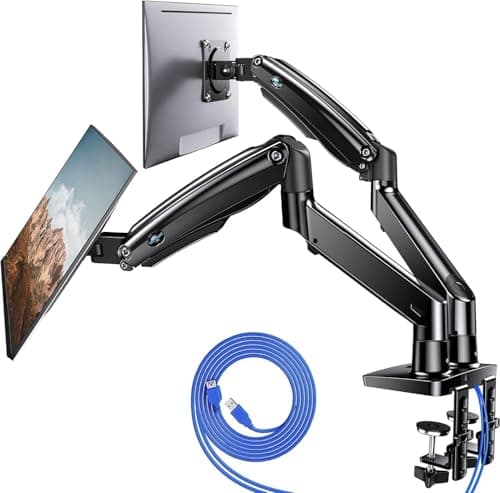
HUANUO HUANUO Dual Monitor Mount, Gas Spring
HUANUO Dual Monitor Mount, Gas Spring

The arm that solves a mismatched pair. Each gas-spring arm sets its own height, so a 24 and a 27 can share a center line - which no pair of stock stands can do - and it is rated for panels from 13 to 40 inches, which covers almost any two screens you already own.

Two screens of different sizes
8.9
$109.98Amazon
02
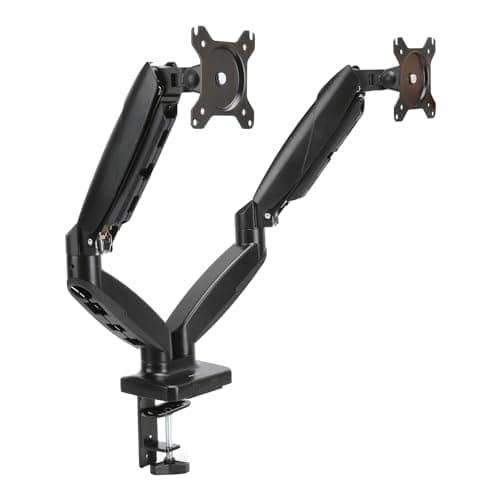
Amazon Basics Amazon Basics Gas Spring Dual Monitor Arm
Amazon Basics Gas Spring Dual Monitor Arm

The cheapest way to buy independent height on both screens. Per-arm tension adjustment is the spec that matters here - it is what lets a light 24-inch panel and a heavier 27 both hold position instead of one drifting down.

The budget route to matched heights
8.6
$49.55Amazon
03
Ergotron Ergotron LX Vertical Stacking Dual Monitor Arm
Ergotron LX Vertical Stacking Dual Monitor Arm

The answer when the two screens are too different to sit side by side, or the desk is too narrow to try. Stacking puts the reference screen above the primary, where a size mismatch stops mattering, and the Constant Force lift holds a heavy panel exactly where you set it.

Stacking instead of matching
8.6
$399.99Amazon
04
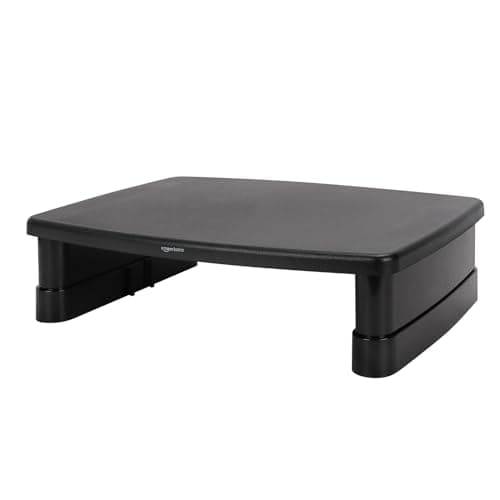
Amazon Basics Amazon Basics Height Adjustable Monitor Stand Riser with Storage
Amazon Basics Height Adjustable Monitor Stand Riser with Storage

The no-drilling, no-clamping fix: put the shorter screen on a riser and lift it to the taller one's center line. It is the right answer on a desk an arm cannot clamp to, and the cheapest thing on this page by a wide margin.

A desk an arm cannot clamp to
7.8
$21.59Amazon

#ad · Live prices from the Amazon Product API, as of October 23, 2026. Where we have no verified live price we show none — we would rather leave a gap than print a number that has rotted.

In detail

The picks, in full

01
HUANUO HUANUO Dual Monitor Mount, Gas Spring

Two screens of different sizes

HUANUO Dual Monitor Mount, Gas Spring

Type
Dual gas-spring arm, desk clamp and grommet
Screen size
Rated for 13" to 40" panels
Mounting
75 x 75mm and 100 x 100mm VESA
Movement
Full height, tilt, swivel, and rotation on each arm
Extras
Integrated USB ports and cable routing channels
8.9/10

The arm that solves a mismatched pair. Each gas-spring arm sets its own height, so a 24 and a 27 can share a center line - which no pair of stock stands can do - and it is rated for panels from 13 to 40 inches, which covers almost any two screens you already own.

Height Matching
9.4
Panel Range
9.2
Build
8
Value
9

Pros

  • Independent height per arm is exactly the adjustment a mismatched pair needs
  • 13 to 40 inch range covers nearly any two panels in a home office
  • Rotation on each arm, so one screen can go portrait without new hardware
  • Clamp or grommet mounting, and cable channels to tidy the two video runs

Cons

  • Gas springs need re-tensioning when you swap a panel for a heavier one
  • A dual arm needs a clear, flat rear desk edge - check before ordering
  • Two heavy panels on one clamp point wants a solid desktop

Skip this if…

…your two screens are identical and your stands already reach the same height - you would be buying adjustment you do not need.

$109.98View on Amazon

$149.9927% off

Price as of October 23, 2026. Prices change — Amazon's is the one that counts.

#ad · we may earn a commission from this link to HUANUO Dual Monitor Mount, Gas Spring

02
Amazon Basics Amazon Basics Gas Spring Dual Monitor Arm

The budget route to matched heights

Amazon Basics Gas Spring Dual Monitor Arm

Type
Dual gas-spring arm with adjustable tension
Mounting
Desk clamp, 75 x 75mm and 100 x 100mm VESA
Movement
Height, tilt, swivel, and rotation
Adjustment
Per-arm tension adjustment for different panel weights
Cable
Cable routing along the arms
8.6/10

The cheapest way to buy independent height on both screens. Per-arm tension adjustment is the spec that matters here - it is what lets a light 24-inch panel and a heavier 27 both hold position instead of one drifting down.

Height Matching
8.8
Panel Range
8.2
Build
7.8
Value
9.6

Pros

  • Per-arm tension means two differently weighted panels both stay where you put them
  • Costs a fraction of the premium arms and fixes the same problem
  • Both VESA patterns supported, so older panels fit
  • Rotation included, which many budget dual arms omit

Cons

  • Less rigid than the Ergotron - a knock will wobble it for a moment
  • Clamp only, with no grommet option in the box
  • Tension adjustment is fiddly on the first setup

Skip this if…

…either panel is a large ultrawide - check its weight against a heavy-duty arm instead.

$49.55View on Amazon

Price as of October 23, 2026. Prices change — Amazon's is the one that counts.

#ad · we may earn a commission from this link to Amazon Basics Gas Spring Dual Monitor Arm

03
Ergotron Ergotron LX Vertical Stacking Dual Monitor Arm

Stacking instead of matching

Ergotron LX Vertical Stacking Dual Monitor Arm

Type
Dual arm, vertical stacking configuration
Mechanism
Ergotron Constant Force lift
Mounting
Desk clamp or grommet, 100 x 100mm VESA
Movement
Independent height, tilt, pan, and rotation per screen
Warranty
Long-term manufacturer warranty
8.6/10

The answer when the two screens are too different to sit side by side, or the desk is too narrow to try. Stacking puts the reference screen above the primary, where a size mismatch stops mattering, and the Constant Force lift holds a heavy panel exactly where you set it.

Height Matching
9
Panel Range
8.6
Build
9.8
Value
6.8

Pros

  • Stacking sidesteps the mismatched-height problem completely
  • Needs only one screen's width of desk, which side-by-side cannot do
  • Constant Force holds position with no drift, including on heavy panels
  • The best-built arm we rank, with the longest warranty

Cons

  • The upper screen sits above eye level, so it is for reference material, not for all-day reading
  • Costs several times the budget dual arms
  • Needs real vertical clearance - check a low shelf or a wall-mounted cabinet first

Skip this if…

…you use both screens equally - the top position is wrong for anything you read for hours.

$399.99View on Amazon

Price as of October 23, 2026. Prices change — Amazon's is the one that counts.

#ad · we may earn a commission from this link to Ergotron LX Vertical Stacking Dual Monitor Arm

04
Amazon Basics Amazon Basics Height Adjustable Monitor Stand Riser with Storage

A desk an arm cannot clamp to

Amazon Basics Height Adjustable Monitor Stand Riser with Storage

Type
Free-standing adjustable riser
Adjustment
Multiple height settings
Surface
Flat platform for a monitor or laptop
Storage
Storage organizer space underneath
Footprint
Compact, single-monitor width
7.8/10

The no-drilling, no-clamping fix: put the shorter screen on a riser and lift it to the taller one's center line. It is the right answer on a desk an arm cannot clamp to, and the cheapest thing on this page by a wide margin.

Height Matching
7
Panel Range
8
Build
7.2
Value
9.6

Pros

  • No clamp, no grommet, no commitment - works on glass tops and rental furniture
  • Stepped height settings make a repeatable match rather than a guess
  • Costs very little, and the space underneath takes the clutter the second screen displaced
  • Also works under a laptop acting as the second screen

Cons

  • Fixed steps rather than continuous height, so the match may be a few millimeters out
  • Takes desk depth rather than freeing it, unlike an arm
  • No tilt or swivel, so you cannot toe the screen in
  • Cannot raise a screen anywhere near as far as an arm can

Skip this if…

…the shorter screen needs to come down rather than up - only an arm does that.

$21.59View on Amazon

Price as of October 23, 2026. Prices change — Amazon's is the one that counts.

#ad · we may earn a commission from this link to Amazon Basics Height Adjustable Monitor Stand Riser with Storage

Essentials

The small parts that finish the job

Nothing here changes a pick above, and none of it is a considered purchase. These are the cheap pieces that decide whether the expensive one works properly, and the ones people discover they are missing on the day the big box arrives.

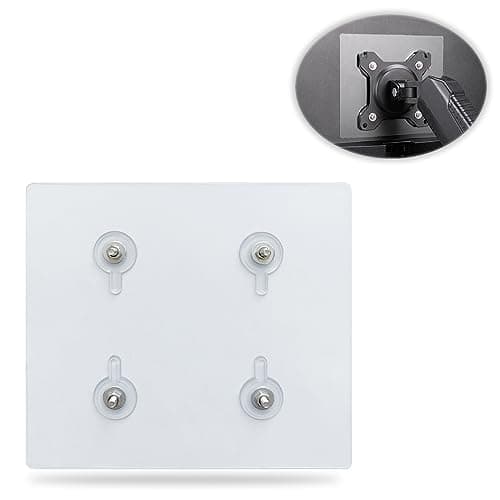
  • Universal VESA Mount Adapter for Non-VESA Monitors (13 to 27 in)

    Universal VESA Mount Adapter for Non-VESA Monitors (13 to 27 in)

    The part that decides whether an arm is even an option. A panel with no bolt pattern on the back cannot mount to anything, and a bracket kit gives it one instead of sending you back to the stand in the box.

    Check first: confirm the adapter's VESA pattern and its panel-size range against both your monitor and your arm, and make sure the arm's weight rating still covers the adapter plus the screen.

  • No image

    Cable Matters VESA-Certified DisplayPort 1.4 Cable, 6 ft

    A monitor ships with one cable and it is rarely DisplayPort, so the second screen usually arrives with nothing to plug into. A certified DP 1.4 run is also the first thing worth swapping when a display flickers, drops out, or refuses to hold its refresh rate.

#ad · Live prices from the Amazon Product API, as of October 23, 2026. Where we have no verified live price we show none. We may earn a commission, at no extra cost to you.

How we picked

We do not run a testing lab

We compiled the published manufacturer specifications, did the ergonomics, VESA and desk-depth math ourselves, and read aggregated owner reviews, then scored each product against a published rubric. The scores are judgments from documented research — they are not measurements we took, because we do not have a lab and we are not going to pretend we do. Every spec traces back to a listing or manual named in Sources.

Questions

Frequently asked

How do I align dual monitors in Windows 11?
Open Settings > System > Display, click Identify to see which box is which screen, then drag the boxes so their left-to-right order matches reality and their vertical offset matches how the screens physically sit. Set one as the main display, choose Extend these displays, and set each screen to its native resolution.
Should the bezels of two monitors line up?
Only if the panels are the same size. A 16:9 screen's height is about 0.49 times its diagonal, so a 27-inch panel is roughly 1.4 inches taller than a 24-inch one - line up the tops and the bottoms are off. Match the vertical center of each image instead, because that is where you read.
Can I use two monitors of different sizes?
Yes, and it is extremely common. You need independent height adjustment on each screen, which stock stands rarely offer - that is what a dual arm buys you. Then set per-screen scaling in Windows so text is the same physical size on both.
Why does my mouse get stuck between my monitors?
Because the Display arrangement has a vertical step in it: where one screen's box has no neighbour, the pointer has nowhere to cross. Drag the smaller box up or down until the two overlap across the full height you use, then test the crossing near the top, the middle and the bottom.
Should both monitors be at the same height?
If you use them equally, yes - matched on the center line of the image. If the second screen is reference material you glance at, raising it slightly or stacking it above the primary is fine, and it removes the matching problem altogether.
How do I make text the same size on two different monitors?
Windows sets Scale per display. As a rule, panels around 92 to 110 PPI want 100% and panels at 160 PPI and above want 150%. Tune until a line of text looks the same size on both screens, and expect windows to resize as you drag them across.
Do I need a monitor arm to align two screens?
Not always, but it is the only thing that gives independent, continuous height on both screens. The cheaper alternative is a riser under the shorter panel, which works when the shorter screen needs to go up - it cannot help when it needs to come down.

Keep reading

Receipts

Sources

We do not run a testing lab, and we do not pretend to. Specifications come from the manufacturer or retailer listing; the footprint and clearance math is ours and reproducible. Where we could not verify a number, we say so on the page rather than quietly leaving it out. Read our full method.