Skip to content
Chair & Cable

SECTION 04 · Keyboards & Mice

The Best Keyboards for Programming

Programming is not typing prose. It is modifiers, symbols, and navigation keys, and the boards that help are the ones that let you put those where your fingers already are.

By Stephen V.Updated How we pick
#ad

We earn a commission when you buy through our Amazon links, at no extra cost to you. It never affects our rankings, and we say so when the cheaper product is the better buy. How this works.

Programming is a different typing workload from writing prose, and it is the difference that should drive the purchase. Prose is mostly letters and the occasional comma. Code is brackets, braces, pipes, underscores, angle brackets, and constant modifier combinations — Ctrl, Alt, Shift, Cmd, held while your other fingers reach for keys at the edges of the board. That means the specs that matter are firmware, layers, and where the modifiers sit, not the switch feel that dominates keyboard marketing.

Remappable firmware is the actual feature

The single most useful thing a keyboard can do for a programmer is let you move keys. Not through an operating-system utility that stops working when you log into a different machine, but in the board’s own firmware, so the layout is the keyboard’s and travels with it. QMK is the open-source firmware most enthusiast boards run; VIA is a graphical editor that talks to it, so you can drag a key to a new position and have it live immediately without compiling anything. ZMK is the wireless-first equivalent — it is what the Q11 Ultra at the top of this list runs, edited in Keychron’s browser-based Launcher rather than VIA, and it buys you the same layers.

What you do with it, in practice, is build a layer: hold one key and the whole board becomes something else. A symbol layer that puts brackets and braces on the home row is the classic, and it removes the reach to the top-right corner of the board that costs you hundreds of small stretches a day. A navigation layer that puts arrows under your right hand removes the reach to the arrow cluster. Neither is possible on a keyboard without layer support, which is why the Logitech ranks last here despite being an excellent keyboard in every other respect.

Where the modifiers sit is the second question

On a standard board, Ctrl and Shift live under your little fingers — the weakest, least mobile digits — and code uses them constantly. Three fixes exist, in ascending order of commitment. Remap Caps Lock to Ctrl, which costs nothing and is the highest-value five minutes in this entire article. Use a layer so modifiers are held by a thumb-adjacent key. Or buy a board with proper thumb clusters, which is what the Kinesis does and why it sits where it does on this list despite the price and the learning curve.

Layout size is a mouse decision, not a keyboard one

A full-size board with a number pad pushes your mouse roughly three inches further right, which means your shoulder is internally rotated for eight hours a day. Over years that is one of the more common sources of shoulder and forearm complaints among people who spend all day at a desk. Dropping to tenkeyless brings the mouse back toward your centreline for free.

The counter-argument is real too: if your work involves numbers, a number pad is genuinely faster than the top row and there is no layer that fully replaces it. That is the honest trade, and it is why both a full-size and a tenkeyless board appear near the top of this list. If you go full-size, consider moving to a trackball or a vertical mouse, both of which reduce the reach penalty in different ways.

What about switches?

Switch choice is real but secondary, and it is a preference rather than an ergonomic decision. Tactile switches give a bump you can feel at the actuation point, which most people find helps accuracy. Linear switches are smooth and quieter. Clicky switches are loud enough to be a genuine problem in a shared room or on a call, and we would not recommend them for an office desk regardless of how good they feel. If you are in meetings, silent tactile switches exist and are worth the swap — which is exactly what hot-swap sockets are for. The wider field of office-appropriate boards is in the office mechanical roundup.

How this list is ranked

Remapping and layer support carry the most weight, then layout suitability for code, then typing feel, then value. Everything is judged from published manufacturer specifications and firmware documentation rather than measurements from a lab we do not have — see how we pick. If your problem is wrist pain rather than key layout, the shape question comes first and the ergonomic keyboards roundup is the better page.

The short answer

Quick picks

#ProductBest forScorePrice
01
Keychron Keychron Q11 Ultra 8K Split Mechanical Keyboard
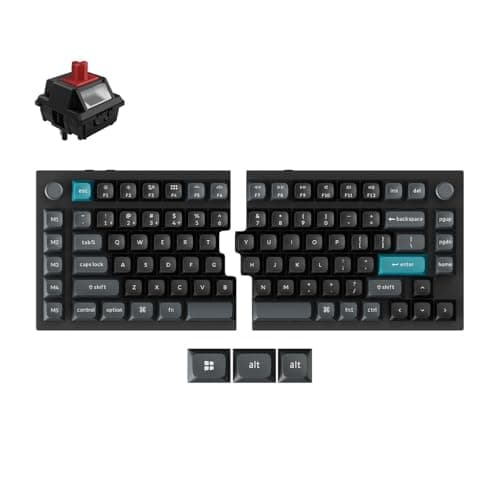
Keychron Q11 Ultra 8K Split Mechanical Keyboard

Open-source firmware on a fully split metal board is the combination that matters here. You can move every modifier, build layers for symbols and navigation, and separate your hands - all without learning a new physical layout.

Best overall
8.9
Check price →
02
Kinesis Kinesis Advantage360 Split Ergonomic Keyboard
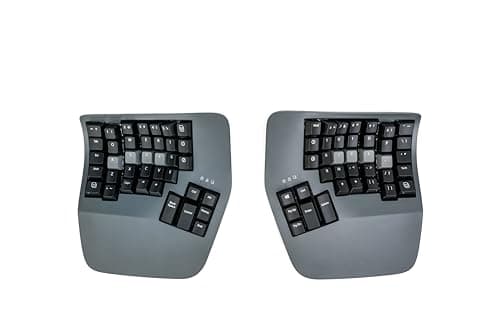
Kinesis Advantage360 Split Ergonomic Keyboard

The end state, if you are prepared to pay for it in weeks of relearning. Thumb clusters take the modifiers off your little fingers entirely, which is where a decade of Ctrl and Shift accumulates.

Most ergonomic for heavy modifier use
8.8
$479.00Amazon
03
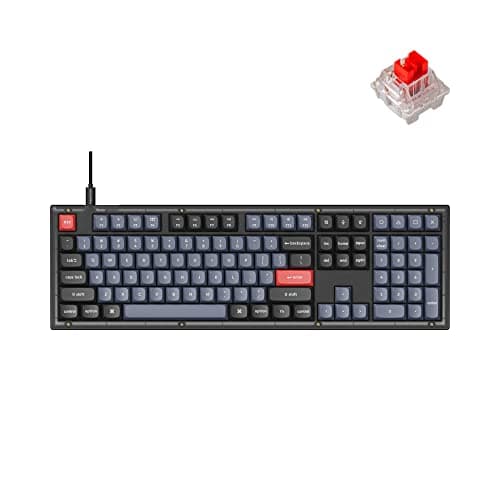
Keychron Keychron V6 Full-Size Mechanical Keyboard
Keychron V6 Full-Size Mechanical Keyboard

The pick if your code involves a lot of numbers. QMK and VIA on a full-size board with a number pad, at a price that makes the enthusiast boards look indulgent.

Best full-size with numpad
8.8
$89.99Amazon
04
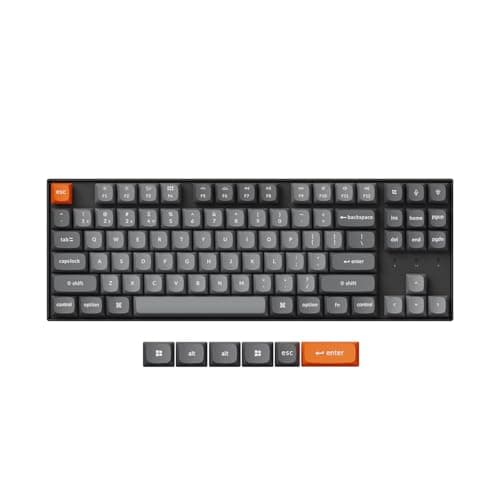
Keychron Keychron K8 Max Wireless Mechanical Keyboard
Keychron K8 Max Wireless Mechanical Keyboard

The sensible default. Tenkeyless keeps your mouse close, QMK and VIA give you layers, and tri-mode wireless means the same board works on the desk and on a laptop across the room.

Best wireless all-rounder
8.8
$79.99Amazon
05
Logitech Logitech MX Mechanical Wireless Keyboard
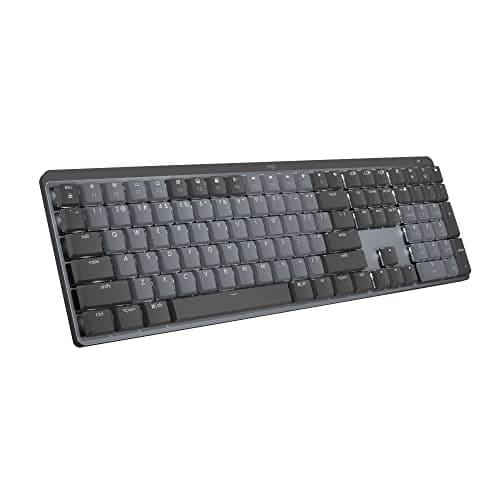
Logitech MX Mechanical Wireless Keyboard

The pick for someone who wants none of this. Low-profile mechanical, three-device switching, and quiet switches - it does not do layers, and for a lot of working programmers that is fine.

Best for multi-machine work
7.8
$157.00Amazon

#ad · Live prices from the Amazon Product API, as of Sep 6, 2026. Where we have no verified live price we show none — we would rather leave a gap than print a number that has rotted.

In detail

The picks, in full

01
Keychron Keychron Q11 Ultra 8K Split Mechanical Keyboard

Best overall

Keychron Q11 Ultra 8K Split Mechanical Keyboard

Layout
75% split, two metal halves with dual knobs
Firmware
ZMK, configured in the Keychron Launcher web app
Connection
2.4GHz, Bluetooth 5.3, or wired USB-C
Switch type
Hot-swappable mechanical (pre-installed Brown)
Extras
Dual knobs, double-gasket mount, 8000 Hz polling rate
8.9/10

Open-source firmware on a fully split metal board is the combination that matters here. You can move every modifier, build layers for symbols and navigation, and separate your hands - all without learning a new physical layout.

Remapping & Layers
9.6
Layout for Code
9
Typing Feel
9.2
Value
7.8

Pros

  • The Launcher is a browser-based graphical editor, so a symbol layer under the home row takes minutes and no firmware build
  • Split halves let each hand sit shoulder-width, which is the single biggest posture change available
  • Retains a standard staggered layout, so you are not relearning where the keys are
  • Hot-swap sockets mean you can change to a quieter or heavier switch without buying another board

Cons

  • Runs ZMK, not QMK/VIA, so an existing keymap has to be rebuilt in the Launcher
  • No built-in tenting, so the halves lie flat unless you improvise
  • Metal-body pricing is well above a plain office board

Skip this if…

you already maintain a QMK keymap you do not want to rebuild in another configurator

Check price on Amazon →

No buyable offer at the last price check (Sep 6, 2026). We show nothing rather than a stale number.

#ad · we may earn a commission from this link to Keychron Q11 Ultra 8K Split Mechanical Keyboard

02
Kinesis Kinesis Advantage360 Split Ergonomic Keyboard

Most ergonomic for heavy modifier use

Kinesis Advantage360 Split Ergonomic Keyboard

Type
Fully separated contoured split, USB-C
Layout
Concave key wells with columnar (matrix) key alignment
Thumb keys
Dedicated thumb clusters for modifiers
Firmware
Fully remappable onboard (ZMK-based)
Switches
Mechanical, hot-swappable
8.8/10

The end state, if you are prepared to pay for it in weeks of relearning. Thumb clusters take the modifiers off your little fingers entirely, which is where a decade of Ctrl and Shift accumulates.

Remapping & Layers
9.4
Layout for Code
9.8
Typing Feel
9.3
Value
6.6

Pros

  • Thumb clusters put Ctrl, Alt, and Backspace under your strongest digits instead of your weakest
  • Columnar layout means your fingers move straight up and down rather than diagonally
  • Contoured wells shorten the reach to the number and function rows, which code uses constantly
  • Onboard remapping means the layout travels with the board, not with a driver install

Cons

  • Realistically weeks before you are back to full typing speed
  • The most expensive board here by a wide margin
  • Large footprint even with the halves pushed together

Skip this if…

you switch between this and a laptop keyboard all day - the layouts fight each other and neither becomes fluent

$479.00View on Amazon

Price as of Sep 6, 2026. Prices change — Amazon's is the one that counts.

#ad · we may earn a commission from this link to Kinesis Advantage360 Split Ergonomic Keyboard

03
Keychron Keychron V6 Full-Size Mechanical Keyboard

Best full-size with numpad

Keychron V6 Full-Size Mechanical Keyboard

Layout
Full-size (104-key) with number pad
Firmware
QMK and VIA - full remapping and layers
Connection
Wired USB-C
Switch type
Hot-swappable (pre-installed Keychron/Gateron)
Extras
Gasket mount, optional rotary knob
8.8/10

The pick if your code involves a lot of numbers. QMK and VIA on a full-size board with a number pad, at a price that makes the enthusiast boards look indulgent.

Remapping & Layers
9.4
Layout for Code
8.2
Typing Feel
8.7
Value
8.8

Pros

  • Full remapping and layers on a board that costs a fraction of the aluminum split boards
  • Number pad matters for data work, config files, and anything numeric-heavy
  • Dedicated arrow cluster and navigation block, which compact boards bury under a layer
  • Hot-swap sockets and a gasket mount at a mid-range price

Cons

  • Wired only - no wireless in this model
  • A full-size board pushes your mouse hand further right, which is a real ergonomic cost over years
  • Tall, so a wrist rest is close to mandatory for long sessions

Skip this if…

you rarely use the number pad - a tenkeyless board keeps your mouse hand closer to center

$89.99View on Amazon

Price as of Sep 6, 2026. Prices change — Amazon's is the one that counts.

#ad · we may earn a commission from this link to Keychron V6 Full-Size Mechanical Keyboard

04
Keychron Keychron K8 Max Wireless Mechanical Keyboard

Best wireless all-rounder

Keychron K8 Max Wireless Mechanical Keyboard

Layout
Tenkeyless (87-key)
Firmware
QMK and VIA - full remapping and layers
Connection
Bluetooth, 2.4 GHz, or wired USB-C
Switch type
Hot-swappable (pre-installed Gateron)
Compatibility
Mac and Windows keycaps and toggle
8.8/10

The sensible default. Tenkeyless keeps your mouse close, QMK and VIA give you layers, and tri-mode wireless means the same board works on the desk and on a laptop across the room.

Remapping & Layers
9.2
Layout for Code
8.6
Typing Feel
9
Value
8.4

Pros

  • Tenkeyless removes the number pad, which brings the mouse three inches closer to your centreline
  • Full VIA remapping including layers, on a wireless board - an uncommon combination
  • Mac and Windows layouts both in the box, which matters if you develop across both
  • Gasket mount and foam keep it quiet enough for a shared room or a call

Cons

  • No number pad, which is a real loss for numeric work
  • Tall profile needs a wrist rest for comfort
  • Stock switches are quiet-ish rather than silent

Skip this if…

you enter numbers all day - the V6 is the same firmware with the pad attached

$79.99View on Amazon

Price as of Sep 6, 2026. Prices change — Amazon's is the one that counts.

#ad · we may earn a commission from this link to Keychron K8 Max Wireless Mechanical Keyboard

05
Logitech Logitech MX Mechanical Wireless Keyboard

Best for multi-machine work

Logitech MX Mechanical Wireless Keyboard

Layout
Full-size with number pad
Firmware
Logi Options+ remapping (no layer system)
Connection
Bluetooth or Logi Bolt receiver; USB-C charging
Switch type
Low-profile mechanical (tactile-quiet, linear, or clicky)
Backlight
Proximity-sensing smart backlight
7.8/10

The pick for someone who wants none of this. Low-profile mechanical, three-device switching, and quiet switches - it does not do layers, and for a lot of working programmers that is fine.

Remapping & Layers
6.4
Layout for Code
8
Typing Feel
8.4
Value
8.4

Pros

  • Switches between three machines with a keypress, which beats a KVM for keyboard-only switching
  • Tactile-quiet switches are genuinely call-safe in a shared room
  • Low profile keeps the wrist angle flatter than a tall mechanical board
  • Logitech Flow moves the cursor and clipboard between machines as well

Cons

  • No QMK, VIA, or layer system - remapping is limited to what Options+ exposes
  • Switches are not hot-swappable
  • Full-size layout pushes the mouse out to the right

Skip this if…

you want a symbol layer under your home row - this board has no layer system at all

$157.00View on Amazon

$179.9913% off

Price as of Sep 6, 2026. Prices change — Amazon's is the one that counts.

#ad · we may earn a commission from this link to Logitech MX Mechanical Wireless Keyboard

How to choose a keyboard for programming

Answer three questions. Do you want layers? If yes, the board must run QMK/VIA or equivalent onboard firmware, and that single requirement eliminates most keyboards sold. Do you need a number pad? If no, go tenkeyless and bring your mouse closer. Do your hands or shoulders already hurt? If yes, the split boards are not an indulgence — separating the halves is the biggest posture change available at a keyboard.

Then do the free things before you spend anything. Remap Caps Lock to Ctrl at the operating system level and use it for a week. Move your mouse to the left of the keyboard for a day and see whether your shoulder notices. Both cost nothing and both tell you more about what you actually need than any spec sheet will.

Finally, plan for the height. A tall mechanical board angles your wrists back into extension, which is the position most associated with discomfort over long sessions. Either buy low profile, or set the board flat with the feet down rather than up, or add a wrist rest to support the heel of your hand. The full positioning logic is in keyboard and mouse ergonomics.
How we picked

We do not run a testing lab

We compiled the published manufacturer specifications, did the ergonomics, VESA and desk-depth math ourselves, and read aggregated owner reviews, then scored each product against a published rubric. The scores are judgments from documented research — they are not measurements we took, because we do not have a lab and we are not going to pretend we do. Every spec traces back to a listing or manual named in Sources.

Questions

Frequently asked

What is the best keyboard layout for programming?
Tenkeyless is the best default: it keeps a full navigation and arrow cluster while removing the number pad, which brings your mouse about three inches closer to your centreline. Go full-size only if you genuinely enter numbers all day, and go split if your hands or shoulders already hurt.
Do I need QMK or VIA for a programming keyboard?
Not strictly, but it is the feature with the highest payoff. QMK/VIA lets you build layers — hold one key and the board becomes a different keyboard — so brackets, braces, and arrows can sit under your home row instead of at the edges. Crucially the mapping lives in the keyboard, so it works on any machine without installing anything.
Are mechanical keyboards better for programming?
Not inherently. Mechanical switches give a more consistent, longer-lasting keystroke that most people prefer, but they do not make you a faster or more accurate programmer. The reason mechanical boards dominate this list is that they are the boards that ship with remappable firmware and hot-swap sockets, not the switches themselves.
Which switches are best for coding in a shared office?
Silent tactile or quiet linear switches. Avoid clicky switches entirely for an office desk — they are loud enough to carry over a call and to irritate anyone nearby. If a board has hot-swap sockets, switching to silent switches later is a ten-minute job with no soldering.
Is a split keyboard worth it for a programmer?
If you already have wrist, forearm, or shoulder discomfort, yes — separating the halves to shoulder width is the largest single posture improvement available at a keyboard. If you have no symptoms, it is optional, and a split board with a standard staggered layout like the Keychron Q11 is a much gentler entry than a contoured columnar board.

Keep reading

Receipts

Sources

We do not run a testing lab, and we do not pretend to. Specifications come from the manufacturer or retailer listing; the footprint and clearance math is ours and reproducible. Where we could not verify a number, we say so on the page rather than quietly leaving it out. Read our full method.