Skip to content
Chair & Cable

SECTION 01 · Monitors & Arms

1440p or 4K?

The honest answer depends on one number nobody quotes: how many pixels land in each inch of screen. Get that right and the resolution decides itself.

By Stephen V.Updated How we pick
#ad

We earn a commission when you buy through our Amazon links, at no extra cost to you. It never affects our rankings, and we say so when the cheaper product is the better buy. How this works.

Buy 1440p at 27 inches, and 4K at 32 inches or larger. That single rule resolves the argument for most desks, because it is not really a resolution question — it is a pixel-density question, and density is resolution divided by physical size. The rest of this page is why, and the cases where the rule bends.

The comparison, on what actually differs

 1440p (2560×1440)4K (3840×2160)
Pixel density at 27″~109 ppi~163 ppi
Pixel density at 32″~92 ppi~138 ppi
Typical scaling used100% — native150% at 27″, 100–125% at 32″
Usable desktop after scaling2560×14402560×1440 at 27″; more at 32″
Pixels the GPU must draw3.7 million8.3 million
Bandwidth neededComfortable on HDMI 2.0 / DP 1.2Wants HDMI 2.1 or DP 1.4 for high refresh
Typical priceLower for the same build qualityMeaningfully higher

The scaling trap that catches most 4K buyers

Here is the part the marketing never mentions. Buy a 27-inch 4K panel and run it at 100% scaling and the interface will be too small to use — menu text lands around 60% of the size you are used to. So you turn scaling up to 150%, which is the setting both Windows and macOS will suggest. At 150%, the desktop reports itself as 2560×1440. That is exactly the usable area of a 1440p monitor.

You have not bought more room. You have bought the same room, rendered with more than double the pixels — which is a real and pleasant upgrade, because text edges genuinely disappear, but it is a sharpness upgrade rather than a space upgrade. If what you wanted was more windows on screen, 4K at 27 inches does not deliver it, and an ultrawide or a second screen does.

Move the same 4K panel to 32 inches and the picture changes. Density drops to about 138 ppi, which many people run at 100% or 125% scaling. Now you have both: a sharper image and materially more desktop than 1440p offered. That is why the size rule at the top of this page exists.

Where Windows and macOS behave differently

macOS was built for high-density displays and handles them well, but it has a specific preference: it looks best at exactly 2x scaling. A 27-inch 4K panel on a Mac at the “looks like 1920×1080” setting is pin-sharp; at the intermediate settings macOS renders at a higher internal resolution and downsamples, which costs some GPU load and a little crispness.

Windows handles fractional scaling more flexibly but less consistently. Modern applications scale correctly at 150%; older desktop software, installers and some engineering and finance tools still render blurry or at the wrong size. If your working day involves legacy Windows applications, a 1440p panel at 100% scaling removes an entire category of annoyance.

What each resolution asks of your hardware

4K is 8.3 million pixels against 1440p’s 3.7 million — more than double the work for the GPU on every frame. For documents, browsers and code this barely matters on any machine made in the last five years. It starts to matter if you drive multiple 4K panels from integrated graphics, or if you also game, where the frame-rate cost of 4K is severe.

Cabling matters too. 4K at 60Hz is fine over HDMI 2.0 or DisplayPort 1.2. 4K at 120Hz or above needs HDMI 2.1 or DisplayPort 1.4 with compression, and the cable has to be rated for it — a cable that carries 4K60 happily may simply drop out at 4K120. Which port to use, and why, is covered in DisplayPort vs HDMI.

Viewing distance changes the answer

Density only matters relative to how far your eyes are from the screen. At the arm’s-length distance a monitor armmakes possible — call it 26 to 30 inches — the difference between 109 and 163 ppi is noticeable on small text but not dramatic. Pull the screen to 20 inches and 1440p starts to look coarse. Push it to 36 inches and 4K’s advantage largely evaporates. If your desk is shallow and the screen is close, that is an argument for 4K; if you sit back, it is an argument for saving the money.

The short answer

Quick picks

#ProductBest forScorePrice
01
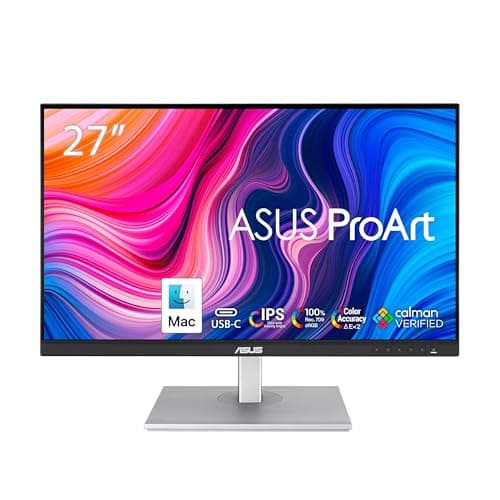
ASUS ASUS ProArt PA278CV 27" QHD (the 1440p case)
ASUS ProArt PA278CV 27" QHD (the 1440p case)

1440p at 27 inches is the resolution that needs no explanation and no settings. Around 109 pixels per inch means everything renders at 100% scaling, exactly as the software intended.

Best 1440p
8.6
$269.66Amazon
02
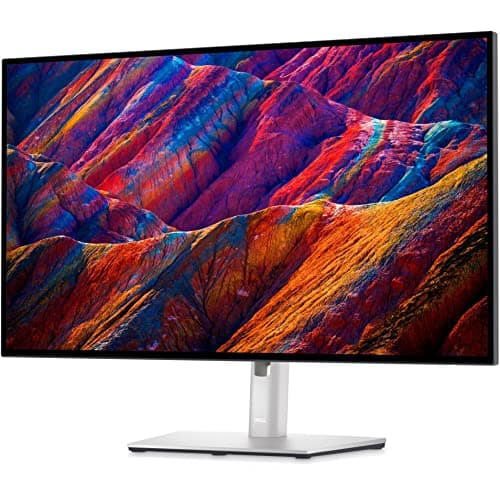
Dell Dell UltraSharp U2723QE 27" 4K (the 4K case)
Dell UltraSharp U2723QE 27" 4K (the 4K case)

4K at 27 inches is about 163 pixels per inch, which is genuinely sharp - and which you will run at 150% or 175% scaling, so it buys clarity rather than desktop space.

Best 4K at 27 inches
8.2
$639.00Amazon
03
Samsung Samsung 32" ViewFinity S8 4K (where 4K wins outright)
Samsung 32" ViewFinity S8 4K (where 4K wins outright)

The size where the argument stops. At 32 inches, 4K lands near 138 pixels per inch - sharp enough to leave scaling low, so you gain real desktop space as well as clarity.

Best of both
9.0
$429.99Amazon

#ad · Live prices from the Amazon Product API, as of Sep 6, 2026. Where we have no verified live price we show none — we would rather leave a gap than print a number that has rotted.

In detail

The picks, in full

01
ASUS ASUS ProArt PA278CV 27" QHD (the 1440p case)

Best 1440p

ASUS ProArt PA278CV 27" QHD (the 1440p case)

Screen
27" IPS
Resolution
2560 x 1440 (QHD), 75Hz
Pixel density
Roughly 109 pixels per inch
Color
100% sRGB / Rec.709, Delta E < 2
Connectivity
USB-C (65W), USB hub
8.6/10

1440p at 27 inches is the resolution that needs no explanation and no settings. Around 109 pixels per inch means everything renders at 100% scaling, exactly as the software intended.

Text Sharpness
7.6
Usable Desktop
8
Scaling Behavior
9.6
Value
9

Pros

  • Runs at 100% scaling, so no application can render at the wrong size
  • Far less GPU load than 4K, which matters on integrated graphics and older laptops
  • Cheaper than an equivalent 4K panel of the same size and build quality
  • Factory-calibrated color, which most 4K panels at this price do not offer

Cons

  • Text edges are visibly softer than 4K if you look for them
  • 109 ppi is below the density at which small type stops looking pixelated
  • 75Hz refresh rate is a work-first specification

Skip this if…

you read small type all day and you sit close - the density difference is real at that distance.

$269.66View on Amazon

Price as of Sep 6, 2026. Prices change — Amazon's is the one that counts.

#ad · we may earn a commission from this link to ASUS ProArt PA278CV 27" QHD (the 1440p case)

02
Dell Dell UltraSharp U2723QE 27" 4K (the 4K case)

Best 4K at 27 inches

Dell UltraSharp U2723QE 27" 4K (the 4K case)

Screen
27" IPS Black, flat
Resolution
3840 x 2160 (4K UHD)
Pixel density
Roughly 163 pixels per inch
Connectivity
USB-C hub with power delivery, DisplayPort, HDMI, RJ45 ethernet
Stand
Height, tilt, swivel and pivot adjustable
8.2/10

4K at 27 inches is about 163 pixels per inch, which is genuinely sharp - and which you will run at 150% or 175% scaling, so it buys clarity rather than desktop space.

Text Sharpness
9.6
Usable Desktop
8
Scaling Behavior
8
Value
7.2

Pros

  • 163 ppi is dense enough that text anti-aliasing effectively disappears
  • IPS Black raises contrast over standard IPS without giving up viewing angles
  • The built-in hub with ethernet replaces a dock for most laptop desks
  • Scales cleanly on macOS, which handles fractional scaling better than Windows

Cons

  • At 150% scaling you get the same usable desktop as a 1440p panel, just sharper
  • Costs meaningfully more than an equivalent 1440p screen
  • Drives four times the pixels of 1080p, which loads weak GPUs

Skip this if…

you wanted more room rather than more sharpness - at 27 inches, 4K gives you the second one.

$639.00View on Amazon

Price as of Sep 6, 2026. Prices change — Amazon's is the one that counts.

#ad · we may earn a commission from this link to Dell UltraSharp U2723QE 27" 4K (the 4K case)

03
Samsung Samsung 32" ViewFinity S8 4K (where 4K wins outright)

Best of both

Samsung 32" ViewFinity S8 4K (where 4K wins outright)

Screen
32" IPS, flat
Resolution
3840 x 2160 (4K UHD)
Pixel density
Roughly 138 pixels per inch
Connectivity
USB-C with power delivery, DisplayPort, HDMI
VESA mount
100 x 100mm
9.0/10

The size where the argument stops. At 32 inches, 4K lands near 138 pixels per inch - sharp enough to leave scaling low, so you gain real desktop space as well as clarity.

Text Sharpness
8.8
Usable Desktop
9.4
Scaling Behavior
9
Value
8.8

Pros

  • 138 ppi sits between the two extremes - sharper than 1440p, and usable at 100% or 125% scaling
  • Enough physical area for two full documents genuinely side by side
  • Cheaper per square inch of screen than two 27-inch panels
  • USB-C keeps the single-cable workflow at the larger size

Cons

  • Needs a deeper desk - a 32-inch panel too close is uncomfortable rather than impressive
  • Heavier than a 27-inch panel, so check any arm's weight rating first
  • One big screen cannot be rotated the way a second small one can

Skip this if…

your desk is under about 28 inches deep - you will end up sitting too close to see the edges.

$429.99View on Amazon

Price as of Sep 6, 2026. Prices change — Amazon's is the one that counts.

#ad · we may earn a commission from this link to Samsung 32" ViewFinity S8 4K (where 4K wins outright)

The verdict

Buy 1440p if your panel is 27 inches or smaller, you run Windows with older desktop software, you want a high refresh rate without paying for it twice, or the GPU is integrated graphics driving more than one screen. At that size it is the resolution that needs no configuration, and the money saved is better spent on a monitor arm or a better chair, both of which change your day more than pixel density does.

Buy 4K if the panel is 32 inches or larger, if you are on macOS, if you read small text for hours, or if you sit close to the screen. At 32 inches it is the clear winner on both sharpness and usable space, and on a Mac the scaling is handled well enough that the trade-off largely disappears.

Buy neither if what you actually want is more windows visible at once. Neither resolution solves that at 27 inches; width does. A 34-inch ultrawide gives you a genuinely wider canvas, and two panels give you two independent full-screen apps. Those options are weighed against each other in ultrawide vs dual monitor, and the full 4K field is in the best 4K monitors.
How we picked

We do not run a testing lab

We compiled the published manufacturer specifications, did the ergonomics, VESA and desk-depth math ourselves, and read aggregated owner reviews, then scored each product against a published rubric. The scores are judgments from documented research — they are not measurements we took, because we do not have a lab and we are not going to pretend we do. Every spec traces back to a listing or manual named in Sources.

Questions

Frequently asked

Is 4K worth it on a 27-inch monitor?
For sharpness, yes; for space, no. At 27 inches you will run 4K at around 150% scaling, which gives the same usable desktop as a 1440p panel with more than double the pixels drawing it. Text looks noticeably better; you do not fit more on screen. Whether that is worth the price difference depends on how much small type you read.
Can you see the difference between 1440p and 4K?
On text, yes, at normal desk distance — 109 versus 163 pixels per inch is a visible gap on small type and thin fonts. On video and images the difference is much subtler. The further back you sit, the smaller the gap gets; past about three feet it is hard to call.
Does 4K need a better graphics card?
For office work, browsers and code, no — any GPU from the last five years handles a 4K desktop. It matters if you game, where 4K roughly halves frame rates against 1440p, or if you drive several 4K panels from integrated graphics, where bandwidth becomes the limit before performance does.
What size monitor is best for 4K?
32 inches. That puts 3840×2160 at roughly 138 pixels per inch, which most people can run at 100% or 125% scaling — so you get both a sharper image and more usable desktop than 1440p. At 27 inches, 4K is almost always run at 150%, which converts the extra pixels into sharpness only.
Is 1440p enough for programming?
Yes, and it is the more common choice. 2560×1440 at 100% scaling fits an editor and a browser side by side with no scaling weirdness in terminals or older tooling. The upgrade most developers notice more is a second screen rotated to portrait rather than a denser first one — see our vertical monitor picks.

Keep reading

Receipts

Sources

We do not run a testing lab, and we do not pretend to. Specifications come from the manufacturer or retailer listing; the footprint and clearance math is ours and reproducible. Where we could not verify a number, we say so on the page rather than quietly leaving it out. Read our full method.