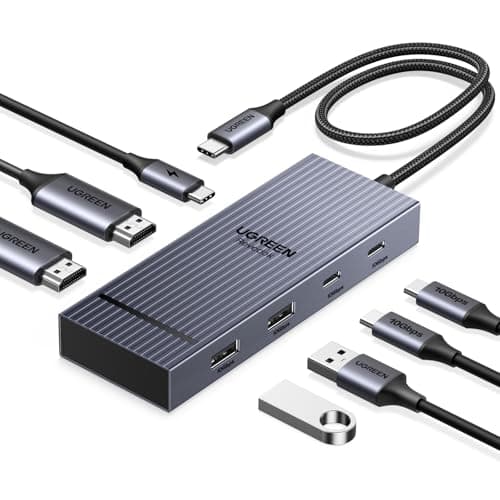
Start here: an HDMI splitter will not do this.A splitter takes one signal and copies it to two screens, so you get the same picture twice — which is useful for a projector and useless for a desk. What you want is a second independent display output, and a laptop with one HDMI port almost always already has one hiding in its USB-C port.
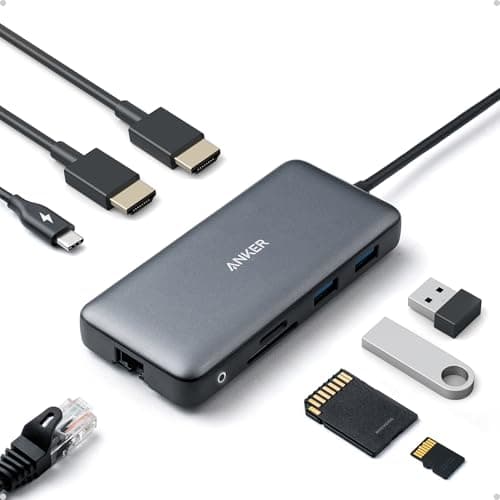
For most people the answer is a dual-output USB-C dock — the Anker 8-in-1 with two HDMI outputsis the default pick — plugged into a USB-C port that supports DisplayPort Alt Mode, with the laptop’s own HDMI port driving the second screen or sitting unused. If you are on an Apple silicon Mac whose chip only supports one external display, the answer is different and it is DisplayLink.
Step 1: find out what your USB-C port can do
Not all USB-C ports carry video. Three possibilities, and the port markings tell you:
- A lightning bolt beside the portmeans Thunderbolt — video, data and power, the most capable case.
- A “D” or DP logo means DisplayPort Alt Mode: the port carries a video signal.
- No marking at all often means data and charging only, and no amount of adapter will get a picture out of it.
If the markings are missing or worn, the specification sheet for your exact model is the authority. It will say how many external displays the machine supports and at what resolution, and that number is the real limit — a dock cannot exceed what the graphics hardware allows.
The four routes, and what each one needs
| Route | Requires | Gives you |
|---|
| HDMI port + USB-C alt mode | A USB-C port with DP alt mode | Two independent screens, no extra hardware beyond a cable |
| Dual-output dock | USB-C alt mode, or Thunderbolt | Two screens plus ports and charging on one cable |
| DisplayPort MST hub | A DisplayPort source; Windows only for extended mode | Two screens from one DP output |
| DisplayLink dock | A driver install; works over plain USB | Two to four screens on machines that otherwise refuse |
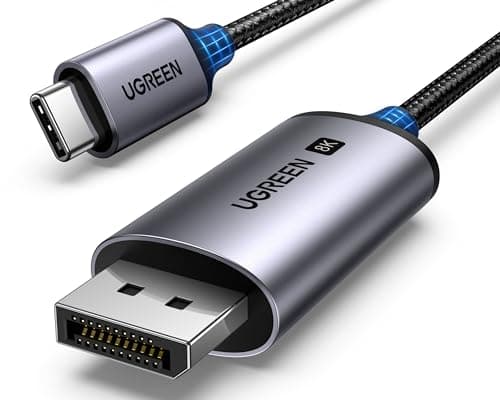
Route 1 is free. If your laptop has one HDMI and one video-capable USB-C, buy a USB-C to DisplayPort or USB-C to HDMI cable and you are finished. That is the cheapest two-screen setup there is, and it is the one most people miss because they are looking for a gadget.
Route 2 is the tidy one. A dock gives you both screens, ethernet, USB ports and laptop charging down a single cable you unplug when you leave. Our dual-monitor dock roundup ranks them on exactly that.
Route 3 has a catch worth knowing.MST — Multi-Stream Transport — splits one DisplayPort output into two display streams in a hub or in a monitor with DP-out. It works well on Windows. macOS does not support MST hubs in extended mode; a Mac plugged into one mirrors instead. That single fact is behind an enormous share of “my dock only shows one screen” complaints. DisplayPort vs HDMI explains why MST exists on one connector and not the other.
Route 4 is the escape hatch.DisplayLink does the compositing in software and sends the frames over ordinary USB, so it is not bound by the machine’s native display limit. It is how an Apple silicon Mac that officially drives one external screen ends up driving three. The cost is a driver, a little CPU, and compression artefacts on fast-moving content — fine for documents and calls, not ideal for video editing.
If you are on an Apple silicon Mac, read this first
Apple’s base-tier chips support a limited number of external displays — frequently one on a MacBook Air class machine — and no dock changes that natively. Pro and Max chips support more. The exact number for your model is in Apple’s own specifications, and it is worth checking before you spend anything, because the dock is not the variable.
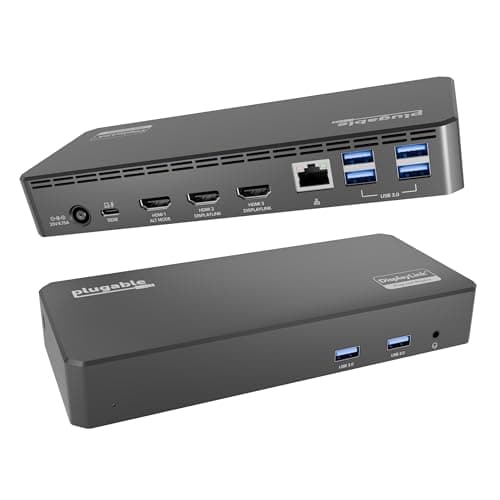
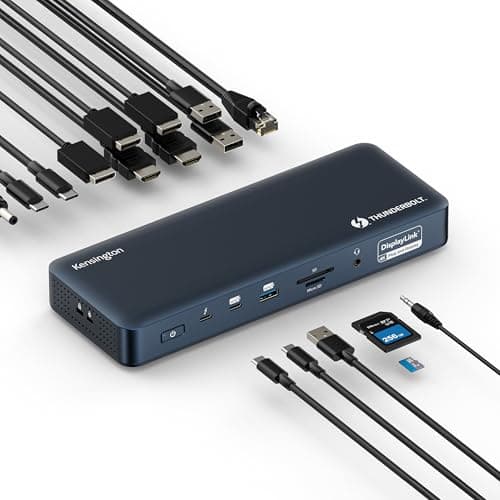
Where the limit bites, a DisplayLink dock is the supported workaround: the Plugable triple-display dock and the Kensington SD5900T below both use it, and the Kensington publishes up to four 4K 60Hz displays that way. The trade is the driver and the software overhead. Our Mac monitor roundup covers the panel side, and USB-C vs Thunderbolt dock covers which class of dock to buy.
What to check before you order
Resolution and refresh together. Two 4K screens at 60Hz is a lot of bandwidth. A dock may support dual 4K at 30Hz over a weaker link, which looks fine in a listing and feels horrible on a mouse pointer. Look for 60Hz stated per display at your resolution.
Which cables are in the box.Docks commonly ship with the host cable only. Two monitors means two display cables you may not own — a hub is not a substitute, and a certified DisplayPort cable is the first thing to swap when a second screen flickers.
Charging wattage.If the dock is charging the laptop, check the power delivered to the host rather than the brick’s rating — the dock keeps a slice for itself.
Then set it up properly. Two screens connected is not two screens arranged. The dual monitor setup guide has the Windows and macOS steps and the physical arrangement, and dual monitor troubleshooting is the page for when one screen refuses to wake.