A vertical screen is the least glamorous upgrade on this site and one of the most useful. Rotate a panel ninety degrees and a code file stops scrolling every eight lines, a contract fits on one page, and Slack, a log tail or a terminal lives permanently beside your main screen instead of fighting it for space. It costs nothing if your monitor already pivots, and the price of an arm if it does not.
The trap is that the spec everyone quotes is the wrong one. In portrait, the number that decides whether the screen is useful is the short side— what was the vertical resolution becomes the width. A 27-inch QHD panel rotated is 1,440 pixels wide and 2,560 tall: a genuinely tall column, but a physically enormous one that towers over your main screen. A 24-inch 1920×1200 panel rotated is 1,200 wide by 1,920 tall, which is close to the shape of a sheet of paper and sits at a height your neck can live with. Bigger is not automatically better here, and this is the one category on the site where we recommend the smaller panel first.
The second thing to check is whether the stand pivots at all. Manufacturers use “pivot” specifically for rotation into portrait; tilt, swivel and height are separate axes, and a stand can have all three and still refuse to turn. Consumer and gaming panels frequently ship with tilt-only stands. Business and creator lines — Dell’s P and UltraSharp series, ASUS’s ProArt line — almost always pivot, which is why this list leans that way.
The third is height. Rotating a panel makes it taller by roughly the difference between its long and short sides, so a screen that sat comfortably at eye level in landscape can end up with its top edge well above your hairline. Either the stand needs enough travel to drop the panel low, or the screen needs to go on an arm. That is why the last pick here is not a monitor at all.
One more practical note before the picks: rotating the panel is only half the job. Windows and macOS both need to be told the display orientation changed, and on Windows a rotated screen sometimes needs its position in the display arrangement nudged so the mouse crosses at the right place. The steps are in our dual-monitor setup guide, and if the second screen does not appear at all, the dual-monitor troubleshooting order is the faster way through it.
The short answer
Quick picks
| # | Product | Best for | Score | Price |
|---|
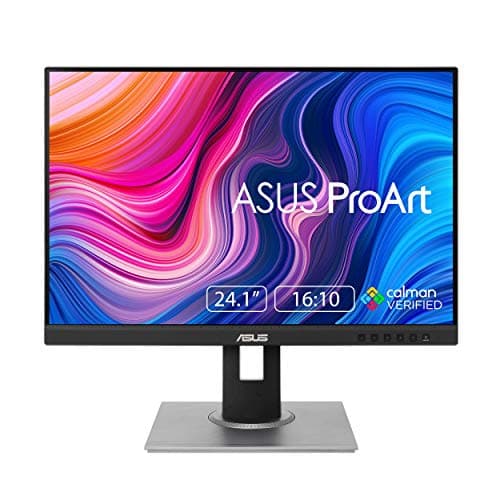
| 01 | ASUS ProArt PA248QV 24.1" WUXGA 16:10The right shape for portrait work. A 16:10 panel rotated gives you 1,200 pixels of width and 1,920 of height - close to a page of paper, and a size your neck can actually take at eye level. | Best overall | | $191.95·Amazon |
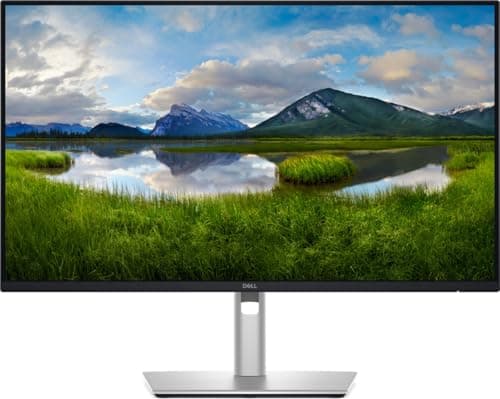
| 02 | Dell P2425DE 23.8" QHD USB-C HubThe vertical screen that also docks the laptop. QHD at 23.8 inches is dense enough that rotated text stays crisp, and the 90W USB-C hub with ethernet means the portrait panel is carrying the whole desk. | Best portrait dock | | $307.58·Amazon |
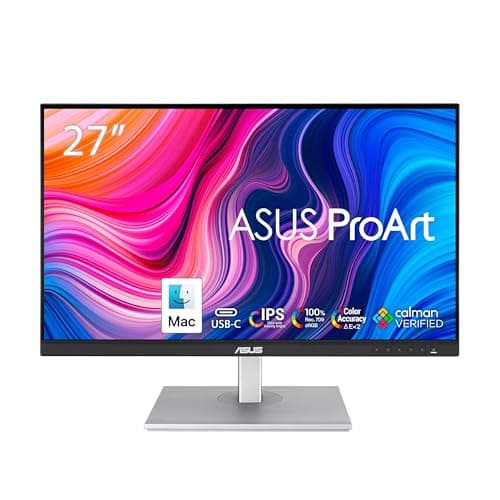
| 03 | ASUS ProArt PA278CV 27" QHD USB-CThe big portrait option, for people who want a full page of code and have the desk height to carry it. Same pivot and factory calibration as the 24-inch ProArt, on a 27-inch panel. | Best large portrait | | $269.66·Amazon |
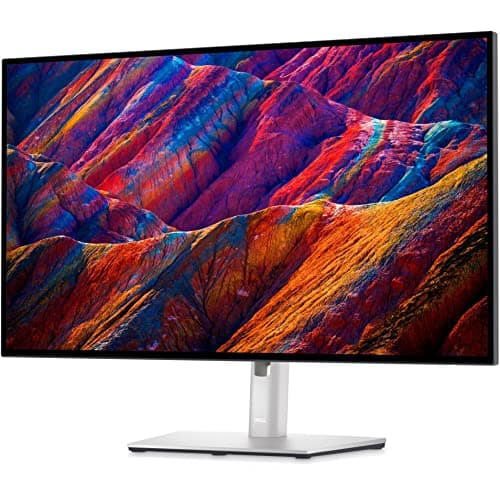
| 04 | Dell UltraSharp U2723QE 27" 4KThe premium answer if the vertical screen is where you read all day. 4K rotated puts 2,160 pixels across the width of the column, so text renders at near-print sharpness with scaling on. | Best premium | | $670.93·Amazon |
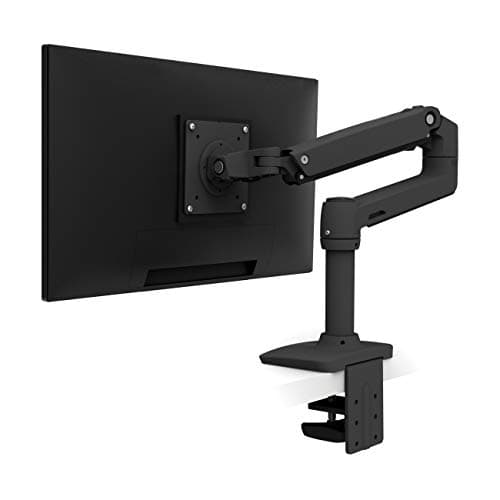
| 05 | Ergotron LX Single Monitor ArmThe fix for the monitor you already own. Rotation is built into almost every VESA head, so a panel with a tilt-only stand becomes a portrait screen for the price of a mount. | Best way to rotate a panel that will not | | $190.00·Amazon |
#ad · Live prices from the Amazon Product API, as of October 23, 2026. Where we have no verified live price we show none — we would rather leave a gap than print a number that has rotted.
In detail
The picks, in full
Best overall
ASUS ProArt PA248QV 24.1" WUXGA 16:10
- Screen
- 24.1" IPS, 16:10
- Resolution
- 1920 x 1200 (1200 x 1920 rotated), 75Hz
- Color
- 100% sRGB coverage
- Pivot
- +90 to -90 degrees
- Height adjustment
- 0 to 130 mm
- VESA mount
- 100 x 100mm
The right shape for portrait work. A 16:10 panel rotated gives you 1,200 pixels of width and 1,920 of height - close to a page of paper, and a size your neck can actually take at eye level.
- Rotated Usability
- 9.4
- Ergonomics
- 8.8
- Image & Panel
- 8
- Value
- 8.8
Pros
- +16:10 rotates to a 1200 x 1920 column, the closest common panel shape to a printed page
- +Pivot swings a full 90 degrees in either direction, so the ports can face whichever way suits your cable run
- +130mm of height travel is enough to drop a rotated panel back down to a sane eye level
- +100% sRGB coverage means the vertical screen is not visibly duller than your main panel
Cons
- −1920 x 1200 is not a high-density panel, so text is softer than on a QHD or 4K screen
- −75Hz and DisplayPort 1.2 make this a work display, not a gaming one
- −No USB-C, so it needs its own video cable rather than joining a single-cable dock chain
Skip this if…
…you want the vertical screen to be your sharpest one - a QHD or 4K panel rotated has far more pixel density.
Best portrait dock
Dell P2425DE 23.8" QHD USB-C Hub
- Screen
- 23.8" IPS
- Resolution
- 2560 x 1440 (1440 x 2560 rotated), 100Hz
- USB-C
- Up to 90W power delivery, DisplayPort 1.4 Alt Mode
- Network
- RJ45 Gigabit Ethernet
- Other ports
- HDMI 2.1, DisplayPort 1.4, USB-C and USB-A downstream
- Stand
- Height, tilt, swivel and pivot
The vertical screen that also docks the laptop. QHD at 23.8 inches is dense enough that rotated text stays crisp, and the 90W USB-C hub with ethernet means the portrait panel is carrying the whole desk.
- Rotated Usability
- 8.6
- Ergonomics
- 9
- Image & Panel
- 8.8
- Value
- 7
Pros
- +90W of power delivery charges a full-size laptop, which most 24-inch panels cannot
- +Built-in gigabit ethernet turns the vertical screen into the dock, removing a separate box from the desk
- +QHD at 23.8 inches is around 123 pixels per inch, so rotated code stays sharp without scaling
- +100Hz refresh is a pleasant bonus on a panel bought for text
Cons
- −Costs more than the ProArt for a panel that is smaller in area
- −1440 x 2560 rotated is a narrow column, so long lines of code will still wrap
- −The USB-C hub only earns its price if your laptop can drive video over USB-C
Skip this if…
…you already own a dock - you would be paying a large premium for hardware you have duplicated.
Best large portrait
ASUS ProArt PA278CV 27" QHD USB-C
- Screen
- 27" IPS
- Resolution
- 2560 x 1440 (1440 x 2560 rotated), 75Hz
- Color
- 100% sRGB / Rec.709, Delta E < 2
- Connectivity
- USB-C (65W), USB hub
- Stand
- Height, tilt, swivel, pivot
The big portrait option, for people who want a full page of code and have the desk height to carry it. Same pivot and factory calibration as the 24-inch ProArt, on a 27-inch panel.
- Rotated Usability
- 8.4
- Ergonomics
- 8.4
- Image & Panel
- 8.8
- Value
- 8.2
Pros
- +2,560 pixels of height is the tallest practical column in this list without going to 4K
- +Factory calibration means the vertical panel matches a calibrated main screen rather than fighting it
- +USB-C at 65W plus a downstream hub keeps the cable count low
- +Pivot and full height adjustment are standard on the ProArt stand, not an upcharge
Cons
- −Rotated, a 27-inch panel is roughly two feet tall and will loom over a 27-inch landscape neighbor
- −Needs a deep desk or an arm to sit far enough back to read comfortably
- −75Hz refresh, as with the rest of the ProArt line
Skip this if…
…your desk sits under a low shelf or a sloped ceiling, or your main screen is already at maximum height.
Best premium
Dell UltraSharp U2723QE 27" 4K
- Screen
- 27" IPS Black, flat
- Resolution
- 3840 x 2160 (2160 x 3840 rotated)
- Connectivity
- USB-C hub with power delivery, DisplayPort, HDMI, RJ45 ethernet
- Stand
- Height, tilt, swivel and pivot adjustable
- VESA mount
- 100 x 100mm
The premium answer if the vertical screen is where you read all day. 4K rotated puts 2,160 pixels across the width of the column, so text renders at near-print sharpness with scaling on.
- Rotated Usability
- 8.6
- Ergonomics
- 9.2
- Image & Panel
- 9.3
- Value
- 6.8
Pros
- +4K rotated is the sharpest text in this list by a wide margin
- +IPS Black lifts contrast over standard IPS, which shows on dark-theme editors
- +The hub with ethernet means this panel can be the dock as well as the second screen
- +Dell's stand is one of the few worth keeping rather than replacing with an arm
Cons
- −The most expensive way to get a vertical screen here, by some distance
- −You will run display scaling, so you gain sharpness rather than raw column width
- −Same height problem as any rotated 27-inch panel
Skip this if…
…the vertical screen is for chat and logs rather than long reading - the density is wasted on it.
Best way to rotate a panel that will not
Ergotron LX Single Monitor Arm
- Mount
- Desk clamp or grommet
- VESA
- 75 x 75 & 100 x 100mm
- Screen size
- Up to 34"
- Weight
- 7 to 25 lb (3.2 to 11.3 kg)
- Motion
- Constant Force, about 13" lift
The fix for the monitor you already own. Rotation is built into almost every VESA head, so a panel with a tilt-only stand becomes a portrait screen for the price of a mount.
- Rotated Usability
- 9.2
- Ergonomics
- 9.2
- Build Quality
- 9.6
- Value
- 5.8
Pros
- +Rotation is built into the VESA head, so any 75 or 100mm panel can go portrait
- +13 inches of lift solves the height problem a rotated panel creates
- +Constant Force holds a rotated screen in place instead of sagging under the changed balance
- +Frees the desk depth that a rotated stand base would otherwise eat
Cons
- −Costs several times a value gas-spring arm
- −Needs a desk edge or grommet hole it can clamp to
- −A rotated panel changes the arm's balance point, so expect to redo the tension
Skip this if…
…your monitor has no VESA pattern at all - check the back before you buy anything.
How to choose a vertical screen
Work backwards from what will live on it. Chat, a terminal, a music player and a calendar all want a narrow column and do not care about density — a 24-inch 1920×1200 panel is plenty and the cheapest option here. Code, long documents and PDFs want both width and sharpness, which is the argument for a QHD or 4K panel rotated. Reference documentation you read for hours makes the 4K case outright.
The height problem, and how to solve it
Rotate a 27-inch 16:9 panel and its top edge climbs by roughly seven inches. On a stand with 130mm of travel you can drop most of that back; on a stand with 100mm or none you cannot. The ergonomics rule does not change when the screen turns — the part you read most should still sit at or just below eye level, which on a portrait screen means the upper third, not the top edge. Our monitor height guide has the measurement, and if the stand cannot get there, an arm can.
Check the pivot direction
Some stands rotate clockwise only. That decides which side the ports end up on and therefore how your cables run, and on a desk where the vertical screen sits to the left of the main one it can force the cable across the front of the panel. Panels that pivot both ways — like the ProArt stand’s +90 to -90 degree range — give you the choice.
Panel technology matters more in portrait
You look at a portrait screen from further off-axis than a landscape one, because it usually sits beside your main display rather than in front of you. That makes IPS the safe choice: a VA panel’s contrast advantage comes with a viewing-angle penalty you will see as a shift in brightness down the long edge of a rotated screen. Every panel on this list is IPS for exactly that reason.
Where the arm fits
If you already own a monitor you like, buying an arm is usually the better spend: it adds rotation, fixes the height, and clears the desk under the screen in one purchase. The trade-offs between an arm and a stand are laid out in monitor arm vs stand, and the VESA pattern you need to check first is explained in VESA mount sizes explained.
Essentials
The small parts that finish the job
Nothing here changes a pick above, and none of it is a considered purchase. These are the cheap pieces that decide whether the expensive one works properly, and the ones people discover they are missing on the day the big box arrives.
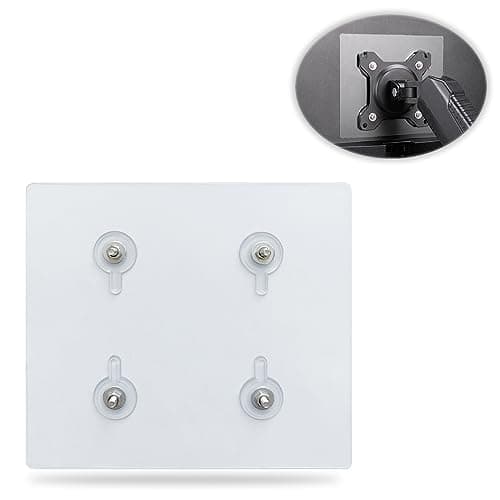
Universal VESA Mount Adapter for Non-VESA Monitors (13 to 27 in)
The part that decides whether an arm is even an option. A panel with no bolt pattern on the back cannot mount to anything, and a bracket kit gives it one instead of sending you back to the stand in the box.
Check first: confirm the adapter's VESA pattern and its panel-size range against both your monitor and your arm, and make sure the arm's weight rating still covers the adapter plus the screen.
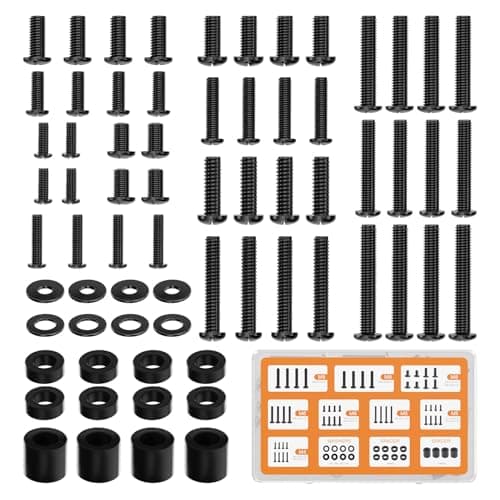
WALI Universal Mounting Hardware Set (M4, M5, M6, M8)
Arms ship with one length of screw. Thick panels, recessed VESA patterns and curved backs regularly need a longer thread or a spacer, and a mixed M4 to M8 kit turns a half-finished install into a ten-minute job.
No image
Cable Matters VESA-Certified DisplayPort 1.4 Cable, 6 ft
A monitor ships with one cable and it is rarely DisplayPort, so the second screen usually arrives with nothing to plug into. A certified DP 1.4 run is also the first thing worth swapping when a display flickers, drops out, or refuses to hold its refresh rate.
#ad · Live prices from the Amazon Product API, as of October 23, 2026. Where we have no verified live price we show none. We may earn a commission, at no extra cost to you.
How we picked
We do not run a testing lab
We compiled the published manufacturer specifications, did the ergonomics, VESA and desk-depth math ourselves, and read aggregated owner reviews, then scored each product against a published rubric. The scores are judgments from documented research — they are not measurements we took, because we do not have a lab and we are not going to pretend we do. Every spec traces back to a listing or manual named in Sources.
Questions
Frequently asked
What size monitor is best for vertical use?+
A 24-inch panel is the practical sweet spot, and a 16:10 24-inch is the best of those — rotated it gives you 1,200 pixels of width and 1,920 of height, roughly the proportions of a page. A rotated 27-inch screen is about two feet tall and usually ends up too high for comfortable reading unless it is on an arm.
Can any monitor be used vertically?+
Any monitor with a VESA pattern can, because the rotation lives in the mount. What varies is whether the monitor’s own stand pivots — business and creator lines usually do, consumer and gaming lines often do not. Check the spec sheet for the word “pivot” specifically; tilt and swivel are different axes.
Does a vertical monitor hurt your neck?+
Only if it is mounted too high. Treat the upper third of the portrait screen as the part that should sit at eye level, not the top edge, and the neck angle is the same as any other display. The problem cases are rotated 27-inch panels on stands with little height travel.
How do I rotate the display in Windows or macOS?+
On Windows 11, open Settings → System → Display, select the screen, and set Display orientation to Portrait. On macOS, open System Settings → Displays, select the display, and choose a rotation of 90 or 270 degrees. Turning the panel physically does nothing on its own — the operating system has to be told.
Is a vertical monitor good for gaming?+
No. Almost no game supports a portrait aspect ratio properly, and the panels that rotate well are chosen for text rather than refresh rate. A vertical screen is a work companion beside a landscape main display, not a gaming display.
Receipts
Sources
We do not run a testing lab, and we do not pretend to. Specifications come from the manufacturer or retailer listing; the footprint and clearance math is ours and reproducible. Where we could not verify a number, we say so on the page rather than quietly leaving it out. Read our full method.