Skip to content
Chair & Cable

SECTION 01 · Monitors & Arms

The best monitors for programming

Code is small text and long files, so the spec that matters is pixel density at your scaling factor - not refresh rate, not contrast, not color gamut.

By Stephen V.Updated How we pick
#ad

We earn a commission when you buy through our Amazon links, at no extra cost to you. It never affects our rankings, and we say so when the cheaper product is the better buy. How this works.

For most developers the right monitor is a 27-inch 1440p IPS panel with a USB-C hub — the ASUS ProArt PA278CVhere — because 27 inches at 2560 x 1440 lands near 109 pixels per inch, which is the density where code is sharp at 100% scaling and no operating system has to guess at anything. If you want genuinely crisp glyphs and you are willing to run 150% scaling, the Dell UltraSharp U2723QE is the upgrade. If your machine is a laptop and the desk needs one cable, the Dell U2724DE adds 90W of power, 2.5-gigabit ethernet and a KVM.

Programming is an unusual display workload. You are not looking at photographs or moving images; you are reading several thousand small glyphs, for eight hours, in a mostly static layout. That changes which specifications matter, and almost all of the ones monitor marketing leads with — refresh rate, response time, HDR peaks, color gamut — are irrelevant to it. Two things are not.

Criterion 1: pixel density at the scaling you will actually use

Sharpness of text is pixel density, and you can work it out for any panel from two numbers on the box. A 16:9 screen’s width is its diagonal multiplied by about 0.872, so dividing the horizontal resolution by that width gives pixels per inch:

PanelApprox. PPIHow you will run it
24" 1080p (16:9)~92100% scaling; glyphs visibly soft
24.1" 1920 x 1200 (16:10)~94100% scaling, with 120 extra pixels of height
27" 1440p (16:9)~109100% scaling - the no-compromise default
34" 3440 x 1440 (21:9)~110100% scaling, two editor columns wide
27" 4K (16:9)~163150% scaling - sharpest glyphs, 1440p of logical space
32" 4K (16:9)~138100% or 125% - more space, less sharp than 27" 4K

The trap is the middle of that table. A 27-inch 4K panel at 100% scaling gives you a huge amount of logical space with glyphs too small to read all day; at 150% it gives you the same usable space as a 1440p panel with far sharper letterforms. Both are legitimate; what is not legitimate is buying 4K and expecting both at once. If you are weighing those two directly, 1440p vs 4K is the page for it, and the 4K roundup covers the panels.

One platform note that decides the answer for a lot of people: macOS scales cleanly at exactly 2x and gets fuzzy at the fractional steps in between, which is why Mac developers tend to end up on 4K or 5K panels rather than 1440p ones. Windows and most Linux desktop environments handle 150% fine. The Mac monitor roundup ranks for that constraint specifically.

Criterion 2: lines of code, which is vertical pixels

The second thing a code editor wants is height, because a function you can see in one screen is a function you do not have to scroll. Vertical resolution is the whole story, and the differences are larger than they look:

  • 1080 pixels of height at a typical 20-pixel editor line height is roughly 54 lines before you subtract the title bar, tabs and terminal pane.
  • 1200 pixels— a 16:10 panel — is about 60 lines. That is 11% more code for no extra desk width, which is why 16:10 has quietly become the developer’s aspect ratio.
  • 1440 pixels is about 72 lines, and at 150% scaling on a 4K panel you get the same logical 1440 with sharper text.
  • 2160 pixels at 100% is about 108 lines, which almost nobody can read comfortably at 27 inches.

Those line counts are arithmetic from a stated line height, not measurements — your editor, font and zoom will move them. The ratios between the rungs are what to take away.

There is a second way to buy vertical space, and it is the cheapest one: rotate a panel to portrait. A 24-inch 16:10 screen pivoted 90 degrees gives you 1920 pixels of height, which is a whole file, a long log or a full diff with no scrolling at all. It works best as a second screen beside a landscape primary — the vertical monitor roundup covers the pivot specs and the software side.

Criterion 3: one cable, if the dev machine is a laptop

Most development now happens on a laptop that gets carried away from the desk, which makes a monitor with a built-in hub worth real money. The specification to read is the power delivery to the host, not the port count: 65W will charge a thin ultrabook while it works and will slowly lose ground on a 16-inch workstation under compile load. 90W covers almost everything.

Two extras matter more to developers than to anyone else. Ethernet on the monitor means a stable wired connection for long-running SSH sessions and large container pulls. A built-in KVMmeans one keyboard and mouse across a work machine and a personal one, switched from the monitor’s own menu instead of a box on the desk. If you would rather buy that separately, compare the trade-offs in USB-C monitor vs docking station.

What we deliberately ignored

Refresh rate. Text does not move. A 120Hz panel feels nicer to drag windows around on and changes nothing about reading code. Do not pay for it unless you also game.

Curve, below 34 inches.On a 27-inch panel a curve is cosmetic and can make straight UI edges look subtly bowed. On a 34-inch ultrawide it genuinely helps, because the far edges would otherwise be further away than the middle — curved vs flat has the geometry.

Color gamut, unless you also do design work. 100% sRGB is enough for syntax highlighting; a wide-gamut panel will actually make untagged colors look oversaturated.

Glossy finish.Matte, every time. You are reading small text for eight hours and reflections are fatiguing — see the eye-strain roundup for the coating and flicker specs.

One screen or two?

A single 27-inch 1440p panel plus a laptop screen is a complete setup for most people. The upgrade that pays off next is usually nota second identical monitor — it is a 34-inch ultrawide, which gives you an editor and a terminal side by side with no bezel down the middle and no window manager fighting. The honest comparison is in ultrawide vs dual monitor, and if you do go to two screens, get them on an arm and aligned properly: how to align dual monitors covers the mismatched-size case, which is what you have when the second screen is the one you already owned.
The short answer

Quick picks

#ProductBest forScorePrice
01
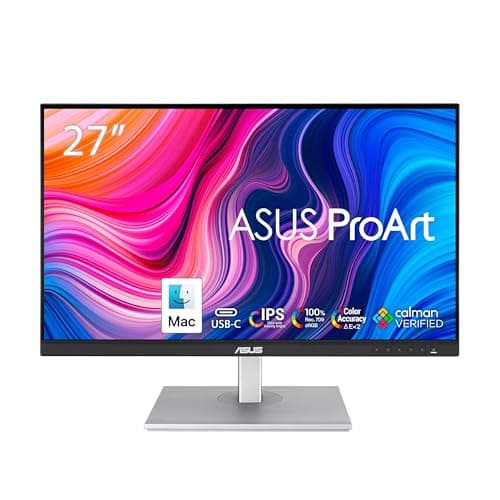
ASUS ASUS ProArt PA278CV 27" QHD USB-C
ASUS ProArt PA278CV 27" QHD USB-C

The default developer monitor. 27 inches at 2560 x 1440 is about 109 PPI, which means sharp code at 100% scaling with nothing to configure, and the USB-C input carries 65W to a laptop so the desk needs one cable. The pivoting stand rotates it to portrait when you want a whole file at once.

The no-compromise default
8.6
$269.66Amazon
02
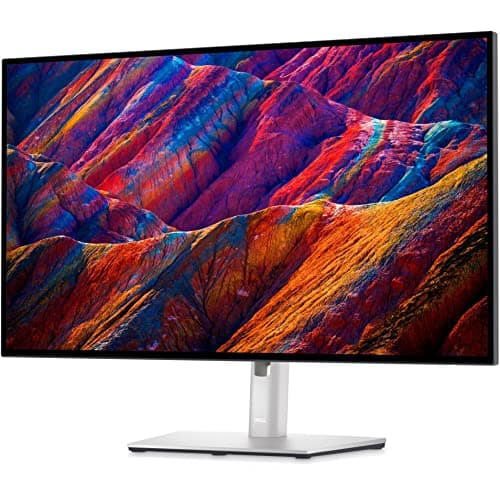
Dell Dell UltraSharp U2723QE 27" 4K
Dell UltraSharp U2723QE 27" 4K

The sharpest text here. 3840 x 2160 at 27 inches is about 163 PPI, so run it at 150% scaling and you get the working space of a 1440p screen with glyph edges that look printed rather than rendered. The USB-C hub adds power delivery and ethernet.

The sharpest glyphs
8.7
$670.93Amazon
03
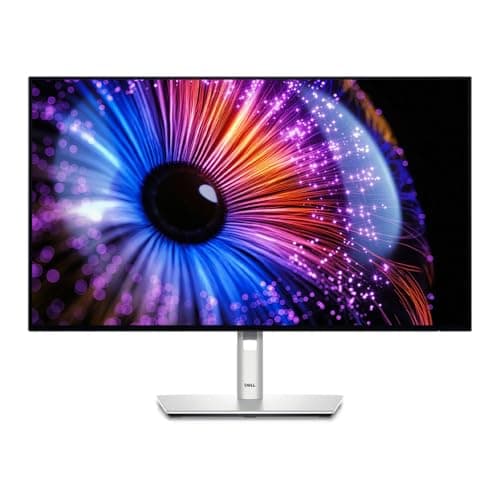
Dell Dell UltraSharp U2724DE 27" QHD Thunderbolt 4 Hub
Dell UltraSharp U2724DE 27" QHD Thunderbolt 4 Hub

The one-cable developer desk. 1440p at 27 inches for sharp text at 100% scaling, plus 90W to the laptop, 2.5-gigabit ethernet, a built-in KVM for a work and a personal machine, and a Thunderbolt output to daisy-chain a second screen.

A laptop and one cable
8.5
$470.89Amazon
04
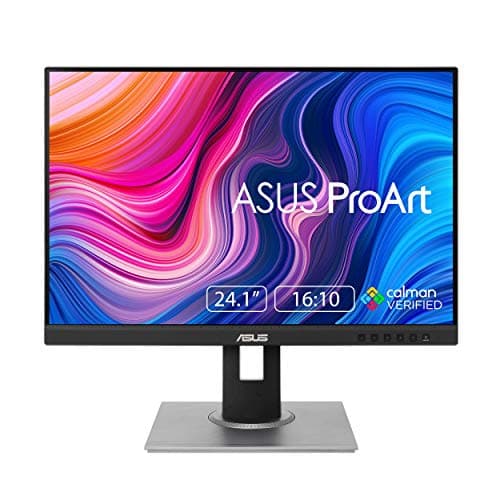
ASUS ASUS ProArt PA248QV 24.1" WUXGA 16:10
ASUS ProArt PA248QV 24.1" WUXGA 16:10

The cheap way to buy lines of code. 1920 x 1200 is 120 more pixels of height than a 1080p panel - about six extra lines in a typical editor - and the stand pivots a full 90 degrees, which turns it into a 1200 x 1920 portrait screen for files and logs.

Vertical space on a budget
7.7
$191.95Amazon
05
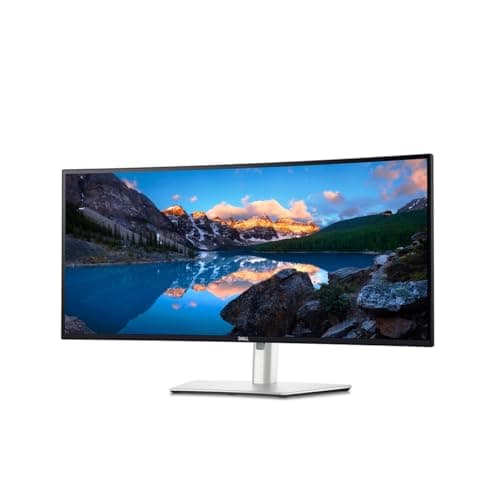
Dell Dell UltraSharp U3425WE 34" WQHD Curved
Dell UltraSharp U3425WE 34" WQHD Curved

An editor and a terminal side by side with no bezel between them. 3440 x 1440 at 34 inches is about 110 PPI - the same glyph sharpness as a 27-inch 1440p - with 880 more horizontal pixels, plus Thunderbolt 4 at 90W, 2.5GbE and a KVM.

Two columns without two screens
8.2
$769.00Amazon
06
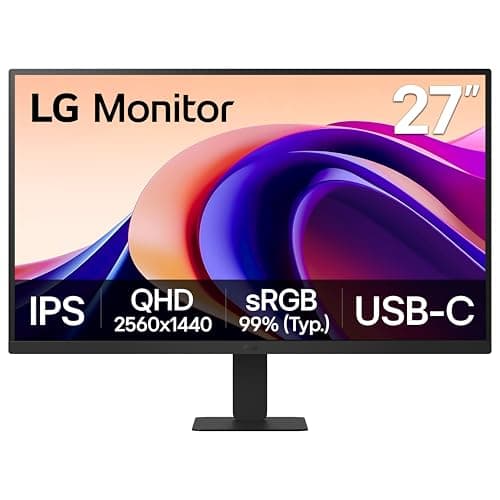
LG LG 27" QHD IPS Monitor (27U631A-B)
LG 27" QHD IPS Monitor (27U631A-B)

The cheapest route to the 109 PPI sweet spot. A plain 27-inch 1440p IPS panel with HDMI and DisplayPort and none of the hub hardware - which is the right trade when the dev machine is a desktop or you already own a dock.

The budget 1440p route
7.9
$169.99Amazon

#ad · Live prices from the Amazon Product API, as of October 23, 2026. Where we have no verified live price we show none — we would rather leave a gap than print a number that has rotted.

In detail

The picks, in full

01
ASUS ASUS ProArt PA278CV 27" QHD USB-C

The no-compromise default

ASUS ProArt PA278CV 27" QHD USB-C

Screen
27" IPS
Resolution
2560 x 1440 (QHD), 75Hz
Approx. density
About 109 PPI - sharp at 100% scaling
Connectivity
USB-C (65W), USB hub
Color
100% sRGB / Rec.709, Delta E < 2
Stand
Height, tilt, swivel, pivot
8.6/10

The default developer monitor. 27 inches at 2560 x 1440 is about 109 PPI, which means sharp code at 100% scaling with nothing to configure, and the USB-C input carries 65W to a laptop so the desk needs one cable. The pivoting stand rotates it to portrait when you want a whole file at once.

Text Sharpness
8.6
Lines on Screen
8.4
One-Cable Use
8.2
Value
9

Pros

  • 109 PPI is the density where code is readable at 100% scaling - no fractional scaling, no fuzzy glyphs
  • 65W over USB-C charges an ultrabook while it drives the screen
  • Full pivot, so it can rotate to portrait for long files and diffs
  • Calibrated sRGB coverage means it doubles as a design-adjacent monitor

Cons

  • 65W is marginal for a 16-inch workstation laptop under sustained compile load
  • 1440p glyphs are good, not as crisp as a 4K panel at 150%
  • 75Hz, which is fine for text and unremarkable for anything else
  • No ethernet and no KVM, unlike the Dell hub monitors below

Skip this if…

…you work on a Mac - macOS prefers 2x scaling, so a 4K or 5K panel will look noticeably better.

$269.66View on Amazon

Price as of October 23, 2026. Prices change — Amazon's is the one that counts.

#ad · we may earn a commission from this link to ASUS ProArt PA278CV 27" QHD USB-C

02
Dell Dell UltraSharp U2723QE 27" 4K

The sharpest glyphs

Dell UltraSharp U2723QE 27" 4K

Screen
27" IPS Black, flat
Resolution
3840 x 2160 (4K UHD)
Approx. density
About 163 PPI - intended for 150% scaling
Connectivity
USB-C hub with power delivery, DisplayPort, HDMI, RJ45 ethernet
Stand
Height, tilt, swivel and pivot adjustable
VESA mount
100 x 100mm
8.7/10

The sharpest text here. 3840 x 2160 at 27 inches is about 163 PPI, so run it at 150% scaling and you get the working space of a 1440p screen with glyph edges that look printed rather than rendered. The USB-C hub adds power delivery and ethernet.

Text Sharpness
9.8
Lines on Screen
8.4
One-Cable Use
9.2
Value
7.2

Pros

  • 163 PPI is the clearest small text of any panel on this page
  • IPS Black raises contrast over standard IPS, which helps a dark editor theme
  • Ethernet on the monitor keeps long SSH sessions and container pulls off Wi-Fi
  • Pivots to portrait, and the extra density makes rotated text excellent

Cons

  • At 100% scaling the text is too small for a full day - plan on 150%
  • Costs roughly double the 1440p panels for the same logical workspace
  • Fractional scaling still trips the occasional older Windows app into blurriness
  • 60Hz

Skip this if…

…you want maximum logical desktop space per dollar - a 1440p 27-inch gives the same working area for much less.

$670.93View on Amazon

Price as of October 23, 2026. Prices change — Amazon's is the one that counts.

#ad · we may earn a commission from this link to Dell UltraSharp U2723QE 27" 4K

03
Dell Dell UltraSharp U2724DE 27" QHD Thunderbolt 4 Hub

A laptop and one cable

Dell UltraSharp U2724DE 27" QHD Thunderbolt 4 Hub

Screen
27" IPS Black
Resolution
2560 x 1440 (QHD), 120Hz
Power delivery
Up to 90W to the host laptop
Network
2.5 Gigabit Ethernet
KVM
Built in - one keyboard and mouse across two machines
Daisy chain
DisplayPort and Thunderbolt 4 outputs for a second display
8.5/10

The one-cable developer desk. 1440p at 27 inches for sharp text at 100% scaling, plus 90W to the laptop, 2.5-gigabit ethernet, a built-in KVM for a work and a personal machine, and a Thunderbolt output to daisy-chain a second screen.

Text Sharpness
8.6
Lines on Screen
8.4
One-Cable Use
9.8
Value
6.8

Pros

  • 90W covers a 16-inch workstation laptop under load, where 65W monitors fall behind
  • The built-in KVM replaces a separate switch box on a two-machine desk
  • 2.5GbE rather than gigabit - unusual on a monitor, and genuinely useful
  • Daisy chain means the second screen needs no second cable to the laptop

Cons

  • Expensive for a 1440p panel - you are paying for the dock, not the pixels
  • Only 109 PPI, so text is good rather than exceptional
  • A monitor-shaped dock is a dock you cannot keep when you change monitors
  • The KVM menu takes a few goes to learn

Skip this if…

…your dev machine is a desktop - the hub features are most of the price and you would not use any of them.

$470.89View on Amazon

$519.999% off

Price as of October 23, 2026. Prices change — Amazon's is the one that counts.

#ad · we may earn a commission from this link to Dell UltraSharp U2724DE 27" QHD Thunderbolt 4 Hub

04
ASUS ASUS ProArt PA248QV 24.1" WUXGA 16:10

Vertical space on a budget

ASUS ProArt PA248QV 24.1" WUXGA 16:10

Screen
24.1" IPS, 16:10
Resolution
1920 x 1200 (1200 x 1920 rotated), 75Hz
Approx. density
About 94 PPI at 100% scaling
Pivot
+90 to -90 degrees
Height adjustment
0 to 130 mm
Color
100% sRGB coverage
7.7/10

The cheap way to buy lines of code. 1920 x 1200 is 120 more pixels of height than a 1080p panel - about six extra lines in a typical editor - and the stand pivots a full 90 degrees, which turns it into a 1200 x 1920 portrait screen for files and logs.

Text Sharpness
7
Lines on Screen
8.8
One-Cable Use
5.5
Value
9.4

Pros

  • 16:10 gives about 11% more vertical code than a 16:9 panel of the same width class
  • Rotates either direction, so it works on the left or right of a primary screen
  • 130mm of height travel, which is what makes a two-screen eye line matchable
  • The cheapest panel here by a wide margin

Cons

  • 94 PPI - the softest text on this page; you will see the pixel grid in small fonts
  • No USB-C input, so a laptop needs a separate cable and charger
  • 24 inches is small as a primary screen for a code-plus-terminal layout
  • 75Hz, 1200p: this is a workhorse, not a showpiece

Skip this if…

…this will be your only monitor - buy the 27-inch 1440p instead and add this as a portrait second screen later.

$191.95View on Amazon

Price as of October 23, 2026. Prices change — Amazon's is the one that counts.

#ad · we may earn a commission from this link to ASUS ProArt PA248QV 24.1" WUXGA 16:10

05
Dell Dell UltraSharp U3425WE 34" WQHD Curved

Two columns without two screens

Dell UltraSharp U3425WE 34" WQHD Curved

Screen
34" curved (1900R), IPS Black
Resolution
3440 x 1440 (21:9 WQHD)
Approx. density
About 110 PPI - sharp at 100% scaling
Connectivity
Thunderbolt 4 90W, 2.5GbE RJ45, KVM hub
Refresh rate
120Hz
VESA mount
100 x 100mm
8.2/10

An editor and a terminal side by side with no bezel between them. 3440 x 1440 at 34 inches is about 110 PPI - the same glyph sharpness as a 27-inch 1440p - with 880 more horizontal pixels, plus Thunderbolt 4 at 90W, 2.5GbE and a KVM.

Text Sharpness
8.6
Lines on Screen
8.2
One-Cable Use
9.6
Value
6.2

Pros

  • Same pixel density as a 27-inch 1440p, with room for two full-width editor panes
  • No center bezel, so a maximized split never lands on a seam
  • 90W Thunderbolt 4, ethernet and a KVM make it a complete laptop dock
  • The 1900R curve matters at this width - the far edges stay at a usable distance

Cons

  • Only 1440 pixels of height, so it buys width rather than lines of code
  • A 34-inch panel wants about 55 inches of desk and a heavy-duty arm if you mount it
  • The most expensive monitor on this page
  • Ultrawide window management needs tooling - the OS alone is not enough

Skip this if…

…your bottleneck is file length rather than side-by-side panes - a portrait second screen solves that for a tenth of the money.

$769.00View on Amazon

Price as of October 23, 2026. Prices change — Amazon's is the one that counts.

#ad · we may earn a commission from this link to Dell UltraSharp U3425WE 34" WQHD Curved

06
LG LG 27" QHD IPS Monitor (27U631A-B)

The budget 1440p route

LG 27" QHD IPS Monitor (27U631A-B)

Screen
27" IPS
Resolution
2560 x 1440 (QHD)
Approx. density
About 109 PPI - sharp at 100% scaling
Ports
HDMI, DisplayPort
Panel
IPS, sRGB color
VESA mount
100 x 100mm
7.9/10

The cheapest route to the 109 PPI sweet spot. A plain 27-inch 1440p IPS panel with HDMI and DisplayPort and none of the hub hardware - which is the right trade when the dev machine is a desktop or you already own a dock.

Text Sharpness
8.6
Lines on Screen
8.4
One-Cable Use
5
Value
9.6

Pros

  • Identical pixel density to the panels costing three times as much
  • VESA 100 x 100, so it goes straight onto an arm
  • No hub hardware to pay for if your machine is a tower
  • The cheapest way to get two matched 1440p screens, if you buy a pair

Cons

  • No USB-C, so a laptop needs a separate charger and video cable
  • Limited stand adjustment compared with the UltraSharps - budget for an arm
  • No ethernet, no KVM, no USB hub
  • sRGB only

Skip this if…

…you work from a laptop - the money you save here goes straight back out on a dock.

$169.99View on Amazon

$189.9911% off

Price as of October 23, 2026. Prices change — Amazon's is the one that counts.

#ad · we may earn a commission from this link to LG 27" QHD IPS Monitor (27U631A-B)

Essentials

The small parts that finish the job

Nothing here changes a pick above, and none of it is a considered purchase. These are the cheap pieces that decide whether the expensive one works properly, and the ones people discover they are missing on the day the big box arrives.

  • No image

    Cable Matters VESA-Certified DisplayPort 1.4 Cable, 6 ft

    A monitor ships with one cable and it is rarely DisplayPort, so the second screen usually arrives with nothing to plug into. A certified DP 1.4 run is also the first thing worth swapping when a display flickers, drops out, or refuses to hold its refresh rate.

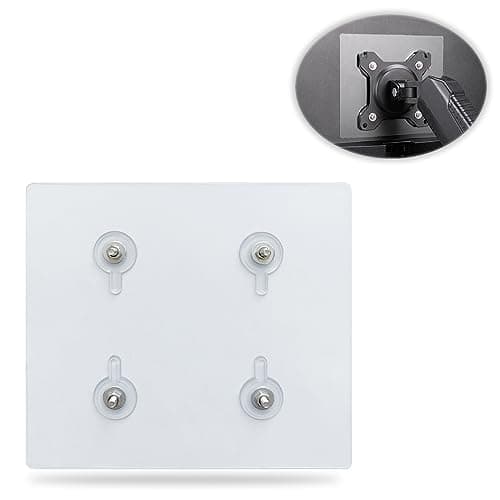
  • Universal VESA Mount Adapter for Non-VESA Monitors (13 to 27 in)

    Universal VESA Mount Adapter for Non-VESA Monitors (13 to 27 in)

    The part that decides whether an arm is even an option. A panel with no bolt pattern on the back cannot mount to anything, and a bracket kit gives it one instead of sending you back to the stand in the box.

    Check first: confirm the adapter's VESA pattern and its panel-size range against both your monitor and your arm, and make sure the arm's weight rating still covers the adapter plus the screen.

#ad · Live prices from the Amazon Product API, as of October 23, 2026. Where we have no verified live price we show none. We may earn a commission, at no extra cost to you.

How we picked

We do not run a testing lab

We compiled the published manufacturer specifications, did the ergonomics, VESA and desk-depth math ourselves, and read aggregated owner reviews, then scored each product against a published rubric. The scores are judgments from documented research — they are not measurements we took, because we do not have a lab and we are not going to pretend we do. Every spec traces back to a listing or manual named in Sources.

Questions

Frequently asked

What is the best monitor size and resolution for programming?
27 inches at 2560 x 1440 for most people. That combination lands near 109 pixels per inch, which is the density where small text is sharp at 100% scaling - no fractional scaling, no blurry legacy apps, and about 72 editor lines on screen at a typical 20-pixel line height.
Is a 4K monitor worth it for coding?
Yes if you run it at 150% scaling, where a 27-inch 4K panel gives the working space of a 1440p screen with much sharper glyphs. No if you expect 4K to also give you more usable space at a readable size - at 100% scaling on a 27-inch panel the text is too small for a full day.
Is 16:10 better than 16:9 for programming?
For code, yes, slightly: 1920 x 1200 is 120 more pixels of height than 1920 x 1080, which is roughly six extra lines in an editor at the same desk width. It is a real if modest advantage, and it is why 16:10 panels and laptops have come back.
Do I need an ultrawide for programming?
No, but a 34-inch 3440 x 1440 is the most pleasant single-screen layout for an editor and a terminal side by side, because there is no bezel where the split lands and the pixel density matches a 27-inch 1440p. It buys width, not lines of code.
Should my second monitor be vertical?
It is the cheapest way to buy vertical space. A 24-inch 16:10 panel pivoted gives 1920 pixels of height - a full file, a long log, or a complete diff with no scrolling. Keep the landscape screen as the primary and put the portrait one beside it.
Does refresh rate matter for coding?
Not for reading or writing code, which is static text. 120Hz makes dragging windows and scrolling feel smoother and changes nothing else. Do not pay a premium for it unless the same machine also games.
Do I want a monitor with a built-in dock or a separate dock?
A hub monitor is tidier and one less box; a separate dock survives your next monitor change and usually drives more displays. The deciding specs are the power delivered to the laptop and how many screens you need - we compare them directly in USB-C monitor vs docking station.

Keep reading

Receipts

Sources

We do not run a testing lab, and we do not pretend to. Specifications come from the manufacturer or retailer listing; the footprint and clearance math is ours and reproducible. Where we could not verify a number, we say so on the page rather than quietly leaving it out. Read our full method.