Skip to content
Chair & Cable

SECTION 05 · Cable Management

The best docking stations for three monitors

Most docks stop at two screens, and the ones that do not get there by three different methods with three different catches. Here is which dock uses which, and what each needs from your laptop.

By Stephen V.Updated How we pick
#ad

We earn a commission when you buy through our Amazon links, at no extra cost to you. It never affects our rankings, and we say so when the cheaper product is the better buy. How this works.

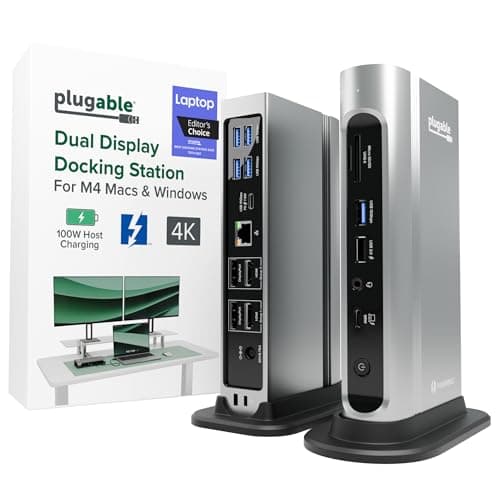
For three monitors from one port the dock to buy is the Plugable 16-in-1 Thunderbolt 4 (TBT4-UDZ): four video outputs, up to four displays at 4096 x 2160 and 60Hz on compatible Windows hosts, up to 100W back to the laptop and a 2.5 Gigabit ethernet port. Plugable states the four-display capability as Windows-only, and we are repeating that rather than burying it. The budget pick is the Baseus 17-in-1, which publishes up to three monitors over HDMI and DisplayPort for well under a third of the price. And if the laptop is a Mac, the pick is the Plugable USB-C Triple Display, because it uses a DisplayLink driver rather than MST — which is the one method that extends rather than mirrors on macOS.

The reason to rank these on method rather than port count is that “supports three displays” is a claim about two devices, not one. A dock cannot conjure display pipelines the laptop does not have. There are exactly three ways around that and each one fails differently.

Three methods, three different catches

  • MST (Multi-Stream Transport) splits one DisplayPort stream into several. It is native, driverless and costs no CPU — and it depends entirely on the host supporting it. Apple silicon Macs do not extend over MST at all: plug three screens into an MST dock on a Mac and you get the same picture on all of them.
  • DisplayLink is a driver that compresses the display stream and sends it as USB data, so the dock does the drawing. That is why it works where MST does not, including on Macs and on hosts with only one display pipeline left. The costs are real: a kernel-level driver to install and keep updated, some CPU load, and compression artefacts in fast-moving content.
  • Native Thunderbolt gives the dock genuine display bandwidth and lets the host drive each screen directly, which is the cleanest result. The limit moves to the laptop: how many external displays the specific chip supports, which is where most three-monitor plans actually die.
DockMethodPublished displaysHost chargingNetwork
Plugable 16-in-1 Thunderbolt 4 (TBT4-UDZ)Thunderbolt 4 / USB4, 2 HDMI + 2 DPUp to four at 4096 x 2160 60Hz, Windows hostsUp to 100W (98W certified)2.5GbE
Kensington SD5900TThunderbolt 4 with DisplayLinkUp to four at 4K 60Hz via DisplayLinkUp to 100W (96W certified)2.5GbE
Plugable USB-C Triple DisplayDisplayLink, driver-basedUp to triple displayLittle to none — display-firstYes
Baseus 17-in-1Host dependent — MST or DisplayLinkUp to three (HDMI + DisplayPort)USB-C passthroughYes

Four docks rather than five, because four is how many docks in our registry publish a third display at all. We would rather show four real options than pad the list with dual-display docks that happen to have three video connectors on the back — a third port is not a third display, and that distinction is the single most common reason a three-monitor plan arrives and does not work.

Check the laptop before you check the dock

This is the step to do first, and it is free. Find your laptop’s processor and look up how many external displays it supports. The common outcomes:

  1. A base Apple silicon chip (the non-Pro M-series) typically supports one external display, with later generations adding a second when the lid is closed. No dock changes that, which is why DisplayLink exists and why our MacBook dock page is built around the per-chip limit rather than the dock.
  2. A Windows laptop with integrated graphics usually supports three or four external displays, and MST works — which makes it the easy case and the one the Plugable Thunderbolt dock is built for.
  3. An older USB-C laptop without Thunderbolt has one DisplayPort Alt Mode stream to share. Two screens over MST if you are lucky; a third needs DisplayLink.

What a triple-display dock does not fix

  • Desk width. Three 27-inch panels is about 70 inches of glass before bezels. Measure first — the triple monitor setup guide has the geometry and desks for three monitors is the page for the surface.
  • Mounting. Three stands will not fit side by side on most desks; a three-screen mount shares one post and one clamp. Triple monitor mounts ranks those, and arms under $100 includes the cheapest one that still publishes a per-screen weight figure.
  • Two computers. A dock serves one host at a time. For two machines on three screens you want a switch, not a dock — docking station versus KVM switch is the comparison and two computers, one desk covers all four routes.
  • Cable volume. Three displays means three video cables, a power brick and the host cable, all behind a desk. A cable tray is the cheapest part of this build and the one that makes it look deliberate.

The short answer

Quick picks

#ProductBest forScorePrice
01
Plugable Plugable 16-in-1 Thunderbolt 4 Dock (TBT4-UDZ)
Plugable 16-in-1 Thunderbolt 4 Dock (TBT4-UDZ)

Four video outputs and genuine Thunderbolt 4 bandwidth behind them, with up to four displays at 4096 x 2160 and 60Hz - a figure Plugable states for compatible Windows hosts, which is the caveat to read before you buy.

Best overall - native Thunderbolt, Windows
9.0
$217.49Amazon
02
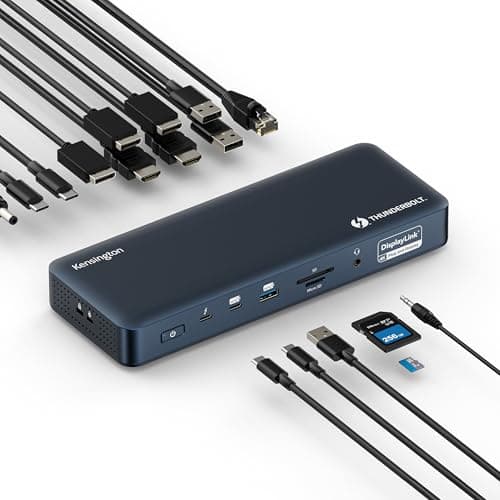
Kensington Kensington SD5900T Thunderbolt 4 Dock with DisplayLink
Kensington SD5900T Thunderbolt 4 Dock with DisplayLink

The one that covers both methods: Thunderbolt 4 for bandwidth plus DisplayLink for the displays the host cannot drive itself, up to four at 4K 60Hz, with 2.5GbE and up to 100W back to the laptop.

Thunderbolt plus DisplayLink, either host
8.8
$220.99Amazon
03
Plugable Plugable USB-C Triple Display Docking Station
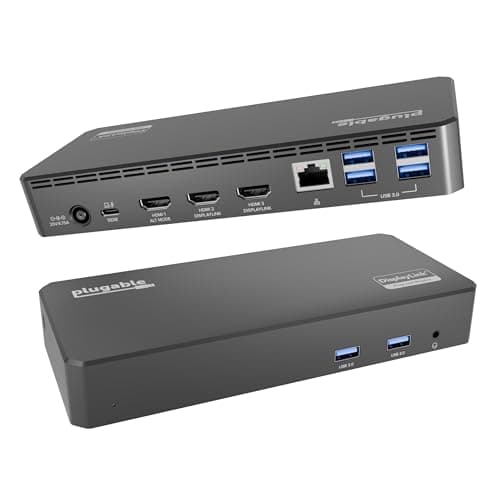
Plugable USB-C Triple Display Docking Station

The Mac answer, and the dock to buy when MST leaves your screens mirrored: DisplayLink draws each display over USB with a driver. Plugable describes it as display-first, with little to no host charging.

Best for a Mac - extends where MST mirrors
7.8
$135.96Amazon
04
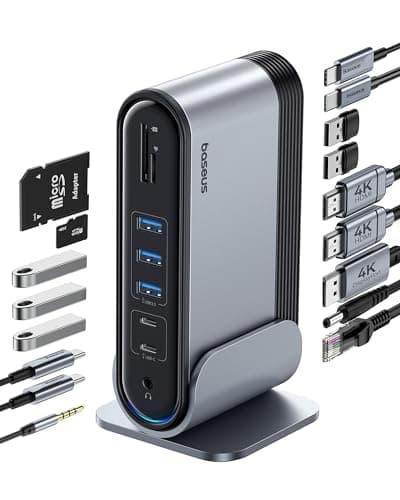
Baseus Baseus 17-in-1 Docking Station (3 monitors)
Baseus 17-in-1 Docking Station (3 monitors)

The budget pick: up to three monitors over HDMI and DisplayPort plus the widest port count here, for a fraction of the Thunderbolt docks. Baseus states triple support depends on the host and on MST or DisplayLink.

Budget pick - three outputs, most ports
8.5
$79.99Amazon

#ad · Live prices from the Amazon Product API, as of November 21, 2026. Where we have no verified live price we show none — we would rather leave a gap than print a number that has rotted.

In detail

The picks, in full

01
Plugable Plugable 16-in-1 Thunderbolt 4 Dock (TBT4-UDZ)

Best overall - native Thunderbolt, Windows

Plugable 16-in-1 Thunderbolt 4 Dock (TBT4-UDZ)

Host connection
Thunderbolt 4 / USB4, also works in USB-C Alt Mode
Video ports
2x HDMI 2.0 and 2x DisplayPort 1.2
Displays
Up to four at 4096 x 2160 60Hz on compatible Windows hosts
Charging
Up to 100W (98W certified) to the host
Data ports
3x USB-A and 1x USB-C at 10Gb/s, 2x USB-A at 5Gb/s, 1x USB 2.0
Network
2.5 Gigabit Ethernet
Card readers
UHS-II SD and microSD
9.0/10

Four video outputs and genuine Thunderbolt 4 bandwidth behind them, with up to four displays at 4096 x 2160 and 60Hz - a figure Plugable states for compatible Windows hosts, which is the caveat to read before you buy.

Third Display Method
9.4
Host Charging
9.4
Port Count
9.4
Value
7.6

Pros

  • Four video outputs built in, so no adapters are needed for a three or four-screen desk
  • Uses DisplayPort MST with compression to reach four 4K screens on Windows
  • Falls back to plain USB-C Alt Mode, so it still does something useful on a non-Thunderbolt laptop
  • Ships with a vertical stand, which reclaims the desk footprint a dock usually eats

Cons

  • The four-display capability is Windows-only; Macs are limited to what the chip supports
  • HDMI 2.0 and DisplayPort 1.2 rather than the newest standards
  • Physically large at roughly 7.7 by 4.1 inches even on its stand

Skip this if…

…you are on a base M-series Mac - this dock has no DisplayLink and cannot extend two screens for you.

$217.49View on Amazon

$289.9925% off

Price as of November 21, 2026. Prices change — Amazon's is the one that counts.

#ad · we may earn a commission from this link to Plugable 16-in-1 Thunderbolt 4 Dock (TBT4-UDZ)

02
Kensington Kensington SD5900T Thunderbolt 4 Dock with DisplayLink

Thunderbolt plus DisplayLink, either host

Kensington SD5900T Thunderbolt 4 Dock with DisplayLink

Host connection
Thunderbolt 4, 40Gb/s
Displays
Up to four external displays at 4K 60Hz via DisplayLink
Video ports
2x HDMI/DP, 1x DP, 2x Thunderbolt 4 downstream
Ports
16-in-1 including USB-C 10Gb/s, USB-A, SD and microSD
Network
2.5 Gigabit Ethernet
Charging
Up to 100W (96W certified) to the host
8.8/10

The one that covers both methods: Thunderbolt 4 for bandwidth plus DisplayLink for the displays the host cannot drive itself, up to four at 4K 60Hz, with 2.5GbE and up to 100W back to the laptop.

Third Display Method
9.6
Host Charging
9.4
Port Count
9
Value
7.2

Pros

  • DisplayLink bypasses the Apple silicon base-chip limit of one external display entirely
  • Quad 4K at 60Hz is more display output than any non-DisplayLink dock here
  • Also works as a straight Thunderbolt 4 dock on Windows
  • 100W charging and 2.5GbE match the premium tier

Cons

  • DisplayLink is software-driven, which costs some CPU and is not suited to high-frame-rate video
  • Requires a DisplayLink driver install and its own update cycle
  • Premium pricing with the same caveat as any Thunderbolt dock

Skip this if…

…you need low-latency full-frame-rate video on every screen - DisplayLink compresses to get there

$220.99View on Amazon

$260.9915% off

Price as of November 21, 2026. Prices change — Amazon's is the one that counts.

#ad · we may earn a commission from this link to Kensington SD5900T Thunderbolt 4 Dock with DisplayLink

03
Plugable Plugable USB-C Triple Display Docking Station

Best for a Mac - extends where MST mirrors

Plugable USB-C Triple Display Docking Station

Host connection
USB-C to host laptop
Display technology
DisplayLink (driver-based, not DP-Alt-Mode)
Displays
Up to triple display
Compatibility
Extends multiple screens on macOS and Windows via the driver
Charging
Little to no host charging — a display-first dock
7.8/10

The Mac answer, and the dock to buy when MST leaves your screens mirrored: DisplayLink draws each display over USB with a driver. Plugable describes it as display-first, with little to no host charging.

Third Display Method
9
Host Charging
5.5
Port Count
8.2
Value
8.6

Pros

  • Drives multiple external screens on a Mac that MST leaves mirrored
  • Adds a third display where native docks stop at two
  • Works across a wide range of hosts through the driver

Cons

  • DisplayLink leans on the CPU and is less ideal for fast full-screen motion
  • Requires installing and updating the DisplayLink driver
  • Does not charge the laptop the way a native power-delivery dock does

Skip this if…

…you want a driver-free, plug-and-play dock for fast-moving video — a native DP-Alt-Mode dock suits that better

$135.96View on Amazon

$159.9515% off

Price as of November 21, 2026. Prices change — Amazon's is the one that counts.

#ad · we may earn a commission from this link to Plugable USB-C Triple Display Docking Station

04
Baseus Baseus 17-in-1 Docking Station (3 monitors)

Budget pick - three outputs, most ports

Baseus 17-in-1 Docking Station (3 monitors)

Host connection
USB-C to host laptop
Displays
Up to three monitors (HDMI + DisplayPort)
Ports
17-in-1 (large USB-A/C set, card reader, Ethernet, audio)
Charging
USB-C power passthrough for the host laptop
Compatibility
Triple-display support depends on the host and MST/DisplayLink
8.5/10

The budget pick: up to three monitors over HDMI and DisplayPort plus the widest port count here, for a fraction of the Thunderbolt docks. Baseus states triple support depends on the host and on MST or DisplayLink.

Third Display Method
7
Host Charging
7.6
Port Count
9.6
Value
9.6

Pros

  • The widest port count here for a busy, many-device desk
  • Up to three display outputs from one cable
  • Card readers and audio built in, so fewer add-on adapters

Cons

  • Triple-display results hinge on what the host actually supports
  • More ports than a simple two-screen setup will ever use

Skip this if…

…you only run two screens and a couple of peripherals — you are paying for ports you will not fill

$79.99View on Amazon

Price as of November 21, 2026. Prices change — Amazon's is the one that counts.

#ad · we may earn a commission from this link to Baseus 17-in-1 Docking Station (3 monitors)

Resolution and refresh share one budget

Display bandwidth is finite and three screens divide it. Thunderbolt 4 carries 40Gb/s total, shared between video and data, which is why a dock that drives three 4K panels at 60Hz is making a different claim from one that drives three at 30Hz. The two Thunderbolt docks here publish 4K 60Hz figures; the two USB-C docks publish display counts without a per-display refresh figure we could read at source, so treat 60Hz across three 4K screens as unverified on those two rather than assumed. USB-C versus Thunderbolt docks explains where the bandwidth goes.

The DisplayLink trade, stated plainly

DisplayLink is the method that makes impossible setups possible, and it is a compromise rather than a free lunch. In its favour: it works on Macs that MST leaves mirrored, it adds a display where the host has run out of pipelines, and it is the only route to three screens on a lot of real laptops. Against it: you install and maintain a kernel-level driver, the dock is doing work the GPU would otherwise do so there is measurable CPU load, and compressed video means fast motion and gaming look worse than native. For spreadsheets, documents, terminals and dashboards — which is what a third monitor is usually for — it is a good trade.

Charging is the specification people forget

A dock that drives three screens but does not charge the laptop means a second cable and a second brick, which rather defeats the point. The two Thunderbolt docks here publish up to 100W (98W and 96W certified respectively); the Plugable USB-C Triple Display is explicitly a display-first dock with little to no host charging, and the Baseus passes power through from your own supply. Match the figure to your laptop’s own adapter wattage and treat that as the floor, not the target.

If two screens is really enough

Worth asking, because two screens costs less in every direction: a cheaper dock, no driver, no MST question, and native 60Hz on almost any host. The dual-monitor dock roundup is the page for that, and two monitors from one HDMI port is the cheapest version of the whole problem. For the dock field ranked on interface tier rather than display count, the Thunderbolt dock roundup is the right page.
How we picked

We do not run a testing lab

We compiled the published manufacturer specifications, did the ergonomics, VESA and desk-depth math ourselves, and read aggregated owner reviews, then scored each product against a published rubric. The scores are judgments from documented research — they are not measurements we took, because we do not have a lab and we are not going to pretend we do. Every spec traces back to a listing or manual named in Sources.

Questions

Frequently asked

Can one docking station run three monitors?
Yes, by one of three methods: MST, which splits a DisplayPort stream and needs host support; DisplayLink, which uses a driver and works almost anywhere including on Macs; or native Thunderbolt, where the host drives each screen directly. Which one you need depends on your laptop’s processor, not on the dock - check how many external displays your chip supports first.
Why does my dock only mirror my screens on a Mac?
Because the dock is using MST and Apple silicon does not extend over MST - it duplicates instead. The fix is a DisplayLink dock, which draws each display over USB with a driver. The Plugable USB-C Triple Display above is that dock, and the Kensington SD5900T adds DisplayLink on top of Thunderbolt 4.
Is DisplayLink worth it for a third monitor?
For documents, spreadsheets, terminals and dashboards, yes - it is often the only way to get a third screen at all. For video editing or anything with fast motion, no: the stream is compressed and you will see it. You are also installing a kernel-level driver and accepting some CPU load, which is a fair price for a screen you could not otherwise have.
What is the cheapest dock for three monitors?
The Baseus 17-in-1, which publishes up to three monitors over HDMI and DisplayPort plus the widest port count on this page. Baseus states that triple-display support depends on the host and on MST or DisplayLink, so the laptop check matters more here than on the Thunderbolt docks.

Keep reading

Receipts

Sources

We do not run a testing lab, and we do not pretend to. Specifications come from the manufacturer or retailer listing; the footprint and clearance math is ours and reproducible. Where we could not verify a number, we say so on the page rather than quietly leaving it out. Read our full method.